
Nexelia Academy · Official Revision Notes
Complete A-Level revision notes · 20 chapters
This chapter covers how computers represent information using binary, denary, and hexadecimal number systems, including binary arithmetic. It also explores character encoding, multimedia representation for images and sound, and the essential techniques of file compression.
Binary — Base two number system based on the values 0 and 1 only.
Computers use binary because their internal components, like switches, can only be in one of two states: ON (1) or OFF (0). This fundamental system underpins all digital data representation, much like a light switch that can only be on or off.
Bit — Abbreviation for binary digit.
A bit is the smallest unit of data in a computer, representing a single 0 or 1. Multiple bits are combined to represent more complex information, similar to how many coins together can represent a larger number, with each coin showing only heads or tails.
Hexadecimal — A number system based on the value 16 (uses the denary digits 0 to 9 and the letters A to F).
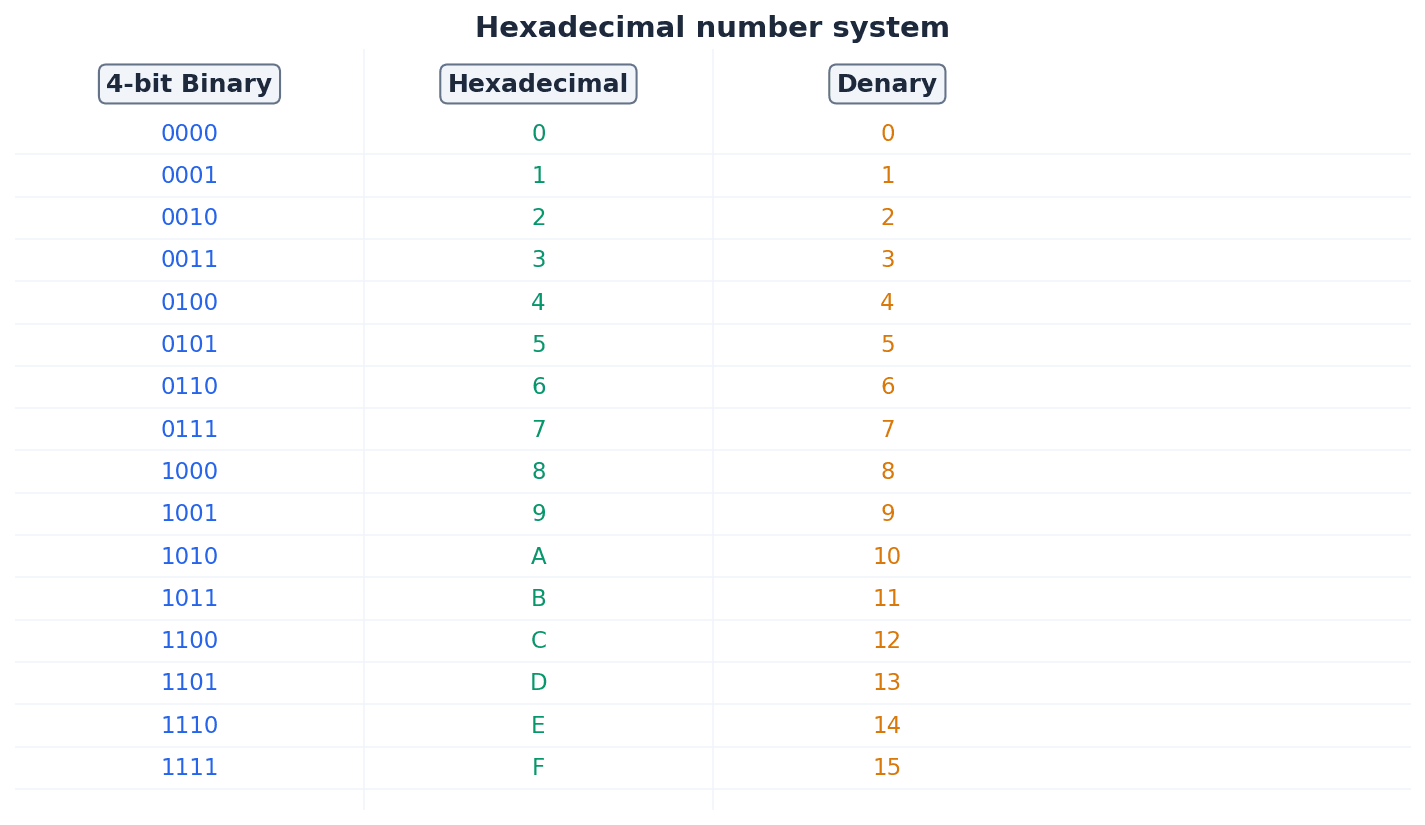
Hexadecimal is a base-16 system that provides a more compact and human-readable representation of binary numbers, as each hexadecimal digit corresponds to four binary bits. It is often used in computing for memory addresses and colour codes, acting as a shorthand for long strings of 0s and 1s.
Binary-coded decimal (BCD) — Number system that uses 4 bits to represent each denary digit.
BCD represents each denary digit (0-9) with its own 4-bit binary code. This system is particularly useful for applications requiring exact decimal representation, such as financial calculations, where rounding errors from pure binary floating-point numbers are unacceptable. It's like converting each digit of a number separately into its own 4-bit binary code.
Students often think BCD is the same as converting a denary number to binary, but actually BCD encodes each denary digit individually, leading to a different binary string.
Computers fundamentally operate using binary, but denary (base 10) is used by humans, and hexadecimal (base 16) offers a more compact representation of binary data. Conversion between these systems is crucial. For instance, converting binary to hexadecimal involves splitting the binary number into 4-bit groups and converting each group to its hexadecimal equivalent. Conversely, converting hexadecimal to binary involves converting each hexadecimal digit into its 4-bit binary code.
Practice conversions between all three number systems (binary, denary, hexadecimal) until they are quick and accurate, as these are foundational marks.
One’s complement — Each binary digit in a number is reversed to allow both negative and positive numbers to be represented.
To find the one's complement of a binary number, all 0s become 1s and all 1s become 0s. This method is one way to represent negative numbers, similar to flipping a switch for every light in a room to reverse its state.
Two’s complement — Each binary digit is reversed and 1 is added in right-most position to produce another method of representing positive and negative numbers.
Two's complement is widely used in computers for representing signed integers because it simplifies arithmetic operations and avoids having two representations for zero. It's like finding the 'opposite' of a number, but with an extra step of adding one to make the arithmetic work seamlessly.
Students often confuse one's complement with two's complement, especially the 'add 1' step for two's complement. Remember that two's complement involves inverting bits THEN adding 1.
Sign and magnitude — Binary number system where left-most bit is used to represent the sign (0 = + and 1 = –); the remaining bits represent the binary value.
In sign and magnitude, the most significant bit indicates whether the number is positive or negative, while the rest of the bits represent the absolute value. This method is intuitive, like writing a plus or minus sign before a number, but complicates arithmetic operations.
Binary addition follows similar rules to denary addition, with carries occurring when the sum of bits is 2 or more. For binary subtraction, the two's complement method is commonly used. This involves converting the subtrahend (the number being subtracted) into its two's complement and then adding it to the minuend. Any overflow bit generated during this addition is typically ignored for the final result.
When performing binary subtraction, always convert the subtrahend to its two's complement and then add; this is a common exam technique.
Memory dump — Contents of a computer memory output to screen or printer.
A memory dump displays the raw data stored in a computer's memory, typically in hexadecimal format, which is useful for debugging software and diagnosing system errors. It's like taking a snapshot of everything currently stored in the computer's active memory, presented in a format that programmers can read.
Character set — A list of characters that have been defined by computer hardware and software.
A character set is a collection of characters that a computer system can recognize and display, each assigned a unique numerical code. It is essential for computers to process and display human-readable text, acting as the complete alphabet and symbol list a computer 'knows'.
ASCII code — Coding system for all the characters on a keyboard and control codes.
ASCII (American Standard Code for Information Interchange) is a 7-bit character encoding standard that represents text characters in computers. It includes uppercase and lowercase letters, numbers, punctuation, and control characters, forming the basis for text communication, much like a universal dictionary where every character has a specific numerical code.
Unicode — Coding system which represents all the languages of the world (first 128 characters are the same as ASCII code).
Unicode is a universal character encoding standard designed to represent text from all of the world's writing systems. It uses up to four bytes per character, allowing for a vast number of characters compared to ASCII, making it suitable for global applications. It's like an expanded, global dictionary that includes every character from every language.
Students often think ASCII can represent all characters in the world, but actually it is limited to 128 (or 256 for extended ASCII) characters, primarily English-based. Unicode is required for comprehensive character sets.
Bit-map image — System that uses pixels to make up an image.
A bit-map image, also known as a raster image, stores an image as a grid of individual pixels. Each pixel's colour information is stored, making them suitable for photographs and realistic images, but they can become pixelated when scaled up. This is like drawing a picture by filling in tiny squares on a grid.
Pixel — Smallest picture element that makes up an image.
A pixel is a single point in a raster image or on a display screen. Each pixel contains colour information, and collectively, millions of pixels form a complete image, much like a single tiny coloured tile in a mosaic.
Colour depth — Number of bits used to represent the colours in a pixel, e.g. 8 bit colour depth can represent 2^8 = 256 colours.
Colour depth determines the number of distinct colours that can be represented by each pixel in an image. A higher colour depth (more bits per pixel) allows for a wider range of colours and a more realistic image, but also increases file size. It's like having a box of crayons; a higher colour depth means more crayons to draw with.
Bit depth — Number of bits used to represent the smallest unit in, for example, a sound or image file – the larger the bit depth, the better the quality of the sound or colour image.
Bit depth is a general term referring to the number of bits used to store information about a single sample (e.g., a pixel's colour or a sound's amplitude). In images, it's synonymous with colour depth; in sound, it's sampling resolution. Think of it as the precision of measurement.
Number of colours from bit depth
Used for calculating the number of possible colours in an image given its colour depth, or the number of amplitude values for sound given its sampling resolution.
Image resolution — Number of pixels that make up an image, for example, an image could contain 4096 × 3192 pixels (12 738 656 pixels in total).
Image resolution specifies the total number of pixels in an image, typically expressed as width × height. Higher image resolution means more detail and sharpness, but also results in larger file sizes. It's like the total number of tiny squares on your drawing grid.
Screen resolution — Number of horizontal and vertical pixels that make up a screen display.
Screen resolution refers to the fixed number of pixels a display device can show. If an image's resolution exceeds the screen's resolution, the image may be scaled down or cropped, potentially affecting its displayed quality. This is like the fixed number of tiny lights on your TV screen.
Students often confuse image resolution (total pixels in an image) with screen resolution (pixels on a display device). Remember that image resolution is an intrinsic property of the image file, while screen resolution is a property of the display device.
Resolution — Number of pixels per column and per row on a monitor or television screen.
Resolution, in a general sense, refers to the detail level of an image or display. For screens, it's the pixel dimensions; for images, it's the total pixel count. Higher resolution generally means more detail, like the clarity of a photograph.
Pixel density — Number of pixels per square centimetre.
Pixel density, often measured in pixels per inch (ppi), indicates how many pixels are packed into a given physical area. Higher pixel density results in sharper, clearer images on a display, especially when viewed up close. Imagine fitting more tiny lights into the same size area on a screen.
Bit-map image file size (bits)
This formula calculates the raw uncompressed file size in bits. To get bytes, divide by 8. To get MB or MiB, further division is needed.
Pixel density (ppi)
This formula calculates the pixel density in pixels per inch (ppi) for a given screen resolution and diagonal screen size.
For image file size calculations, remember the formula: `File size (bits) = Image width × Image height × Bit depth`, and convert to bytes/KB/MB if requested.
Students often assume bit-map images can be scaled indefinitely without quality loss, but actually they lose sharpness and become pixelated when enlarged because the number of pixels remains fixed.
Vector graphics — Images that use 2D points to describe lines and curves and their properties that are grouped to form geometric shapes.
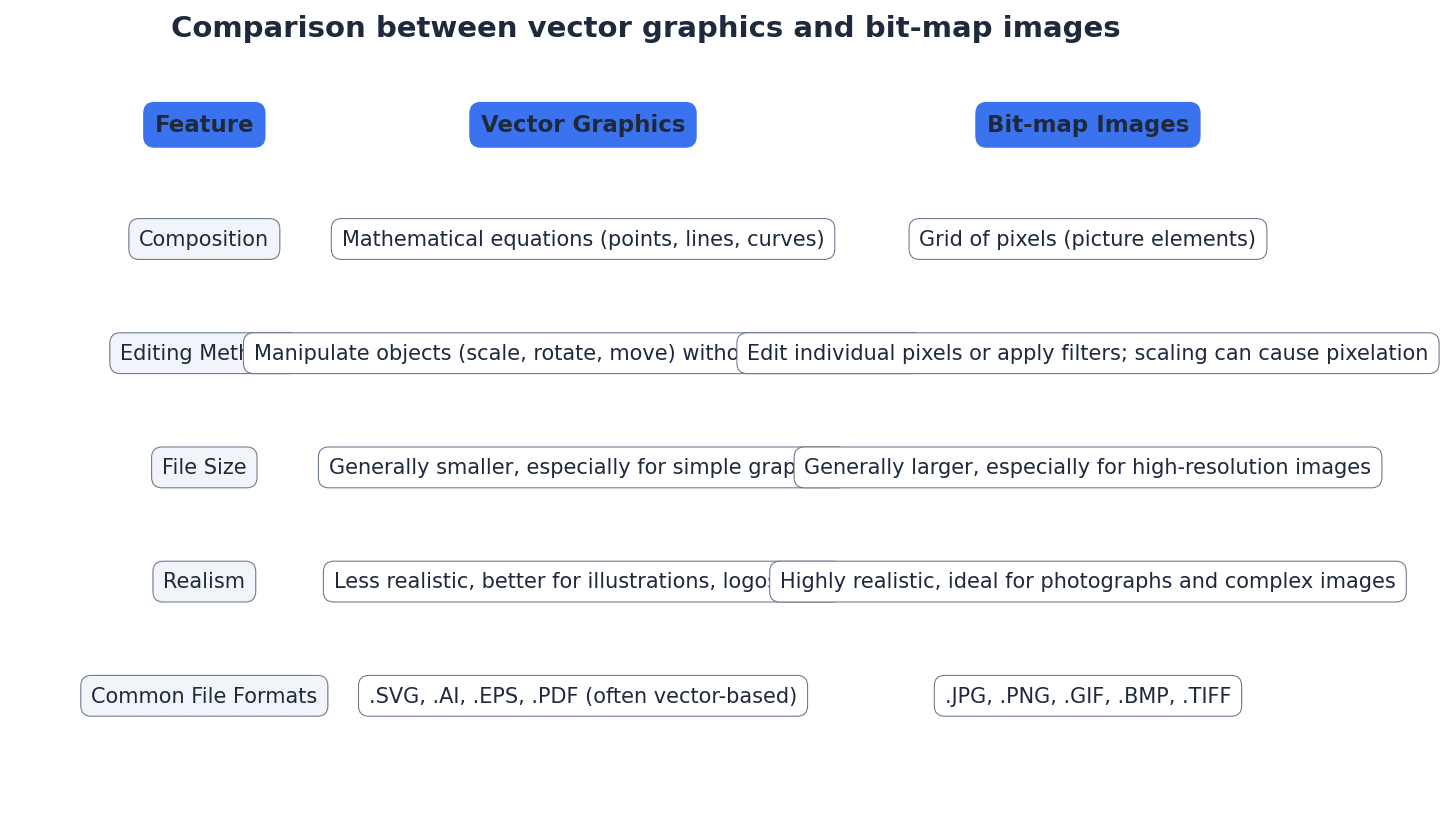
Vector graphics are created using mathematical descriptions of geometric shapes (points, lines, curves, polygons) rather than a grid of pixels. This allows them to be scaled to any size without loss of quality, making them ideal for logos and illustrations. It's like giving a computer instructions to draw shapes using mathematical formulas.
Bit-map images are composed of pixels and are suitable for photographs and realistic images, but they pixelate when scaled. Vector graphics, on the other hand, are defined by mathematical descriptions of shapes, allowing them to be scaled infinitely without any loss of quality. This makes vector graphics ideal for logos, illustrations, and designs that need to be resized frequently.
Sampling resolution — Number of bits used to represent sound amplitude (also known as bit depth).
Sampling resolution determines the precision with which the amplitude of a sound wave is measured and stored during digitisation. A higher sampling resolution (more bits) captures more subtle variations in loudness, resulting in better sound quality but larger file sizes. It's like using a more precise ruler to measure the height of a sound wave.
Sampling rate — Number of sound samples taken per second.
Sampling rate determines how frequently an analogue sound wave is measured and converted into digital data. A higher sampling rate captures more points along the wave, resulting in a more accurate digital representation of the original sound and better quality, but also a larger file size. Imagine taking more snapshots of a moving object per second.
Students often confuse sampling rate (how often samples are taken) with sampling resolution (the precision of each sample's amplitude) for sound files. Remember that rate is about frequency, and resolution is about precision.
Frame rate — Number of video frames that make up a video per second.
Frame rate determines how many still images (frames) are displayed sequentially per second to create the illusion of motion in a video. A higher frame rate results in smoother, more fluid motion but increases the video file size. It's like flipping through a stack of drawings; more drawings per second make the animation smoother.
Lossless file compression — File compression method where the original file can be restored following decompression.
Lossless compression algorithms reduce file size by identifying and encoding redundant data without discarding any information. This ensures that when the file is decompressed, it is an exact replica of the original, making it suitable for critical data like text documents or spreadsheets. It's like packing a suitcase more efficiently by folding clothes neatly.
Run length encoding (RLE) — A lossless file compression technique used to reduce text and photo files in particular.
Run-length encoding (RLE) is a lossless compression method that replaces sequences of identical data values (runs) with a single data value and a count. For example, 'AAAAABBC' becomes 'A5B2C1'. This is particularly effective for images with large areas of uniform colour or repetitive text.
Lossy file compression — File compression method where parts of the original file cannot be recovered during decompression, so some of the original detail is lost.
Lossy compression algorithms achieve significant file size reduction by permanently discarding data deemed less important or imperceptible to human senses. This is commonly used for multimedia files like images (JPEG) and audio (MP3) where some quality degradation is acceptable for smaller file sizes. It's like summarising a long book, keeping main points but leaving out details.
JPEG — Joint Photographic Expert Group – a form of lossy file compression based on the inability of the eye to spot certain colour changes and hues.
JPEG is a widely used lossy compression standard for digital images, particularly photographs. It achieves high compression ratios by discarding visual information that the human eye is less sensitive to, making it ideal for web images and storage where some quality compromise is acceptable. It's like a smart artist who knows which details in a painting you won't notice anyway.
MP3/MP4 files — File compression method used for music and multimedia files.
MP3 (MPEG-3) is a lossy audio compression format that significantly reduces the size of audio files by removing sounds outside human hearing range or quieter sounds masked by louder ones. MP4 (MPEG-4) is a broader container format that can store audio, video, images, and subtitles, also often using lossy compression for its components. MP3 is like a smart DJ who removes sounds you can't hear, while MP4 is a multimedia box for various compressed content.
Audio compression — Method used to reduce the size of a sound file using perceptual music shaping.
Audio compression techniques reduce the file size of sound recordings by identifying and removing redundant or perceptually irrelevant information. Perceptual music shaping is a key aspect, focusing on what the human ear can and cannot detect. It's like editing a recording to remove background noise and sounds too high or low for human hearing.
Perceptual music shaping — Method where sounds outside the normal range of hearing of humans, for example, are eliminated from the music file during compression.
Perceptual music shaping is a technique used in lossy audio compression (like MP3) that leverages psychoacoustics. It removes frequencies beyond human hearing and quieter sounds that are masked by louder ones, significantly reducing file size with minimal perceived quality loss. Imagine a sound engineer who knows exactly what sounds you can't hear and removes them.
Bit rate — Number of bits per second that can be transmitted over a network. It is a measure of the data transfer rate over a digital telecoms network.
Bit rate, in the context of compressed media, refers to the amount of data (bits) used per second to encode a continuous medium like audio or video. A higher bit rate generally means better quality but a larger file size and higher bandwidth requirement. Think of it as the 'density' of information in a stream.
When asked to 'explain' concepts like compression or sound representation, describe the process and the impact of parameters (e.g., higher sampling rate = better quality, larger file).
Be prepared to compare and contrast bit-map and vector graphics, focusing on their underlying data representation, scalability, and typical uses.
When discussing quality, link higher bit depth directly to better quality (more colours, more accurate sound amplitude) and larger file sizes.
Definitions Bank
Binary
Base two number system based on the values 0 and 1 only.
Bit
Abbreviation for binary digit.
One’s complement
Each binary digit in a number is reversed to allow both negative and positive numbers to be represented.
Two’s complement
Each binary digit is reversed and 1 is added in right-most position to produce another method of representing positive and negative numbers.
Sign and magnitude
Binary number system where left-most bit is used to represent the sign (0 = + and 1 = –); the remaining bits represent the binary value.
+26 more definitions
View all →Common Mistakes
Confusing one's complement with two's complement.
Remember that two's complement involves inverting all bits THEN adding 1 to the right-most bit.
Misunderstanding that BCD encodes each denary digit separately.
BCD represents each denary digit (0-9) with its own 4-bit binary code, rather than converting the entire denary number to a single binary value.
Believing that ASCII can represent all global characters.
ASCII is limited to 128 (or 256 for extended ASCII) characters, primarily English-based. Unicode is necessary for representing characters from all global languages.
+3 more
View all →This chapter explores the foundational concepts of computer networking, covering various network types, architectural models, and essential hardware. It delves into how devices communicate, from local connections to the global internet, and examines the benefits and challenges of connecting systems.
Node — Device connected to a network (it can be a computer, storage device or peripheral device).
A node is any active electronic device attached to a network that can send, receive, or forward information. This broad term includes computers, printers, servers, and other network-enabled hardware, acting as a distinct point that can send or receive traffic.
Packet — Message/data sent over a network from node to node (packets include the address of the node sending the packet, the address of the packet recipient and the actual data).
Data transmitted over networks is broken down into smaller units called packets. Each packet contains a portion of the actual data along with control information, such as source and destination addresses, ensuring it reaches the correct recipient and can be reassembled. This is like a small, individually addressed envelope containing a piece of a larger letter.
Students often think data is sent as one continuous stream, but actually it's broken into packets for efficient routing and error handling across networks.
LAN — Local area network, a network covering a small area such as a single building.
LANs connect a number of computers and shared devices, like printers, within a limited geographical space, typically contained within one building or a small campus. They are like the internal communication system within a single office building, allowing employees to share resources easily.
Students often think all networks are the same, but actually LANs are distinct due to their small geographical scope and typically private ownership.
WLAN — Wireless LAN.
WLANs provide wireless network communications over short distances (up to 100 metres) using radio or infrared signals, eliminating the need for physical cables. They rely on wireless access points (WAPs) to connect devices to the wired network, much like a cordless phone system for your computer network.
WAP — (Wireless) access point which allows a device to access a LAN without a wired connection.
WAPs are devices connected to a wired network at fixed locations, enabling wireless devices to connect to the LAN using radio or infrared signals. They receive and transmit data between the wireless and wired network structures, acting like a radio tower for your local network.
Students often think a WAP is a router, but actually a WAP primarily extends a wired network wirelessly, while a router connects different networks and routes traffic.
MAN — Metropolitan area network, a network which is larger than a LAN but smaller than a WAN, which can cover several buildings in a single city, such as a university campus.
MANs connect multiple LANs within a city-wide geographical area, providing connectivity across different buildings or sites within that city. They are restricted in size geographically to, for example, a single city, similar to a city-wide bus system connecting different neighborhoods.
Students often think MANs are just large LANs, but actually they bridge the gap between LANs and WANs by covering a city-sized area, often connecting multiple distinct LANs.
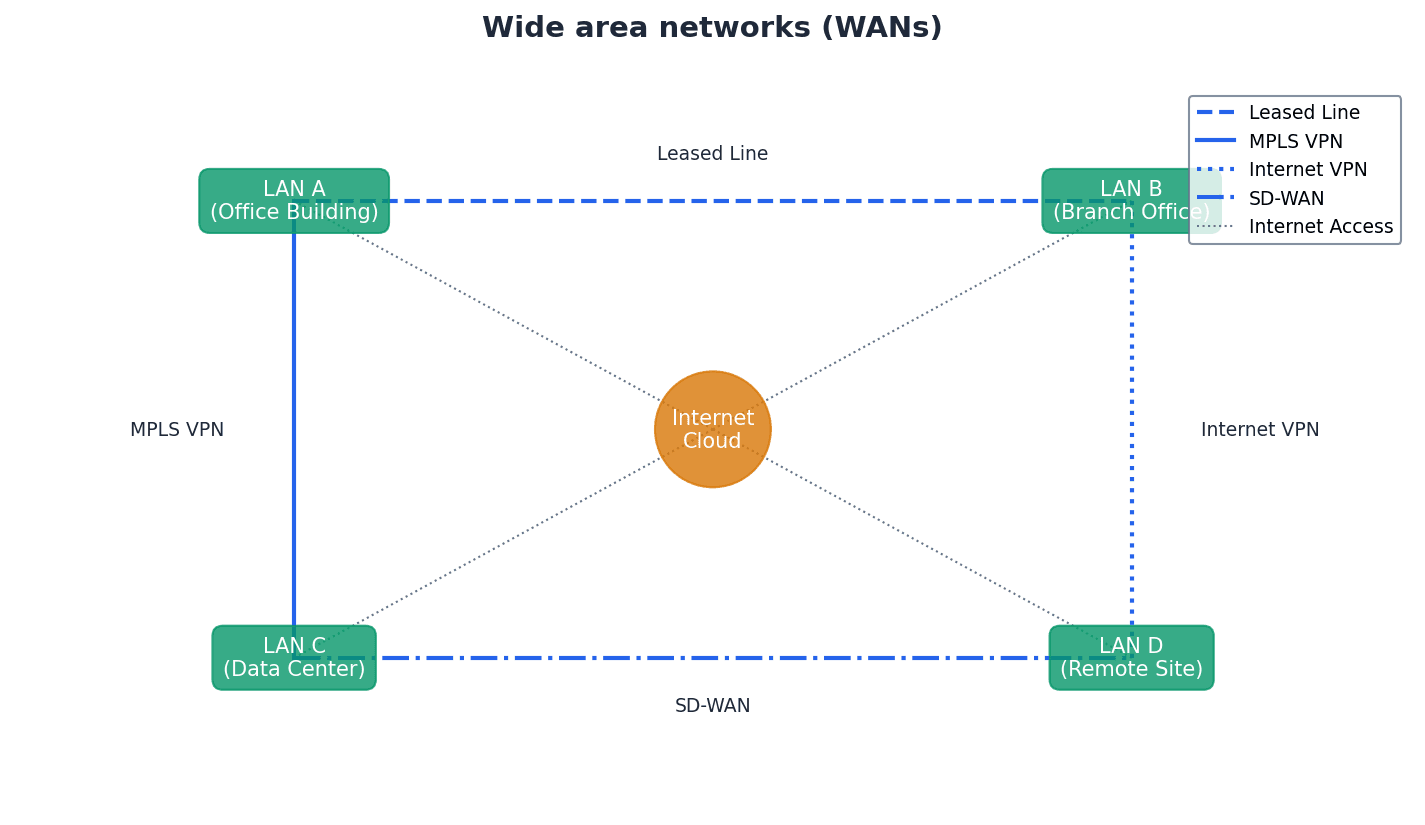
WAN — Wide area network, a network covering a very large geographical area.
WANs typically consist of multiple LANs connected via public communication networks like telephone lines or satellites, spanning countries or continents. They are used for long-distance communication between geographically dispersed locations, much like a global postal service connecting many local post offices.
Students often think the internet is a WAN, but actually the internet is a vast number of decentralised networks and computers with a common point of access, making it intrinsically different from a single WAN.
PAN — Network that is centred around a person or their workspace.
A PAN is a very small network, typically connecting devices in close proximity to an individual, such as a laptop, smartphone, tablet, and printer within a user's house. It's like a personal bubble of connectivity around you, linking your phone, headphones, and smartwatch together.
Students often think PANs are always Bluetooth, but actually while Bluetooth is common, PAN is a broader term for any personal-scale network, wired or wireless.
WPAN — Wireless personal area network. A local wireless network which connects together devices in very close proximity (such as in a user’s house); typical devices would be a laptop, smartphone, tablet and printer.
A WPAN is a wireless network designed for short-range communication between devices centered around an individual's workspace or home. Bluetooth is a common technology used to create WPANs, enabling devices like headphones, phones, and computers to connect wirelessly, like an invisible bubble of connectivity.
Students often think WPANs are just Bluetooth, but actually Bluetooth is a technology used to create a WPAN, which is the broader concept of a personal wireless network.
For network types (LAN, WAN, MAN, PAN), clearly differentiate by geographical scope and typical use cases.
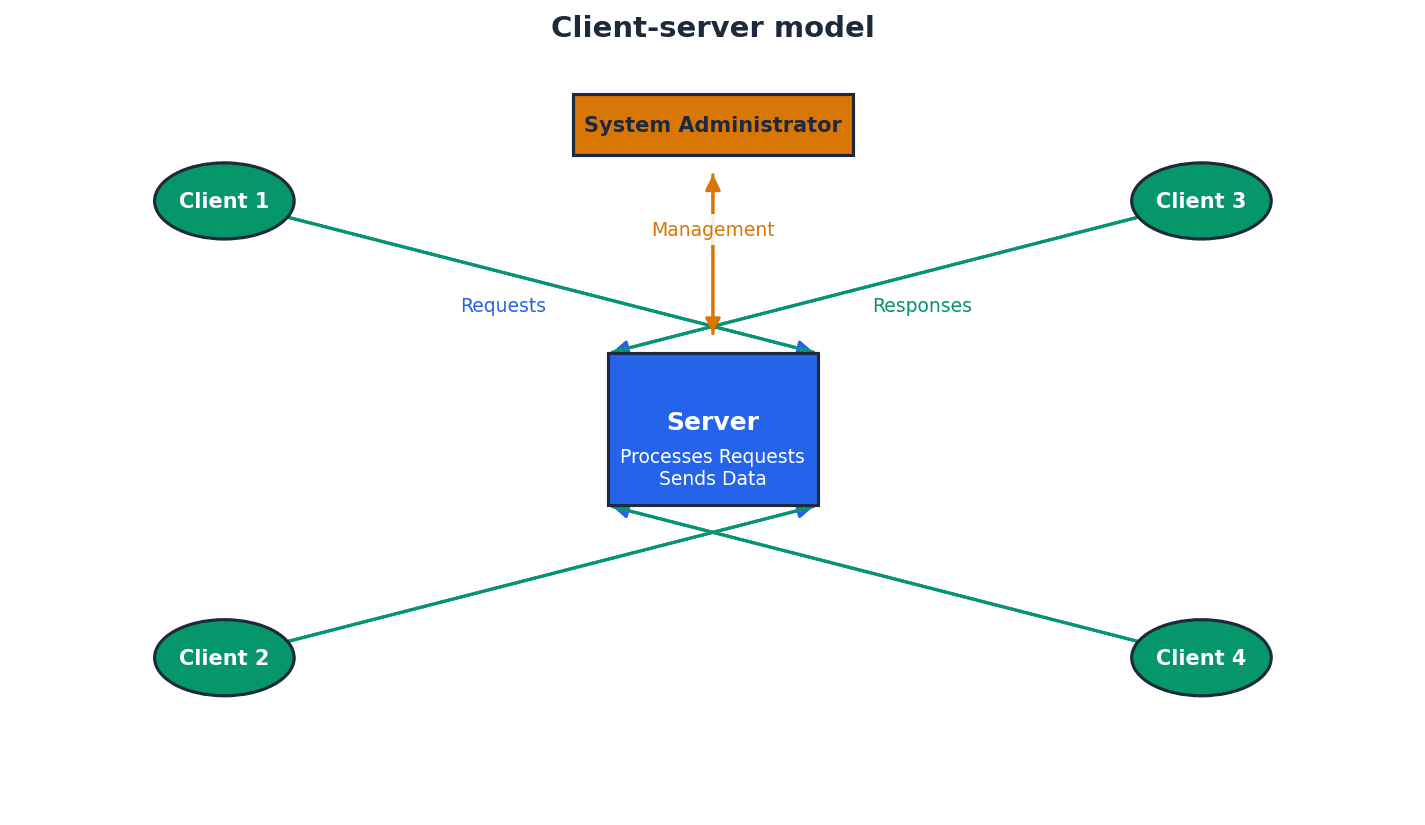
Client-server — Network that uses separate dedicated servers and specific client workstations.
In a client-server model, client computers connect to dedicated servers to access files and resources, with the server managing security, access rights, and central data storage. This model offers greater security and scalability, much like a restaurant where the kitchen (server) prepares food and waiters (clients) deliver it.
Students often think clients and servers are equal, but actually servers have dedicated roles for resource management and security, while clients request and consume those resources.
File server — A server on a network where central files and other data are stored.
File servers enable users logged onto the network to access shared files and information, providing central storage and management of data. This allows for easier data sharing and central backups, similar to a central library where all resources are kept for students to access.
Peer-to-peer — Network in which each node can share its files with all the other nodes.
In a peer-to-peer network, there is no central server; each node acts as both a client and a server, sharing its own data and resources directly with other nodes. This model is typically used for small networks with less stringent security requirements, much like a group of friends sharing files directly from their own laptops.
When comparing client-server and peer-to-peer, discuss advantages and disadvantages for both models, including scalability and security.
Thin client — Device that needs access to the internet for it to work and depends on a more powerful computer for processing.
A thin client, whether hardware or software, has limited local processing power and storage, relying heavily on a central server or powerful computer for most of its functionality. It will not work without a constant connection to the server, much like a remote control for a smart TV that relies entirely on the TV for complex tasks.
Students often confuse thin clients with simply 'cheap computers', overlooking their fundamental dependence on a server for processing.
Thick client — Device which can work both off line and on line and is able to do some processing even if not connected to a network/internet.
A thick client, whether hardware or software, possesses significant local processing power, storage, and an operating system, allowing it to perform tasks independently even when disconnected from a network or server. It can still connect to networks for additional functionality, similar to a fully-equipped laptop that can run programs offline.
When comparing thin and thick clients, highlight the thin client's reliance on a server for processing and its inability to function offline as key distinguishing features.
Network topologies define the physical or logical arrangement of nodes and connections within a network. Different topologies offer varying levels of reliability, performance, and ease of management, each with its own set of advantages and disadvantages regarding fault tolerance and data flow.
Bus network topology — Network using single central cable in which all devices are connected to this cable so data can only travel in one direction and only one device is allowed to transmit at a time.
In a bus topology, all nodes share a single communication line, requiring terminators at each end to prevent signal reflection. While easy to expand and requiring little cabling, a failure in the main cable brings down the entire network, and performance degrades under heavy load. It's like a single-lane road where only one car can travel at a time.
Students often think bus networks are robust, but actually they have a single point of failure (the main cable) which can bring down the entire network.
Star network topology — A network that uses a central hub/switch with all devices connected to this central hub/switch so all data packets are directed through this central hub/switch.
In a star topology, each device has a dedicated connection to a central hub or switch. This reduces data collisions, improves security, and makes it easier to identify faults, as a single connection failure only affects one node. It's like a central telephone exchange where every phone has its own direct line to the operator.
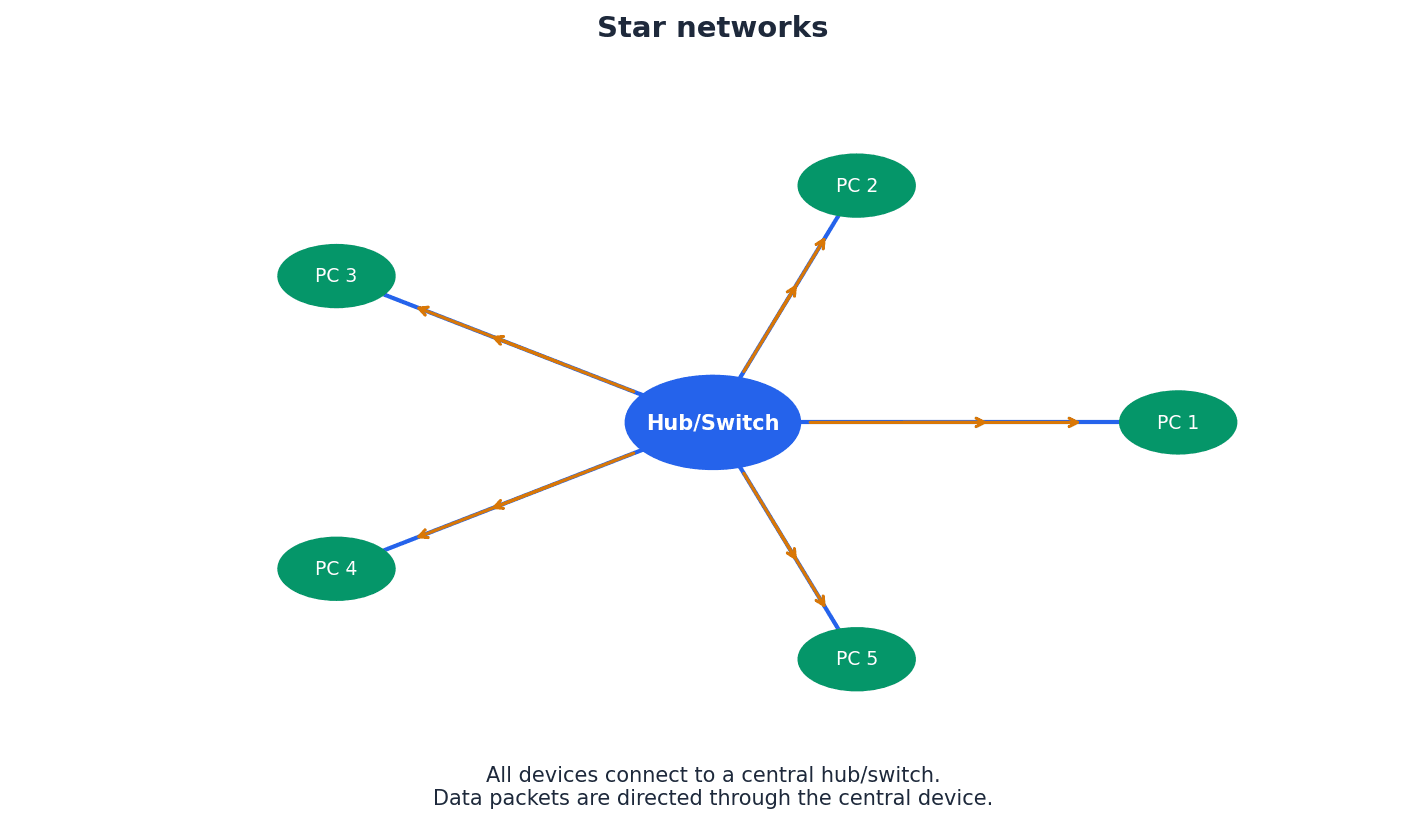
Students often think a star network is immune to failure, but actually if the central hub/switch fails, the entire network goes down.
Mesh network topology — Interlinked computers/devices, which use routing logic so data packets are sent from sending stations to receiving stations only by the shortest route.
Mesh networks feature multiple redundant connections between nodes, allowing data to be routed dynamically via the shortest path and re-routed if a node fails. This provides high reliability and security but is complex and expensive to set up, much like a city with many interconnected roads and intelligent GPS systems.
Students often think mesh networks are only for small areas, but actually they are commonly used for large-scale networks like the internet and WANs due to their robustness.
Hybrid network — Network made up of a combination of other network topologies.
A hybrid network combines two or more different topologies (e.g., bus and star) to leverage the advantages of each and accommodate diverse networking needs. While complex to install and maintain, they can handle large traffic volumes and are well-suited for larger, evolving networks, similar to a transportation system using both buses and taxis.
For network topologies, be prepared to draw and label diagrams, and explain the impact of a single point of failure for each.
Cloud computing involves storing and accessing data and programs over the internet instead of directly on your computer's hard drive. This model offers flexibility and scalability, allowing users to access resources from anywhere with an internet connection, but also introduces considerations regarding data security and control.
Cloud storage — Method of data storage where data is stored on off-site servers.
Cloud storage involves storing data on a network of remote servers, rather than directly on a user's device. This data is often replicated across multiple servers (data redundancy) to ensure availability and reliability, managed by a hosting company. It's like keeping your important documents in a secure, professional vault with multiple copies.
Data redundancy — Situation in which the same data is stored on several servers in case of maintenance or repair.
Data redundancy is a strategy used in cloud storage and other data management systems to ensure data availability and prevent loss. By storing multiple copies of the same data on different servers, the system can continue to operate even if one server fails or requires maintenance. This is like having multiple spare tires or copies of a key document.
Students often believe that data redundancy is wasteful, rather than a crucial strategy for data availability and disaster recovery.
When discussing cloud computing, ensure you cover both pros and cons, including aspects of data security and potential data loss.
Networks can be established using either wired or wireless technologies, each with distinct characteristics regarding speed, range, security, and cost. Wired networks typically offer higher speeds and greater security, while wireless networks provide convenience and mobility.
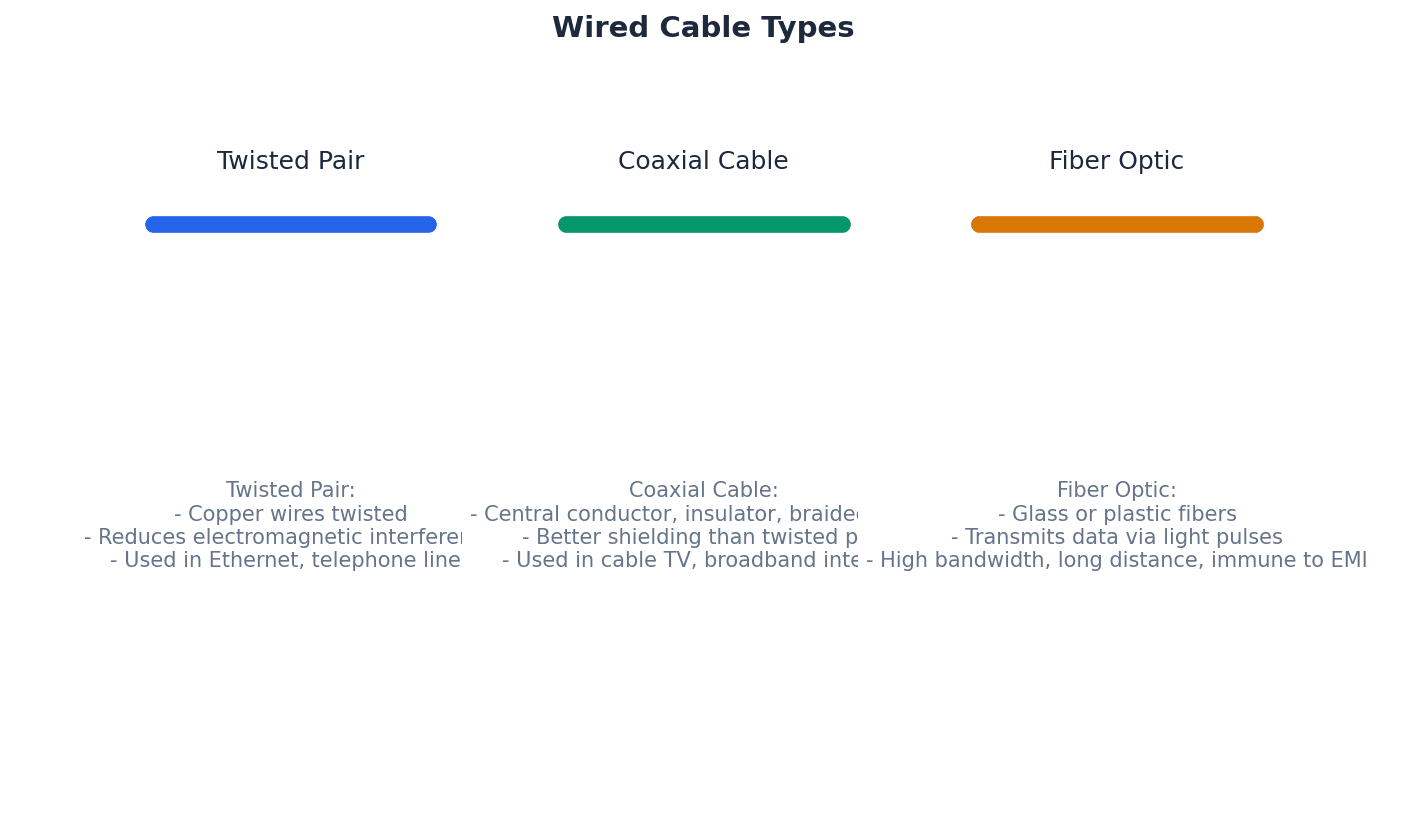
Twisted pair cable — Type of cable in which two wires of a single circuit are twisted together.
Twisted pair cables are the most common type used in LANs, consisting of multiple twisted pairs within a single cable. The twisting helps reduce electromagnetic interference, but they have the lowest data transfer rate and are the cheapest option among wired cables. This is like two people walking arm-in-arm to avoid bumping into others.
Coaxial cable — Cable made up of central copper core, insulation, copper mesh and outer insulation.
Coaxial cable is a type of electrical cable consisting of a central conductor surrounded by an insulating layer, a metallic shield, and an outer insulating jacket. This design helps to minimize signal loss and electromagnetic interference, making it suitable for higher bandwidth applications than twisted pair.
Fibre optic cable — Cable made up of glass fibre wires which use pulses of light (rather than electricity) to transmit data.
Fibre optic cables transmit data using pulses of light through thin strands of glass or plastic. They offer significantly higher bandwidth, greater distances, and immunity to electromagnetic interference compared to copper cables, making them ideal for high-speed, long-distance communication.
Wi-Fi — Wireless connectivity that uses radio waves, microwaves.
Wi-Fi implements IEEE 802.11 protocols and uses spread spectrum technology to offer fast data transfer rates, good range (up to 100 metres), and better security than Bluetooth, making it suitable for full-scale networks and internet access. It's like a powerful, high-speed radio station for your devices.
Students often think Wi-Fi and Bluetooth are the same, but actually Wi-Fi offers much faster speeds, greater range, and is designed for network connectivity, while Bluetooth is for short-range device pairing.
Bluetooth — Wireless connectivity that uses radio waves in the 2.45 GHz frequency band.
Bluetooth uses spread spectrum frequency hopping across 79 channels to create secure wireless personal area networks (WPANs) for short-range data transfer (less than 30 metres). It's ideal for low-bandwidth applications where speed is not critical, like a short-range, private walkie-talkie system for your devices.
Students often think Bluetooth is for internet access, but actually it's primarily for connecting devices directly to each other over short distances, not for general internet connectivity.
Spread spectrum technology — Wideband radio frequency with a range of 30 to 50 metres.
This technology is used in wireless communications like Wi-Fi and Bluetooth to spread a signal over a wider frequency band, making it more resistant to interference and eavesdropping. It often involves frequency hopping to avoid busy channels, similar to having a conversation jump between many different frequencies quickly.
Spread spectrum frequency hopping — A method of transmitting radio signals in which a device picks one of 79 channels at random.
If the chosen channel is already in use, the device randomly chooses another channel, and communication pairs constantly change frequencies several times a second. This technique minimizes interference and enhances security in wireless technologies like Bluetooth, like a secret conversation jumping between radio channels.
Students often think frequency hopping is just about avoiding interference, but actually it also contributes to the security of the connection by making it harder to intercept.
Frequency and Wavelength Relationship
Used to calculate the relationship between frequency, wavelength, and the speed of light for electromagnetic radiation.
Various hardware components are crucial for the functioning of both local and wide area networks. These devices manage data flow, connect different network segments, and enable communication between devices, ensuring efficient and reliable network operations.
Hub — Hardware used to connect together a number of devices to form a LAN that directs incoming data packets to all devices on the network (LAN).
Hubs are basic network devices that broadcast all incoming data packets to every connected device, regardless of the intended recipient. This makes them less secure and less efficient than switches, much like a megaphone in a room where everyone hears the message.
Students often think hubs and switches perform the same function, not understanding that hubs broadcast data while switches direct it to specific destinations.
Repeating hubs — Network devices which are a hybrid of hub and repeater unit.
Repeating hubs combine the functionality of a hub, which broadcasts data to all connected devices, with that of a repeater, which boosts the signal. This allows them to extend the reach of a network while still operating at the basic broadcast level of a hub.
Switch — Hardware used to connect together a number of devices to form a LAN that directs incoming data packets to a specific destination address only.
Switches are more intelligent than hubs; they read the MAC address in data packets and forward them only to the intended recipient device. This improves network efficiency and security by reducing unnecessary traffic, much like a smart post office that delivers mail only to the correct recipient.
Students often think switches broadcast data like hubs, but actually switches learn MAC addresses and send data only to the specific destination, making them more efficient.
Repeater — Device used to boost a signal on both wired and wireless networks.
A repeater is a network device that regenerates and retransmits a signal to extend its reach. As signals travel over distance, they can degrade; a repeater amplifies the signal, allowing it to cover longer distances without loss of quality.
Bridge — Device that connects LANs which use the same protocols.
A bridge is a network device that connects two or more local area networks (LANs) that use the same communication protocols. It filters data traffic by forwarding packets only to the segment where the destination device is located, improving network efficiency.
Router — Device which enables data packets to be routed between different networks (for example, can join LANs to form a WAN).
Routers inspect data packets, calculate the best route to a network destination, and can perform protocol translation to allow different networks (like wired and wireless) to communicate. They restrict broadcasts to a LAN and act as a default gateway, much like a traffic controller directing cars to the correct highway.
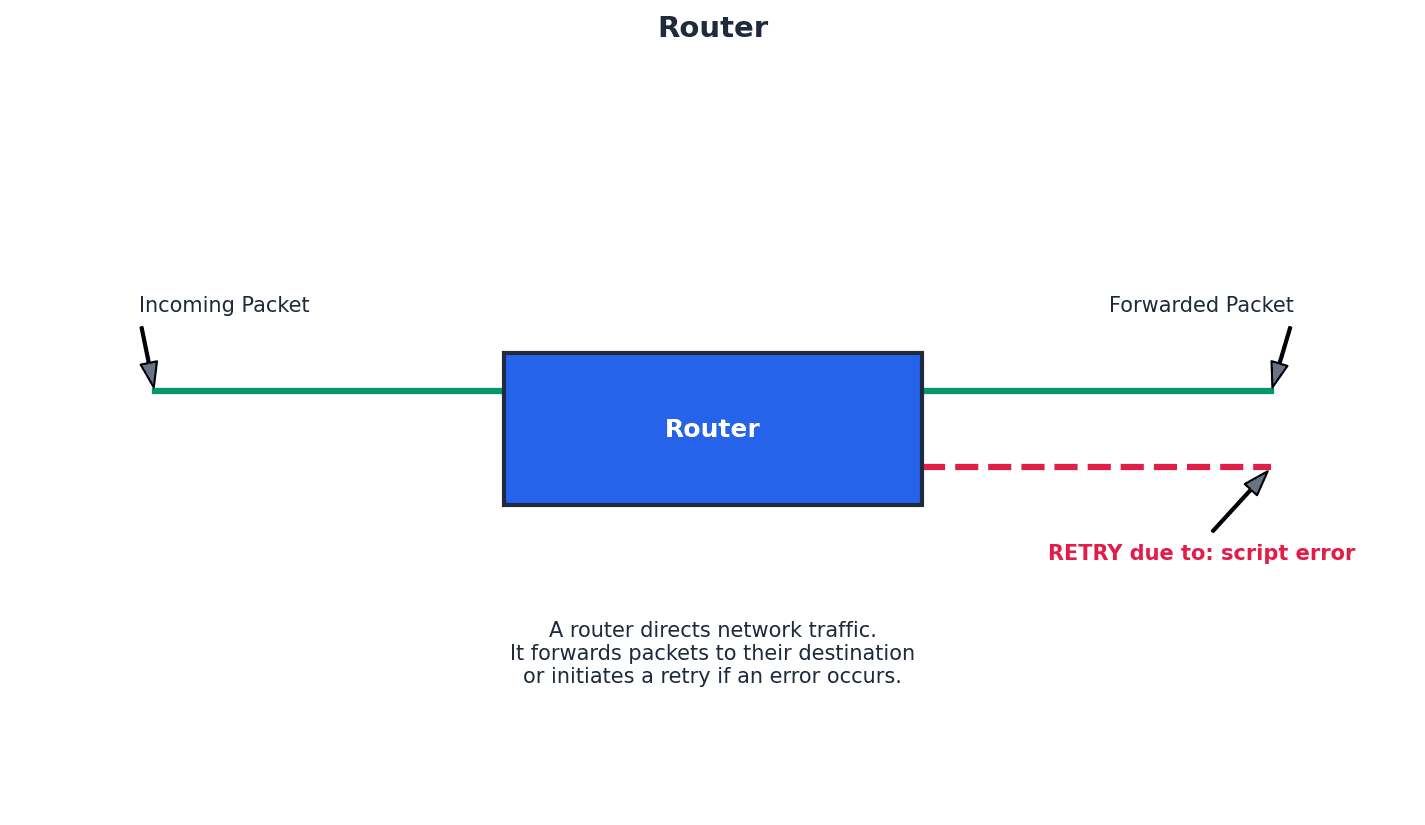
Students often think a router just connects devices, but actually its primary function is to connect different networks and intelligently route data between them, often performing protocol conversions.
Gateway — Device that connects LANs which use different protocols.
A gateway is a network device that connects two networks that use different communication protocols. It translates data between these incompatible protocols, allowing devices on one network to communicate with devices on another, acting as a bridge between dissimilar systems.
Modem — Modulator demodulator. A device that converts digital data to analogue data (to be sent down a telephone wire); conversely it also converts analogue data to digital data (which a computer can process).
Modems are essential for transmitting digital data from computers over analogue communication channels, such as traditional telephone lines. They modulate digital signals into analogue for transmission and demodulate analogue signals back into digital for reception, acting as a translator between digital and analogue languages.
Students often think a modem is the same as a router, but actually a modem connects to the external network (like the internet service provider's line) by converting signals, while a router creates and manages a local network.
Softmodem — Abbreviation for software modem; a software-based modem that uses minimal hardware.
A softmodem is a software-based modem that relies heavily on the computer's CPU for processing, rather than dedicated hardware. It performs the modulation and demodulation functions through software, reducing hardware costs but potentially increasing CPU usage.
NIC — Network interface card. These cards allow devices to connect to a network/internet (usually associated with a MAC address set at the factory).
A Network Interface Card (NIC) is a hardware component that allows a computer to connect to a network. It provides the physical connection to the network medium and processes network data, typically having a unique MAC address assigned during manufacturing.
WNIC — Wireless network interface cards/controllers. These cards allow devices to connect to a network/internet (usually associated with a MAC address set at the factory).
A Wireless Network Interface Card (WNIC) is a hardware component that enables a computer to connect to a wireless network. It uses radio waves to send and receive data, allowing wireless communication with a WAP or other wireless devices, and also has a unique MAC address.
Clearly distinguish between the functions of different hardware components like routers, switches, and modems, providing their specific roles in network communication.
When data is transmitted across a network, it is broken into packets. Efficient transmission requires protocols to manage how devices access the network medium and handle potential conflicts, such as multiple devices attempting to transmit simultaneously, which can lead to data collisions.
Ethernet — Protocol IEEE 802.3 used by many wired LANs.
Ethernet is a widely used family of computer networking technologies for local area networks (LANs). It defines the physical and data link layers of the network, specifying how data is formatted and transmitted over wired connections, and includes mechanisms for collision detection.
Broadcast — Communication where pieces of data are sent from sender to receiver.
In a broadcast communication, data packets are sent from a single source to all devices on a network segment. This method is used when information needs to reach every node, but it can be inefficient as it generates traffic for devices that are not the intended recipients.
Collision — Situation in which two messages/data from different sources are trying to transmit along the same data channel.
A collision occurs when two or more devices on a shared network medium attempt to transmit data simultaneously, causing the signals to interfere with each other. This corrupts the data and requires retransmission, impacting network performance.
CSMA/CD — Carrier sense multiple access with collision detection – a method used to detect collisions and resolve the issue.
CSMA/CD is a protocol used in Ethernet networks to manage access to the shared transmission medium and handle data collisions. Devices 'listen' to the network before transmitting (carrier sense), and if a collision is detected, they stop transmitting, wait a random amount of time, and then attempt to retransmit.
Students often assume that CSMA/CD prevents collisions entirely, rather than detecting and resolving them after they occur.
Conflict — Situation in which two devices have the same IP address.
An IP address conflict arises when two or more devices on the same network are assigned the identical IP address. This prevents proper network communication for the affected devices, as the network cannot uniquely identify them.
Bit streaming is the continuous transmission of digital data over a network, allowing users to consume multimedia content without fully downloading it first. This technology relies on buffering to ensure smooth playback and can be categorized into real-time and on-demand methods.
Bit streaming — Contiguous sequence of digital bits sent over a network/internet.
Bit streaming refers to the continuous flow of digital data, typically multimedia content, from a server to a client device over a network. This allows users to watch or listen to content as it arrives, without needing to download the entire file first.
Buffering — Store which holds data temporarily.
Buffering is the process of temporarily storing a portion of streaming data in a dedicated memory area (buffer) on the client device before playback. This helps to ensure smooth, uninterrupted playback by providing a reserve of data in case of network fluctuations or temporary slowdowns.
Bit rate — Number of bits per second that can be transmitted over a network.
Bit rate, or data rate, measures the speed at which data is transferred over a communication channel, expressed in bits per second (bps). A higher bit rate generally indicates faster data transmission and, for streaming, can result in higher quality audio or video.
On demand (bit streaming) — System that allows users to stream video or music files from a central server as and when required without having to save the files on their own computer/tablet/phone.
On-demand bit streaming allows users to select and play multimedia content from a server at any time, providing flexibility and control over what they watch or listen to. The content is streamed directly to the device without permanent storage, such as with popular video streaming services.
Real-time (bit streaming) — System in which an event is captured by camera (and microphone) connected to a computer and sent to a server where the data is encoded.
Real-time bit streaming involves the live transmission of events as they happen, such as live sports broadcasts or video conferencing. The data is captured, encoded, and streamed with minimal delay, allowing viewers to experience the event almost instantaneously.
The Internet and the World Wide Web are often confused, but they are distinct concepts. The Internet is the underlying global network infrastructure, while the World Wide Web is a system of interconnected documents and other web resources that are accessed via the Internet.
ARPAnet — Advanced Research Projects Agency Network, an early form of packet switching wide area network.
ARPAnet was one of the earliest forms of networking, developed around 1970 in the USA, connecting large computers in the Department of Defense and later universities. It is widely considered the technical foundation for the modern internet, like the very first, small-scale highway system that proved the concept of interconnected roads.
Students often think ARPAnet is the internet, but actually it was a precursor and the technical platform upon which the internet later developed.
Internet — Massive network of networks, made up of computers and other electronic devices; uses TCP/IP communication protocols.
The Internet is a global system of interconnected computer networks that uses the standard Internet Protocol Suite (TCP/IP) to link billions of devices worldwide. It is the physical infrastructure that allows data to be exchanged globally.
World Wide Web (WWW) — Collection of multimedia web pages stored on a website, which uses the internet to access information from servers and other computers.
The World Wide Web (WWW) is a system of interlinked hypertext documents and other web resources that are accessed via the Internet. It is a service that runs on the Internet, allowing users to navigate through web pages using web browsers.
Students often confuse the internet with the World Wide Web, thinking they are the same thing. Remember that the WWW is a service that runs on the Internet.
Internet service provider (ISP) — Company which allows a user to connect to the internet.
An Internet Service Provider (ISP) is a company that provides individuals and organizations with access to the Internet. ISPs offer various services, including internet access, email, and web hosting, acting as the gateway for users to connect to the global network.
Public switched telephone network (PSTN) — Network used by traditional telephones when making calls or when sending faxes.
The Public Switched Telephone Network (PSTN) is the traditional circuit-switched telephone network that has been used for voice communication for over a century. It is a global network of telephone lines, fiber optic cables, and switching centers that allows users to make phone calls and send faxes.
Voice over Internet Protocol (VoIP) — Converts voice and webcam images into digital packages to be sent over the internet.
Voice over Internet Protocol (VoIP) is a technology that allows voice and multimedia communications to be transmitted over the Internet. It converts analogue audio signals into digital packets, which are then sent over the internet, enabling phone calls and video conferencing without traditional telephone lines.
To navigate the vastness of the Internet, devices require unique identifiers known as IP addresses. These numerical labels allow data packets to be routed to their correct destinations. The Domain Name Service (DNS) then translates human-readable website addresses into these numerical IP addresses.
Internet protocol (IP) — Uses IPv4 or IPv6 to give addresses to devices connected to the internet.
The Internet Protocol (IP) is a set of rules for sending data over the internet. It defines how data packets are addressed and routed from the source to the destination, using either IPv4 or IPv6 addressing schemes to uniquely identify devices.
IPv4 — IP address format which uses 32 bits, such as 200.21.100.6.
IPv4 (Internet Protocol version 4) is the fourth version of the Internet Protocol and uses 32-bit addresses, typically represented as four decimal numbers separated by dots (e.g., 200.21.100.6). It is the most widely used IP addressing system, though its address space is becoming exhausted.
Classless inter-domain routing (CIDR) — Increases IPv4 flexibility by adding a suffix to the IP address, such as 200.21.100.6/18.
Classless Inter-Domain Routing (CIDR) is a method for allocating IP addresses and routing Internet Protocol packets. It improves IPv4 address allocation efficiency by allowing more flexible division of IP address ranges, using a suffix to indicate the network portion of the address.
IPv6 — Newer IP address format which uses 128 bits, such as A8F0:7FFF:F0F1:F000:3DD0:256A:22FF:AA00.
IPv6 (Internet Protocol version 6) is the latest version of the Internet Protocol, designed to address the exhaustion of IPv4 addresses. It uses 128-bit addresses, providing a vastly larger address space and offering improved features for routing and network auto-configuration.
Zero compression — Way of reducing the length of an IPv6 address by replacing groups of zeroes by a double colon (::); this can only be applied once to an address to avoid ambiguity.
Zero compression is a technique used to shorten the written representation of IPv6 addresses by replacing a single contiguous sequence of 16-bit blocks consisting of all zeros with a double colon (::). This can only be applied once per address to maintain uniqueness.
Sub-netting — Practice of dividing networks into two or more sub-networks.
Sub-netting is the process of dividing a larger network into smaller, more manageable sub-networks (subnets). This practice improves network efficiency, security, and organization by reducing broadcast traffic and allowing for more granular control over network segments.
Private IP address — An IP address reserved for internal network use behind a router.
Private IP addresses are specific ranges of IP addresses reserved for use within private networks, such as home or office LANs. They are not routable on the public internet and are used to identify devices internally, providing a layer of security and conserving public IP addresses.
Public IP address — An IP address allocated by the user’s ISP to identify the location of their device on the internet.
A public IP address is a globally unique IP address assigned to a device by an Internet Service Provider (ISP). It is used to identify the device's location on the public internet, allowing it to communicate with other devices and servers worldwide.
Students often assume that all IP addresses are public and globally unique, not understanding the concept of private IP addresses within local networks.
Uniform resource locator (URL) — Specifies location of a web page (for example, www.hoddereducation.co.uk).
A Uniform Resource Locator (URL) is a specific type of Uniform Resource Identifier (URI) that provides a means of locating a resource on the World Wide Web and also describes how to access it. It is the address used to find web pages and other resources on the internet.
Domain name service (DNS) — (Also known as domain name system) gives domain names for internet hosts and is a system for finding IP addresses of a domain name.
The Domain Name Service (DNS) is a hierarchical and decentralized naming system for computers, services, or any resource connected to the Internet or a private network. It translates human-readable domain names (like www.example.com) into numerical IP addresses, which computers use to identify each other.
Web browser — Software that connects to DNS to locate IP addresses; interprets web pages sent to a user’s computer so that documents and multimedia can be read or watched/listened to.
A web browser is application software for accessing the World Wide Web. When a user enters a URL, the browser uses DNS to find the corresponding IP address, then retrieves and renders the web page content, allowing users to view documents and multimedia.
HyperText Mark-up Language (HTML) — Used to design web pages and to write http(s) protocols, for example.
HyperText Markup Language (HTML) is the standard markup language for documents designed to be displayed in a web browser. It defines the structure and content of web pages, using tags to format text, embed images, and create hyperlinks.
JavaScript® — Object-orientated (or scripting) programming language used mainly on the web to enhance HTML pages.
JavaScript is a high-level, often just-in-time compiled, and multi-paradigm programming language. It is primarily used to create interactive and dynamic content on web pages, enhancing the user experience beyond static HTML.
PHP — Hypertext processor; an HTML-embedded scripting language used to write web pages.
PHP (Hypertext Preprocessor) is a popular general-purpose scripting language especially suited to web development. It is often embedded directly into HTML and executed on the server side to generate dynamic web content before it is sent to the client's web browser.
When asked to 'explain' benefits/drawbacks of networking, provide specific examples beyond just stating the point.
When describing LANs, mention shared resources (printers, files) and their limited geographical area as key characteristics.
When defining MANs, emphasize their intermediate geographical size, connecting multiple LANs within a city or campus.
When asked about the origins of the internet, mention ARPAnet as a key early development, focusing on its role in packet switching and connecting institutions.
Clearly state the dual function of modulation and demodulation when defining a modem, and its role in bridging digital and analogue communication mediums.
For this chapter, focus on understanding the 'why' behind different network choices (e.g., why use a star topology over a bus, or client-server over peer-to-peer) and be able to articulate the trade-offs in terms of performance, security, and cost.
Definitions Bank
ARPAnet
Advanced Research Projects Agency Network, an early form of packet switching wide area network.
WAN
Wide area network, a network covering a very large geographical area.
LAN
Local area network, a network covering a small area such as a single building.
MAN
Metropolitan area network, a network which is larger than a LAN but smaller than a WAN, which can cover several buildings in a single city, such as a university campus.
File server
A server on a network where central files and other data are stored.
+63 more definitions
View all →Common Mistakes
Students often confuse the internet with the World Wide Web.
The Internet is the global network infrastructure, while the World Wide Web is a collection of interconnected documents and resources accessed via the Internet.
Students often think hubs and switches perform the same function.
Hubs broadcast data to all devices on a LAN, whereas switches direct data to specific destination addresses, improving efficiency and security.
Students often believe that data redundancy is wasteful.
Data redundancy is a crucial strategy for ensuring data availability and disaster recovery by storing multiple copies of data on different servers.
+3 more
View all →This chapter provides a comprehensive overview of computer hardware, covering primary and secondary storage, various input/output devices, and the fundamental principles of logic gates and circuits. It explains the characteristics and applications of different memory types and storage technologies, alongside the operation of monitoring and control systems.
Random access memory (RAM) — Primary memory unit that can be written to and read from.
RAM is volatile memory used by the computer to temporarily store data, files, and parts of the operating system or applications currently in use. Its contents are lost when the computer is powered off, much like a desk workspace that is cleared at the end of the day.
Students often confuse RAM as permanent storage; it is volatile and temporary. Remember that RAM is temporary storage for active programs and data; permanent storage is handled by secondary devices like HDDs or SSDs.
Read-only memory (ROM) — Primary memory unit that can only be read from.
ROM is non-volatile memory, meaning its contents are retained even when the power is off. It typically stores essential data and instructions, such as the BIOS, that the computer needs to access during startup and cannot be altered by the user, similar to an unchangeable instruction manual for basic computer functions.
Students often believe ROM is completely unchangeable; some types (EPROM, EEPROM) can be reprogrammed under specific conditions. Remember that while ROM is generally read-only, specific types can be reprogrammed, though not during normal operation.
Memory cache — High speed memory external to the processor which stores data which the processor will need again.
Memory cache acts as a buffer between the CPU and main memory (RAM), storing frequently accessed data and instructions. This allows the processor to retrieve them much faster than from main memory, improving overall system performance, much like a chef's easily accessible spice rack next to their main pantry.
When asked to 'explain the purpose of cache memory', focus on its role in speeding up data access for the CPU by storing frequently used data/instructions, reducing reliance on slower main memory.
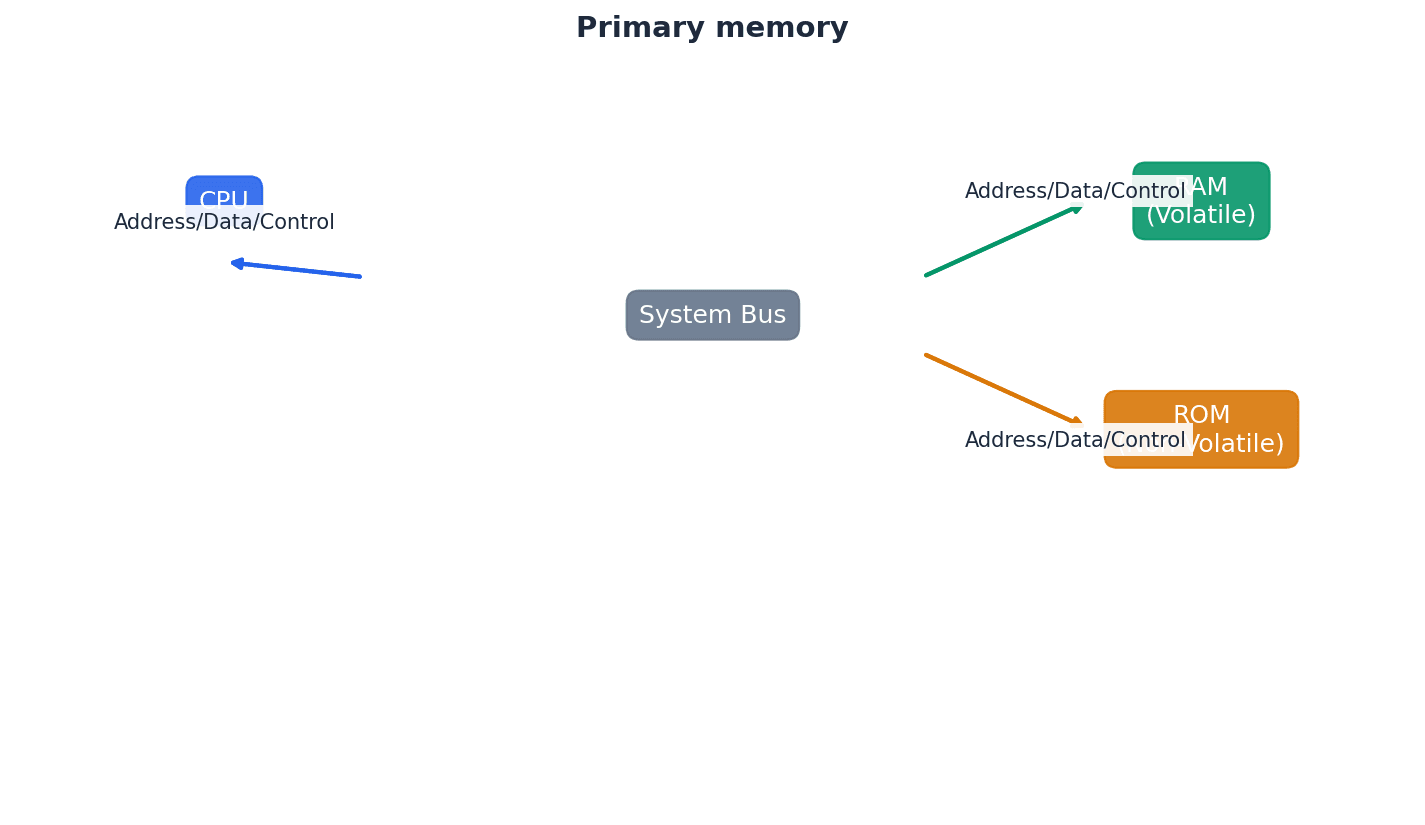
Primary memory, directly accessible by the CPU, includes both RAM and ROM, each serving distinct purposes. RAM is volatile, meaning its contents are lost when power is removed, and is used for active data and programs. In contrast, ROM is non-volatile, retaining its data without power, and stores critical boot-up instructions like the BIOS.
Dynamic RAM (DRAM) — Type of RAM chip that needs to be constantly refreshed.
DRAM stores bits in capacitors and transistors, requiring constant refreshing (recharging) every few microseconds to prevent the charge from leaking away and losing data. It is less expensive and has higher memory capacity than SRAM, making it common for main memory, similar to a leaky bucket needing continuous refilling.
Refreshed — Requirement to charge a component to retain its electronic state.
In the context of DRAM, refreshing means periodically recharging the capacitors that store data bits. Without this constant recharging, the electrical charge would dissipate, leading to data loss, much like a battery that slowly loses its charge and needs regular plugging in.
Students often mix up the refresh requirement of DRAM with data modification; refreshing maintains the electrical state, not changes data. Remember that refreshing in DRAM means recharging the capacitors to maintain their electronic state, not necessarily changing the stored data.
Static RAM (SRAM) — Type of RAM chip that uses flip-flops and does not need refreshing.
SRAM stores bits using flip-flops, which are more complex circuits than DRAM's capacitors and transistors, but do not require constant refreshing. This makes SRAM much faster than DRAM and suitable for applications where speed is critical, such as processor memory cache, like a light switch that stays in its position without continuous power.
When asked about DRAM, mention the use of capacitors and transistors, and the critical need for constant refreshing. Contrast it with SRAM's lack of refresh requirement.
Programmable ROM (PROM) — Type of ROM chip that can be programmed once.
PROM is initially blank and can be programmed by 'burning' fuses in a matrix using a PROM writer and an electric current. Once programmed, its contents are permanent and cannot be erased or rewritten, making it suitable for mobile phones and RFID tags, much like a blank CD-R that can be recorded onto only once.
Erasable PROM (EPROM) — Type of ROM that can be programmed more than once using ultraviolet (UV) light.
EPROM uses floating gate transistors and capacitors, allowing it to be programmed, erased by exposure to strong UV light through a quartz window, and then reprogrammed. This makes it useful for applications under development, such as new games consoles, where firmware might need updates, similar to a whiteboard that can be written on, erased with a special cleaner, and then written on again.
Electronically erasable programmable read-only memory (EEPROM) — Read-only (ROM) chip that can be modified by the user, which can then be erased and written to repeatedly using pulsed voltages.
EEPROM is a type of non-volatile memory that can be electrically erased and reprogrammed byte-by-byte, unlike EPROM which requires UV light and erases the entire chip. This makes it more flexible for in-system updates, though slower than RAM, much like a digital notepad where individual notes can be erased and rewritten electronically.
Flash memory — A type of EEPROM, particularly suited to use in drives such as SSDs, memory cards and memory sticks.
Flash memory is a non-volatile storage technology that uses NAND or NOR gate-based EEPROM cells. It allows data to be written and erased in blocks (NAND) or bytes (NOR), offering high density and speed suitable for SSDs, USB drives, and memory cards, similar to a digital photo album where pages or individual photos can be quickly added or deleted.
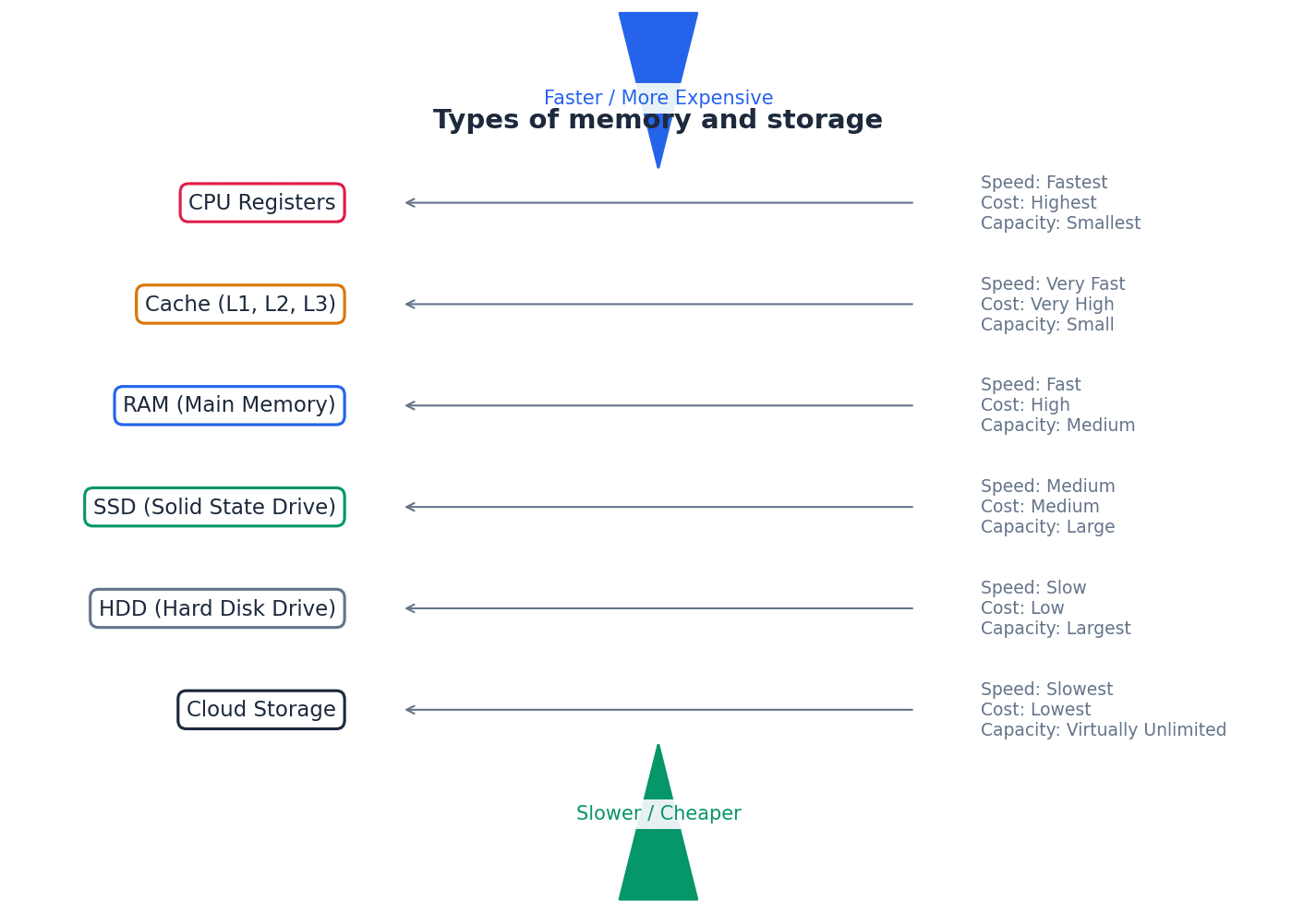
Secondary storage devices provide non-volatile, long-term data storage, complementing the temporary nature of primary memory. These include magnetic storage like Hard Disk Drives (HDDs), solid-state storage like Solid State Drives (SSDs) and flash memory, and optical media such as CDs, DVDs, and Blu-ray discs. Each technology offers different trade-offs in terms of speed, capacity, durability, and cost.
Hard disk drive (HDD) — Type of magnetic storage device that uses spinning disks.
HDDs store data digitally on magnetic surfaces of rapidly spinning platters, accessed by read-write heads. Data is organized into tracks and sectors, but latency and fragmentation can slow down data access over time, much like a record player where the needle moves across spinning records to find music.
Latency — The lag in a system; for example, the time to find a track on a hard disk, which depends on the time taken for the disk to rotate around to its read-write head.
In HDDs, latency is the delay experienced while the desired sector of data rotates into position under the read-write head after the head has moved to the correct track. High latency contributes to slower data access times, similar to the time it takes for a specific book on a rotating bookshelf to spin around to you.
Students often confuse latency with data transfer rate; latency is delay before transfer, transfer rate is speed during transfer. Remember that latency is the delay before data transfer begins, while data transfer rate is how quickly data moves once the transfer starts.
Fragmented — Storage of data in non-consecutive sectors; for example, due to editing and deletion of old data.
Fragmentation occurs on HDDs when files are stored in scattered, non-adjacent sectors across the disk. This happens over time as files are created, deleted, and modified, forcing the read-write heads to move more, increasing access time, much like reading a book where chapters are scattered across different pages.
Removable hard disk drive — Portable hard disk drive that is external to the computer; it can be connected via a USB port when required; often used as a device to back up files and data.
These are self-contained HDDs designed for portability and external connection, typically via USB. They offer large storage capacity for backups or transferring large files between computers, providing flexibility not found in internal drives, like a portable safe deposit box for digital files.
Solid state drive (SSD) — Storage media with no moving parts that relies on movement of electrons.
SSDs use flash memory (NAND or NOR chips) to store data, controlling the movement of electrons to represent 0s and 1s. Lacking moving parts, they offer faster data access, lower power consumption, greater durability, and are lighter and thinner than HDDs, similar to a digital book where all pages are instantly accessible.
Optical storage — CDs, DVDs and Blu-rayTM discs that use laser light to read and write data.
Optical storage media store data as microscopic pits and bumps on a spiral track, which are read and written using laser light. Different types (CD, DVD, Blu-ray) use lasers of varying wavelengths to achieve different storage capacities, much like a musical score etched onto a disc that a laser 'reads'.
Dual layering — Used in DVDs; uses two recording layers.
Dual layering in DVDs involves two separate recording layers joined together, with a thin reflector between them. A laser can focus at different depths to read or write data on either layer, significantly increasing the disc's storage capacity compared to single-layer discs, like having two sheets of paper glued together to write on both sides.
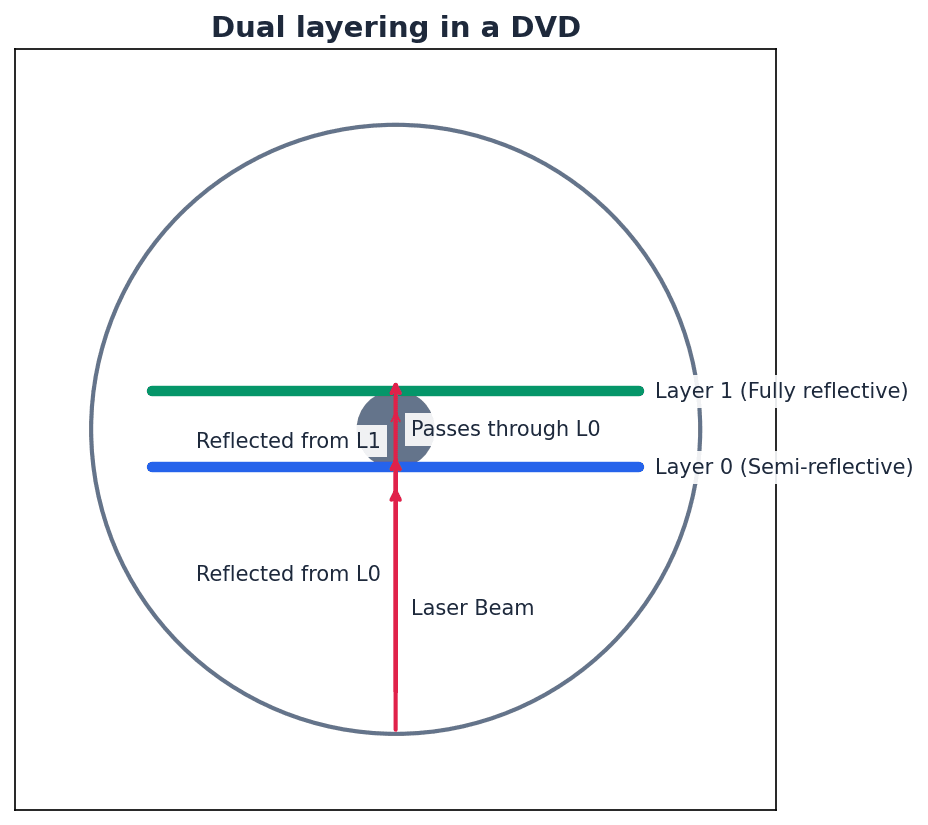
Birefringence — A reading problem with DVDs caused by refraction of laser light into two beams.
Birefringence is an issue in dual-layered DVDs where the laser light, passing through the polycarbonate layers, refracts into two separate beams. This can lead to reading errors as the laser struggles to accurately interpret the data, similar to trying to read a book through a wavy, imperfect window.
Computers interact with the world through various input and output devices. Input devices, such as sensors and microphones, capture data from the environment or user. Output devices, like printers and screens, present information or perform actions based on computer processing. Many of these devices require conversion between analogue and digital signals.
Binder 3D printing — 3D printing method that uses a two-stage pass; the first stage uses dry powder and the second stage uses a binding agent.
In binder 3D printing, each layer is formed in two steps: first, a layer of dry powder is spread, and then a print head sprays a liquid binding agent onto specific areas, solidifying the powder to create the desired cross-section of the object, much like building a sandcastle by laying dry sand and then spraying water to make it stick.
Students often assume all 3D printing involves melting material; binder 3D printing uses powder and a binding agent. Remember that binder 3D printing uses a liquid binder to solidify powder, which is a different mechanism from extrusion or laser sintering.
Direct 3D printing — 3D printing technique where print head moves in the x, y and z directions. Layers of melted material are built up using nozzles like an inkjet printer.
Direct 3D printing builds objects layer by layer by extruding melted material (like plastic or resin) through a nozzle, similar to how an inkjet printer sprays ink. The print head moves in three dimensions to create the object's shape, much like building a sculpture by squeezing out thin lines of soft clay from a tube.
Digital to analogue converter (DAC) — Needed to convert digital data into electric currents that can drive motors, actuators and relays, for example.
A DAC transforms discrete digital signals (binary values) into continuous analogue signals (varying electric currents or voltages). This is essential for output devices like speakers, motors, and actuators that operate on analogue inputs, acting as a translator from numbers to a smooth melody.
Students often think digital signals can directly control all physical devices; many require analogue signals, necessitating a DAC. Remember that many real-world devices (like motors or speakers) require continuous analogue signals, necessitating a DAC.
Analogue to digital converter (ADC) — Needed to convert analogue data (read from sensors, for example) into a form understood by a computer.
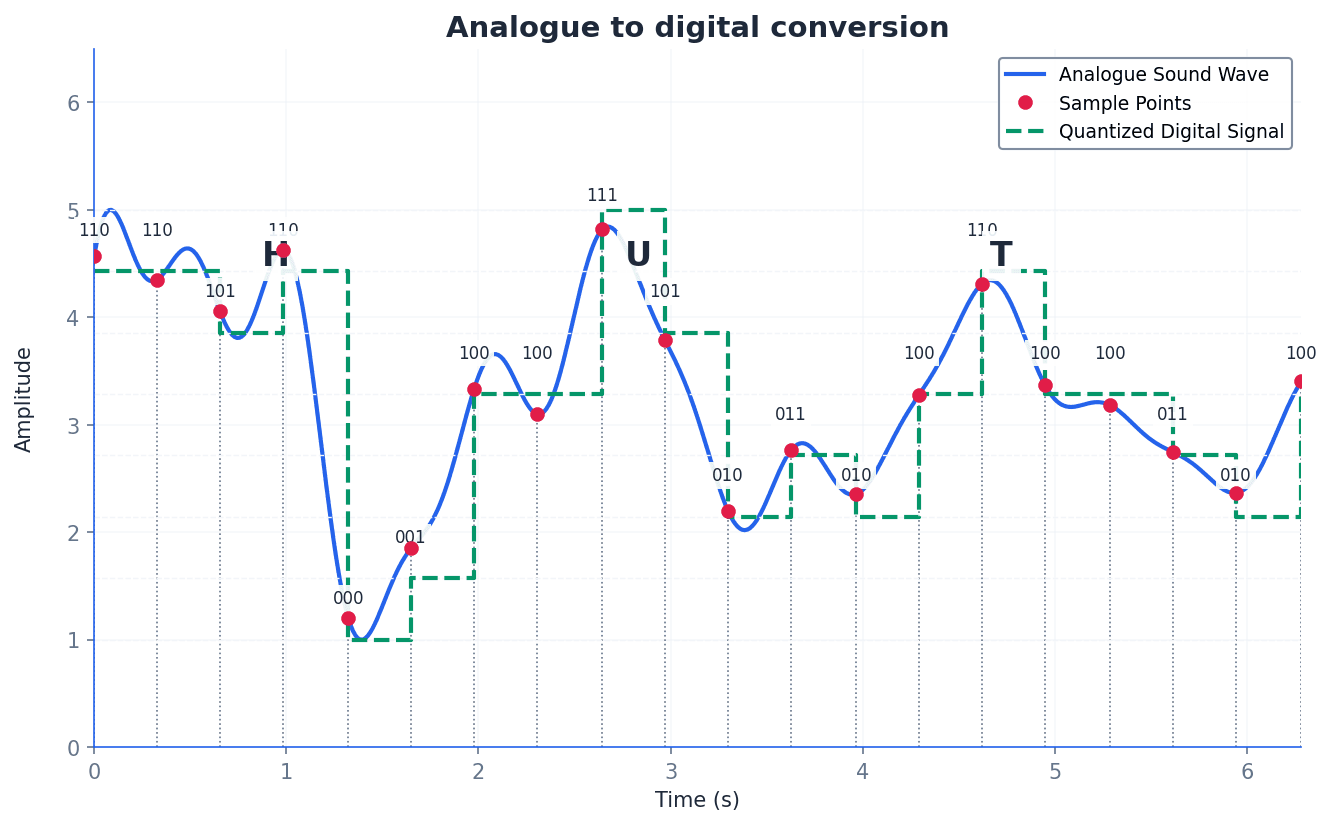
An ADC transforms continuous analogue signals (like temperature, pressure, or sound from sensors) into discrete digital values (binary data) that a computer can process, store, and manipulate. It's like a device that takes a continuous measurement, such as water height, and converts it into a specific number a computer can understand.
Organic LED (OLED) — Uses movement of electrons between cathode and anode to produce an on-screen image. It generates its own light so no back lighting required.
OLED technology uses organic materials that emit light when an electric current passes through them, moving electrons between a cathode and an anode. Because each pixel generates its own light, OLED screens do not require backlighting, allowing for thinner displays, true blacks, and high contrast, much like tiny, individual light bulbs that can turn on and off independently.
Screen resolution — Number of pixels in the horizontal and vertical directions on a television/computer screen.
Screen resolution defines the clarity and detail of an image by specifying the total number of pixels displayed horizontally and vertically (e.g., 1920 × 1080). Higher resolution means more pixels, resulting in sharper images and more on-screen content, similar to a mosaic made of tiny tiles where more tiles mean a more detailed picture.
Touch screen — Screen on which the touch of a finger or stylus allows selection or manipulation of a screen image; they usually use capacitive or resistive technology.
Touch screens integrate input and output functions, allowing users to interact directly with the display using touch. They typically employ either capacitive or resistive technology to detect the location of a touch, much like a digital whiteboard where you can draw or select things directly with your finger.
Capacitive — Type of touch screen technology based on glass layers forming a capacitor, where fingers touching the screen cause a change in the electric field.
Capacitive touch screens consist of multiple glass layers that create an electric field. When a conductive object, like a bare finger, touches the screen, it draws a small amount of current, causing a change in the electric field that a microprocessor detects to determine the touch coordinates, similar to a grid of invisible electric wires where a finger draws a tiny spark.
Resistive — Type of touch screen technology. When a finger touches the screen, the glass layer touches the plastic layer, completing the circuit and causing a current to flow at that point.
Resistive touch screens have two flexible layers, typically polyester and glass, separated by a small gap. When pressure is applied, the layers make contact, completing an electrical circuit at that point, and the change in resistance is measured to determine the touch location, like two sheets of conductive paper touching to complete a circuit.
Virtual reality headset — Apparatus worn on the head that covers the eyes like a pair of goggles. It gives the user the ‘feeling of being there’ by immersing them totally in the virtual reality experience.
VR headsets provide an immersive virtual experience by displaying separate video feeds to each eye, often with lenses to create a 3D effect. Sensors track head movements, allowing the virtual environment to react dynamically, enhancing the sense of presence, much like high-tech goggles that transport you into a different world.
Sensor — Input device that reads physical data from its surroundings.
Sensors are devices that detect and measure physical quantities from the environment, such as temperature, pressure, light, or sound. They convert these analogue physical properties into electrical signals, which are then typically converted to digital data by an ADC for computer processing, acting as the 'eyes' or 'ears' of a computer system.
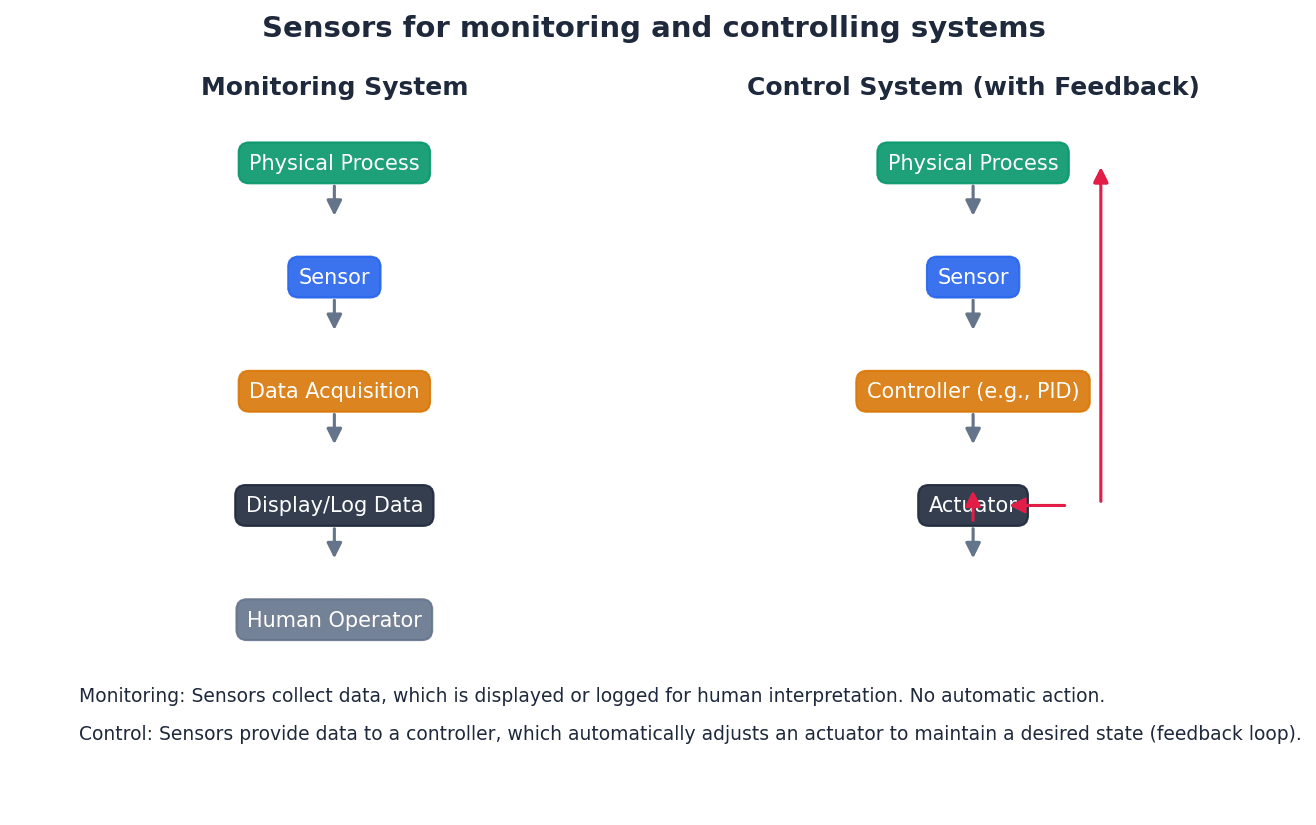
Monitoring and control systems rely heavily on sensors to gather data from the physical world. This analogue data is then converted into a digital format by an Analogue-to-Digital Converter (ADC) for processing by a computer. The computer can then make decisions and, if necessary, send digital signals to output devices, which are converted back to analogue signals by a Digital-to-Analogue Converter (DAC) to control actuators or motors.
Logic gates — Electronic circuits which rely on ‘on/off’ logic. The most common ones are NOT, AND, OR, NAND, NOR and XOR.
Logic gates are fundamental building blocks of digital circuits, taking one or more binary inputs (0 or 1) and producing a single binary output based on a specific Boolean function. They are used to implement decision-making processes in computer hardware, like tiny switches following simple rules.
Logic circuit — Formed from a combination of logic gates and designed to carry out a particular task. The output from a logic circuit will be 0 or 1.
Truth table — A method of checking the output from a logic circuit. They use all the possible binary input combinations depending on the number of inputs; for example, two inputs have 22 (4) possible binary combinations, three inputs will have 23 (8) possible binary combinations, and so on.
Boolean algebra — A form of algebra linked to logic circuits and based on TRUE and FALSE.
Number of binary combinations for truth table
Used to determine the number of rows in a truth table, where 'n' is the number of inputs.
NOT A (Boolean Algebra)
This Boolean expression represents the NOT operation, where the output is the inverse of the single input. Also written as X = NOT A.
A AND B (Boolean Algebra)
This Boolean expression represents the AND operation, where the output is 1 only if both inputs are 1. Also written as X = A AND B or A ∧ B.
A OR B (Boolean Algebra)
This Boolean expression represents the OR operation, where the output is 1 if at least one input is 1. Also written as X = A OR B or A ∨ B.
A NAND B (Boolean Algebra)
This Boolean expression represents the NAND operation, which is the inverse of the AND operation. Also written as X = A NAND B.
A NOR B (Boolean Algebra)
This Boolean expression represents the NOR operation, which is the inverse of the OR operation. Also written as X = A NOR B.
A XOR B (Boolean Algebra - expanded form 1)
This Boolean expression represents the XOR operation, where the output is 1 if inputs are different. Also written as X = A XOR B.
A XOR B (Boolean Algebra - expanded form 2)
This is an alternative Boolean expression for the XOR operation, where the output is 1 if inputs are different. Also written as X = A XOR B.
Logic circuits are built by combining various logic gates (NOT, AND, OR, NAND, NOR, XOR) to perform specific tasks. To understand and verify the behavior of a logic circuit, a truth table is constructed. This table systematically lists all possible binary input combinations and their corresponding output, ensuring all 2^n combinations are covered for 'n' inputs.
Students often forget to include all 2^n input combinations when constructing truth tables for 'n' inputs. Always ensure your truth table covers every single possible binary input combination.
Be able to draw the symbols, write the Boolean expressions, and construct truth tables for all six common logic gates. Pay attention to the specific conditions for a '1' output for each gate.
Practice constructing logic circuits and their truth tables from given logic expressions or problem descriptions, ensuring correct gate symbols and connections.
Clearly label inputs and outputs on logic circuits and truth tables to avoid ambiguity and ensure full marks.
Understand the role of ADCs and DACs in monitoring and control systems, explaining when and why each is necessary.
When asked to 'describe' hardware devices, explain their function, how they work, and their typical applications. For memory types, be prepared to differentiate between them based on volatility, speed, cost, and refresh requirements. When evaluating embedded systems, discuss both their benefits (e.g., efficiency, reliability) and drawbacks (e.g., limited functionality, difficulty updating).
Definitions Bank
Memory cache
High speed memory external to the processor which stores data which the processor will need again.
Random access memory (RAM)
Primary memory unit that can be written to and read from.
Read-only memory (ROM)
Primary memory unit that can only be read from.
Dynamic RAM (DRAM)
Type of RAM chip that needs to be constantly refreshed.
Static RAM (SRAM)
Type of RAM chip that uses flip-flops and does not need refreshing.
+28 more definitions
View all →Common Mistakes
Confusing RAM as permanent storage.
RAM is volatile and temporary, used for active data and programs. Permanent storage is handled by secondary devices.
Believing ROM is completely unchangeable.
Some types of ROM (EPROM, EEPROM) can be reprogrammed under specific conditions, though not during normal operation.
Mixing up the refresh requirement of DRAM with data modification.
Refreshing in DRAM maintains the electrical state of capacitors to prevent data loss, it does not change the stored data.
+4 more
View all →This chapter explores processor fundamentals, beginning with the Von Neumann architecture and its core components like the ALU, Control Unit, System Clock, and Immediate Access Store. It details the purpose of various registers and system buses, explaining their impact on computer performance. The fetch-execute cycle, including the role of interrupts, is described, alongside assembly language, machine code, and different addressing modes.
Von Neumann architecture — Computer architecture which introduced the concept of the stored program in the 1940s.
This architecture allows programs and data to be stored in the same memory space, which is accessed by a central processing unit. This design enables sequential execution of instructions and direct memory access by the processor, forming the basis of most modern computers. Imagine a chef (CPU) who keeps both their recipe book (program) and ingredients (data) in the same pantry (memory). They can quickly grab either as needed, rather than having separate storage for recipes and ingredients.
Students often think Von Neumann architecture is just about storing programs, but actually it's about storing both programs and data in the same memory space, allowing the CPU to access them directly.
When asked to describe Von Neumann architecture, ensure you mention both 'stored program' and 'data and instructions in the same memory' for full marks.
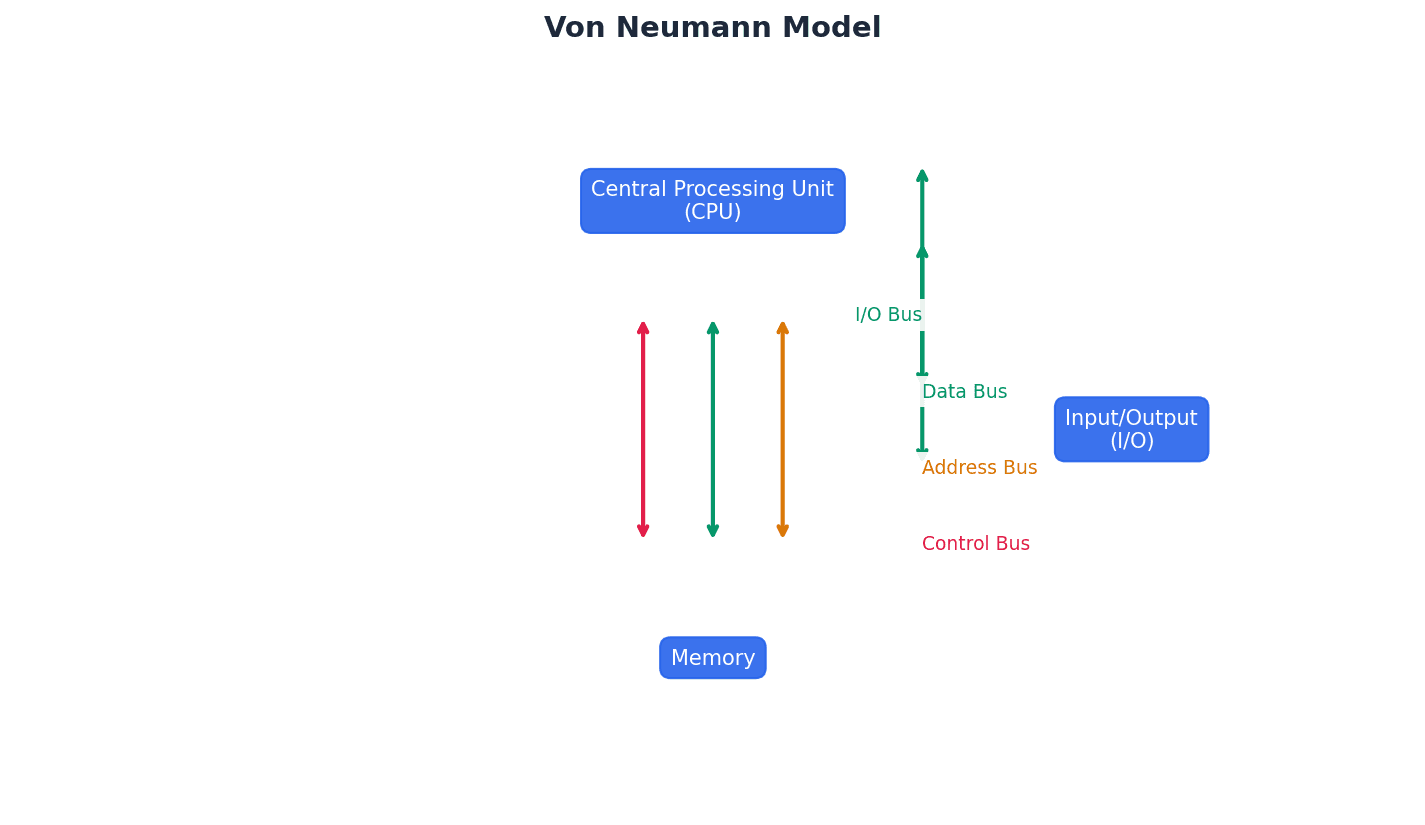
Immediate access store (IAS) — Holds all data and programs needed to be accessed by the control unit.
The IAS, also known as primary (RAM) memory, temporarily stores data and programs that the CPU needs to access quickly. It acts as a faster intermediary between the CPU and slower backing store, improving overall processing speed. The IAS is like a chef's cutting board and nearby ingredients – it holds everything the chef (CPU) needs right now, making it much faster to access than going to the main pantry (backing store) for every item.
Students often think IAS is permanent storage, but actually it's volatile memory (RAM) whose contents are lost when power is turned off.
Clarify that IAS is another name for RAM and its purpose is to provide fast, temporary storage for the CPU, distinguishing it from backing store.
Arithmetic logic unit (ALU) — Component in the processor which carries out all arithmetic and logical operations.
The ALU is responsible for performing calculations (addition, subtraction, multiplication, division) and logical comparisons (AND, OR, NOT). It works closely with the accumulator to process data during program execution. The ALU is like the calculator and decision-maker of the CPU, performing all the mathematical sums and logical comparisons required by a program.
Students often think the ALU handles all CPU tasks, but actually it only performs arithmetic and logical operations; the Control Unit manages overall synchronisation and instruction flow.
Be specific about 'arithmetic' and 'logical' operations when defining the ALU; simply saying 'calculations' is insufficient.
Control unit — Ensures synchronisation of data flow and programs throughout the computer by sending out control signals along the control bus.
The CU interprets instructions fetched from memory and generates control signals to direct other components, such as the ALU, registers, and memory, to perform the required operations in the correct sequence. It is vital for the orderly execution of programs. The Control Unit is like the conductor of an orchestra (the computer components), ensuring all musicians (components) play their parts at the right time and in the correct order.
Students often think the Control Unit executes instructions, but actually it decodes instructions and generates signals to *direct* other components to execute them.
Emphasise 'synchronisation' and 'control signals' when describing the Control Unit's role, as these are key aspects of its function.
System clock — Produces timing signals on the control bus to ensure synchronisation takes place.
The system clock generates regular pulses that synchronise all operations within the computer, ensuring that components work together in a coordinated manner. Its speed, measured in GHz, directly impacts the number of operations per second. The system clock is like a metronome for the computer, providing a steady beat that keeps all the internal processes in time and prevents chaos.
Clock cycle — Clock speeds are measured in terms of GHz; this is the vibrational frequency of the clock which sends out pulses along the control bus – a 3.5 GHZ clock cycle means 3.5 billion clock cycles a second.
A clock cycle is the fundamental unit of time for a CPU, representing one pulse generated by the system clock. Most CPU operations require one or more clock cycles to complete, so a higher clock speed (more cycles per second) generally leads to faster processing. A clock cycle is like a single tick of a very fast stopwatch inside the computer. Every action the CPU takes is timed by these ticks, so more ticks per second means more actions can happen.
Students often think a faster clock speed always means a proportionally faster computer, but actually other factors like bus width, cache, and number of cores also significantly affect overall performance.
When discussing clock speed, remember to link it to 'synchronisation' and mention that it's not the sole determinant of computer performance.
Overclocking — Changing the clock speed of a system clock to a value higher than the factory/recommended setting.
Overclocking aims to increase CPU performance by making it run faster than its designed speed. However, it can lead to instability, frequent crashes due to unsynchronised operations, and overheating, potentially damaging components. Overclocking is like pushing a car engine beyond its recommended RPM limits to go faster. While it might achieve higher speeds temporarily, it risks engine damage, overheating, and instability.
When discussing overclocking, always mention the associated risks like 'instability', 'crashing', and 'overheating' for a balanced answer.
Register — Temporary component in the processor which can be general or specific in its use that holds data or instructions as part of the fetch-execute cycle.
Registers are small, high-speed storage locations within the CPU that hold data, instructions, or addresses needed for immediate processing. They are essential for the efficient operation of the fetch-execute cycle, providing quick access to critical information. Registers are like a small set of very fast sticky notes on a desk, holding the most important pieces of information the CPU needs to work on right at that moment.
Students often think registers are part of main memory, but actually they are distinct, much faster storage units located directly within the CPU.
Distinguish between 'general purpose' (like ACC) and 'special purpose' (like PC, MAR) registers when asked about their types and uses.
Program counter (PC) — A register used in a computer to store the address of the instruction which is currently being executed.
The PC holds the memory address of the next instruction to be fetched from memory. After an instruction is fetched, the PC is incremented to point to the subsequent instruction, ensuring sequential program execution. The Program Counter is like a bookmark in a recipe book, always pointing to the next step (instruction) the chef (CPU) needs to read.
Students often think the Program Counter (PC) stores the instruction itself, but actually it stores the *address* of the instruction.
Current instruction register — A register used to contain the instruction which is currently being executed or decoded.
The Current Instruction Register (CIR) holds the instruction that has just been fetched from memory and is currently being decoded and executed by the Control Unit. It is crucial for the CPU to process instructions one by one.
Students often confuse the Current Instruction Register (CIR) with the Program Counter (PC); PC holds the *address* of the next instruction, while CIR holds the *actual instruction* being processed.
Accumulator — Temporary general purpose register which stores numerical values at any part of a given operation.
The accumulator (ACC) is a crucial register within the CPU that holds the intermediate results of arithmetic and logical operations performed by the ALU. It acts as a primary workspace for calculations before data is stored elsewhere. The accumulator is like a scratchpad or a temporary holding area for numbers that the CPU is actively working on, especially during calculations.
Students often think the accumulator stores all data, but actually it's specifically for temporary numerical values during ALU operations, not general data storage.
Remember to state that the accumulator is a 'general purpose' register and specifically mention its role in holding 'intermediate results' of ALU operations.
Status register — Used when an instruction requires some form of arithmetic or logical processing.
The status register contains individual bits, called flags, which are set or cleared to indicate the outcome of an arithmetic or logical operation. These flags (e.g., Carry, Negative, Overflow, Zero) provide information about the result that can be used for conditional branching in programs. The status register is like a car's dashboard warning lights, where each light (flag) indicates a specific condition or outcome of the engine's (ALU's) recent operation, such as 'low fuel' (overflow) or 'engine hot' (negative result).
Students often think the status register stores data, but actually it stores flags that indicate the *status* or *result* of an operation, not the data itself.
When explaining the status register, always mention 'flags' and give examples like Carry, Negative, Overflow, or Zero, explaining what each indicates.
Flag — Indicates the status of a bit in the status register, for example, N = 1 indicates the result of an addition gives a negative value.
A flag is a single bit within the status register that is set (to 1) or cleared (to 0) to signal a particular condition resulting from an operation. These conditions are often used by conditional jump instructions to alter program flow. A flag is like a small 'yes/no' switch that gets flipped based on the outcome of a calculation, telling the CPU if something specific happened, like 'was the result zero?' or 'was there an overflow?'
Students often think flags are general-purpose bits, but actually each flag has a specific, predefined meaning related to the outcome of an operation.
Provide a concrete example of a flag (e.g., Zero flag) and its meaning when defining it, rather than just a generic description.
Address bus — Carries the addresses throughout the computer system.
The address bus is a unidirectional pathway used by the CPU to specify the memory location or I/O device it wants to read from or write to. Its width determines the maximum amount of memory that can be directly addressed. The address bus is like the postal address on an envelope, telling the delivery service (data bus) exactly where to send or pick up information in the city (memory).
Students often think the address bus carries data, but actually it only carries memory addresses; data is carried by the data bus.
Emphasise that the address bus is 'unidirectional' and its 'width' determines the number of addressable memory locations.
Data bus — Allows data to be carried from processor to memory (and vice versa) or to and from input/output devices.
The data bus is a bidirectional pathway that transports actual data, instructions, or numerical values between the CPU, memory, and I/O devices. Its width determines the amount of data that can be transferred in a single operation (word length). The data bus is like the delivery truck that carries the actual packages (data) to and from the addresses specified by the address bus.
Students often think the data bus only carries numerical values, but actually it carries any form of data, including instructions and addresses, depending on the context.
Highlight that the data bus is 'bidirectional' and its 'width' affects the 'word length' and overall performance.
Control bus — Carries signals from control unit to all other computer components.
The control bus is a bidirectional pathway that transmits control and timing signals generated by the Control Unit to coordinate operations across the entire computer system. These signals manage read/write operations, interrupt requests, and synchronisation. The control bus is like the traffic signals and police officers on the roads, directing the flow of traffic (data and addresses) and ensuring everything moves in an orderly and synchronised manner.
Students often think the control bus carries data, but actually it carries control *signals* that manage the flow of data and instructions.
Focus on 'control signals' and 'synchronisation' when describing the function of the control bus.
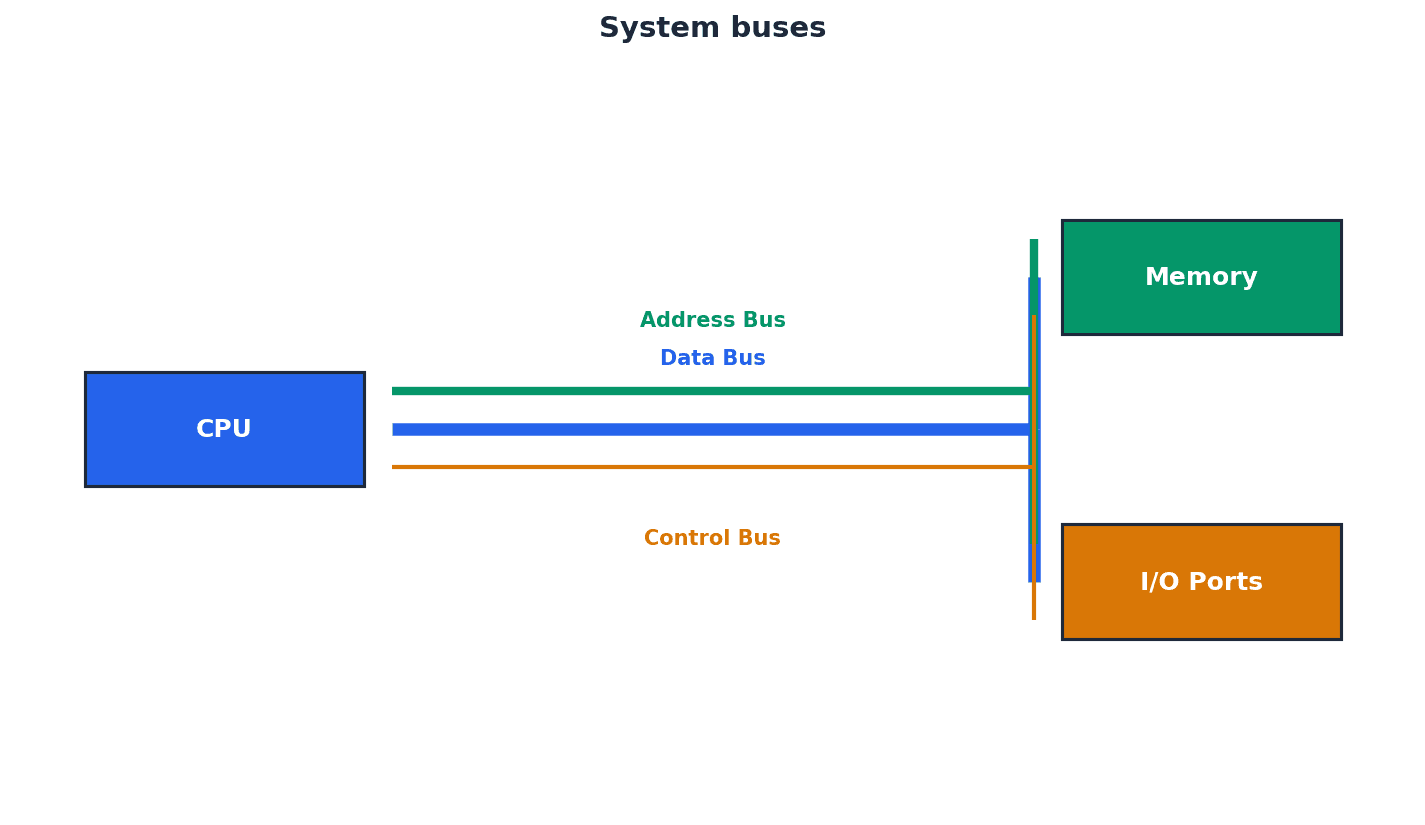
Unidirectional — Used to describe a bus in which bits can travel in one direction only.
A unidirectional bus, such as the address bus, ensures that information flows only from the source (e.g., CPU) to the destination (e.g., memory). This prevents addresses from being sent back to the CPU, maintaining order in the system. A unidirectional bus is like a one-way street; traffic (bits) can only flow in a single direction, preventing collisions and ensuring clear communication.
Students often think all buses are bidirectional, but actually the address bus is typically unidirectional to prevent addresses from being written back to the CPU.
When discussing bus types, explicitly state which buses are unidirectional (address bus) and which are bidirectional (data, control).
Bidirectional — Used to describe a bus in which bits can travel in both directions.
A bidirectional bus, such as the data bus or control bus, allows information to flow in two directions, enabling components to both send and receive data or signals. This flexibility is crucial for communication between the CPU, memory, and I/O devices. A bidirectional bus is like a two-way street; traffic (bits) can flow in both directions, allowing for sending and receiving information between components.
Students often think bidirectional means simultaneous two-way transfer, but actually it means data can travel in either direction, though typically not at the exact same instant on the same wire.
Explain that bidirectional buses are necessary for data and control signals that need to be exchanged between components.
Word — Group of bits used by a computer to represent a single unit.
A word is the natural unit of data used by a particular processor design, typically 16-bit, 32-bit, or 64-bit. The word length often corresponds to the width of the data bus and influences the amount of data processed in one go, affecting performance. A word in computer science is like a 'sentence' of bits that the computer processes as a single thought, rather than individual letters. The longer the sentence (word length), the more information it can convey at once.
Students often think a 'word' is always 8 bits, but actually it's a variable length defined by the CPU architecture, commonly 16, 32, or 64 bits in modern systems.
Relate word length to the data bus width and explain how a larger word length can improve computer performance.
Cache memory — A high speed auxiliary memory which permits high speed data transfer and retrieval.
Cache memory is a small, very fast memory located closer to the CPU than main RAM, used to store frequently accessed data and instructions. By reducing the time the CPU spends waiting for data from slower main memory, it significantly improves processor performance. Cache memory is like a small, super-fast notepad on your desk (CPU) where you keep the most important or frequently used information, so you don't have to go to the main filing cabinet (RAM) every time you need it.
Students often think cache memory is just more RAM, but actually it's a distinct type of memory (SRAM) that is much faster and more expensive than main RAM (DRAM), specifically designed to bridge the speed gap with the CPU.
Distinguish cache from main memory by mentioning its 'higher speed', 'closer proximity to CPU', and purpose of storing 'frequently used data/instructions'.
Core — A unit made up of ALU, control unit and registers which is part of a CPU. A CPU may contain a number of cores.
A core is an independent processing unit within a CPU, capable of executing instructions. Modern CPUs often have multiple cores (e.g., dual-core, quad-core) to enable parallel processing and improve overall performance, though communication overhead can limit linear scaling. A core is like having multiple mini-brains within the main brain (CPU). Each mini-brain can handle its own tasks, allowing the main brain to process more information simultaneously.
Students often think doubling cores doubles performance, but actually communication overhead between cores and software's ability to utilise multiple cores can limit the performance gain.
When discussing multi-core processors, explain that while more cores generally improve performance, the gains are not always linear due to communication overhead.
Dual core — A CPU containing two cores.
A dual-core CPU has two independent processing units, allowing it to execute two instruction streams concurrently. This can improve multitasking and the performance of applications designed for parallel processing. A dual-core CPU is like having two separate workers in a kitchen, each capable of preparing a dish simultaneously, which is faster than one worker doing everything sequentially.
Students often think dual core means twice as fast as single core, but actually the actual performance gain depends on how well software can utilise both cores.
Explain that dual-core CPUs improve performance by enabling parallel processing, but also mention the communication overhead.
Quad core — A CPU containing four cores.
A quad-core CPU integrates four independent processing units, significantly enhancing its ability to handle multiple tasks or complex, parallelizable computations simultaneously. This is particularly beneficial for demanding applications like video editing or gaming. A quad-core CPU is like having four separate workers in a kitchen, each capable of preparing a dish simultaneously, leading to much faster overall meal preparation.
Students often think quad core means four times as fast as single core, but actually the performance increase is not always linear due to factors like inter-core communication and software optimisation.
When discussing quad-core, highlight the benefit for multitasking and parallel processing, but also acknowledge the potential reduction in performance due to CPU-core communication.
Computer performance is influenced by several key factors. The type of processor, including its architecture and design, plays a significant role. Bus width, which determines the amount of data transferred in a single operation, directly impacts speed. Clock speeds, measured in GHz, dictate the number of operations per second, while cache memory provides high-speed auxiliary storage for frequently accessed data. Finally, the number of cores within a CPU allows for parallel processing, though communication overhead can limit linear performance gains.
For performance factors, explain *how* each factor (e.g., wider bus, larger cache) improves performance, not just listing them.
BIOS — Basic input/output system.
BIOS is firmware stored on a chip on the motherboard that initialises hardware components during startup and provides runtime services for operating systems and programs. It's where settings like clock speed can be altered. BIOS is like the computer's instruction manual for waking up and getting ready. It tells the computer how to start all its basic parts (keyboard, screen, hard drive) before the main operating system takes over.
Students often think BIOS is part of the operating system, but actually it's a separate, low-level firmware that runs *before* the operating system loads.
Mention that BIOS is firmware and its role in 'initialising hardware' and 'booting up' the computer.
Port — External connection to a computer which allows it to communicate with various peripheral devices.
Ports provide physical interfaces on a computer for connecting external devices like keyboards, mice, printers, or monitors. They facilitate the exchange of data and signals between the computer and its peripherals. A port is like a dock on a ship or a socket on a wall, allowing external devices to connect and exchange resources (data/power) with the main system.
Students often think all ports are for data transfer, but actually some ports primarily provide power or specific types of signals (e.g., video only).
When asked about ports, name specific types (USB, HDMI, VGA) and briefly describe their primary function.
Universal Serial Bus (USB) — A type of port connecting devices to a computer.
USB is a widely adopted asynchronous serial data transmission standard for connecting a variety of peripheral devices to computers. It features automatic device detection, driver loading, and supports multiple data transmission rates, making it highly versatile. USB is like a universal adapter plug for electronic devices; it allows many different types of gadgets to connect to a computer using a standardised cable and port.
Students often think USB is only for data transfer, but actually it also provides power to connected devices.
When describing USB, mention its 'asynchronous serial data transmission', 'automatic device detection', and 'driver loading' features.
Asynchronous serial data transmission — Serial refers to a single wire being used to transmit bits of data one after the other. Asynchronous refers to a sender using its own clock/timer device rather sharing the same clock/timer with the recipient device.
In asynchronous serial transmission, data bits are sent sequentially over a single line, with timing controlled independently by the sender and receiver using start and stop bits. This method is simpler and more flexible for short-distance communication, like USB. Asynchronous serial data transmission is like sending a message one letter at a time, with each letter having its own 'start' and 'stop' signal, so the sender and receiver don't need to be perfectly synchronised by a shared clock.
Students often confuse serial with parallel transmission, but actually serial sends bits one after another on a single line, while parallel sends multiple bits simultaneously on multiple lines.
Clearly define both 'serial' (one bit at a time) and 'asynchronous' (independent clocks) when explaining this term.
High-definition multimedia interface (HDMI) — Type of port connecting devices to a computer.
HDMI is a digital interface that transmits high-definition audio and video signals from a computer to compatible display devices. It supports high bandwidth for modern HD content and includes features like HDCP for copy protection. HDMI is like a high-speed digital superhighway for both video and sound, allowing a computer to send crystal-clear pictures and audio to a modern TV or monitor with a single cable.
Students often think HDMI is only for video, but actually it transmits both high-definition audio and video signals.
Highlight that HDMI is a 'digital replacement' for VGA, supports 'high-definition audio and visual', and includes 'HDCP' for piracy protection.
High-bandwidth digital copy protection (HDCP) — Part of HDMI technology which reduces risk of piracy of software and multimedia.
HDCP is a digital copy protection scheme used with HDMI to prevent unauthorised copying of high-definition audio and video content. It involves an authentication protocol between devices to ensure secure transmission. HDCP is like a digital handshake and secret code between your Blu-ray player and your TV. If they don't recognise each other's codes, the movie won't play, preventing illegal copying.
Students often think HDCP is a physical component, but actually it's a software/protocol layer within HDMI for content protection.
Explain HDCP's role in 'reducing piracy' and mention the 'authentication protocol' between devices.
Video Graphics Array (VGA) — Type of port connecting devices to a computer.
VGA is an older, analogue interface for transmitting video signals from a computer to a display. It supports lower resolutions and refresh rates compared to modern digital standards like HDMI and is being phased out. VGA is like an older, analogue television antenna connection; it works, but it doesn't provide the same high-quality, digital picture and sound as newer cable or satellite connections (HDMI).
Students often think VGA is still the standard for displays, but actually it's an outdated analogue technology largely replaced by digital interfaces.
Emphasise that VGA is an 'analogue' technology and contrast its limitations (lower resolution, refresh rate) with HDMI.
Fetch-execute cycle — A cycle in which instructions and data are fetched from memory and then decoded and finally executed.
The fetch-execute cycle is the fundamental process by which a CPU retrieves an instruction from memory, interprets it, and then performs the specified operation. This continuous cycle drives all computer operations. The fetch-execute cycle is like a chef following a recipe: first, they 'fetch' the next instruction (e.g., 'chop onions'), then 'decode' what it means, and finally 'execute' the action (chop the onions). This repeats for every step of the recipe.
Students often think the fetch-execute cycle is a single event, but actually it's a continuous, repetitive process that forms the core operation of the CPU.
Be able to describe each stage (fetch, decode, execute) and the registers involved (PC, MAR, MDR, CIR) in detail, possibly using Register Transfer Notation.
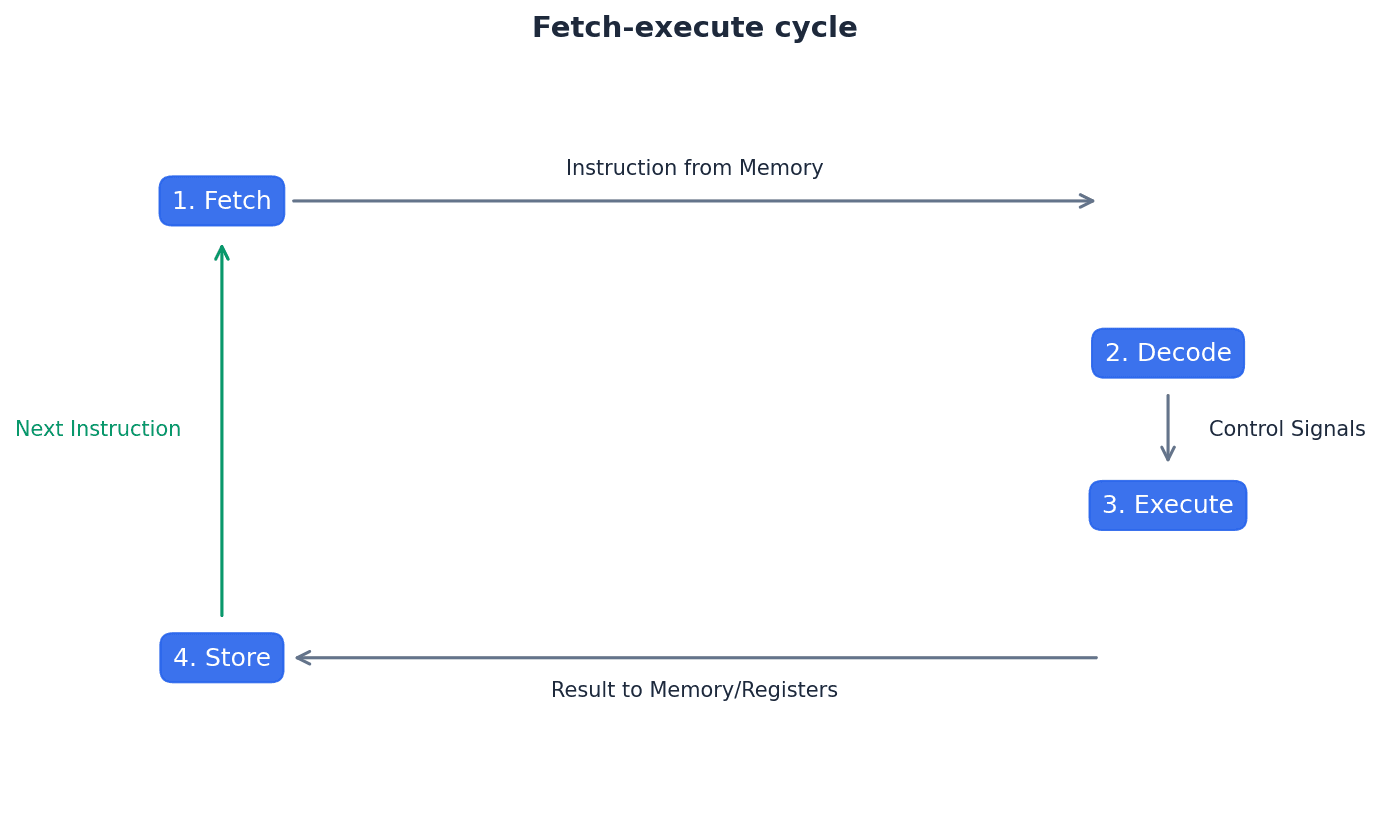
Register Transfer Notation (RTN) — Short hand notation to show movement of data and instructions in a processor, can be used to represent the operation of the fetch-execute cycle.
Register Transfer Notation (RTN) provides a concise way to describe the micro-operations within a CPU, particularly during the fetch-execute cycle. It uses symbols to represent registers and data transfers, making the sequence of operations clear and unambiguous. For example, PC -> MAR indicates the content of the Program Counter is transferred to the Memory Address Register.
When describing the fetch-execute cycle, clearly state the register transfers (e.g., PC to MAR, MDR to CIR) for full marks.
Interrupt — Signal sent from a device or software to a processor requesting its attention; the processor suspends all operations until the interrupt has been serviced.
Interrupts are crucial for efficient system operation, allowing peripheral devices or software events to signal the CPU for immediate attention. When an interrupt occurs, the CPU temporarily halts its current task, saves its state, and jumps to an Interrupt Service Routine (ISR) to handle the event, before returning to its original task. This ensures timely responses to critical events without constant polling.
Interrupt priority — All interrupts are given a priority so that the processor knows which need to be serviced first and which interrupts are to be dealt with quickly.
Interrupt priority ensures that critical events, such as power failures or hardware errors, are handled before less urgent ones, like a printer running out of paper. The CPU uses a priority system to decide which interrupt to service first if multiple requests occur simultaneously, maintaining system stability and responsiveness.
Interrupt service routine (ISR) or interrupt handler — Software which handles interrupt requests (such as ‘printer out of paper’) and sends the request to the CPU for processing.
An Interrupt Service Routine (ISR) is a specific block of code executed by the CPU in response to an interrupt. Each type of interrupt typically has its own ISR, which contains the instructions necessary to address the cause of the interrupt, such as reading data from a keyboard or handling a disk error.
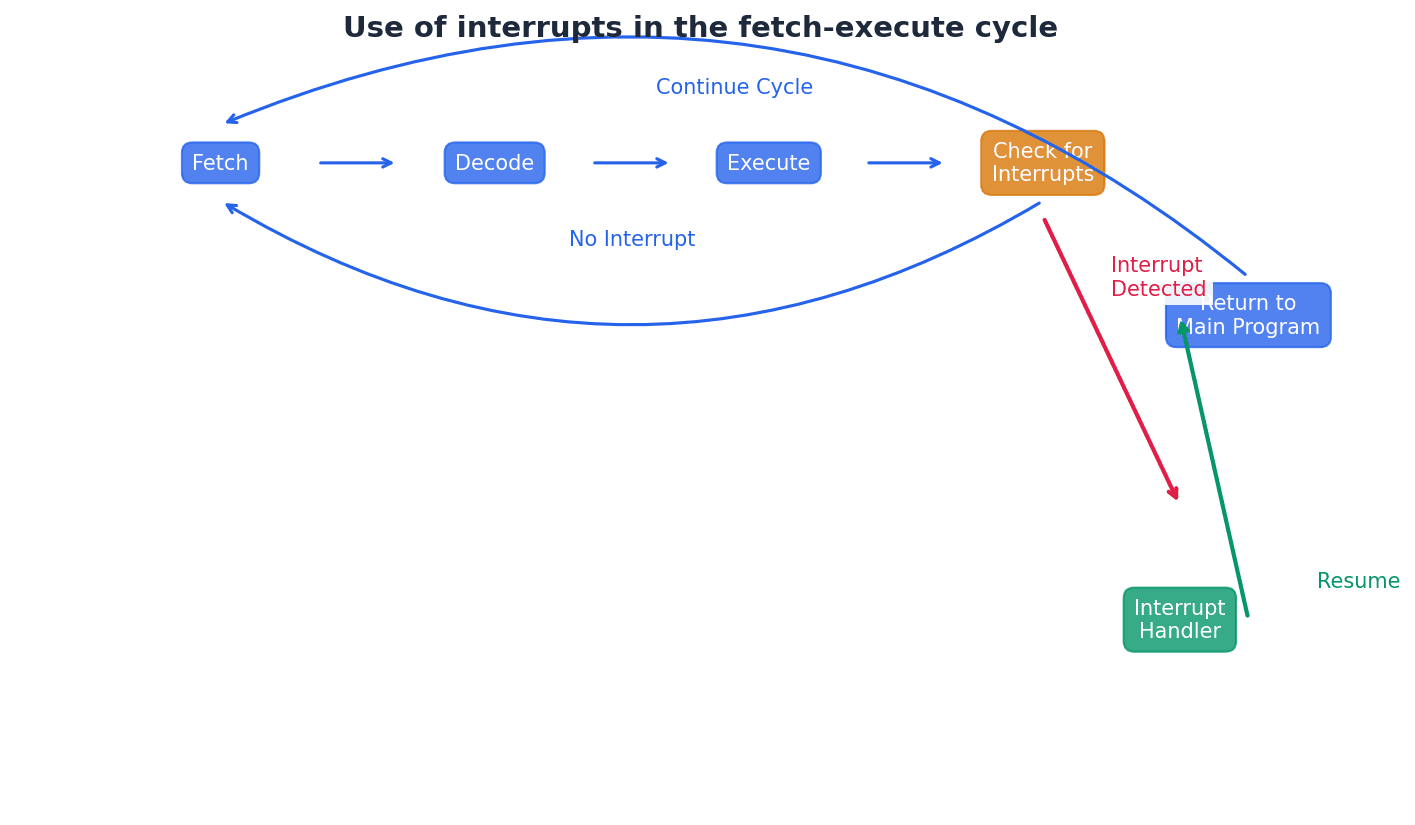
Be prepared to explain the role of interrupts in managing peripheral devices or error conditions, and how they fit into the fetch-execute cycle.
Machine code — The programming language that the CPU uses.
Machine code is the lowest-level programming language, consisting of binary instructions that a CPU can directly execute. Each instruction corresponds to a specific operation the processor can perform, making it the fundamental language of computers. It is specific to each CPU architecture and its instruction set.
Students often think machine code is universal, but actually it is specific to each CPU architecture and its instruction set.
Instruction — A single operation performed by a CPU.
An instruction is a command given to the CPU to perform a specific task, such as adding two numbers, moving data, or making a decision. Instructions are the building blocks of all computer programs and are executed sequentially by the processor.
Assembly language — A low-level chip/machine specific programming language that uses mnemonics.
Assembly language is a low-level programming language that uses symbolic codes (mnemonics) to represent machine code instructions, making it more human-readable than raw binary. It provides a direct mapping to machine code, allowing programmers fine-grained control over hardware, though it is specific to a particular CPU architecture.
Opcode — Short for operation code, the part of a machine code instruction that identifies the action the CPU will perform.
The opcode specifies the type of operation to be performed by the CPU, such as ADD, SUB, or LOAD. It is the functional part of an instruction, telling the processor what action to take with the data or addresses provided by the operand.
Operand — The part of a machine code instruction that identifies the data to be used by the CPU.
The operand provides the data or the address of the data that the opcode will operate on. It can be a direct value, a memory address, or a register, depending on the addressing mode used by the instruction.
Source code — A computer program before translation into machine code.
Source code refers to the human-readable instructions written by a programmer in a high-level or assembly language. It must be translated into machine code by a compiler or assembler before a computer can execute it.
Assembler — A computer program that translates programming code written in assembly language into machine code. Assemblers can be one pass or two pass.
An assembler is a utility program that converts assembly language source code into executable machine code. It maps mnemonics and symbolic addresses to their binary equivalents, producing object code that the CPU can understand and execute.
Instruction set — The complete set of machine code instructions used by a CPU.
An instruction set defines all the operations that a particular CPU can perform. It includes instructions for data movement, arithmetic, logical operations, and control flow, forming the fundamental capabilities of the processor.
Object code — A computer program after translation into machine code.
Object code is the output of an assembler or compiler, consisting of machine-readable instructions that can be directly executed by the CPU. It is the translated version of source code, ready for linking and loading into memory.
Addressing modes — Different methods of using the operand part of a machine code instruction as a memory address.
Addressing modes dictate how the CPU interprets the operand of an instruction to locate the actual data it needs to process. These modes provide flexibility in accessing memory, allowing for direct, indirect, indexed, and immediate data retrieval, among others.
Absolute addressing — Mode of addressing in which the contents of the memory location in the operand are used.
In absolute addressing, the operand directly specifies the memory address where the data is stored. The CPU fetches the data from this exact location. This mode is straightforward but less flexible for dynamic memory access.
Direct addressing — Mode of addressing in which the contents of the memory location in the operand are used, which is the same as absolute addressing.
Direct addressing is synonymous with absolute addressing, where the operand contains the precise memory address of the data. The CPU accesses the data directly from this specified location, making it simple for fixed memory locations.
Indirect addressing — Mode of addressing in which the contents of the contents of the memory location in the operand are used.
With indirect addressing, the operand contains an address, but this address points to another memory location that holds the *actual* address of the data. The CPU performs two memory accesses: one to get the effective address, and another to get the data itself.
Indexed addressing — Mode of addressing in which the contents of the memory location found by adding the contents of the index register (IR) to the address of the memory location in the operand are used.
Indexed addressing is useful for accessing elements in an array or list. The effective address is calculated by adding a base address (from the operand) to the value stored in an Index Register (IX). This allows for efficient iteration through sequential memory locations.
Immediate addressing — Mode of addressing in which the value of the operand only is used.
In immediate addressing, the actual data value to be used by the instruction is directly embedded within the instruction itself, rather than being an address to a memory location. This means no memory access is required to fetch the data, making it very fast. The value of the operand is used directly.
Students often think immediate addressing involves memory, but actually the data is directly embedded within the instruction itself.
Relative addressing — Mode of addressing in which the memory address used is the current memory address added to the operand.
Relative addressing calculates the effective address by adding the operand value to the current value of the Program Counter (PC). This mode is commonly used for jump instructions within a program, allowing for position-independent code.
Symbolic addressing — Mode of addressing used in assembly language programming, where a label is used instead of a value.
Symbolic addressing allows programmers to use meaningful labels (e.g., 'START_LOOP', 'DATA_VALUE') instead of raw memory addresses. An assembler translates these labels into actual memory addresses during the assembly process, improving code readability and maintainability.
Shift — Moving the bits stored in a register a given number of places within the register; there are different types of shift.
Bit shifting involves moving the bits of a binary number to the left or right within a register. This operation is fundamental for efficient multiplication and division by powers of two, as well as for isolating or manipulating specific bits in a binary word.
Logical shift — Bits shifted out of the register are replaced with zeros.
In a logical shift, bits that are moved out of either end of the register are discarded, and the empty positions created at the other end are filled with zeros. This is typically used for unsigned binary numbers.
Arithmetic shift — The sign of the number is preserved.
An arithmetic shift is designed for signed binary numbers. When shifting right, the sign bit (most significant bit) is replicated to preserve the number's sign. When shifting left, zeros are typically inserted, similar to a logical shift, but overflow must be handled carefully to maintain the sign.
Cyclic shift — No bits are lost, bits shifted out of one end of the register are introduced at the other end of the register.
In a cyclic shift, also known as a rotate shift, bits that are shifted out from one end of the register are re-inserted at the opposite end. This preserves all bits in the register, making it useful for cryptographic operations or bit pattern manipulation where no data loss is desired.
Left shift — Bits are shifted to the left.
A left shift moves all bits in a binary number to the left by a specified number of positions. For unsigned integers, a left shift by 'n' positions is equivalent to multiplying the number by 2^n, assuming no overflow occurs.
Right shift — Bits are shifted to the right.
A right shift moves all bits in a binary number to the right by a specified number of positions. For unsigned integers, a right shift by 'n' positions is equivalent to integer division by 2^n. For signed integers, an arithmetic right shift preserves the sign bit.
Monitor — To automatically take readings from a device.
Monitoring involves continuously collecting data from sensors or devices without necessarily acting upon the readings immediately. This data can be logged for analysis, displayed to a user, or used as input for a control system.
Control — To automatically take readings from a device, then use the data from those readings to adjust the device.
Control systems extend monitoring by using the collected data to make decisions and automatically adjust the behaviour of a device or process. This creates a feedback loop where the system actively manages its environment based on real-time input.
Mask — A number that is used with the logical operators AND, OR or XOR to identify, remove or set a single bit or group of bits in an address or register.
A mask is a binary pattern used in conjunction with bitwise logical operations (AND, OR, XOR) to selectively manipulate specific bits within a data word or register. It allows for operations like checking the state of a bit, setting a bit to 1, or clearing a bit to 0, which is crucial for low-level programming and hardware interaction.
Practice drawing and labelling a simple diagram of the Von Neumann architecture, showing the flow of data and control.
Use precise terminology from the glossary (e.g., 'unidirectional', 'bidirectional') when describing buses.
When asked to 'explain the purpose' of registers, provide a concise function for each, linking it to the fetch-execute cycle where applicable.
Definitions Bank
Von Neumann architecture
Computer architecture which introduced the concept of the stored program in the 1940s.
Arithmetic logic unit (ALU)
Component in the processor which carries out all arithmetic and logical operations.
Control unit
Ensures synchronisation of data flow and programs throughout the computer by sending out control signals along the control bus.
System clock
Produces timing signals on the control bus to ensure synchronisation takes place.
Immediate access store (IAS)
Holds all data and programs needed to be accessed by the control unit.
+56 more definitions
View all →Common Mistakes
Students often think Von Neumann architecture is just about storing programs.
Remember that Von Neumann architecture is about storing *both* programs and data in the same memory space, allowing the CPU to access them directly.
Students often think a faster clock speed always means a proportionally faster computer.
Other factors like bus width, cache memory, and the number of cores also significantly affect overall performance.
Students often think the Program Counter (PC) stores the instruction itself.
The PC stores the *address* of the *next* instruction to be executed, not the instruction itself.
+3 more
View all →This chapter provides a comprehensive overview of system software, focusing on the critical role of the operating system in managing computer resources. It also explores various utility software, program libraries, language translators, and the features of integrated development environments that facilitate efficient software development.
Operating system — Operating system is software that provides an environment in which applications can run and provides an interface between hardware and human operators.
An operating system manages computer hardware and software resources, allowing applications to function and users to interact with the computer. It acts like the conductor of an orchestra, coordinating all components to work harmoniously. Without an OS, direct communication with hardware would be required, making computers difficult to use.
Students often think the operating system is just the graphical interface, but actually it performs many background management tasks like memory and file management.
HCI — HCI stands for human–computer interface.
HCI refers to the means by which users interact with computer systems, encompassing both hardware and software components. It is like the dashboard and controls of a car, making it user-friendly and facilitating interaction.
GUI — GUI stands for graphical user interface.
A GUI allows users to interact with a computer using visual elements like icons, windows, and menus, typically controlled by a pointing device. This makes computers more intuitive and accessible, much like a remote control with pictures and buttons for a TV.
CLI — CLI stands for command line interface.
A CLI requires users to type text commands to interact with the computer, offering direct communication and often more powerful control for experienced users. It is like a secret code language, demanding knowledge of specific commands and precise syntax.
When discussing HCI, differentiate between GUI and CLI, and consider modern interfaces like touchscreens (post-WIMP).
Icon — Icon is a small picture or symbol used to represent, for example, an application on a screen.
Icons are fundamental components of GUIs, providing a visual shortcut to launch applications or perform actions without needing to type commands. They enhance user-friendliness and navigation, similar to a road sign with a picture that quickly conveys information.
WIMP — WIMP stands for windows, icons, menu and pointing device.
WIMP describes a classic GUI environment where users interact with applications through resizable windows, clickable icons, drop-down menus, and a pointing device like a mouse. It was a foundational development for personal computing, much like a traditional desk setup with physical folders and a filing cabinet.
Post-WIMP — Post-WIMP refers to interfaces that go beyond WIMP and use touch screen technology rather than a pointing device.
These interfaces leverage multi-touch gestures like pinching and rotating, offering a more direct and intuitive interaction with devices like smartphones and tablets. This is like interacting with a physical object directly with your hands, representing an evolution in human-computer interaction.
Pinching and rotating — Pinching and rotating are actions by fingers on a touch screen to carry out tasks such as move, enlarge, reduce, and so on.
These multi-touch gestures are integral to post-WIMP interfaces, allowing for intuitive manipulation of on-screen content. They provide a more natural and direct way to interact with digital objects, similar to physically stretching or turning a piece of paper with your fingers.
Computers require an operating system to manage their complex resources and provide a user-friendly environment. Without an OS, users would need to interact directly with hardware, a task that is highly technical and impractical for most. The OS acts as an intermediary, abstracting hardware complexities and enabling applications to run smoothly.
When asked to 'explain why computers need an operating system', detail its multiple roles beyond just user interface, such as resource management.
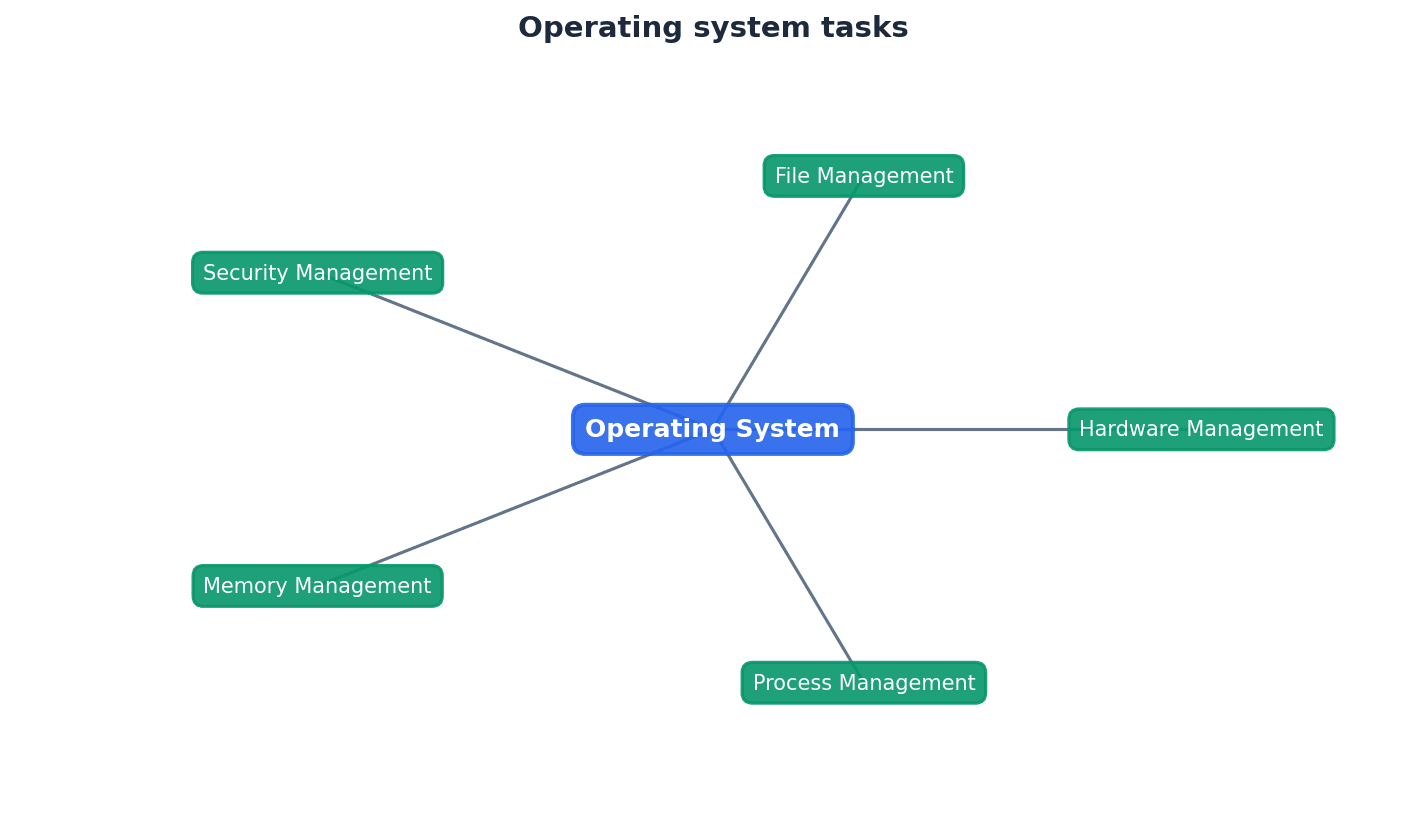
The operating system performs several key management tasks to ensure efficient and secure computer operation. These include memory management, file management, security management, hardware management, and process management. Each task is crucial for the overall stability and performance of the system.
Memory management — Memory management is part of the operating system that controls the main memory.
It involves allocating and deallocating memory to running applications, ensuring efficient use of resources, and preventing conflicts. This is crucial for multitasking and overall system performance, much like a librarian who decides where books go and tracks availability.
Students often think memory management is just about how much RAM a computer has, but actually it's about how that RAM is organised, allocated, and protected.
Memory optimisation — Memory optimisation is a function of memory management that determines how memory is allocated and deallocated.
It ensures efficient use of main memory by tracking allocated and free memory, and by swapping data to and from secondary storage (HDD/SSD) when multiple applications run simultaneously. This prevents memory from being wasted or becoming fragmented, similar to a parking attendant managing spaces.
Memory organisation — Memory organisation is a function of memory management that determines how much memory is allocated to an application.
It defines strategies like single allocation, partitioned allocation, paged memory, or segmented memory to divide and assign memory blocks to applications. This impacts how efficiently memory is used and accessed, much like deciding how to divide rooms or cubicles.
Memory protection — Memory protection is a function of memory management that ensures two competing applications cannot use same memory locations at the same time.
This prevents data corruption, incorrect results, security issues, and system crashes by isolating the memory spaces of different processes. It is a fundamental aspect of operating system stability, like having separate, locked offices for different employees.
Virtual memory systems — Virtual memory systems are memory management (part of OS) that makes use of hardware and software to enable a computer to compensate for shortage of actual physical memory.
By temporarily moving data from RAM to disk storage (paging), virtual memory allows a system to run applications that require more memory than physically available. This extends the apparent memory capacity of the computer, much like using a large filing cabinet when your desk gets full.
CMOS — CMOS stands for complementary metal-oxide semiconductor.
CMOS memory stores the BIOS configuration in modern computers, allowing it to be altered or deleted as required. This is crucial for system setup and flexibility, acting like a small, re-writable notepad for basic computer settings.
Students often think CMOS is the BIOS itself, but actually CMOS is the memory that stores the BIOS settings, while BIOS is the firmware program.
Security management — Security management is part of the operating system that ensures the integrity, confidentiality and availability of data.
It involves various measures like OS updates, antivirus software, firewalls, user privileges, and data recovery options to protect the system from unauthorised access, corruption, and loss. This is vital for data safety and privacy, much like a building's security system.
Process management — Process management is part of the operating system that involves allocation of resources and permits the sharing and exchange of data.
It manages the execution of programs (processes) by scheduling resources, resolving software conflicts, and synchronising data exchange. This ensures that multiple programs can run efficiently and concurrently, like a traffic controller for all running programs.
Hardware management — Hardware management is part of the operating system that controls all input/output devices connected to a computer (made up of sub-management systems such as printer management, secondary storage management, and so on).
It communicates with I/O devices using device drivers, translates data formats, and prioritises hardware resources. This ensures that peripherals function correctly and efficiently with the operating system, acting like a universal translator for all connected gadgets.
Device driver — Device driver is software that communicates with the operating system and translates data into a format understood by the device.
Each hardware device requires a specific driver to function correctly with the operating system. Drivers act as an interface, allowing the OS to send commands and receive data from peripherals in a compatible format, much like a specific instruction manual for a piece of equipment.
For OS management tasks, be prepared to describe specific functions for each type (e.g., memory protection prevents applications from using the same memory locations).
File management is another critical OS task, responsible for organising, storing, retrieving, and protecting files on storage devices. It provides a hierarchical structure for directories and files, manages access permissions, and ensures data integrity. This allows users and applications to easily locate and interact with data.
Utility program — Utility program refers to parts of the operating system which carry out certain functions, such as virus checking, defragmentation or hard disk formatting.
These are system software designed to help analyse, configure, optimise, or maintain a computer. They perform specific tasks that enhance the functionality and performance of the operating system, much like a toolkit for your computer.
Disk formatter — Disk formatter is a utility that prepares a disk to allow data/files to be stored and retrieved.
It organises storage space into partitions and writes directory data and tables of contents (TOC) to the disk, enabling the operating system to recognise and locate files. Formatting also includes checking for and flagging bad sectors, similar to setting up a new filing cabinet.
Bad sector — Bad sector is a faulty sector on an HDD which can be soft or hard.
Bad sectors are areas on a hard disk that cannot be reliably read from or written to. Hard bad sectors are physical damage, while soft bad sectors are data corruption. Disk formatters can flag these sectors to prevent further data loss, much like a damaged spot on a vinyl record.
Students often think all bad sectors are permanent physical damage, but actually soft bad sectors can sometimes be 'repaired' by overwriting them.
Antivirus software — Antivirus software is software that quarantines and deletes files or programs infected by a virus (or other malware).
It protects computers by checking for known viruses against a database, performing heuristic checking for suspicious behaviour, and isolating or removing infected files. It can run in the background or be initiated by the user, acting like a security guard for your computer.
Heuristic checking — Heuristic checking is checking of software for behaviour that could indicate a possible virus.
This method allows antivirus software to detect new or unknown viruses by identifying suspicious patterns of activity, even if the virus isn't in its database. It's a proactive approach to malware detection, much like a detective looking for suspicious behaviour.
Quarantine — Quarantine is a file or program identified as being infected by a virus which has been isolated by antivirus software before it is deleted at a later stage.
When a file is quarantined, it is moved to a secure, isolated area where it cannot harm the system. This allows the user to decide on its fate (delete or restore) and prevents the virus from spreading, similar to putting a sick person in an isolation room.
False positive — False positive is a file or program identified by a virus checker as being infected but the user knows this cannot be correct.
This occurs when antivirus software incorrectly flags a legitimate file as malicious. It's a drawback of heuristic checking, as overly aggressive detection can sometimes misinterpret harmless behaviour, much like a smoke detector going off due to burnt toast.
Students often think antivirus software is foolproof, but actually it needs constant updates and can sometimes produce false positives.
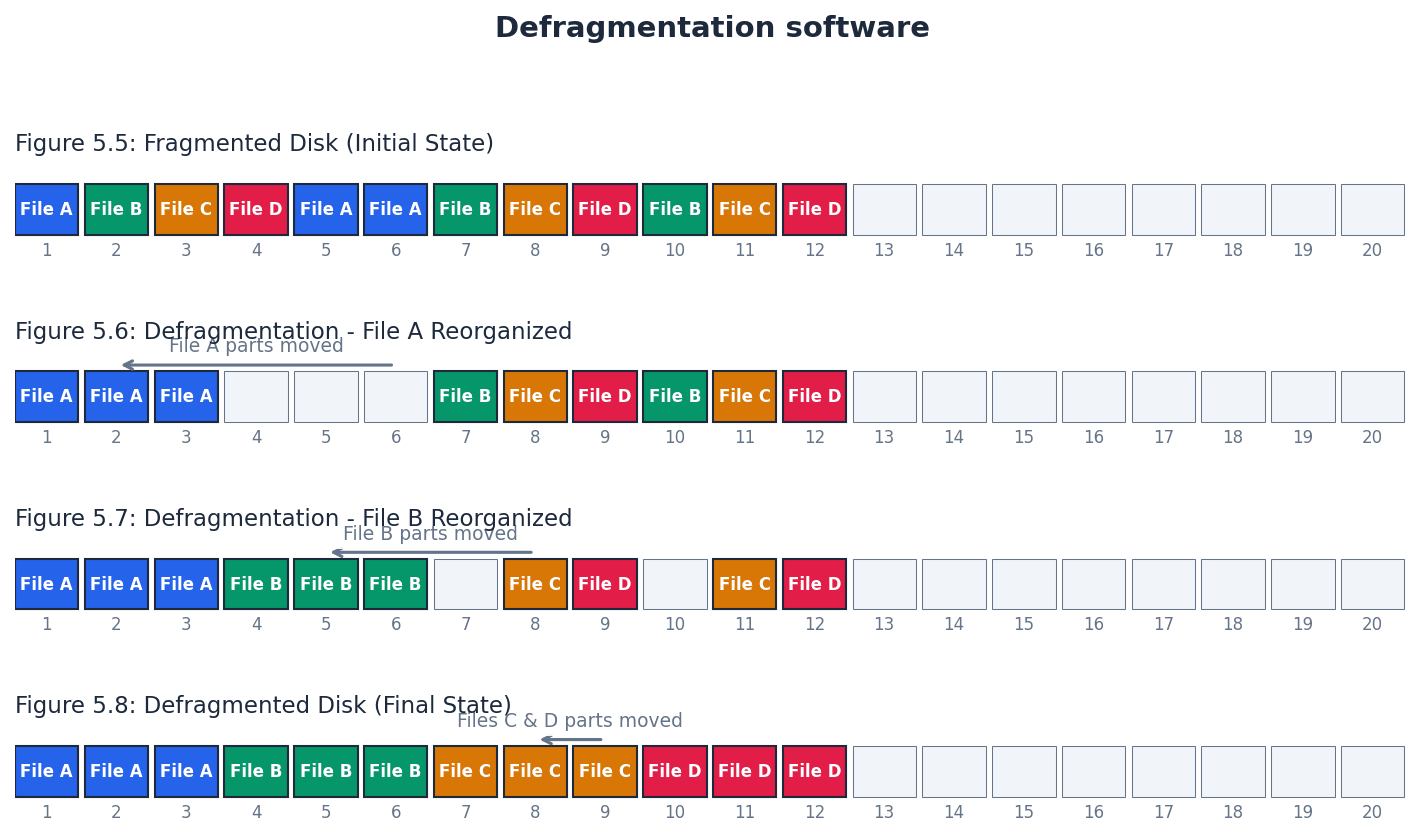
Disk defragmenter — Disk defragmenter is a utility that reorganises the sectors on a hard disk so that files can be stored in contiguous data blocks.
Over time, files on a hard disk become fragmented, meaning their data is scattered across non-contiguous sectors. Defragmentation consolidates these fragments, reducing read/write head movements and improving data access speed, much like tidying up a messy bookshelf.
Contiguous — Contiguous means items next to each other.
In computing, contiguous memory or disk blocks refer to data stored in an unbroken sequence, which allows for faster access and retrieval compared to fragmented data. This is particularly relevant for disk defragmentation, like having all the pages of a book in perfect order.
Students often think defragmentation is necessary for SSDs, but actually it's less of a problem for SSDs due to their different data access mechanism.
Disk content analysis software — Disk content analysis software is a utility that checks disk drives for empty space and disk usage by reviewing files and folders.
This software helps users identify large or unnecessary files, allowing them to free up disk space and optimise storage usage. It provides insights into how disk space is being consumed, much like a detailed inventory of your storage room.
Disk compression — Disk compression is software that compresses data before storage on an HDD.
This utility reduces the physical space required to store data on a hard disk by compressing it before writing and decompressing it upon reading. It's a high-priority utility that can save storage space, though less common with large modern HDDs, similar to packing clothes into vacuum-seal bags.
Back-up utility — Back-up utility is software that makes copies of files on another portable storage device.
This utility automates the process of creating copies of important files, often on a schedule or when changes are detected. It is crucial for data recovery in case of loss or corruption, much like having a personal assistant who regularly makes copies of important documents.
For utility software, identify the specific need and function of each type (e.g., defragmentation reduces file access time on HDDs).
Program library — Program library is a library on a computer where programs and routines are stored which can be freely accessed by other software developers for use in their own programs.
Program libraries are collections of pre-written, tested code modules that developers can incorporate into their own applications. This promotes code reuse, reduces development time, and ensures reliability, as these routines are often thoroughly debugged.
Library program — Library program is a program stored in a library for future use by other programmers.
These are complete programs or significant components within a library that can be integrated into larger software projects. They offer ready-made functionalities, saving developers from having to write common features from scratch.
Library routine — Library routine is a tested and ready-to-use routine available in the development system of a programming language that can be incorporated into a program.
Library routines are smaller, specific functions or subroutines within a library. They provide particular functionalities, such as mathematical calculations or input/output operations, that can be called upon by a developer's code.
Dynamic link file (DLL) — Dynamic link file (DLL) is a library routine that can be linked to another program only at the run time stage.
DLLs are special types of program libraries that are not embedded directly into the main program executable. Instead, they are loaded and linked to the program when it is run, allowing multiple programs to share the same library code and reducing memory footprint.
Students often think DLLs are embedded in the main program, but actually they are separate files linked at run time.
Translator — Translator is the systems software used to translate a source program written in any language other than machine code.
Translators are essential system software components that convert human-readable source code into machine code that a computer's processor can understand and execute. This bridge allows programmers to write in higher-level languages without needing to understand the intricate details of machine instructions.
To execute programs written in high-level languages or assembly language, a computer needs language translators. These include assemblers for assembly language, and compilers and interpreters for high-level languages. Each type of translator has distinct characteristics regarding how it converts and executes code.
Compiler — Compiler is a computer program that translates a source program written in a high-level language to machine code or p-code, object code.
A compiler translates an entire source program into machine code (or an intermediate code like p-code) before execution. This results in a standalone executable file that can be run independently, offering faster execution speeds once compiled.
Interpreter — Interpreter is a computer program that analyses and executes a program written in a high-level language line by line.
An interpreter translates and executes a program line by line, without producing a separate executable file. This allows for easier debugging and testing during development, as errors can be identified immediately after the problematic line.
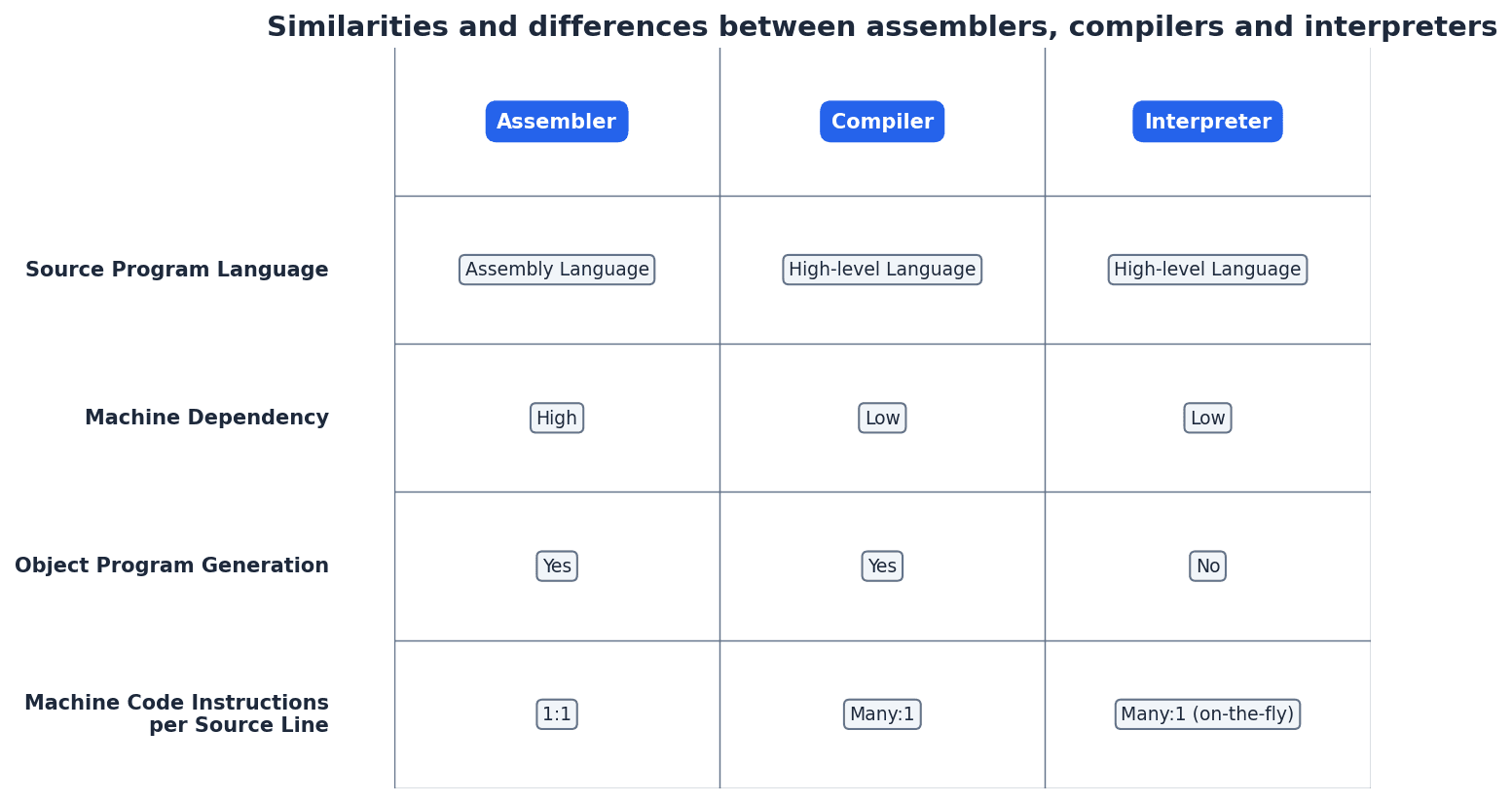
Compilers generally produce faster-executing programs because the entire code is translated once into machine code. However, debugging can be more challenging as errors are reported after compilation. Interpreters, while slower in execution due to line-by-line translation, offer easier debugging as errors are found immediately, and they are more portable as the source code can run on any machine with an interpreter.
Some high-level languages, such as Java, employ a hybrid approach. The source code is first partially compiled into an intermediate bytecode. This bytecode is then interpreted by a Java Virtual Machine (JVM) at runtime. This method combines some benefits of both compilation (initial translation) and interpretation (platform independence).
When comparing compilers and interpreters, clearly state benefits and drawbacks for each, such as execution speed, debugging ease, and memory usage.
Be ready to explain the concept of partial compilation and interpretation, using Java as a common example.
Integrated development environment (IDE) — Integrated development environment (IDE) is a suite of programs used to write and test a computer program written in a high-level programming language.
An IDE provides a comprehensive set of tools within a single application to facilitate software development. It streamlines the coding process by integrating features like source code editors, compilers/interpreters, and debuggers, making development more efficient.
A typical IDE includes several key features to aid in coding, error detection, presentation, and debugging. These features collectively enhance a programmer's productivity and the quality of the software produced. Key components include a source code editor, integrated compilers or interpreters, a run-time environment with a debugger, and auto-documenters.
Prettyprinting — Prettyprinting is the practice of displaying or printing well set out and formatted source code, making it easier to read and understand.
Prettyprinting is a feature often found in IDEs that automatically formats source code with consistent indentation, spacing, and syntax highlighting. This improves code readability and maintainability, making it easier for developers to understand and work with the code.
Syntax error — Syntax error is an error in the grammar of a source program.
A syntax error occurs when the code violates the grammatical rules of the programming language, such as a missing semicolon or incorrect keyword usage. IDEs often highlight these errors in the source code editor, preventing compilation or interpretation until fixed.
Logic error — Logic error is an error in the logic of a program.
A logic error occurs when a program runs without crashing but produces incorrect or unexpected results because of a flaw in the program's design or algorithm. These errors are harder to detect than syntax errors and require careful debugging.
Students often think syntax errors are the same as logic errors, but actually syntax errors are about the *form* of the code, while logic errors are about the *meaning* or *intent*.
Debugging — Debugging is the process of finding logic errors in a computer program by running or tracing the program.
Debugging is a crucial part of software development where programmers systematically identify and resolve errors in their code. IDEs provide powerful debugging tools to assist in this process, helping to ensure the program functions as intended.
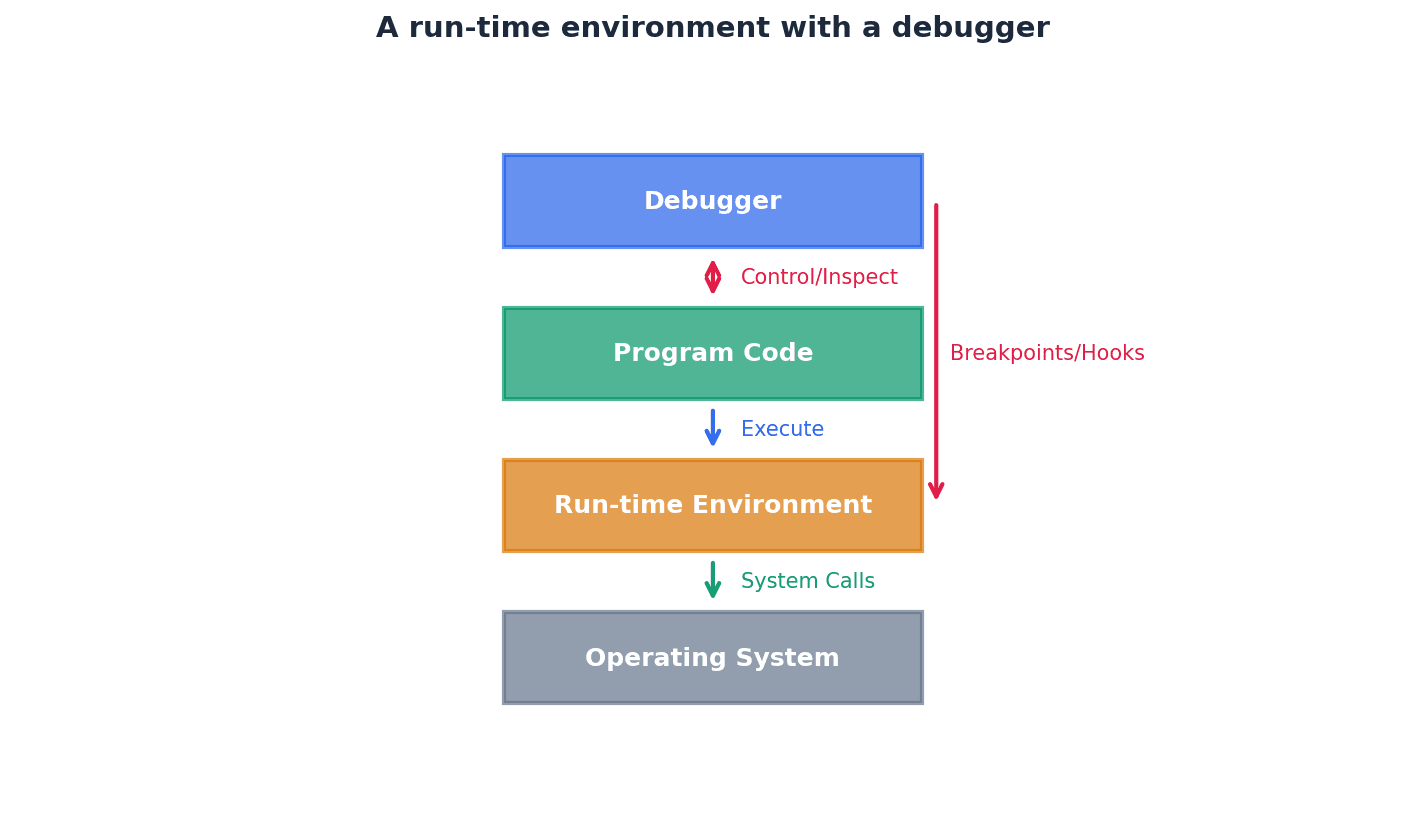
Single stepping — Single stepping is the practice of running a program one line/instruction at a time.
Single stepping is a debugging technique that allows a programmer to execute code line by line, observing the program's state at each step. This helps in understanding the flow of execution and pinpointing where a logic error might occur.
Breakpoint — Breakpoint is a deliberate pause in the execution of a program during testing so that the contents of variables, registers, and so on can be inspected to aid debugging.
Breakpoints are markers set in the code that cause the program to pause execution at specific points. This allows the programmer to inspect the values of variables and the program's state at that moment, which is invaluable for diagnosing logic errors.
Report window — Report window is a separate window in the run-time environment of the IDE that shows the contents of variables during the execution of a program.
The report window, often part of an IDE's debugger, displays the current values of variables and other program states as the code executes. This real-time feedback is essential for understanding how data changes and identifying unexpected values that indicate a logic error.
When describing IDE features, provide a brief explanation of what each component does (e.g., debugger helps identify and fix errors during execution).
When defining an OS, ensure you include both its role in providing an application environment and its function as a human-computer interface.
Definitions Bank
CMOS
CMOS stands for complementary metal-oxide semiconductor.
Operating system
Operating system is software that provides an environment in which applications can run and provides an interface between hardware and human operators.
HCI
HCI stands for human–computer interface.
GUI
GUI stands for graphical user interface.
CLI
CLI stands for command line interface.
+40 more definitions
View all →Common Mistakes
Students often think CMOS is the BIOS itself.
CMOS is actually the memory that stores the BIOS settings, while BIOS is the firmware program.
Students often think the operating system is just the graphical interface.
The operating system performs many background management tasks, such as memory and file management, in addition to providing the graphical interface.
Students often think memory management is just about how much RAM a computer has.
Memory management is about how RAM is organised, allocated, and protected, not just its total size.
+5 more
View all →This chapter explores data security, privacy, and integrity, explaining their importance in computer systems. It covers various security measures and threats, alongside methods for ensuring data integrity through validation and verification techniques. Understanding these concepts is crucial for protecting information in digital environments.
Data privacy — The privacy of personal information, or other information stored on a computer, that should not be accessed by unauthorised parties.
Data privacy ensures that sensitive information about individuals or organisations is protected from unwanted exposure. This is often enforced through data protection laws, which outline principles for how data should be handled and secured, much like keeping a personal diary locked away.
Data protection laws — Laws which govern how data should be kept private and secure.
These laws provide a legal framework for organisations to follow when handling personal data, typically covering principles such as fair processing, purpose limitation, data accuracy, and security. Non-compliance can lead to fines or jail sentences, acting like traffic laws for data, ensuring it moves safely and responsibly.
Data security — Methods taken to prevent unauthorised access to data and to recover data if lost or corrupted.
Data security encompasses both preventative measures, such as firewalls and encryption, and reactive strategies, like backups, to safeguard information. Its goal is to ensure confidentiality, integrity, and availability of data, much like having a strong safe for valuables and a plan to retrieve them if compromised.
Data integrity — The accuracy, completeness and consistency of data.
Data integrity ensures that data remains reliable and trustworthy throughout its lifecycle, meaning it is free from errors, omissions, or inconsistencies. It is maintained through methods like validation and verification, and is crucial for accurate decision-making, much like ensuring all ingredients in a recipe are exactly as specified.
When defining data integrity, always include the three key aspects: accuracy, completeness, and consistency.
The increasing reliance on computer systems for storing and processing sensitive information necessitates robust data security and computer system security. This involves preventing unauthorised access to data and ensuring its recovery if lost or corrupted. Measures like user accounts, passwords, firewalls, antivirus, anti-spyware, and encryption are vital in achieving this, protecting against various threats.
User account — An agreement that allows an individual to use a computer or network server, often requiring a user name and password.
User accounts are fundamental for authentication, proving a user's identity, and for controlling access rights to different parts of a system. They enable a hierarchy of access levels, ensuring only authorised individuals can view or modify specific data, much like a membership card to a club granting specific privileges.
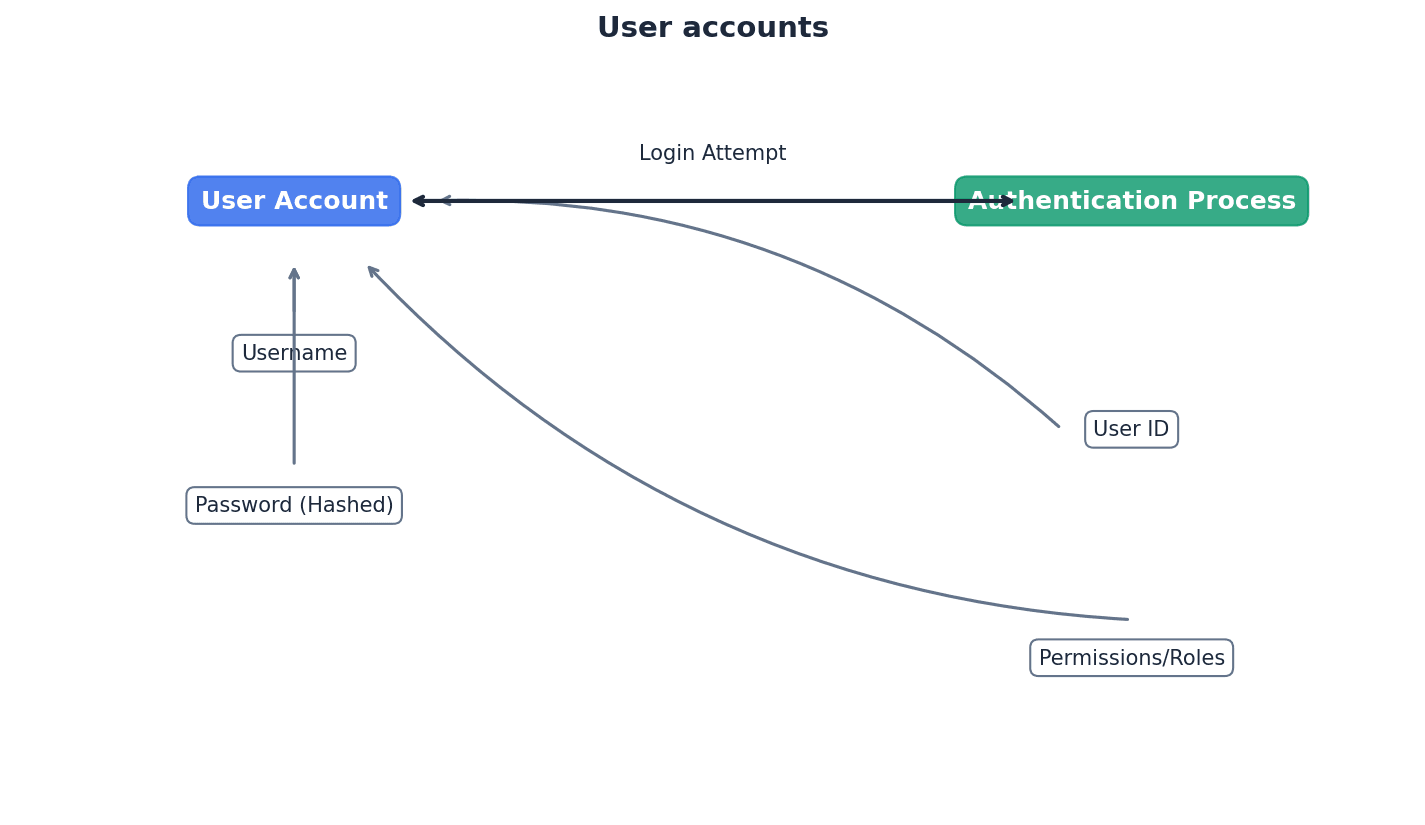
When asked about user accounts, link them directly to authentication and access rights, explaining how they contribute to a tiered security system.
Students often think a user account is just a username and password, but actually it's the entire profile that links an individual to specific access rights and permissions within a system.
Authentication — A way of proving somebody or something is who or what they claim to be.
Authentication is a critical security process that verifies the identity of a user, device, or system before granting access. This can be achieved through various methods, including passwords, biometrics, or digital certificates, much like showing an ID to prove identity before entering a restricted area.
Distinguish authentication from authorisation in your answers; authentication is about 'who you are', authorisation is about 'what you can do'.
Students often think authentication is the same as authorisation, but actually authentication proves identity, while authorisation determines what that identified user is allowed to do.
Access rights (data security) — Use of access levels to ensure only authorised users can gain access to certain data.
Access rights define what actions a user can perform on specific data or resources, such as reading, writing, or deleting. They are typically managed through user accounts and are crucial for implementing a hierarchy of security within a system, much like different keys on a janitor's ring opening specific rooms.
Students often think access rights are only about preventing unauthorised access, but actually they also ensure that authorised users only have the necessary level of access, following the principle of least privilege.
Biometrics — Use of unique human characteristics to identify a user (such as fingerprints or face recognition).
Biometrics provides a highly secure method of authentication by leveraging inherent physical or behavioural traits that are unique to an individual. This makes it difficult for unauthorised users to impersonate someone, enhancing system security, much like using a unique face or fingerprint as an unforgeable key.
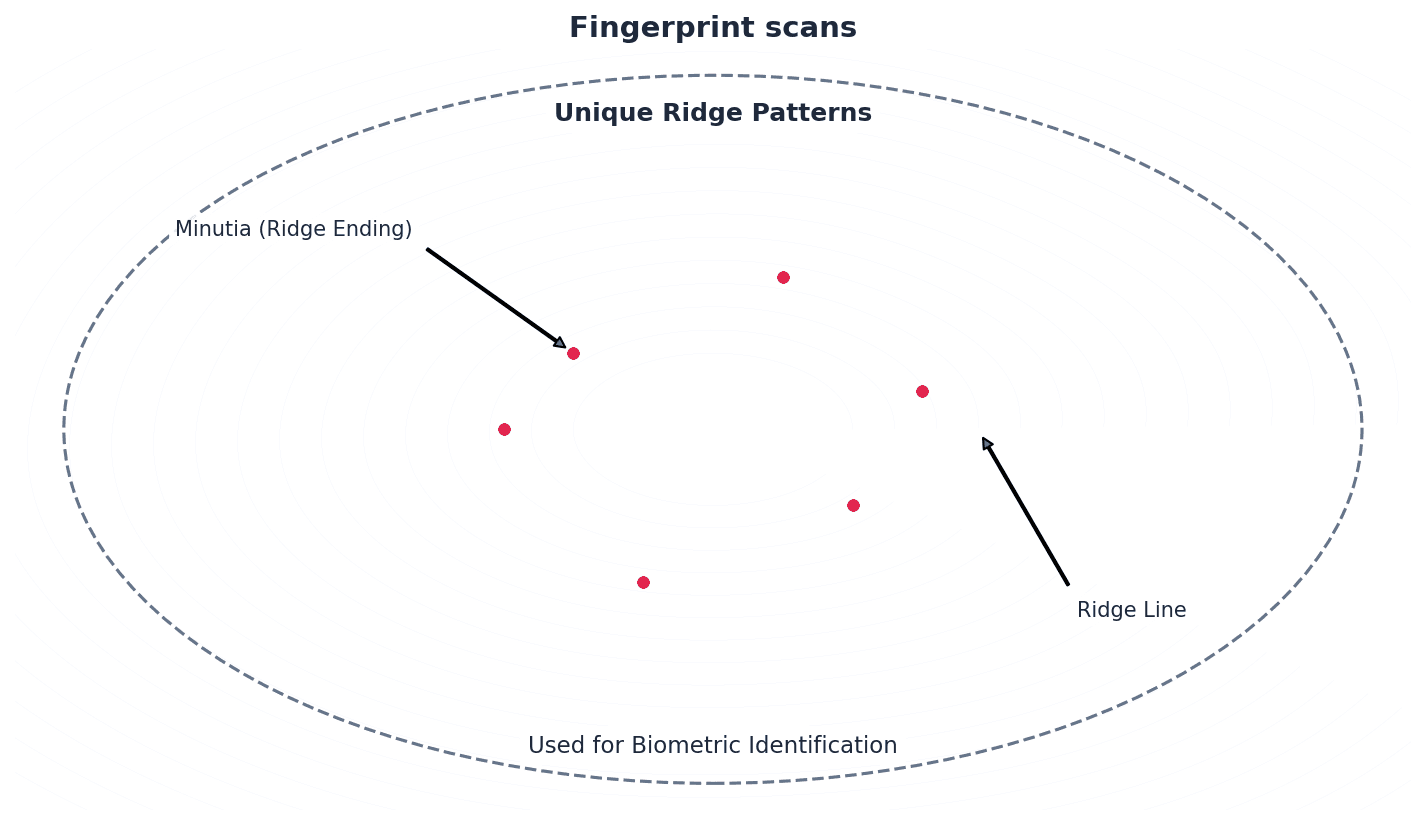
When discussing biometrics, provide specific examples like fingerprint or retina scans and briefly mention their relative accuracy or security levels.
Students often think biometrics are foolproof, but actually they can still have accuracy issues (e.g., 1 in 500 for fingerprints) and require careful implementation to prevent spoofing.
Firewall — Software or hardware that sits between a computer and external network that monitors and filters all incoming and outgoing activities.
A firewall acts as a barrier, examining network traffic against a set of predefined rules to determine whether to allow or block it. It is a primary defence against hacking, malware, phishing, and pharming, protecting a computer or network from external threats, much like a security guard checking everyone entering and leaving a building.
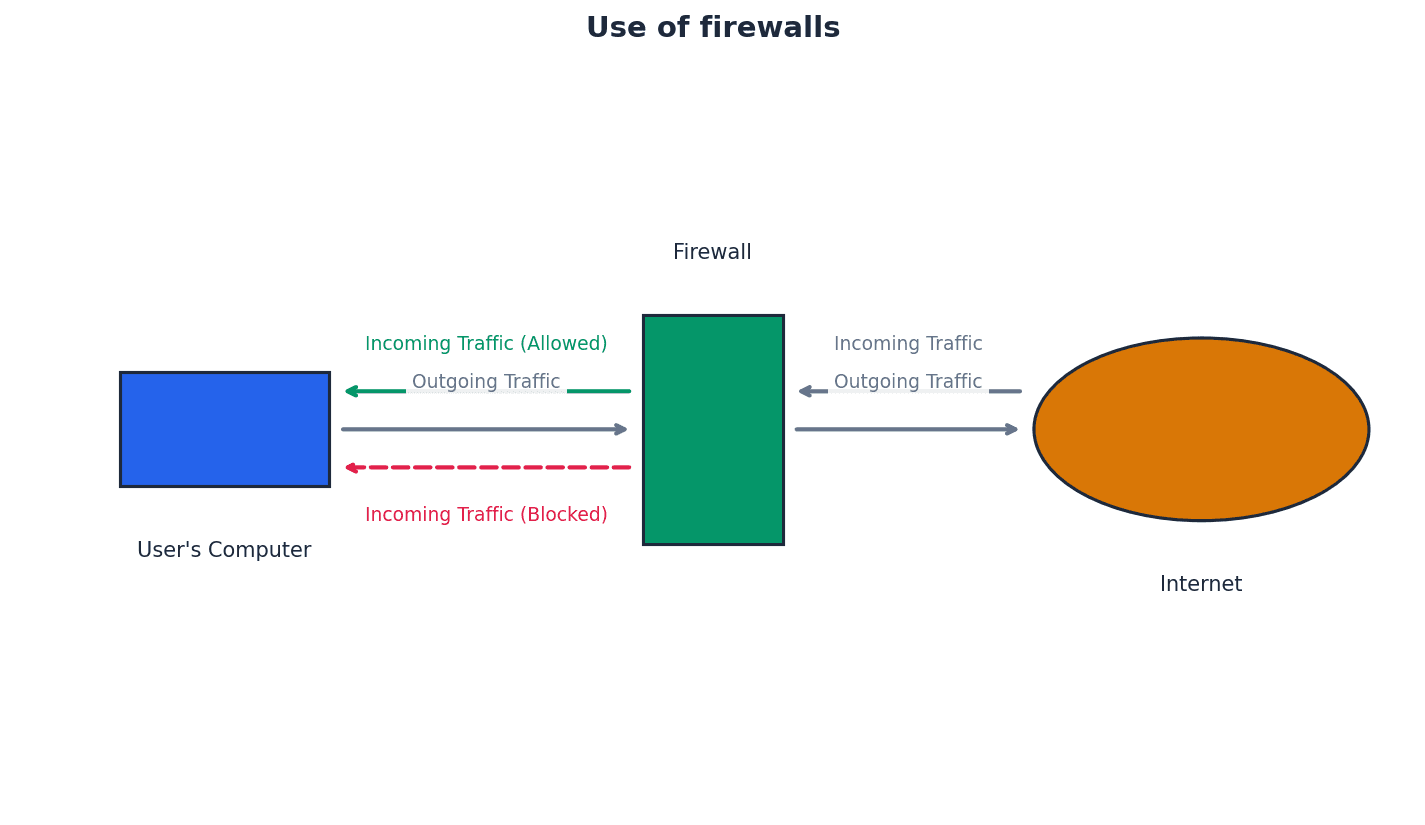
When describing a firewall, mention both its monitoring and filtering functions, and be able to list specific tasks it performs, such as blocking undesirable sites or logging traffic.
Students often think a firewall can prevent all security issues, but actually it cannot prevent internal misconduct, users bypassing it with modems, or users disabling it on standalone computers.
Encryption — The use of encryption keys to make data meaningless without the correct decryption key.
Encryption transforms data into an unreadable format, known as ciphertext, using an algorithm and an encryption key. This ensures that even if unauthorised parties gain access to the data, they cannot understand or use it without the corresponding decryption key, thus protecting confidentiality, much like writing a secret message in a code only someone with a special decoder ring can understand.
Explain that encryption protects data confidentiality, making it 'meaningless' to unauthorised users, but does not prevent data deletion.
Students often think encryption prevents data from being accessed, but actually it only prevents the data from being understood or used if accessed illegally; it doesn't stop deletion.
Computer systems face various security threats that can compromise data. These include malicious software (malware), unauthorised access (hacking), and deceptive practices like phishing and pharming. Understanding these threats is the first step in implementing effective protective measures.
Malware — Malicious software that seeks to damage or gain unauthorised access to a computer system.
Malware is a broad term encompassing various types of harmful software, including viruses, worms, Trojan horses, and spyware. Its primary goal is to disrupt computer operations, steal data, or gain control over a system without the user's knowledge or consent, much like a general term for any pest that tries to invade and harm a house.
When asked about malware, avoid using 'virus' as a catch-all term; instead, use 'malware' and then specify different types if required.
Students often think 'virus' is synonymous with all malware, but actually a virus is just one specific type of malware, alongside worms, Trojans, and spyware.
Anti-spyware software — Software that detects and removes spyware programs installed illegally on a user’s computer system.
Anti-spyware software works by either looking for typical features associated with spyware or by identifying known file structures of common spyware programs. It helps protect user privacy by preventing the surreptitious collection of personal information, much like a detective specifically trained to find and remove hidden cameras or listening devices.
Students often think antivirus software covers all spyware, but actually dedicated anti-spyware software is often more effective at identifying and removing programs specifically designed for information gathering.
Hacking — Illegal access to a computer system without the owner’s permission.
Hacking involves gaining unauthorised entry into a computer system, often with the intent to steal, alter, or delete data, or to cause system disruption. It is a significant security threat that can be mitigated by strong passwords, firewalls, and intrusion detection systems, much like breaking into someone's house without permission.
Clearly differentiate between 'malicious hacking' (illegal) and 'ethical hacking' (authorised for security testing) in your answers.
Students often think all hacking is illegal, but actually 'ethical hacking' is a legitimate practice used by companies to test their own security with permission.
Malicious hacking — Hacking done with the sole intent of causing harm to a computer system or user (for example, deletion of files or use of private data to the hacker’s advantage).
This type of hacking is illegal and aims to compromise data integrity, confidentiality, or availability. It often involves deleting, altering, or corrupting files, or stealing personal details for fraudulent purposes, much like a burglar breaking into a home to vandalise property or steal identity.
Ethical hacking — Hacking used to test the security and vulnerability of a computer system.
Ethical hacking is a legal and authorised practice where security experts simulate malicious attacks to identify weaknesses in a system's defences. This proactive approach helps organisations strengthen their security measures against real-world threats, much like hiring a professional safe-cracker to test a safe's security.
Phishing — Legitimate-looking emails designed to trick a recipient into giving their personal data to the sender of the email.
Phishing attacks rely on social engineering, using deceptive emails that appear to come from trusted sources (e.g., banks, service providers) to induce users to reveal sensitive information or click malicious links. The user must take an action for the scam to succeed, much like a con artist sending a fake letter from a bank.
Emphasise that phishing requires the recipient to 'carry out a task' (e.g., click a link) and that common identifiers include generic greetings and suspicious links.
Students often confuse phishing (user action required) with pharming (redirection without user action).
Pharming — Redirecting a user to a fake website in order to illegally obtain personal data about the user.
Pharming can occur either by installing malicious code on a user's computer or by altering IP addresses on a DNS server (DNS cache poisoning). Unlike phishing, pharming redirects the user without requiring them to click a link, making it more insidious, much like someone secretly changing road signs to redirect you to a fake bank.
Clearly state that pharming redirects a user 'without their knowledge' or 'without them taking any action', often through DNS cache poisoning, which is a key differentiator from phishing.
DNS cache poisoning — Altering IP addresses on a DNS server by a ‘pharmer’ or hacker with the intention of redirecting a user to their fake website.
This technique involves corrupting the DNS server's cache, causing it to return incorrect IP addresses for legitimate websites. When a user attempts to access the legitimate site, they are unknowingly directed to a fraudulent one controlled by the attacker, much like someone secretly changing a phone book entry to a fake number.
Maintaining data integrity is crucial for reliable information. This is achieved through two primary methods: validation and verification. Validation checks if data is reasonable and meets predefined criteria, while verification ensures data is correct by comparing it against a source or through redundant input. Both are essential for preventing errors and maintaining data quality.
Validation — Method used to ensure entered data is reasonable and meets certain input criteria.
Validation checks data against predefined rules to ensure it falls within acceptable parameters, such as a specific data type, range, or format. While it confirms reasonableness, it cannot guarantee that the data is factually correct or accurate, much like a bouncer checking if you meet an age requirement but not confirming your actual identity.
Clearly state that validation checks for 'reasonableness' and 'criteria' but 'cannot check if data is correct or accurate'.
Students often confuse validation (checking reasonableness) with verification (checking correctness against a source).
Verification — Method used to ensure data is correct by using double entry or visual checks.
Verification aims to confirm the accuracy of data, particularly during manual entry or transfer, by comparing it against an original source or through redundant input. It helps to reduce or eliminate errors that validation might miss, much like having a second person proofread an essay against the original prompt.
Distinguish verification from validation by explaining that verification ensures data is 'correct' (e.g., matches original source) while validation ensures it is 'reasonable'.
Check digit — Additional digit appended to a number to check if entered data is error free.
A check digit is calculated from the other digits in a number using a specific algorithm and then appended to it. When the number is entered, the calculation is repeated; if the recalculated check digit doesn't match the appended one, an error is detected, much like a secret code at the end of a product number confirming its legitimacy.
When explaining check digits, mention that they 'detect' errors like transposition or incorrect digits, but do not 'correct' them.
Students often think a check digit can correct errors, but actually it can only detect that an error has occurred; it cannot identify which specific digit is wrong or automatically correct it.
Modulo-11 — Method used to calculate a check digit based on modulus division by 11.
This algorithm assigns weights to each digit of a number, calculates a weighted sum, divides it by 11, and subtracts the remainder from 11 to get the check digit. If the check digit is 10, it is often represented by 'X', much like a specific mathematical recipe for creating an error-checking ingredient.
Remember the special case for modulo-11 where a check digit of 10 is represented as 'X' and be careful with the subtraction from 11 to get the final digit.
To generate a check digit for the number 4156710 using the modulo-11 algorithm, first multiply each digit by its corresponding weighting (7, 6, 5, 4, 3, 2, 1 from left to right) and sum the products. For 4156710, this is (7 × 4) + (6 × 1) + (5 × 5) + (4 × 6) + (3 × 7) + (2 × 1) + (1 × 0) = 28 + 6 + 25 + 24 + 21 + 2 + 0 = 106. Next, divide the total sum by 11: 106 / 11 = 9 remainder 7. Finally, subtract the remainder from 11: 11 – 7 = 4. The check digit is 4, resulting in the final number 41567104.
Checksum — Verification method used to check if data transferred has been altered or corrupted, calculated from the block of data to be sent.
Before transmission, a checksum value is calculated from a block of data and sent along with it. At the receiving end, the checksum is re-calculated from the received data; if the two checksums don't match, it indicates that the data was corrupted during transfer, much like weighing a package before sending and upon arrival to detect changes.
Explain that a checksum is calculated for a 'block of data' and that a mismatch triggers a request for 're-transmission'.
Students often think a checksum can pinpoint the exact location of an error, but actually it only indicates that an error has occurred within the block of data, not where.
Parity check — Method used to check if data has been transferred correctly that uses even or odd parity.
A parity check involves adding an extra bit (the parity bit) to a byte of data to ensure that the total number of '1' bits is either even (even parity) or odd (odd parity), as agreed upon by sender and receiver. If the parity changes during transmission, an error is detected, much like counting red marbles in a bag before and after transit.
Clearly state the two types of parity (even/odd) and explain that a parity check 'detects' an error but cannot 'locate' or 'correct' it in a single byte.
Students might think parity checks or checksums can correct errors, when they primarily detect them and often require re-transmission.
Parity bit — An extra bit found at the end of a byte that is set to 1 if the parity of the byte needs to change to agree with sender/receiver parity protocol.
This single bit is appended to a byte of data to maintain a predetermined parity (even or odd) for the entire byte. Its value (0 or 1) is chosen to make the total count of '1' bits match the agreed parity scheme, allowing for error detection during transmission, much like a balancing weight added to a set of weights.
Odd parity — Binary number with an odd number of 1-bits.
In an odd parity system, the parity bit is set such that the total count of '1' bits in the transmitted byte (including the parity bit) is always an odd number. If the receiver detects an even number of '1' bits, an error is flagged, much like making sure the total number of people in a room is always odd.
Even parity — Binary number with an even number of 1-bits.
In an even parity system, the parity bit is set so that the total count of '1' bits in the transmitted byte (including the parity bit) is always an even number. If the receiver detects an odd number of '1' bits, an error is flagged, much like making sure the total number of socks in a drawer is always even.
Parity block — Horizontal and vertical parity check on a block of data being transferred.
A parity block extends the parity check concept by applying it both horizontally (for each byte) and vertically (for each bit position across multiple bytes). This allows not only for error detection but also for the precise location of a single bit error within the block, enabling automatic correction, much like a grid of lights where you check rows and columns for an even number of lights.
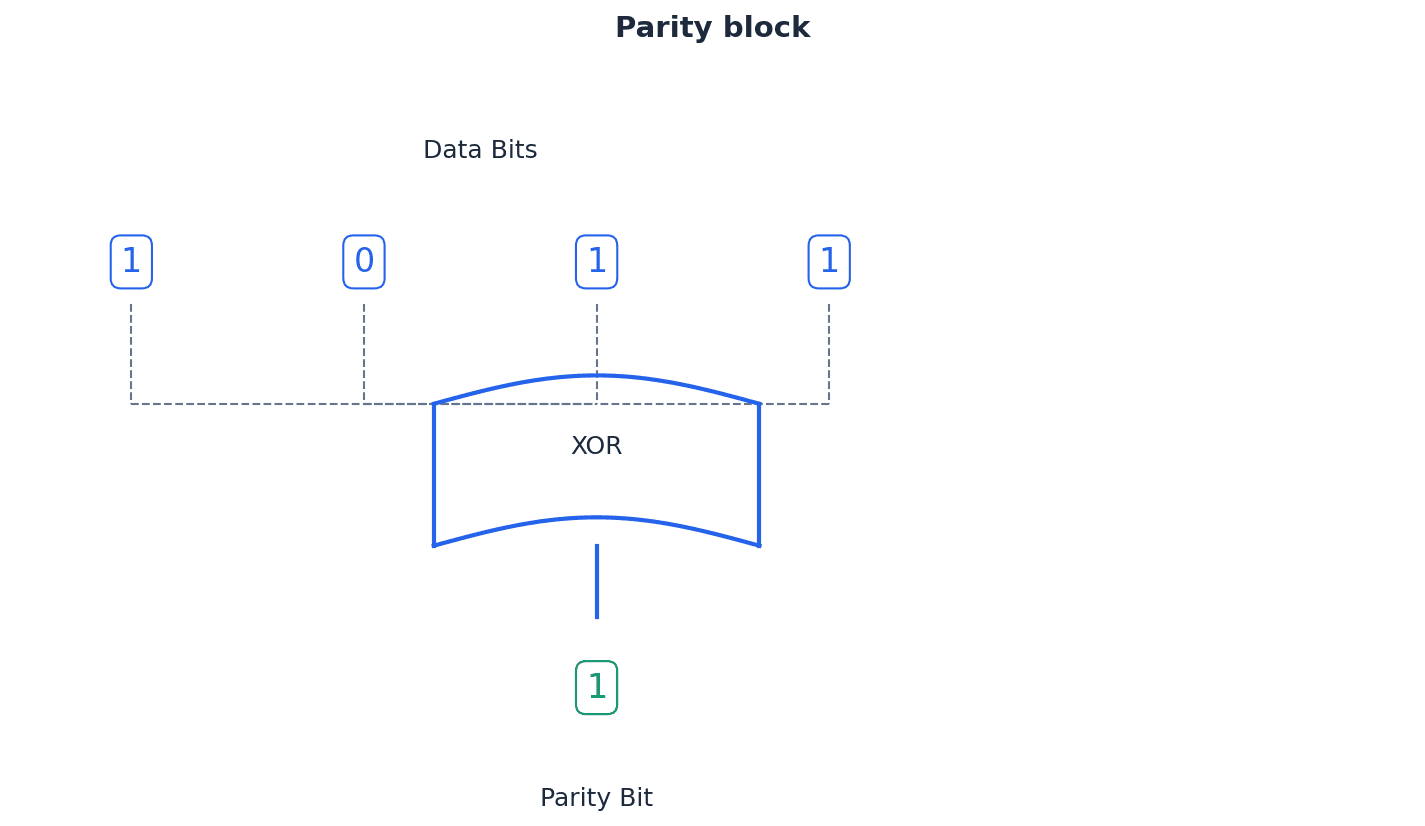
Highlight that a parity block can 'identify the position' of an error, allowing for potential 'automatic correction', unlike a single parity bit.
Parity byte — Additional byte sent with transmitted data to enable vertical parity checking (as well as horizontal parity checking) to be carried out.
The parity byte is composed of the parity bits generated from each vertical column of a data block. It is transmitted along with the data bytes and allows the receiver to perform vertical parity checks, complementing the horizontal checks to detect and locate errors, much like a 'column checksum' for an entire block of data.
Automatic repeat request (ARQ) — A type of verification check.
ARQ is a protocol that ensures reliable data transmission by using acknowledgements and timeouts. If a receiver detects an error or if the sender doesn't receive an acknowledgement within a specified timeout, the data packet is automatically re-sent until it is received correctly, much like expecting a 'read receipt' for a text message and re-sending if not received.
Acknowledgement — Message sent to a receiver to indicate that data has been received without error.
An acknowledgement is a signal from the receiver to the sender confirming successful receipt of data. It is a crucial component of protocols like ARQ, indicating that the transmitted data arrived intact and without corruption.
Timeout — Time allowed to elapse before an acknowledgement is received.
A timeout is a predetermined period during which a sender waits for an acknowledgement from the receiver. If this period expires without an acknowledgement, it is assumed that the data was lost or corrupted, triggering a re-transmission in protocols like ARQ.
When describing ARQ, focus on the cycle of 'acknowledgement', 'timeout', and 're-sending' data packets until correct reception.
Students often think ARQ is a method of error correction, but actually it's a method of error detection and re-transmission; it doesn't fix the corrupted data, it just asks for a fresh copy.
When asked to 'explain' security measures, describe how they work and what threat they mitigate. For 'identify' questions on security threats, list specific examples like viruses, spyware, hacking, phishing, and pharming. Be prepared to calculate a check digit using the modulo-11 algorithm if required.
Definitions Bank
Data privacy
The privacy of personal information, or other information stored on a computer, that should not be accessed by unauthorised parties.
Data protection laws
Laws which govern how data should be kept private and secure.
Data security
Methods taken to prevent unauthorised access to data and to recover data if lost or corrupted.
User account
An agreement that allows an individual to use a computer or network server, often requiring a user name and password.
Authentication
A way of proving somebody or something is who or what they claim to be.
+27 more definitions
View all →Common Mistakes
Confusing validation with verification.
Remember that validation checks if data is reasonable and meets criteria, while verification checks if data is correct against a source.
Believing all hacking is illegal.
Differentiate between malicious hacking (illegal) and ethical hacking (authorised for security testing).
Assuming antivirus software protects against all forms of malware, including all spyware.
While antivirus helps, dedicated anti-spyware software is often more effective at identifying and removing programs specifically designed for information gathering.
+3 more
View all →This chapter explores the crucial concepts of ethics and ownership in computer science, covering legal, moral, ethical, and cultural implications. It details the importance of professional ethical bodies and various software licensing models, alongside the profound social, economic, and environmental impacts of artificial intelligence.
Legal — Relating to, or permissible by, law.
This term refers to actions or situations that are in accordance with the established laws of a country or jurisdiction. Breaking a law makes an action illegal and potentially punishable by legal consequences. Think of a traffic light: a green light means it's legal to proceed, while a red light means it's illegal.
Morality — An understanding of the difference between right and wrong, often founded in personal beliefs.
Morality is concerned with individual choices and personal principles that guide behaviour. It can vary significantly from person to person and across different cultures, and an immoral act is not necessarily illegal. Deciding whether to tell a 'white lie' to spare someone's feelings is a moral decision, as it's based on personal beliefs about right and wrong, not a legal code.
Ethics — Moral principles governing an individual’s or organisation’s behaviour, such as a code of conduct.
Ethics concerns questions of right and wrong, typically applied in a professional context, often guided by a formal code of conduct. Unethical behaviour involves breaking these professional principles. A doctor's Hippocratic Oath is a code of ethics, guiding their professional behaviour to 'do no harm,' even if a specific action isn't legally mandated.
Students often confuse legal, moral, and ethical, thinking that if an action is not illegal, it must be ethical or moral. Remember that an action can be legal yet still immoral or unethical.
When asked to differentiate between legal, moral, and ethical, provide clear examples of actions that are legal versus those that are illegal, and how they relate to morality and ethics.
Culture — The attitudes, values and practices shared by a group of people/society.
Culture influences what is considered acceptable or offensive within a society, and these cultural norms can vary widely. Actions that are not unethical or illegal in one culture might cause distress or be illegal in another. The way people greet each other (e.g., a handshake, a bow, or a kiss on the cheek) varies by culture, reflecting shared practices and values.
Acting ethically is paramount for computer science professionals to ensure responsible practice and prevent negative impacts on the public. Professional bodies like the British Computer Society (BCS) and the Institute of Electrical and Electronics Engineers (IEEE) provide essential codes of conduct. These codes guide professionals in making decisions that uphold integrity and public safety, ensuring acceptable and consistent ethical standards.
BCS — British Computer Society.
The BCS is a professional body in the UK that represents the rights and ethical practices of IT and computing professionals. It works internationally to monitor and advise on IT practices. Like a professional medical association for doctors, the BCS sets standards and a code of conduct for computer professionals.
IEEE — Institute of Electrical and Electronics Engineers.
The IEEE is a professional organisation based in the USA that aims to raise awareness of ethical issues and promote ethical behaviour among professionals in the electronics industry, including software engineers. Similar to the BCS, the IEEE acts as a global guardian of ethical conduct for engineers and scientists in the electronics and computing fields.
ACM — Association for Computing Machinery.
The ACM is a professional body that, jointly with the IEEE, developed a set of eight principles governing the code of ethics specifically for software engineers. It aims to ensure acceptable and consistent ethical standards. The ACM, alongside IEEE, helps define the 'rules of the road' for software engineers, ensuring they drive ethically in their profession.
When discussing ethics, refer to professional bodies (like BCS, IEEE, ACM) and their codes of conduct, as this demonstrates a deeper understanding of the professional application of ethical principles.
Unethical actions in computer science can have severe consequences. For instance, the LA airport shutdown in 2007, exploding laptop computers in 2008, and the Airbus A380 incompatible software issue in 2006 all highlight how failures in ethical practice or software development can lead to significant public disruption, safety hazards, and economic losses. These incidents underscore the critical importance of acting ethically at all times.
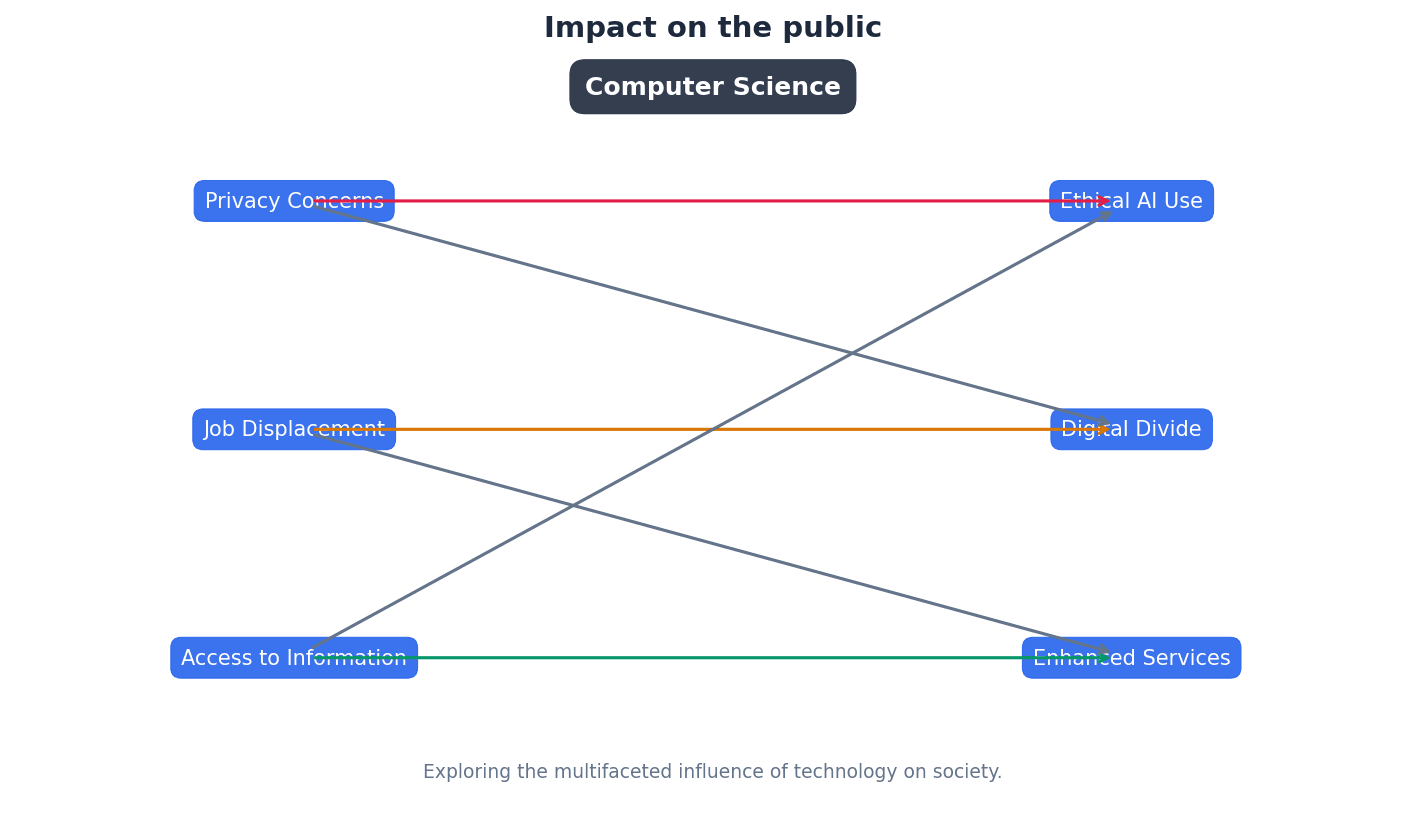
Intellectual property rights — Rules governing an individual’s ownership of their own creations or ideas, prohibiting the copying of, for example, software without the owner’s permission.
These rights protect original works, such as software, music, or designs, ensuring that creators have control over their use and distribution. Copying without permission is a violation of these rights. If you write a song, intellectual property rights are like having a legal deed to that song, meaning no one else can perform or sell it without your permission.
Privacy — The right to keep personal information and data secret and for it to not be unwillingly accessed or shared through, for example, hacking.
Privacy ensures individuals control their personal data and information, protecting it from unauthorised access or disclosure. Hacking is a direct violation of privacy. Your diary is private; no one should read it without your permission. Similarly, your digital data should be protected from unwanted access.
Students often think that if something is available online, it's free to use, but actually, most online content is protected by intellectual property rights and requires permission for use or copying.
Plagiarism — The act of taking another person’s work and claiming it as one’s own.
Plagiarism involves presenting someone else's ideas or work as original without proper acknowledgement. While it is not always illegal, it is considered unethical and can have serious academic or professional consequences. If you copy a paragraph from a book into your essay without citing the author, that's plagiarism, even if you don't sell the essay.
Copyright legislation is essential to protect intellectual property rights, preventing the unauthorised copying or use of software and other digital creations. This ensures creators are rewarded for their work and incentivises innovation. Without copyright, software piracy would be rampant, undermining the software industry.
Piracy — The practice of using or making illegal copies of, for example, software.
Software piracy involves unauthorised copying, distribution, or use of copyrighted software, which is a major issue for software companies. It is illegal and violates intellectual property rights. Imagine buying a single ticket to a concert and then making hundreds of copies to let everyone else in for free; that's like software piracy.
Product key — Security method used in software to protect against illegal copies or use.
A product key is a unique string of letters and numbers provided with legitimate software. It must be entered during installation to verify authenticity and prevent unauthorised copying or use. It's like a unique serial number on a valuable item that proves you bought it legitimately and allows you to activate its features.
Digital rights management (DRM) — Used to control the access to copyrighted material.
DRM employs protection software to restrict what users can do with copyrighted digital content, such as music, videos, or ebooks. Its aim is to prevent illegal copying and ensure content is used according to licensing terms. DRM is like a digital lock on a book that only allows you to read it on a specific device or prevents you from making photocopies.
Various software licensing models dictate how software can be used, distributed, and modified. These models range from highly restrictive commercial software to more permissive free and open-source options, each with distinct implications for users and developers. Understanding these differences is crucial for both consumers and professionals.
Free Software Foundation — Organisation promoting the free distribution of software, giving users the freedom to run, copy, change or adapt the coding as needed.
This non-profit organisation advocates for software that grants users four essential freedoms: to run, study, redistribute, and distribute modified copies. It focuses on the recipient's rights. It's like a recipe that you can freely use, share with friends, and even modify to create your own dish, as long as you also share your modified recipe freely.
Students often think 'free software' means 'free of charge', but actually, it refers to freedom of use and modification, not necessarily cost.
Open Source Initiative — Organisation offering the same freedoms as the Free Software Foundation, but with more of a focus on the practical consequences of the four shared rules, such as more collaborative software development.
While sharing the four freedoms with the Free Software Foundation, the Open Source Initiative focuses on the practical benefits of collaborative development and adherence to ten specific principles for open-source licensing. Think of it as a community garden where everyone can contribute, modify, and share plants, with a focus on how this collaboration improves the garden for everyone.
Freeware — Software that can be downloaded free of charge; however, it is covered by the usual copyright laws and cannot be modified; nor can the code be used for another purpose.
Freeware is available at no cost but remains subject to copyright, meaning users cannot modify its source code or use it for other purposes without permission. It offers no 'freedoms' beyond free use. It's like getting a free sample of a product; you can use it, but you can't change its ingredients or sell it as your own.
Shareware — Software that is free of charge initially (free trial period). The full version of the software can only be downloaded once the full fee for the software has been paid.
Shareware allows users to try software for a limited period or with limited features before requiring payment for the full version. It is copyrighted, and its source code cannot be used without permission. It's like a free demo of a video game; you can play a few levels, but to unlock the whole game, you need to buy it.
For 'differentiate between' software licenses, clearly state the key distinctions for each type (e.g., cost, modification rights, source code access).
Artificial intelligence (AI) — Machine or application which carries out a task that requires some degree of intelligence when carried out by a human counterpart.
AI involves machines or applications performing tasks that typically require human intelligence, such as language use, mathematical calculations, facial recognition, or decision-making. It aims to duplicate human problem-solving skills. A self-driving car uses AI to 'think' like a human driver, making decisions about speed, direction, and obstacles, but without human intervention.
Students often think AI is only about robots, but actually, it encompasses a wide range of applications, including autonomous vehicles, climate change predictions, and medical procedures.
Artificial intelligence (AI) has profound and multifaceted impacts across society, the economy, and the environment. Its applications range from transforming transport with self-driving cars to assisting in the criminal justice system and revolutionising advertising through data analysis. These advancements bring both opportunities and challenges that require careful ethical consideration.
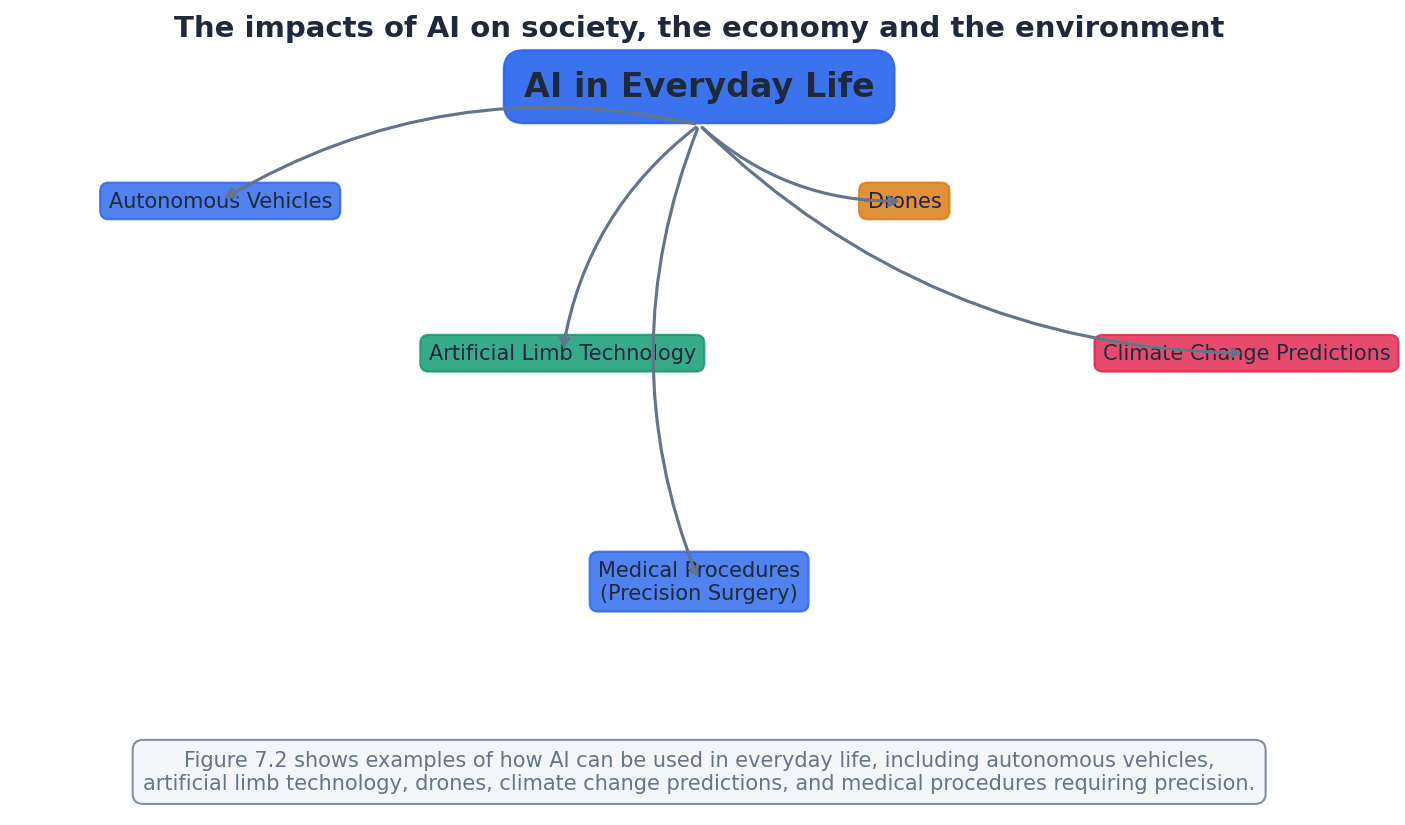
Students often underestimate the potential for bias in AI decision-making systems, particularly when discussing applications in areas like criminal justice. Remember that AI systems can perpetuate or amplify existing biases if not carefully designed and monitored.
For AI impacts, ensure you address social, economic, and environmental aspects, providing specific examples for each.
When asked to 'explain the need for' ethics or copyright, provide reasons and consequences of their absence.
Use specific examples from the chapter (e.g., LA airport shutdown, Airbus A380) to illustrate points about ethical failures and their consequences.
Definitions Bank
Legal
Relating to, or permissible by, law.
Morality
An understanding of the difference between right and wrong, often founded in personal beliefs.
Ethics
Moral principles governing an individual’s or organisation’s behaviour, such as a code of conduct.
Culture
The attitudes, values and practices shared by a group of people/society.
Intellectual property rights
Rules governing an individual’s ownership of their own creations or ideas, prohibiting the copying of, for example, software without the owner’s permission.
+13 more definitions
View all →Common Mistakes
Confusing legal, moral, and ethical.
Remember that an action can be legal (permissible by law) but still immoral (against personal beliefs) or unethical (against professional principles).
Believing 'free software' means 'free of charge'.
'Free software' refers to the freedom to run, copy, modify, and distribute software, not necessarily its cost. 'Freeware' is free of charge but copyrighted and not modifiable.
Assuming all AI applications involve physical robots.
AI encompasses a broad range of applications, including software, data analysis, decision-making systems, and autonomous vehicles, not just physical robots.
+2 more
View all →This chapter explores database concepts, contrasting the limitations of file-based systems with the advantages of relational databases. It covers essential terminology, database design using E-R diagrams and normalisation up to 3NF, and the role of Database Management Systems (DBMS) with SQL for creating, modifying, and querying databases.
Database — A structured collection of items of data that can be accessed by different applications programs.
Databases provide a centralized and organized way to store data, allowing multiple applications to share and access the same information consistently. This overcomes the limitations of file-based systems where data might be duplicated and inconsistent across different files, much like a highly organized digital library.
Relational database — A database where the data items are linked by internal pointers.
In a relational database, data is organized into tables, and relationships between these tables are established using keys (internal pointers). This structure minimizes data redundancy and ensures data consistency across the database, similar to interconnected spreadsheets where specific columns link information.
Students often confuse a database with a file-based system, overlooking the structured collection and shared access aspects. Remember that a database is a structured collection of data, often across multiple linked tables, managed by a system, not just a single file.
Students often misunderstand that 'relational' in relational database refers specifically to tables (relations) and keys, not just any linked data. It specifically refers to the use of tables (relations) and keys to link data.
File-based approaches to data storage suffer from several limitations. These include data redundancy, where the same data is stored in multiple places, leading to inconsistencies if updates are not applied everywhere. They also make data sharing difficult and often lack robust security features, which relational databases are designed to overcome.
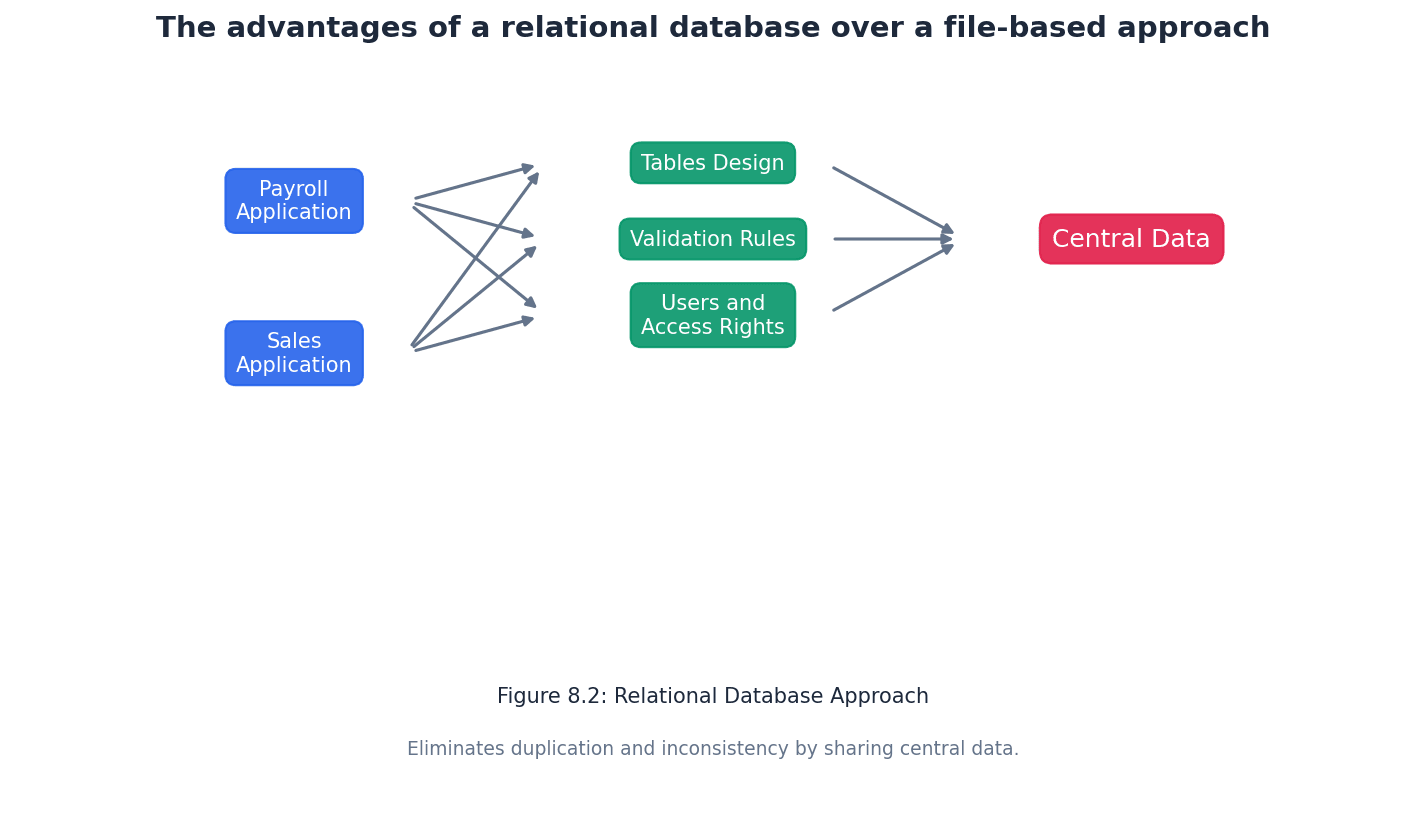
Table — A group of similar data, in a database, with rows for each instance of an entity and columns for each attribute.
Tables are the fundamental building blocks of a relational database, organizing data into a clear, two-dimensional structure. Each table represents a specific entity, and its rows and columns hold the individual data instances and their characteristics, much like a single spreadsheet tab.
Ensure you mention 'rows for each instance of an entity' and 'columns for each attribute' when defining 'Table' in an exam.
Record (database) — A row in a table in a database.
A record represents a single, complete set of information about one instance of an entity within a table. For example, in a 'Student' table, one record would contain all the data for a single student, similar to one complete horizontal line of data in a spreadsheet.
Field — A column in a table in a database.
A field represents a specific attribute or characteristic of the entity that the table describes. All entries in a particular field (column) will be of the same data type and represent the same kind of information, like a single vertical column in a spreadsheet.
Tuple — One instance of an entity, which is represented by a row in a table.
Tuple is the more rigorous, formal term for a record in the context of relational database theory. It emphasizes that each row is a unique instance of the entity defined by the table's schema, similar to calling a list entry a 'list item'.
While 'record' is acceptable, using 'tuple' demonstrates a deeper understanding of relational database terminology, especially in higher-level questions.
Entity — Anything that can have data stored about it, for example, a person, place, event, thing.
Entities are the real-world objects or concepts that a database aims to model and store information about. Each entity typically corresponds to a table in a relational database, such as 'Student' or 'Class' in a school database.
Attribute (database) — An individual data item stored for an entity, for example, for a person, attributes could include name, address, date of birth.
Attributes are the specific properties or characteristics that describe an entity. In a relational database, attributes correspond to the fields (columns) in a table, like 'First Name' or 'Date of Birth' for a 'Student' entity.
Students often fail to distinguish between 'record' (row) and 'field' (column) or their formal equivalents 'tuple' and 'attribute'. Remember that a record is a single entry within a table, while a field is a specific category of data that applies to all records in a table.
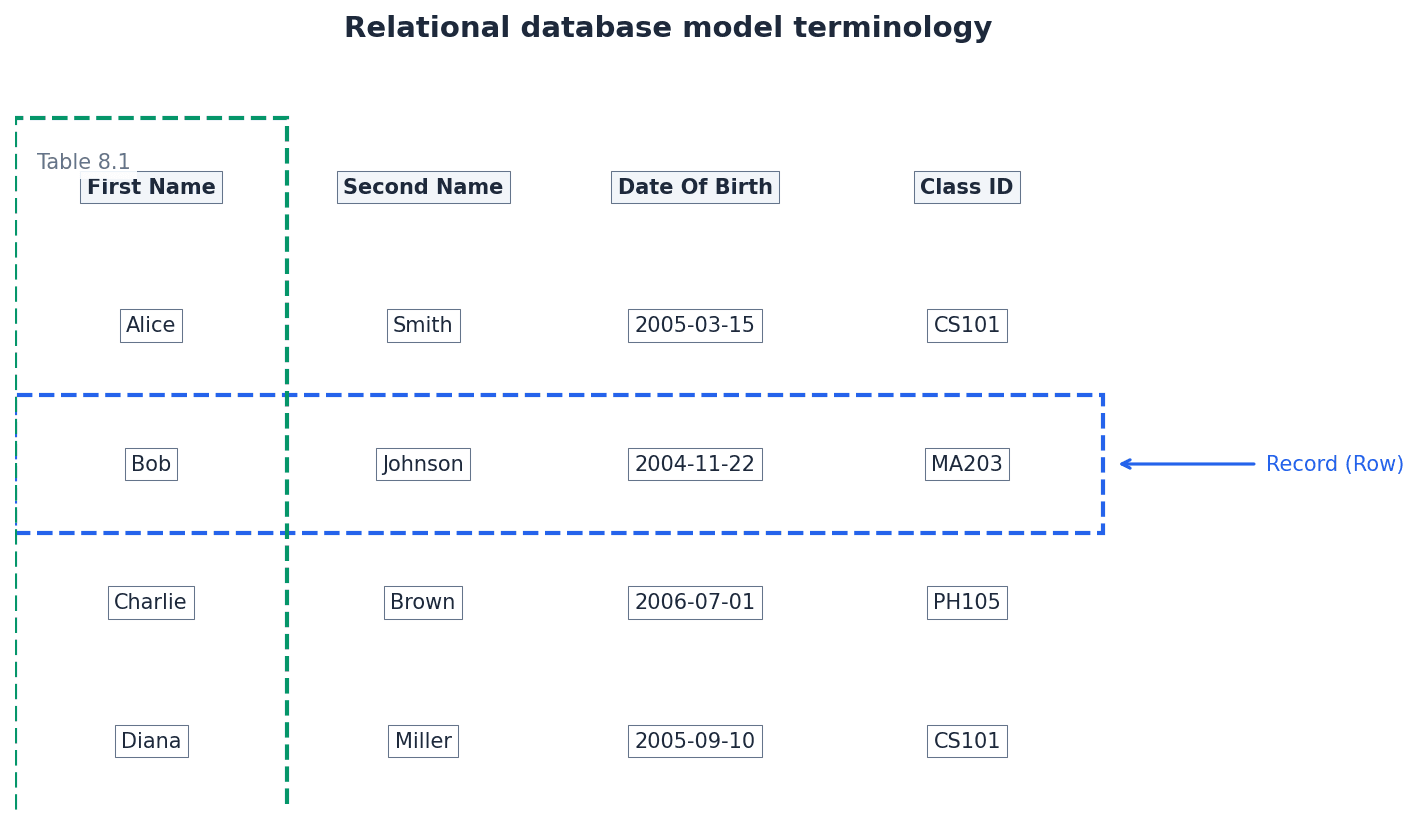
Candidate key — An attribute or smallest set of attributes in a table where no tuple has the same value.
A candidate key is any attribute or combination of attributes that can uniquely identify each record in a table. A table can have multiple candidate keys, from which one is chosen as the primary key, similar to different unique identifiers for a person like a passport number or national ID.
When identifying candidate keys, always check for uniqueness across all records and ensure it's the 'smallest set' of attributes necessary.
Primary key — A unique identifier for a table. It is a special case of a candidate key.
The primary key is chosen from the candidate keys to be the principal unique identifier for each record in a table. It ensures that every row can be uniquely identified and is crucial for establishing relationships between tables, much like a unique student ID number.
A primary key must always be unique and not null. Underline the primary key in table definitions in exams.
Composite key — A set of attributes that form a primary key to provide a unique identifier for a table.
A composite key is used when a single attribute cannot uniquely identify a record, so two or more attributes are combined to form a unique identifier. This is common in junction tables that resolve many-to-many relationships, such as combining StudentID and SubjectName to uniquely identify a student taking a specific subject.
Students often assume a primary key must always be a single attribute, rather than a composite key. Remember that a primary key can be a combination of columns.
Secondary key — A candidate key that is an alternative to the primary key.
If a table has multiple candidate keys, one is selected as the primary key, and the others can be designated as secondary keys. Secondary keys can be used for alternative search criteria or indexing to speed up data retrieval, like an email address if it's also unique.
Foreign key — A set of attributes in one table that refer to the primary key in another table.
Foreign keys are essential for establishing relationships between tables in a relational database. They link records in one table to records in another, ensuring referential integrity and allowing data to be combined across tables, such as a 'Class ID' in a 'Student' table linking to the 'Class' table.
Always specify which table's primary key a foreign key 'REFERENCES' when defining relationships in SQL or E-R diagrams.
Students often confuse secondary keys (alternative unique identifiers within a table) with foreign keys (links to primary keys in other tables). Secondary keys are alternative unique identifiers within the same table, while foreign keys link to primary keys in other tables.
Relationship — Situation in which one table in a database has a foreign key that refers to a primary key in another table in the database.
Relationships define how data in different tables are connected, allowing for the retrieval and manipulation of related information. They are crucial for maintaining data integrity and reducing redundancy in a relational database, concretely implemented through foreign keys referencing primary keys.
Referential integrity — Property of a database that does not contain any values of a foreign key that are not matched to the corresponding primary key.
Referential integrity ensures that relationships between tables remain valid. It prevents orphaned records by disallowing foreign key values that do not have a corresponding primary key in the referenced table, thus maintaining data consistency, like a rule preventing a student from being assigned to a non-existent class.
Explain that referential integrity prevents 'orphan records' and ensures that all foreign key references are valid, which is key for data consistency.
Index (database) — A data structure built from one or more columns in a database table to speed up searching for data.
Indexes work similarly to an index in a book, allowing the database system to quickly locate specific rows without having to scan the entire table. They significantly improve the performance of data retrieval operations by storing pointers to the data.
Entity-relationship (E-R) model or E-R diagram — A graphical representation of a database and the relationships between the entities.
E-R diagrams are visual tools used in database design to model the structure of a database, showing entities, their attributes, and how they relate to each other. They help in understanding and communicating the database design before implementation, acting as a blueprint for the database.
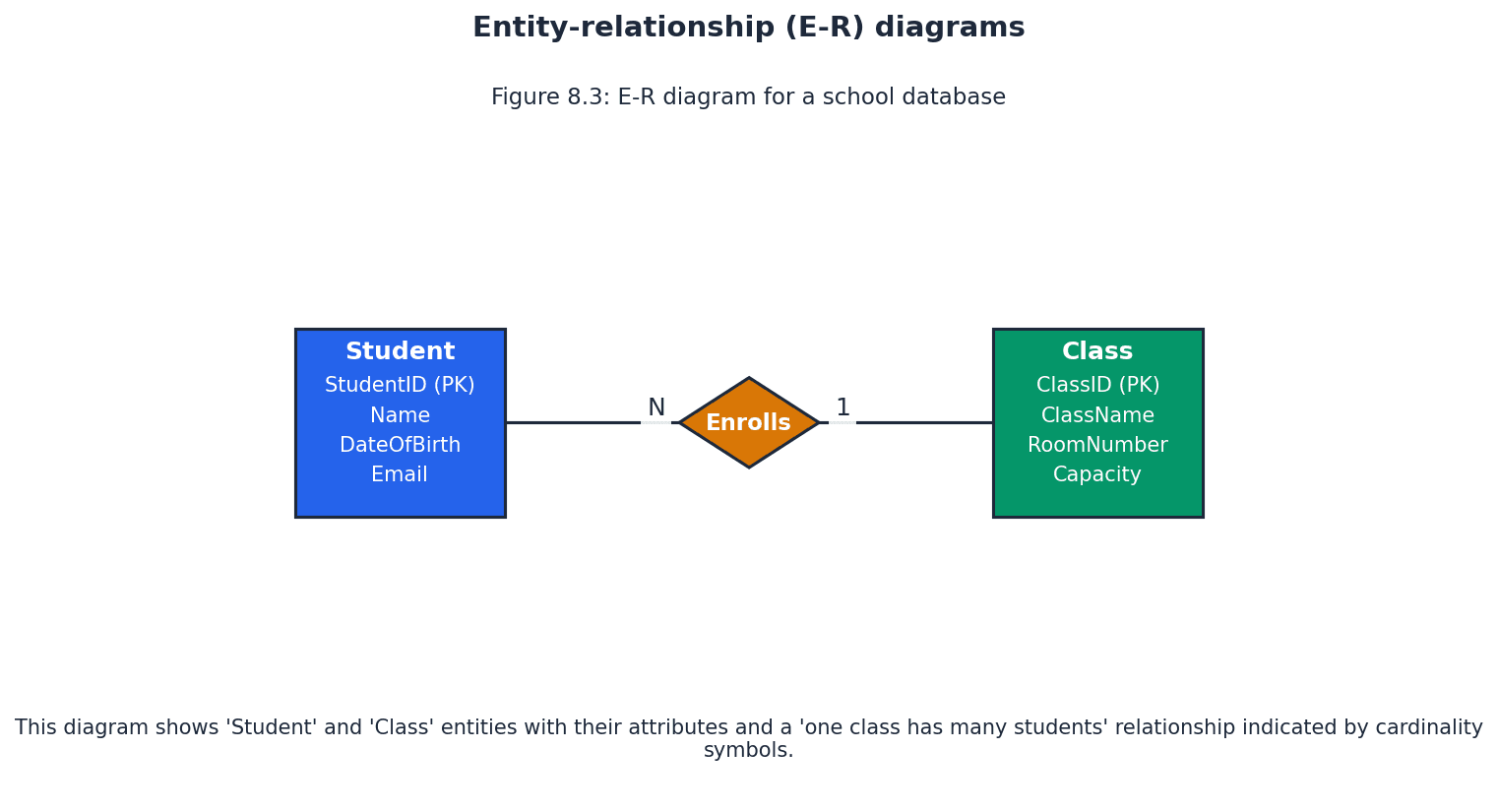
When drawing E-R diagrams, clearly label entities, attributes, and use correct cardinality notation for relationships.
E-R diagrams also depict the cardinality of relationships, which describes the number of instances of one entity that can be associated with the number of instances of another entity. Common cardinalities include one-to-one (1:1), one-to-many (1:M), and many-to-many (M:N), which are crucial for accurate database design.
Normalisation (database) — The process of organising data to be stored in a database into two or more tables and relationships between the tables, so that data redundancy is minimised.
Normalisation is a systematic approach to designing a relational database to reduce data redundancy and improve data integrity. It involves breaking down a large table into smaller, related tables and defining relationships between them, much like tidying a messy room into organized boxes.
Always state the purpose of normalisation: 'minimise data redundancy' and 'improve data integrity' for full marks.
First normal form (1NF) — The status of a relational database in which entities do not contain repeated groups of attributes.
To achieve 1NF, each column in a table must contain atomic (indivisible) values, and there should be no repeating groups of columns. This often involves creating new tables for the repeating data and linking them with a foreign key, for example, moving multiple subjects for a student into a separate 'StudentSubject' table.
When checking for 1NF, look for multiple values in a single cell or columns like 'Item1', 'Item2', 'Item3' – these indicate repeating groups.
Second normal form (2NF) — The status of a relational database in which entities are in 1NF and any non-key attributes depend upon the primary key.
2NF addresses partial dependencies, which occur when a non-key attribute depends on only part of a composite primary key. To achieve 2NF, these partially dependent attributes are moved to a new table with the part of the primary key they depend on, such as moving 'ProductDescription' to a 'Product' table if it only depends on 'ProductID' within a composite key (OrderID, ProductID).
To check for 2NF, identify composite primary keys and then examine if any non-key attributes depend on only a subset of that composite key.
Third normal form (3NF) — The status of a relational database in which entities are in 2NF and all non-key attributes are independent.
3NF eliminates transitive dependencies, where a non-key attribute depends on another non-key attribute. To achieve 3NF, these transitively dependent attributes are moved to a new table, linked by the attribute they depend on, for instance, moving 'ClassLocation' to a 'Class' table if it depends on 'ClassID', which is a non-key attribute in the 'Student' table.
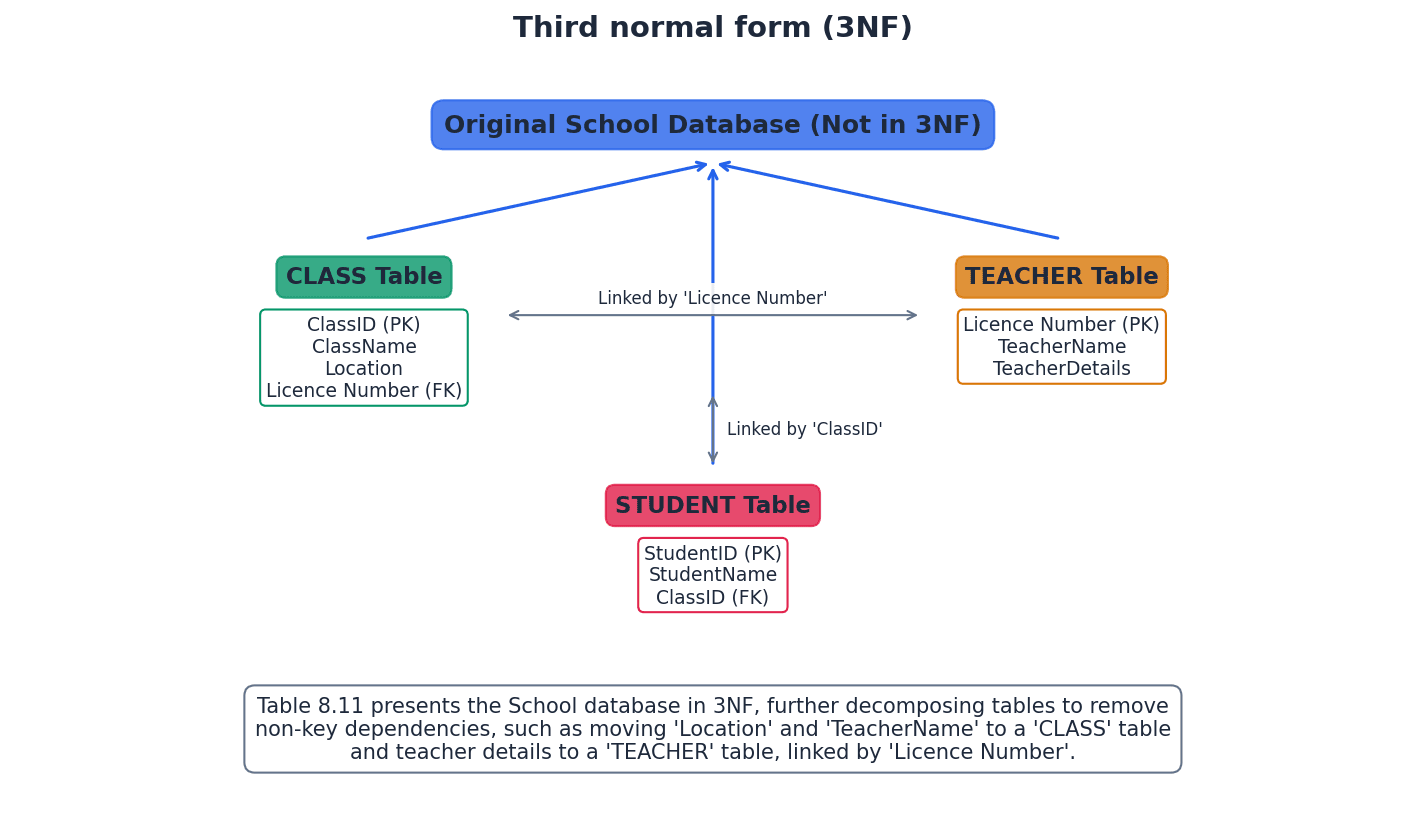
Students often struggle to identify transitive dependencies in 3NF, often overlooking indirect dependencies between non-key attributes. A good rule of thumb for 3NF is 'every non-key attribute must depend on the key, the whole key, and nothing but the key'.
The normalisation process, progressing through 1NF, 2NF, and 3NF, systematically refines database design. It starts by eliminating repeating groups (1NF), then partial dependencies on composite keys (2NF), and finally transitive dependencies (3NF). This structured approach ensures a robust database design with minimal redundancy and high data integrity, suitable for a given set of data or tables.
Database management system (DBMS) — Systems software for the definition, creation and manipulation of a database.
A DBMS is a software system that provides a comprehensive interface for users and applications to interact with a database. It handles data storage, retrieval, security, integrity, and concurrency, abstracting the complexities of physical data management, much like an operating system for data.
When asked about DBMS benefits, focus on how it addresses file-based limitations: data redundancy, inconsistency, and dependency.
Data management — The organisation and maintenance of data in a database to provide the information required.
Data management encompasses all the processes and policies involved in acquiring, validating, storing, protecting, and processing data to ensure its accessibility, reliability, and timeliness for users. A DBMS facilitates these tasks, similar to a librarian's job of organizing and maintaining books.
Data dictionary — A set of data that contains metadata (data about other data) for a database.
The data dictionary stores crucial information about the database structure, such as table names, attribute names, data types, constraints, relationships, and indexing. It's vital for the DBMS to manage and enforce the database schema, acting like a detailed instruction manual for the database itself.
Data modelling — The analysis and definition of the data structures required in a database and to produce a data model.
Data modelling is the process of creating a visual representation or blueprint of a database, identifying entities, attributes, and relationships. E-R diagrams are a common tool used in data modelling, much like an architect creating blueprints for a house.
Logical schema — A data model for a specific database that is independent of the DBMS used to build that database.
The logical schema describes the database structure in terms of tables, attributes, and relationships, without specifying how the data is physically stored or which particular DBMS software is used. It focuses on the data's organization from a user's perspective, like designing a house layout without choosing specific building materials.
Access rights (database) — The permissions given to database users to access, modify or delete data.
Access rights are security measures implemented by a DBMS to control what actions specific users or groups of users can perform on the database. This ensures data confidentiality, integrity, and availability by preventing unauthorized operations, similar to user permissions on a computer.
Developer interface — Feature of a DBMS that provides developers with the commands required for definition, creation and manipulation of a database.
The developer interface allows database administrators and developers to interact directly with the DBMS using languages like SQL to define the database schema, create tables, and manage data. It's a powerful tool for database construction and maintenance, akin to a command-line interface for programmers.
Structured query language (SQL) — The standard query language used with relational databases for data definition and data modification.
SQL is a declarative language used to manage and query relational databases. It includes commands for defining database structures (DDL) and for manipulating data within those structures (DML), making it the universal language for relational databases, like a universal language spoken by all relational databases.
Data definition language (DDL) — A language used to create, modify and remove the data structures that form a database.
DDL commands within SQL are used to define and manage the database schema. This includes creating, altering, and dropping tables, indexes, and other database objects, establishing the fundamental structure of the database.
Data manipulation language (DML) — A language used to add, modify, delete and retrieve the data stored in a relational database.
DML commands within SQL are used to interact with the data itself. This involves inserting new records, updating existing ones, deleting records, and retrieving data through queries, allowing users and applications to manage the content of the database.
SQL script — A list of SQL commands that perform a given task, often stored in a file for reuse.
An SQL script is a sequence of DDL and DML commands saved together, allowing for automated or repeatable execution of database operations. This is useful for tasks like setting up a new database, performing bulk data changes, or generating reports.
Query processor — Feature of a DBMS that processes and executes queries written in structured query language (SQL).
The query processor is a core component of a DBMS responsible for interpreting SQL queries, optimizing their execution plan, and then executing them against the database. It ensures efficient retrieval and manipulation of data, acting as a translator and strategist for database requests.
Be prepared to write and interpret SQL scripts for both DDL (CREATE, ALTER) and DML (SELECT, INSERT, UPDATE, DELETE) commands.
For normalisation questions, clearly show the steps for 1NF, 2NF, and 3NF, explaining how each form addresses specific issues (e.g., repeating groups, partial dependencies, transitive dependencies).
Definitions Bank
Database
A structured collection of items of data that can be accessed by different applications programs.
Relational database
A database where the data items are linked by internal pointers.
Table
A group of similar data, in a database, with rows for each instance of an entity and columns for each attribute.
Record (database)
A row in a table in a database.
Field
A column in a table in a database.
+28 more definitions
View all →Common Mistakes
Confusing a database with a file-based system.
Remember that a database is a structured collection of data, often across multiple linked tables, managed by a system, offering shared access and overcoming limitations of simple files.
Misunderstanding 'relational' in relational database.
The term 'relational' specifically refers to the use of tables (relations) and keys to link data, not just any linked data.
Failing to distinguish between 'record' (row) and 'field' (column) or their formal equivalents 'tuple' and 'attribute'.
A record (or tuple) is a single entry (row) in a table, containing all data for one instance of an entity. A field (or attribute) is a specific category of data (column) that applies to all records in a table.
+4 more
View all →This chapter introduces fundamental computational thinking skills, including abstraction and decomposition, essential for designing computer systems and solving problems. It covers methods for writing algorithms using structured English, flowcharts, and pseudocode, alongside the crucial process of stepwise refinement to break down complex problems.
Algorithm — An ordered set of steps to be followed in the completion of a task.
An algorithm is a precise, finite sequence of unambiguous instructions designed to solve a specific problem or perform a computation, leading to a solution in a finite amount of time. For example, a recipe is an algorithm for cooking, providing ordered steps to achieve a dish.
Abstraction — The process of extracting information that is essential, while ignoring what is not relevant, for the provision of a solution.
Abstraction helps computer scientists develop simplified models for complex problems by focusing only on necessary details, which reduces program development time and memory usage. A road map is an abstraction of the real world, showing only relevant details like roads and towns for planning a driving journey, while ignoring irrelevant ones like terrain or buildings.
Students often think abstraction means making something vague, but actually it means making something specific to a purpose by removing irrelevant detail.
When asked to explain abstraction, provide a clear definition and an example (like a map or timetable) to illustrate how irrelevant details are removed to simplify a model for a specific purpose.
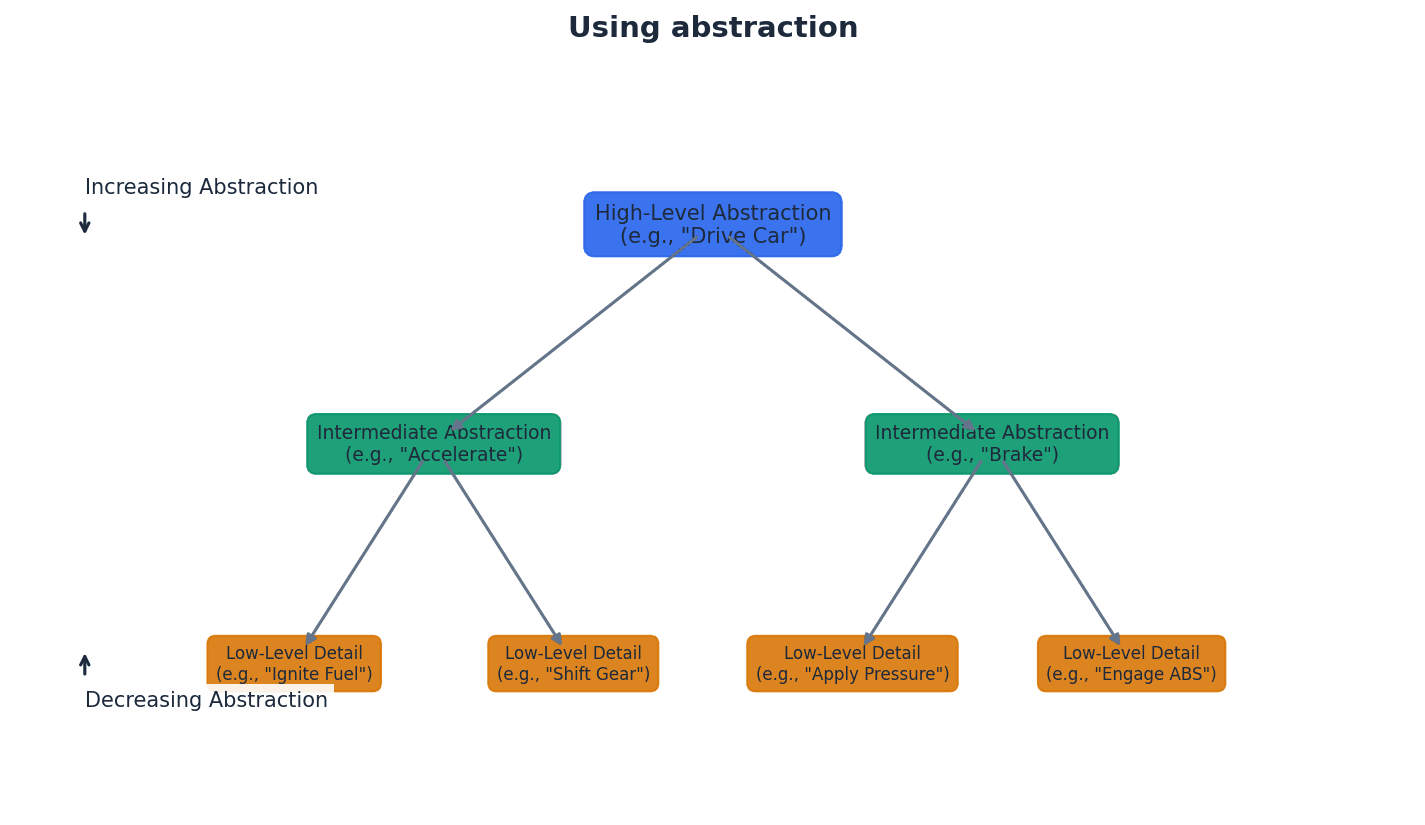
Decomposition — The process of breaking a complex problem into smaller parts.
Decomposition allows complex problems to be subdivided into smaller, more manageable parts until each part is easy to examine and solve. This often reveals hidden complexities and facilitates the development of reusable program code. Building a large LEGO model involves decomposition, breaking the overall project into smaller, distinct sections like the base, walls, and roof that are easier to build individually.
Students often think decomposition is just about making a list of tasks, but actually it's about breaking a problem into independent, solvable sub-problems that can be tackled separately.
For decomposition questions, describe the process of breaking down a problem hierarchically and explain how this leads to more manageable sub-problems, often identifying reusable modules.
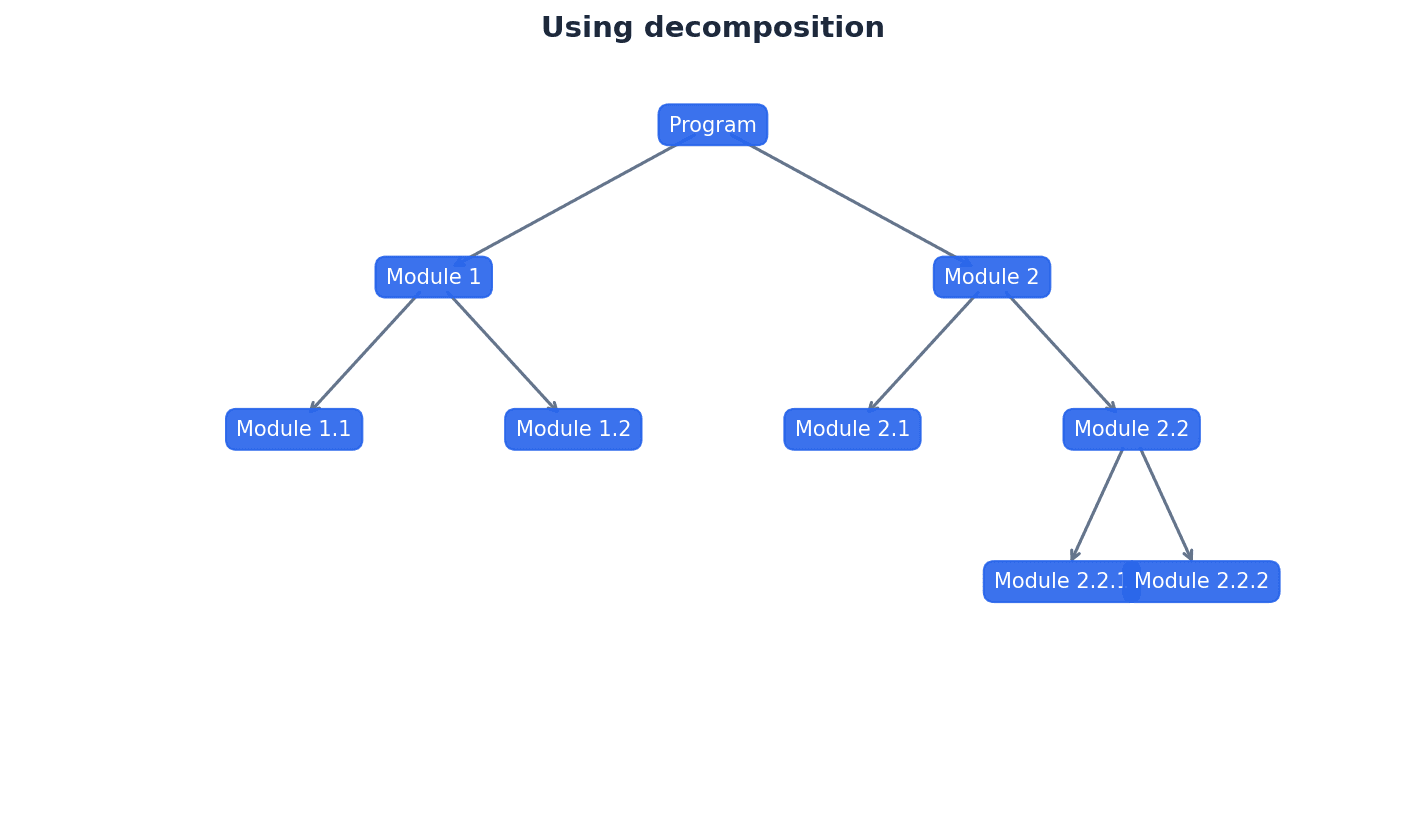
Pattern recognition — The identification of parts of a problem that are similar and could use the same solution.
Pattern recognition is used in computational thinking to find recurring elements or sub-problems within a larger problem. Identifying these patterns allows for the development of reusable code, such as subroutines, procedures, or functions, saving development time. For instance, if several recipes require the same 'basic pastry' method, you can write that method once and refer to it multiple times.
Students often think pattern recognition is only about visual patterns, but actually it applies to identifying similar logical structures or operations within a problem that can be solved with the same algorithm.
When discussing pattern recognition, link it directly to the benefit of creating reusable code (procedures, functions) to avoid repetition and improve efficiency.
Computational thinking involves a set of problem-solving skills, including abstraction and decomposition, which are fundamental for designing computer systems and solving complex problems effectively. These skills enable computer scientists to approach problems systematically, breaking them down and focusing on essential details to develop robust solutions.
Algorithms, which are ordered sets of steps to complete a task, can be represented using various methods to clearly show their logical flow. These methods include structured English, flowcharts, and pseudocode, each offering a distinct way to document the steps involved in solving a problem. Choosing the appropriate method depends on the complexity and desired level of detail for the algorithm.
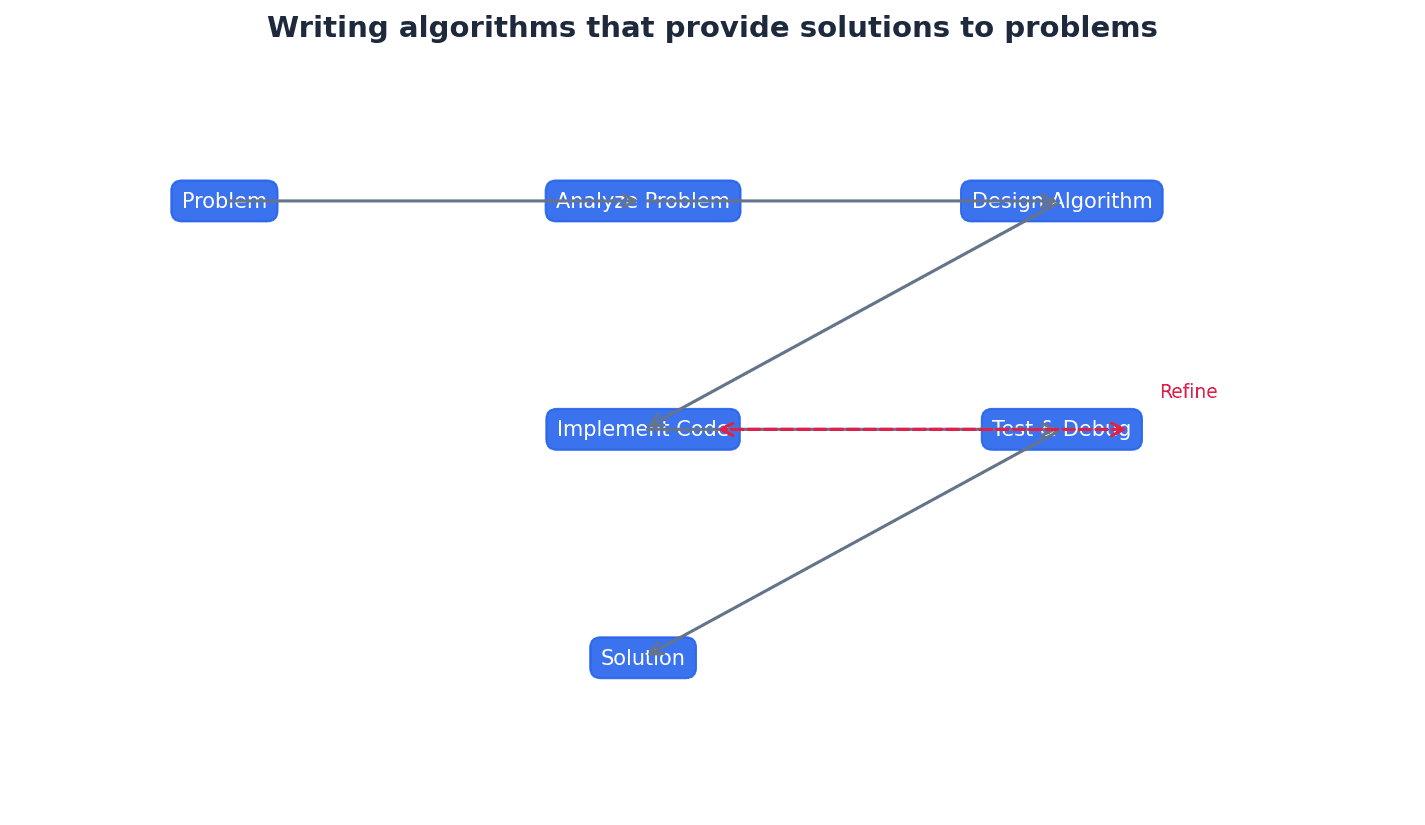
Structured English — A method of showing the logical steps in an algorithm, using an agreed subset of straightforward English words for commands and mathematical operations.
Structured English provides a clear, unambiguous way to describe an algorithm's steps without needing to follow specific programming language syntax. It uses simple, numbered statements to outline the sequence of operations, much like a precise, step-by-step instruction manual for a task.
When writing structured English, ensure each step is a clear, concise command. Avoid ambiguity and use numbering to show the sequence of operations.
Flowchart — A diagrammatic representation of an algorithm.
Flowcharts use a set of standard symbols connected by flow lines to visually represent the steps of an algorithm and the order in which they are performed. They are effective for showing the structure and logic flow of an algorithm, acting like a visual map of a process where different shapes represent different types of actions.
When drawing flowcharts, use the correct symbols for each operation (e.g., parallelogram for input/output, diamond for decision) and ensure flow lines clearly indicate the sequence.
Pseudocode — A method of showing the detailed logical steps in an algorithm, using keywords, identifiers with meaningful names, and mathematical operators.
Pseudocode provides a detailed, language-independent description of an algorithm, focusing on logic rather than syntax. It uses a structured format with keywords for common operations, making it easy to translate into any high-level programming language, similar to a detailed outline for a story.
Students often think pseudocode must follow the exact syntax of a programming language, but actually it's a high-level description that focuses on logic and readability, not strict syntax.
Follow the Cambridge International AS & A Level Computer Science Pseudocode Guide for Teachers rules precisely, including indentation and keywords. Use meaningful identifier names and ensure sufficient detail for translation into a high-level language.
Pseudocode uses specific keywords and operators to represent fundamental programming constructs. For input, keywords like INPUT or READ are used, while OUTPUT or PRINT handle output. Assignment operations use the '<-' symbol. Selection logic is implemented with IF...THEN...ELSE...ENDIF or CASE...OF...OTHERWISE...ENDCASE statements, often employing relational operators. Iteration is managed through FOR...TO...NEXT, REPEAT...UNTIL, and WHILE...DO...ENDWHILE loops.
Stepwise refinement — The practice of subdividing each part of a larger problem into a series of smaller parts, and so on, as required.
Stepwise refinement is an iterative process of breaking down a complex problem into increasingly detailed sub-problems until each part is simple enough to be directly translated into a programming language statement. It builds upon decomposition to achieve a robust solution. For example, when planning a long road trip, you first break it into major legs (decomposition), then refine each leg by planning specific routes, rest stops, and fuel stops until you have a detailed itinerary.
Students often think stepwise refinement is the same as decomposition, but actually decomposition is the initial breakdown, while stepwise refinement is the iterative process of detailing those parts until they are atomic and directly implementable.
When asked to describe stepwise refinement, explain it as an iterative process of detailing decomposed parts of a problem until they are simple enough to be coded directly, often using a hierarchical approach.
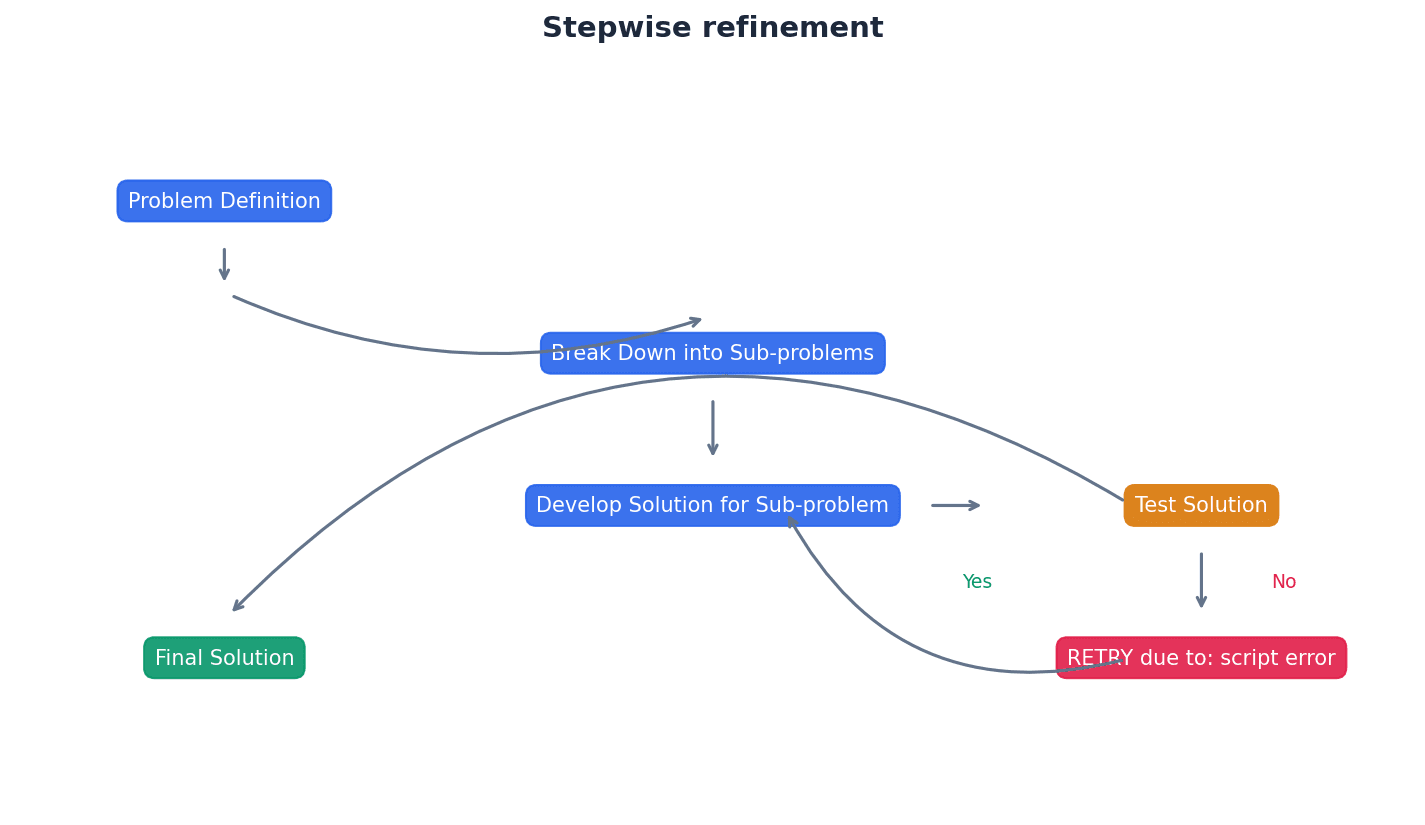
Practice converting algorithms between structured English, flowcharts, and pseudocode to demonstrate understanding of different representations.
When asked to 'write an algorithm', choose the most appropriate method (structured English, flowchart, or pseudocode) unless specified.
Definitions Bank
Abstraction
The process of extracting information that is essential, while ignoring what is not relevant, for the provision of a solution.
Decomposition
The process of breaking a complex problem into smaller parts.
Pattern recognition
The identification of parts of a problem that are similar and could use the same solution.
Structured English
A method of showing the logical steps in an algorithm, using an agreed subset of straightforward English words for commands and mathematical operations.
Flowchart
A diagrammatic representation of an algorithm.
+3 more definitions
View all →Common Mistakes
Confusing abstraction with making something vague.
Abstraction means making something specific to a purpose by removing irrelevant detail, not making it vague.
Thinking decomposition is just about making a list of tasks.
Decomposition is about breaking a problem into independent, solvable sub-problems that can be tackled separately.
Believing pattern recognition only applies to visual patterns.
Pattern recognition applies to identifying similar logical structures or operations within a problem that can be solved with the same algorithm.
+2 more
View all →This chapter explores fundamental data types and structures, from basic types like integers and strings to composite structures such as records and arrays. It also covers file handling, array operations like linear search and bubble sort, and introduces abstract data types including stacks, queues, and linked lists.
Data type — A classification attributed to an item of data, which determines the types of value it can take and how it can be used.
Data types are fundamental in programming, dictating how data is stored in memory and what operations can be performed on it. For instance, an integer data type is for whole numbers and supports arithmetic, much like a 'sugar' container is for sugar, not liquid.
Identifier — A unique name applied to an item of data.
Identifiers are crucial for referencing specific pieces of data within a program, making code readable and manageable. They are like a person's unique name, allowing you to refer to them specifically.
Students often think all numbers are the same data type, but actually integers are for whole numbers and reals (floats) are for numbers with decimal points, each with different memory requirements and precision.
When asked to 'select an appropriate data type', ensure you justify your choice based on the nature of the data (e.g., 'INTEGER for counting discrete items', 'BOOLEAN for true/false states').
Composite data type — A data type constructed using several of the basic data types available in a particular programming language.
Composite data types, such as records and arrays, allow programmers to create more complex data structures by combining simpler, built-in data types. This is like building a LEGO model from individual bricks, where the model is the composite type.
Record (data type) — A composite data type comprising several related items that may be of different data types.
Records allow for the logical grouping of heterogeneous data items that collectively describe a single entity, enhancing data management and readability. A record is like a student's school file, containing various related pieces of information of different types.
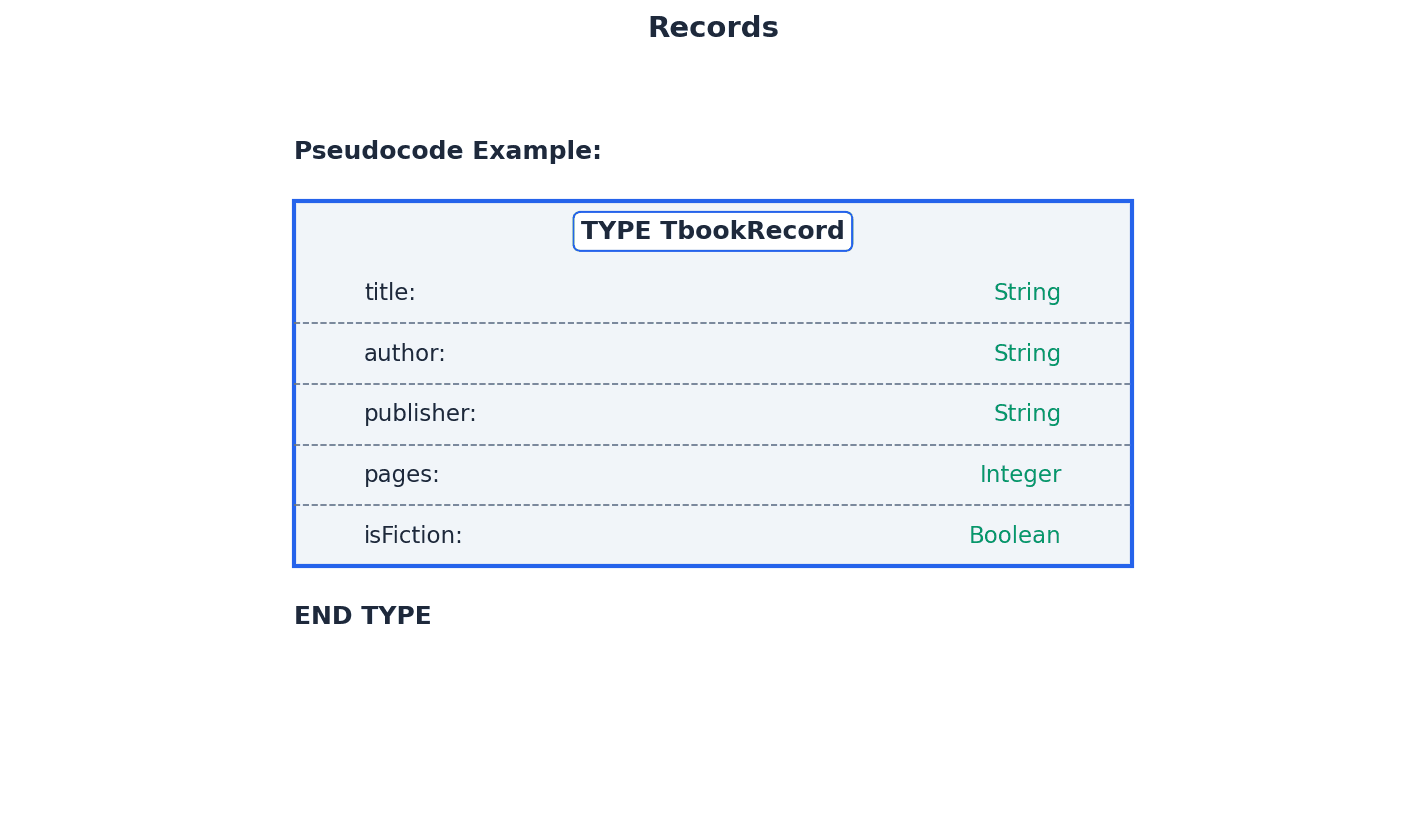
Students often confuse records with arrays, but actually records can hold items of different data types, while arrays must hold items of the same data type.
When defining a record in pseudocode, remember to use 'TYPE ... ENDTYPE' and declare each field with its specific data type. Accessing fields requires the dot notation: '
Array — A data structure containing several elements of the same data type.
Arrays store multiple items of the same type under a single identifier, with each item accessible via an index. This is efficient for managing collections of similar data, much like a row of numbered mailboxes all holding letters.
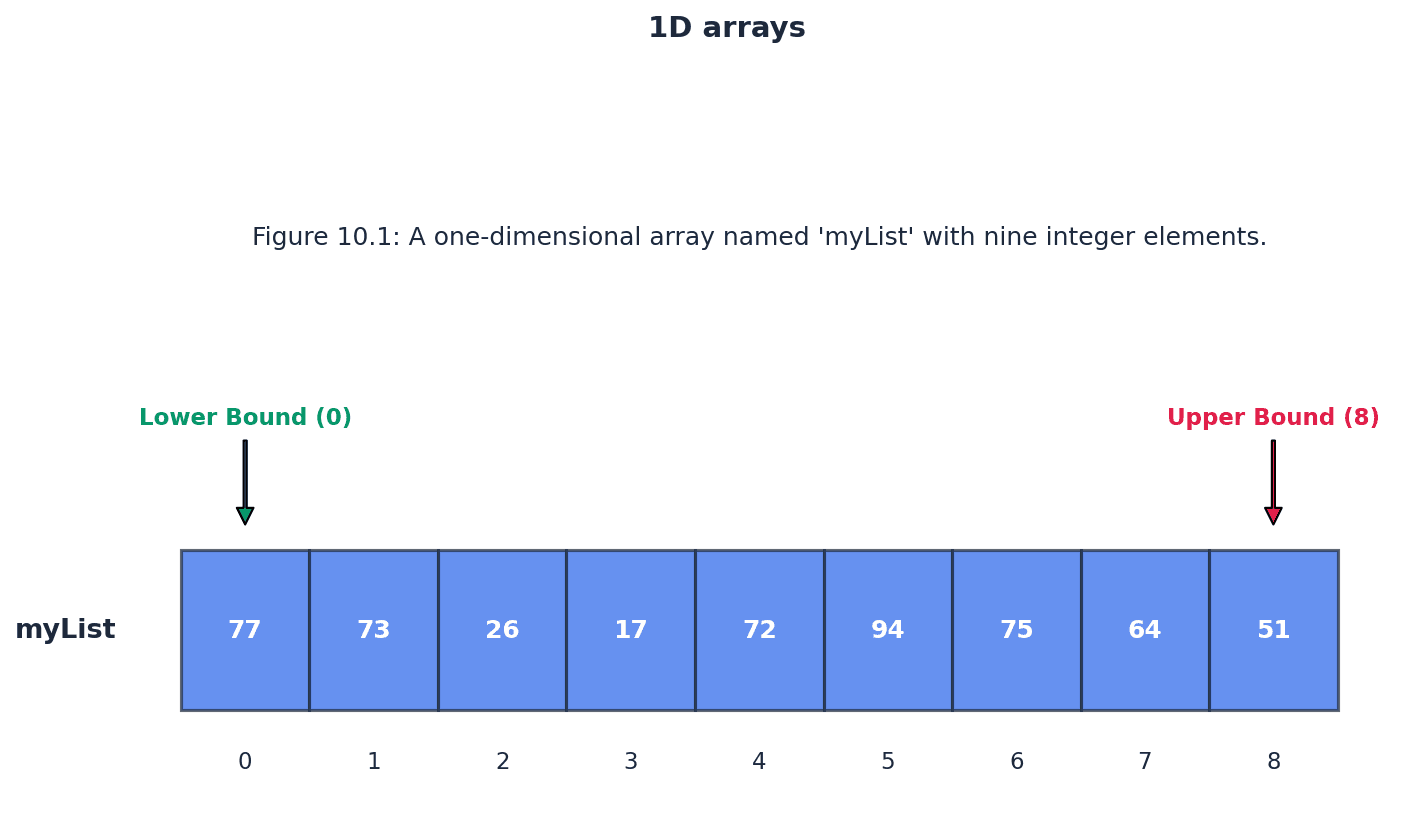
Index (array) — A numerical indicator of an item of data’s position in an array.
The index is essential for uniquely identifying and accessing individual elements within an array, allowing direct access. It's like the house number on a street, telling you exactly where a specific house (element) is.
Lower bound — The index of the first element in an array, usually 0 or 1.
The lower bound defines where an array begins, establishing the starting point for indexing its elements. It's like the starting house number on a street.
Upper bound — The index of the last element in an array.
The upper bound specifies the end of an array, indicating the maximum valid index for accessing its elements. It's like the last house number on a street.
Students often assume array indices always start from 0, but actually some programming languages or problem specifications might use 1 as the lower bound.
When declaring an array in pseudocode, specify the lower bound, upper bound, and data type (e.g., 'DECLARE myList : ARRAY[0:8] OF INTEGER'). Remember that array indices are crucial for accessing elements.
A linear search is a method of searching in which each element of an array is checked in order. The algorithm sequentially examines each item until the target element is found or the end of the list is reached. While simple to implement, its efficiency decreases significantly with larger arrays.
Students often think linear search is always efficient, but actually its efficiency decreases significantly with larger arrays, as it has a worst-case time complexity of O(n).
When writing pseudocode for a linear search, include a 'found' flag and a loop condition that terminates early if the item is found, improving efficiency and demonstrating understanding.
Bubble sort is a method of sorting data in an array into alphabetical or numerical order by comparing adjacent items and swapping them if they are in the wrong order. The process repeatedly steps through the list until no swaps are needed, indicating the list is sorted. This is like lighter bubbles rising to the top of a glass of water.
Students often think bubble sort is the most efficient sorting algorithm, but actually it is one of the simplest but least efficient for large datasets, with a worst-case time complexity of O(n^2).
When asked to trace a bubble sort, clearly show the state of the array after each pass and indicate when swaps occur. For pseudocode, ensure the outer loop correctly reduces the comparison range in each pass.
File — A collection of data stored by a computer program to be used again.
Files provide a persistent storage mechanism for data, allowing information to be saved and retrieved even after a program has terminated. Text files store sequences of characters and can be read or written line by line, much like a document in a filing cabinet.
Students often forget to close files after use, but actually failing to close files can lead to data corruption or loss.
Remember to 'OPEN' a file in the correct mode (READ, WRITE, APPEND) before performing operations and always 'CLOSEFILE' when finished to prevent data corruption or loss.
Abstract data type (ADT) — A collection of data and a set of operations on that data.
ADTs define the logical behavior of a data structure without specifying its underlying implementation, focusing on 'what' operations can be performed. This is similar to a TV remote control, where you know what buttons do without needing to understand the internal electronics.
Stack — A list containing several items operating on the last in, first out (LIFO) principle.
In a stack, items are added (pushed) and removed (popped) from the same end, the 'top'. This means the last item added is always the first one to be removed, like a pile of plates where you add and remove from the top.
basePointer — A base pointer points to the first item in the stack.
The base pointer marks the fixed bottom of the stack, indicating where the stack conceptually begins. Its value typically remains constant during stack operations, unlike the top pointer, much like the bottom of a spring-loaded plate dispenser.
topPointer — A top pointer points to the last item in the stack.
The top pointer dynamically indicates the current position of the most recently added item in the stack. It is incremented during a push operation and decremented during a pop operation, similar to a hand placing or removing plates from the top of a stack.
Queue — A list containing several items operating on the first in, first out (FIFO) principle.
In a queue, items are added (enqueued) at one end (the 'rear') and removed (dequeued) from the other end (the 'front'). This ensures the first item added is the first to be removed, mimicking a line at a supermarket checkout.
frontPointer — A front pointer points to the first item in the queue.
The front pointer indicates the element that is next to be removed from the queue. It is incremented when an item is dequeued, moving to the next element in line, much like the person at the very front of a queue.
rearPointer — A rear pointer points to the last item in the queue.
The rear pointer indicates where the next item will be added to the queue. It is incremented when an item is enqueued, pointing to the new last element, similar to the person at the very back of a queue.
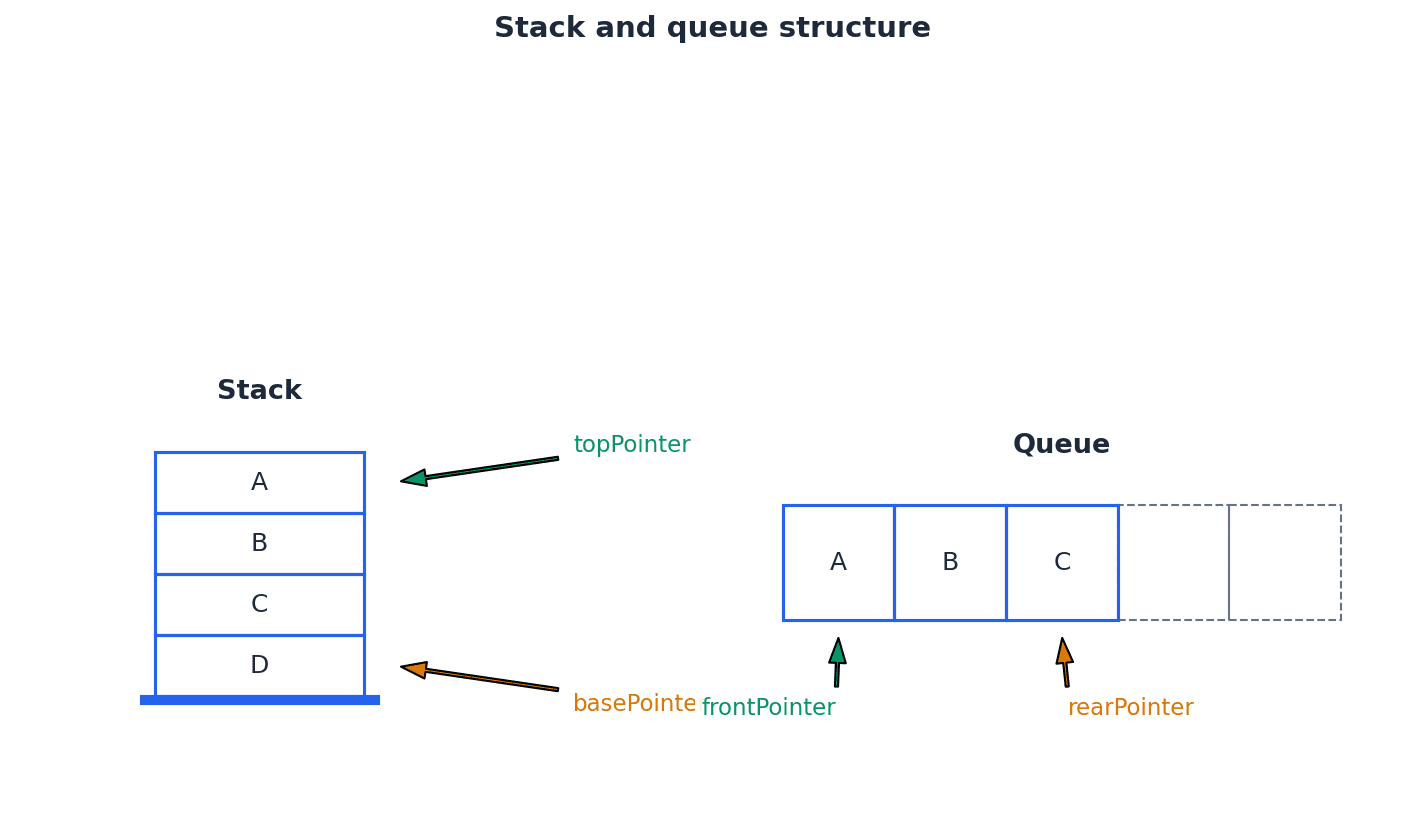
Students often confuse LIFO (Last In, First Out) with FIFO (First In, First Out), but actually LIFO applies to stacks, while FIFO applies to queues.
Be able to trace stack operations (push, pop) and identify the 'topPointer' and 'basePointer' positions. Understand the conditions for 'stack full' and 'stack empty'.
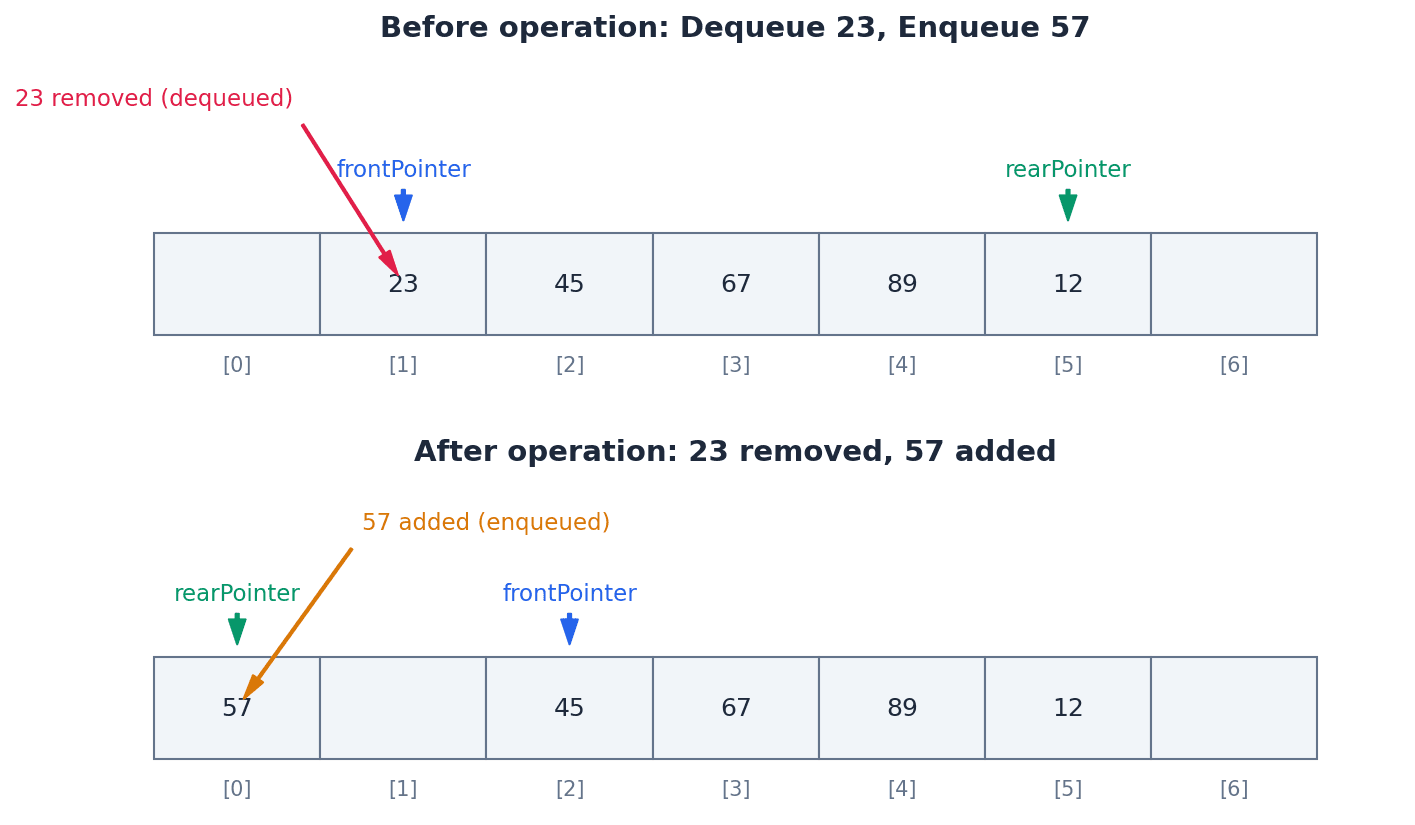
Linked list — A list containing several items in which each item in the list points to the next item in the list.
A linked list stores items non-contiguously in memory, with each item (node) containing both data and a pointer to the next node. This dynamic structure allows for efficient insertion and deletion, much like a treasure hunt where each clue points to the next.
node — Every item in a linked list is stored together with a pointer to the next item.
A node is the fundamental building block of a linked list, encapsulating both the actual data and the reference (pointer) to the subsequent node. In a train, each carriage is a node, carrying passengers (data) and connected to the next carriage (pointer).
startPointer — A start pointer that points to the first item in the linked list.
The start pointer is the entry point to a linked list, providing access to the very first node. If the list is empty, it typically holds a null value, much like the cover of a book telling you where the first page is.
heap — The empty positions in the array must be managed as an empty linked list, usually called the heap.
In the context of linked list implementation using arrays, the heap refers to the pool of available, unused array elements that can be allocated for new nodes. It's like a stack of empty boxes in a storage room, ready to be used.
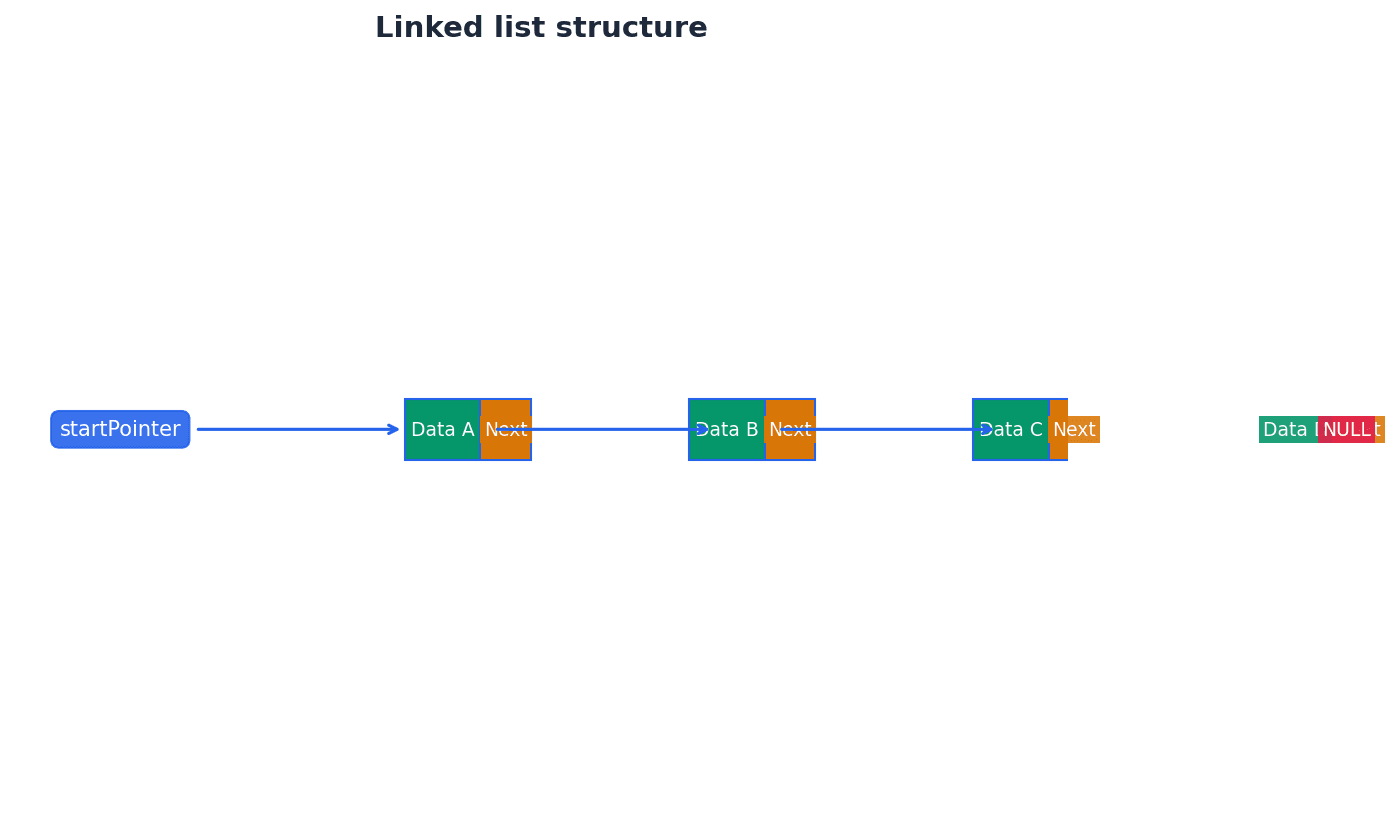
Students often think linked lists are stored contiguously like arrays, but actually linked lists store elements at potentially scattered memory locations, connected by pointers.
Differentiate clearly between ADTs (stacks, queues, linked lists) by explaining their underlying principles (LIFO, FIFO) and how items are added/removed.
When asked to 'illustrate' stack or queue operations, clearly show the state of the ADT before and after each operation (e.g., PUSH, POP, ENQUEUE, DEQUEUE).
Definitions Bank
Data type
A classification attributed to an item of data, which determines the types of value it can take and how it can be used.
Identifier
A unique name applied to an item of data.
Record (data type)
A composite data type comprising several related items that may be of different data types.
Composite data type
A data type constructed using several of the basic data types available in a particular programming language.
Array
A data structure containing several elements of the same data type.
+17 more definitions
View all →Common Mistakes
Confusing records with arrays.
Records can hold items of different data types, while arrays must hold items of the same data type.
Assuming array indices always start from 0.
Some programming languages or problem specifications might use 1 as the lower bound; always check.
Forgetting to terminate a linear search early.
An efficient linear search should stop as soon as the item is found, not necessarily iterate through the entire array.
+3 more
View all →This chapter covers fundamental programming concepts, including the declaration and use of variables and constants, and the application of essential programming constructs such as selection (IF, CASE) and iteration (various loop types). It also introduces structured programming principles through procedures and functions, detailing parameter passing methods.
Variable — A named value that can change during the execution of a program.
Variables are used to store data that may need to be updated or modified as the program runs, such as user input or calculation results. They must be declared before use, and it is good practice to assign an initial value to ensure predictable program behaviour. A variable is like a whiteboard where you can write a number, erase it, and write a new number; its content can change over time.
Students often think variables don't need an initial value, but actually assigning a starting value is good practice to prevent unexpected behaviour from 'garbage' values.
When declaring variables in pseudocode, always specify the identifier name and data type (e.g., DECLARE radius : REAL). Be prepared to justify why a variable is needed over a constant for a given scenario.
Constant — A named value that cannot change during the execution of a program.
Constants are declared with an initial value that remains fixed throughout the program's runtime. They are used for values that should not be altered, such as mathematical constants (e.g., pi) or fixed configuration settings, improving code readability and preventing accidental modification. Think of a constant like the 'speed limit' sign on a road; it's a fixed value that drivers (the program) are expected to adhere to and cannot change while driving on that road.
Students often think constants are just variables that happen not to change, but actually they are fundamentally different in that their value is immutable by design and enforced by the programming language. Also, students often think some programming languages (e.g., Python) do not support the concept of constants, but actually the concept is important to understand even if explicit declaration syntax is not present.
When asked to 'declare a constant', ensure you use the correct pseudocode keyword (CONSTANT) and assign a value at the point of declaration. Differentiate clearly from variables in your explanations.
Before using any data in a program, it must be declared as either a variable or a constant. This involves specifying a unique identifier (name) and its data type. Variables are used for data that will change during execution, such as user input or calculation results, while constants are for values that remain fixed, like mathematical constants. Proper declaration enhances code readability and prevents accidental data modification.
Volume of a sphere
Used to calculate the volume of a sphere given its radius.
Surface area of a sphere
Used to calculate the surface area of a sphere given its radius.
Fahrenheit to Celsius conversion
Used to convert a temperature value from Fahrenheit to Celsius.
Programming constructs are fundamental building blocks for controlling program flow. Selection constructs, such as IF and CASE statements, allow a program to make decisions and execute different blocks of code based on specific conditions. IF statements evaluate a condition and execute code if it's true, optionally providing an alternative path with ELSE. CASE statements are used for multiple choice scenarios, offering a cleaner structure than nested IFs for menu choices or distinct value comparisons.
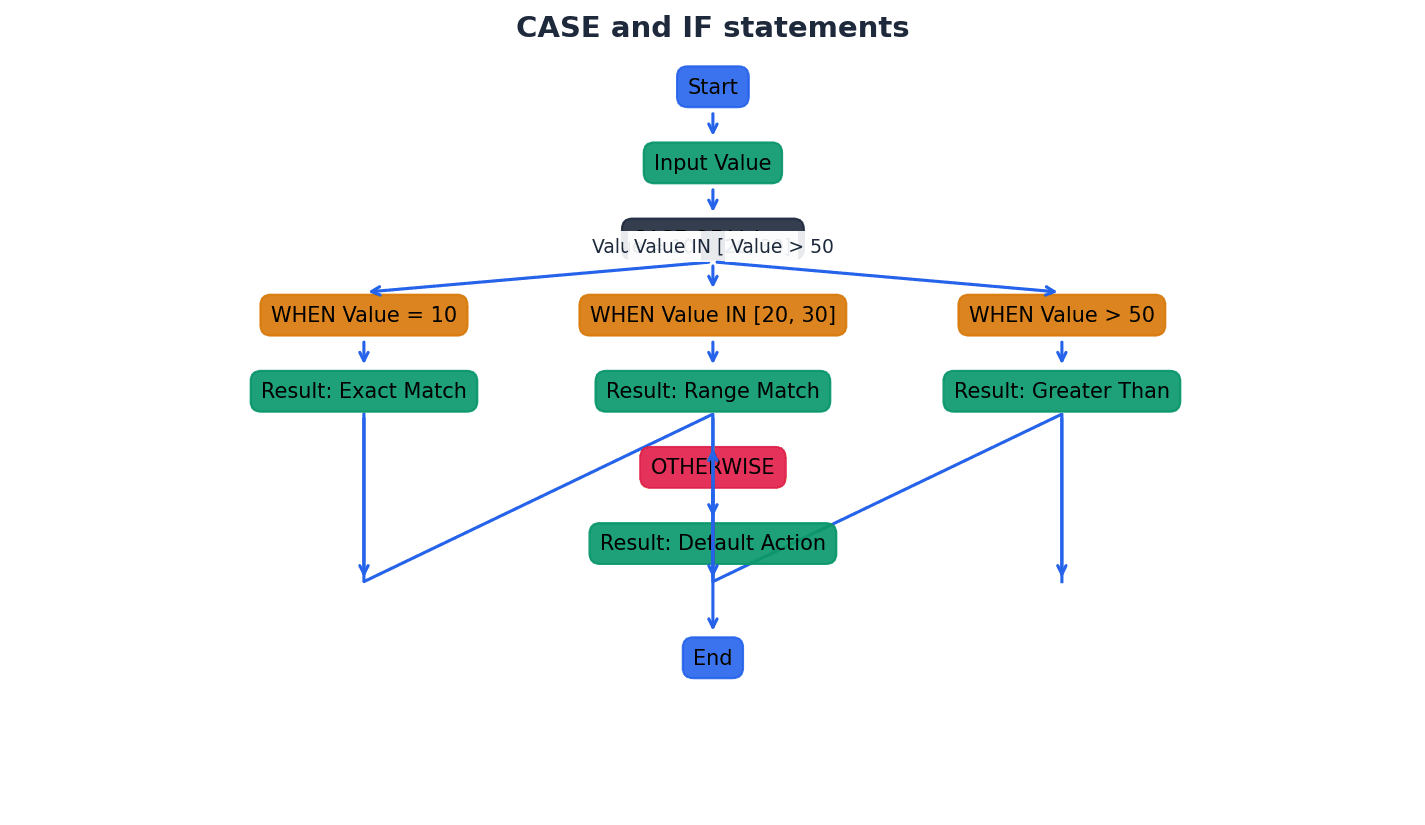
Iteration constructs, commonly known as loops, enable a program to repeat a block of code multiple times. There are three main types: count-controlled loops (e.g., FOR loops) execute a fixed number of times; pre-condition loops (e.g., WHILE loops) check a condition before each iteration, potentially executing zero times; and post-condition loops (e.g., REPEAT...UNTIL loops) execute at least once before checking the condition at the end of each iteration.
For loop questions, clearly identify whether a pre-condition (e.g., WHILE) or post-condition (e.g., REPEAT...UNTIL) loop is appropriate based on the problem description.
Library routine — A tested and ready-to-use routine available in the development system of a programming language that can be incorporated into a program.
Library routines are pre-written and pre-compiled blocks of code (functions or procedures) that perform common tasks, such as input/output operations, mathematical calculations, or string manipulations. Using them saves development time, reduces errors, and ensures reliability as they are typically well-tested. Library routines are like pre-made ingredients or tools in a kitchen; instead of making flour from scratch or forging a knife, you use ready-to-use items to prepare your meal (program).
Students often think they need to write all code from scratch, but actually using library routines is standard practice and highly efficient for common tasks.
When asked to explain library routines, mention their 'ready-to-use' and 'tested' nature, and provide examples like input/output or string manipulation functions. Explain the benefit of reusability and reliability.
Length of a string
Returns an integer value representing the number of characters in the string.
Rightmost characters of a string
Returns a string containing the rightmost 'x' characters from 'anyString'.
Leftmost characters of a string
Returns a string containing the leftmost 'x' characters from 'anyString'.
Substring extraction
Returns a string containing 'y' characters starting at position 'x' from 'anyString'.
Structured programming promotes breaking down complex problems into smaller, manageable sub-problems, often implemented as procedures or functions. This modular approach enhances code readability, reusability, and maintainability. Both procedures and functions are blocks of code that can be defined once and called multiple times throughout a program, avoiding code duplication.
Procedure — A set of statements that can be grouped together and easily called in a program whenever required, rather than repeating all of the statements each time.
Procedures are blocks of code designed to perform a specific task without necessarily returning a value. They help in structuring programs, breaking down complex problems into smaller, manageable parts, and avoiding code duplication. Procedures can accept parameters to modify their behaviour. A procedure is like a recipe for a specific dish; you follow the steps (statements) to achieve a result (the dish), but the recipe itself doesn't 'return' a single value, it just completes a process.
Students often think procedures must return a value, but actually they perform actions or tasks and do not necessarily produce a result that needs to be returned.
When defining a procedure in pseudocode, use the PROCEDURE and ENDPROCEDURE keywords. Be clear on the difference between defining a procedure (creating it) and calling a procedure (executing it).
Function — A set of statements that can be grouped together and easily called in a program whenever required, rather than repeating all of the statements each time, and which always returns a value.
Functions encapsulate a specific task or calculation that produces a result. They promote code reusability and modularity, making programs easier to read, debug, and maintain. Unlike procedures, functions are typically used as part of an expression because they yield a value. A function is like a calculator button: you press it (call the function with arguments), it performs a specific calculation, and then it displays a single answer (returns a value).
Students often think functions and procedures are interchangeable, but actually a key difference is that a function always returns a value, while a procedure does not necessarily.
When defining a function in pseudocode, remember to include the RETURNS keyword with the data type of the value being returned in the header. Ensure the RETURN statement is present within the function body.
Header (procedure or function) — The first statement in the definition of a procedure or function, which contains its name, any parameters passed to it, and, for a function, the type of the return value.
The header acts as the signature of the subroutine, providing essential information about how it should be called and what it does. It defines the interface between the subroutine and the rest of the program, ensuring that calls are made with the correct number and types of arguments. A subroutine header is like the title and ingredient list at the top of a recipe; it tells you the name of the dish, what ingredients you need (parameters), and what kind of dish it will be (return type for a function).
Students often think the header of a subroutine is just its name, but actually it includes the name, parameters (with types), and for functions, the return type, all of which are crucial for correct usage.
When writing pseudocode for a procedure or function, ensure the header is correctly formatted with the identifier, parameter list (with data types), and the RETURNS keyword for functions. This is a common area for mark loss.
Parameter — A variable applied to a procedure or function that allows one to pass in a value for the procedure to use.
Parameters act as placeholders in the procedure or function definition, specifying the type of data that will be received. When the procedure or function is called, actual values (arguments) are passed to these parameters, allowing the subroutine to operate on different data each time it's invoked. Parameters are like the blank spaces on a form; they indicate what kind of information is needed (data type), and when you fill out the form (call the procedure), you provide the actual details (arguments).
Argument — The value passed to a procedure or function.
Arguments are the actual values or variables supplied when a procedure or function is called. These values are assigned to the corresponding parameters defined in the subroutine's header, allowing the subroutine to perform its operations using specific data provided at runtime. If parameters are the blank spaces on a form, arguments are the specific details you write into those spaces when you fill out the form.
Students often confuse parameters with arguments, but actually parameters are placeholders in the definition, and arguments are the actual values passed during a call.
When defining a procedure or function with parameters in pseudocode, ensure you specify both the parameter name and its data type (e.g., (Number : INTEGER)). Clearly distinguish between 'by value' and 'by reference' passing methods.
By value — A method of passing a parameter to a procedure in which the value of the variable cannot be changed by the procedure.
When a parameter is passed by value, a copy of the argument's value is made and given to the procedure or function. Any modifications made to this parameter within the subroutine affect only the copy, leaving the original variable in the calling program unchanged. This protects the original data. Passing by value is like giving someone a photocopy of a document; they can write all over the copy, but the original document you hold remains untouched.
Students often think changes to a parameter passed by value will affect the original variable, but actually only a copy is modified within the subroutine.
Be able to explain why 'by value' is used (to protect original data) and identify scenarios where it is appropriate. In pseudocode, if not specified, parameters are often assumed to be passed by value.
By reference — A method of passing a parameter to a procedure in which the value of the variable can be changed by the procedure.
When a parameter is passed by reference, the memory address of the original variable is passed to the procedure or function. This means the subroutine works directly with the original variable, and any changes made to the parameter within the subroutine will directly alter the value of the original variable in the calling program. Passing by reference is like giving someone the original document; any changes they make to it are permanent and affect your original.
Students often think 'by reference' means passing a copy of the reference, but actually it means passing a direct link to the original memory location, allowing direct modification.
When asked to use 'by reference' in pseudocode, explicitly use the BYREF keyword. Understand that this method is used when a subroutine is intended to modify the original variable's value.
Practice applying built-in functions (e.g., DIV, MOD, LENGTH, LEFT, RIGHT, MID) to solve problems, demonstrating correct syntax and understanding of their purpose.
When asked to 'declare' variables or constants, ensure you specify their identifier and data type.
Be prepared to trace the execution of code snippets involving loops and conditional statements, showing the values of variables at each step.
Definitions Bank
Constant
A named value that cannot change during the execution of a program.
Variable
A named value that can change during the execution of a program.
Function
A set of statements that can be grouped together and easily called in a program whenever required, rather than repeating all of the statements each time, and which always returns a value.
Library routine
A tested and ready-to-use routine available in the development system of a programming language that can be incorporated into a program.
Procedure
A set of statements that can be grouped together and easily called in a program whenever required, rather than repeating all of the statements each time.
+5 more definitions
View all →Common Mistakes
Confusing functions and procedures.
Remember that functions always return a value, while procedures do not necessarily.
Confusing parameters with arguments.
Parameters are placeholders in the subroutine definition, whereas arguments are the actual values passed during a call.
Assuming changes to a 'by value' parameter affect the original variable.
Only a copy of the value is passed, so modifications within the subroutine do not alter the original variable.
+3 more
View all →This chapter covers the program development lifecycle, detailing its five stages from analysis to maintenance, and explores various development models. It also explains how to document program design using structure charts and state-transition diagrams, and outlines methods for identifying and correcting different types of program errors through comprehensive testing techniques.
Program development lifecycle — The process of developing a program set out in five stages: analysis, design, coding, testing and maintenance.
This structured approach ensures that software is developed systematically, from understanding initial requirements to ensuring its long-term functionality. It provides a framework for managing complexity and ensuring quality throughout the development process, much like planning, designing, constructing, inspecting, and maintaining a house.
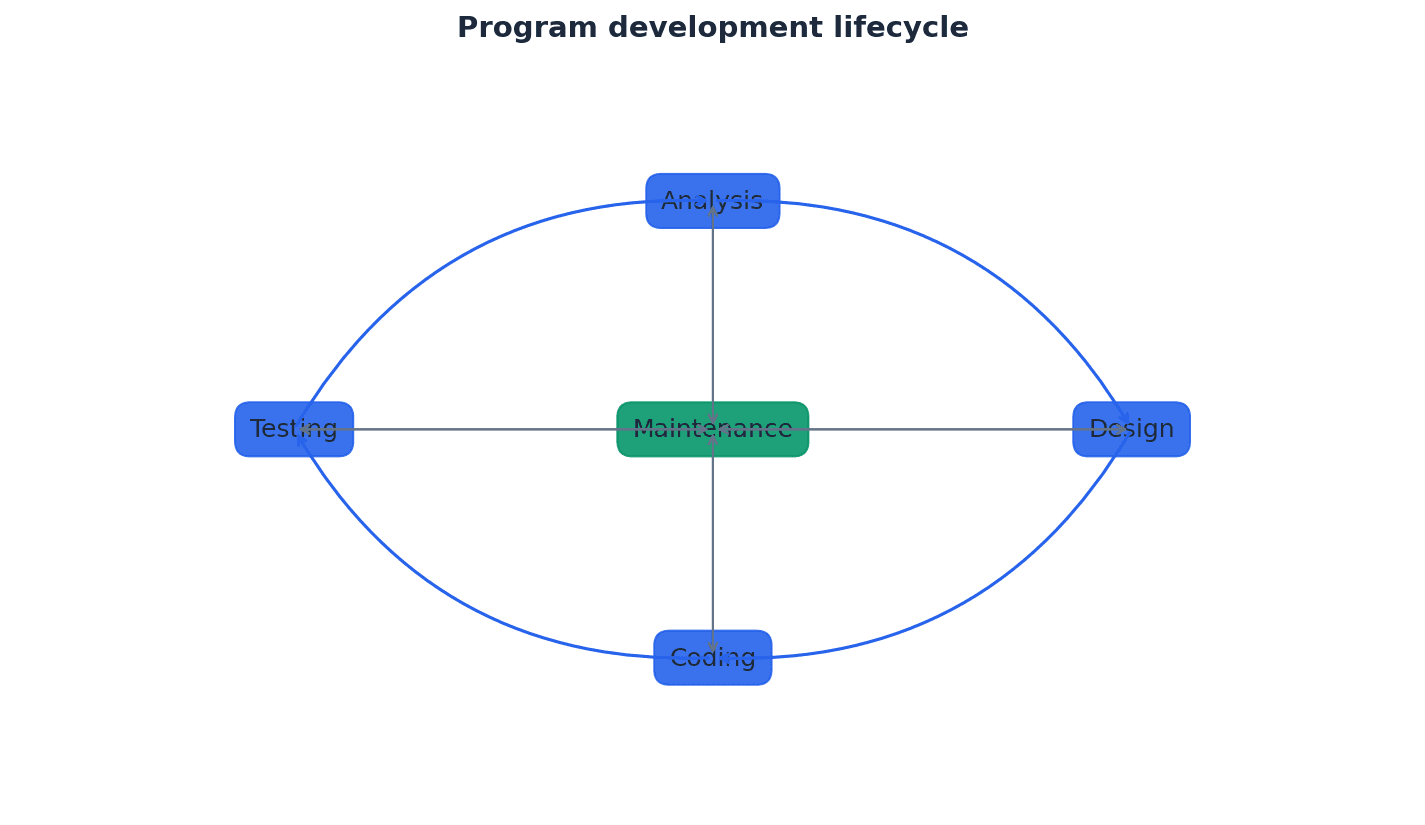
Analysis — Part of the program development lifecycle; a process of investigation, leading to the specification of what a program is required to do.
This initial stage focuses on understanding the problem, gathering requirements, and defining the scope of the project. It often includes a feasibility study and fact-finding to create a clear requirements specification, similar to a doctor diagnosing a patient before prescribing treatment.
When asked about the analysis stage, mention the 'requirements specification' and 'feasibility study' as key outputs and activities.
Students often think analysis is just about writing down ideas, but actually it's a rigorous investigation to produce a formal, comprehensive requirements specification.
Design — Part of the program development lifecycle; it uses the program specification from the analysis stage to show how the program should be developed.
This stage translates the 'what' from analysis into 'how' the program will be built. It involves planning the program's structure, modules, data flow, and algorithms, often documented with tools like structure charts and pseudocode, much like creating architectural blueprints for a building.
For design, be ready to explain the purpose of tools like structure charts, state-transition diagrams, and pseudocode, and how they help in showing the program's structure and logic.
Students often confuse the purpose of analysis (what to do) with design (how to do it).
Coding — Part of the program development lifecycle; the writing of the program or suite of programs.
This stage involves translating the detailed design into actual executable code using a chosen programming language. It's where the algorithms and structures defined in the design phase are implemented, akin to the actual construction phase of building a house.
Students often think coding is the most important part of development, but actually it's just one stage, and its success heavily relies on thorough analysis and design.
Testing — Part of the program development lifecycle; the testing of the program to make sure that it works under all conditions.
This crucial stage involves systematically checking the program for errors and verifying that it meets the specified requirements. It uses various types of test data and methodologies to ensure robustness and correctness, similar to a quality control inspection for a manufactured product.
Be able to define and provide examples for different types of test data and testing methods. Questions often ask for appropriate test data for given scenarios or to describe specific testing phases.
Students often think testing is just running the program once, but actually it's a rigorous process involving different types of test data (normal, abnormal, extreme, boundary) and testing methods (white-box, black-box, integration, alpha, beta, acceptance).
Maintenance — Part of the program development lifecycle; the process of making sure that the program continues to work during use.
This ongoing stage occurs after the program's release and involves activities like correcting newly discovered errors, improving performance, or adapting the program to new requirements or environments, much like regular servicing and repairs for a car.
Distinguish clearly between corrective, perfective, and adaptive maintenance, providing examples for each type. This is a common area for definition and application questions.
Students often think the lifecycle is strictly linear and ends after testing, but actually it's a continuous cycle, with maintenance being an ongoing stage until the program is no longer used.
The program development lifecycle can be implemented using various models, each suited to different project requirements. Key models include the Waterfall model, the Iterative model, and Rapid Application Development (RAD). These models provide frameworks for managing the stages of development, from initial analysis to ongoing maintenance.
Waterfall model — A linear sequential program development cycle, in which each stage is completed before the next is begun.
This is one of the earliest and simplest models, suitable for projects with well-defined and stable requirements. Progress flows in one direction, like a waterfall, from analysis to maintenance, similar to following a recipe exactly, completing each step before moving to the next.
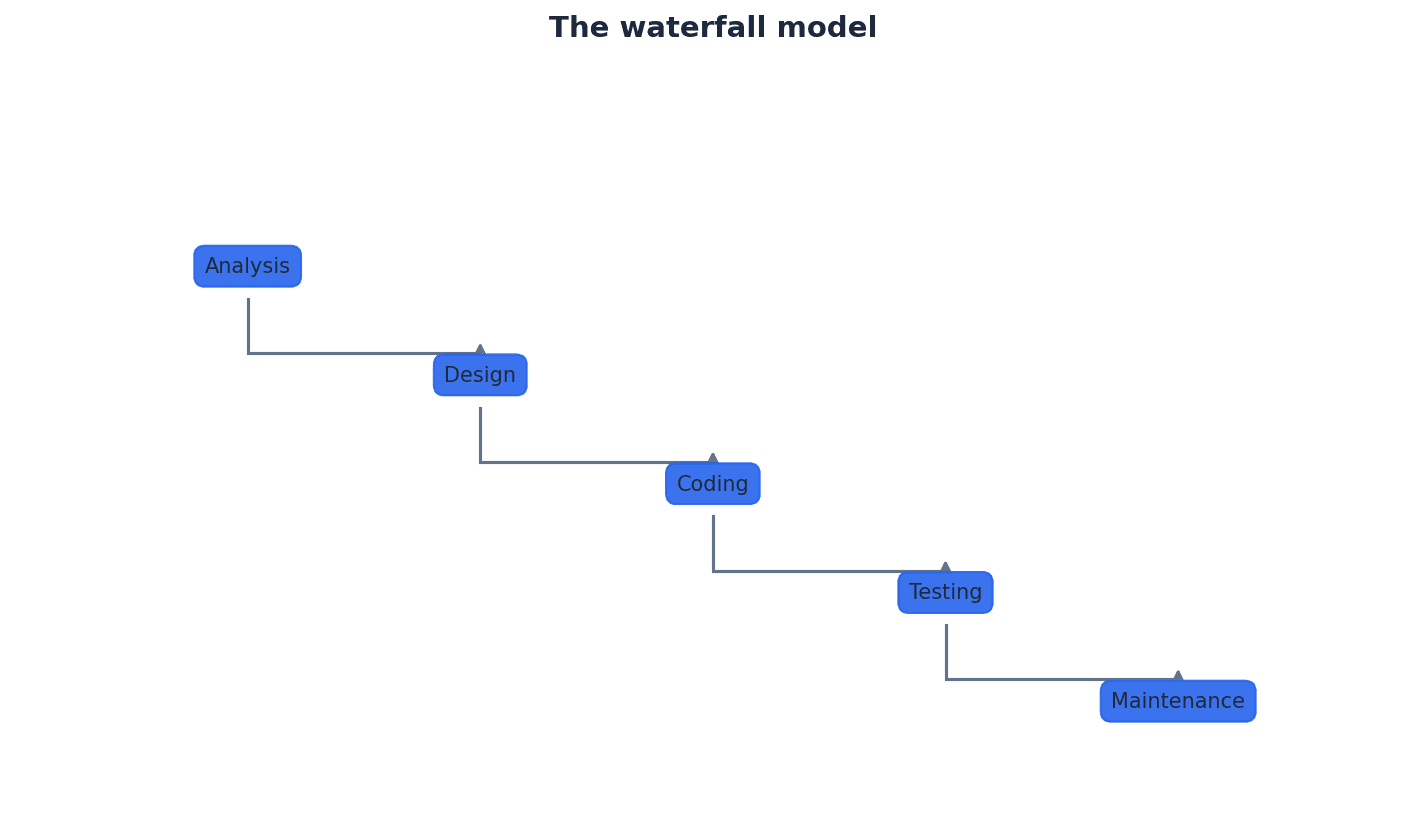
Students often think the Waterfall model is always bad, but actually it's effective for small projects with stable requirements, where its simplicity and clear documentation are beneficial.
Iterative model — A type of program development cycle in which a simple subset of the requirements is developed, then expanded or enhanced, with the development cycle being repeated until the full system has been developed.
This model involves repeating the development cycle in smaller increments, building upon previous versions. It allows for early delivery of working parts and incorporates customer feedback throughout the process, much like building a sculpture by refining it in multiple passes.
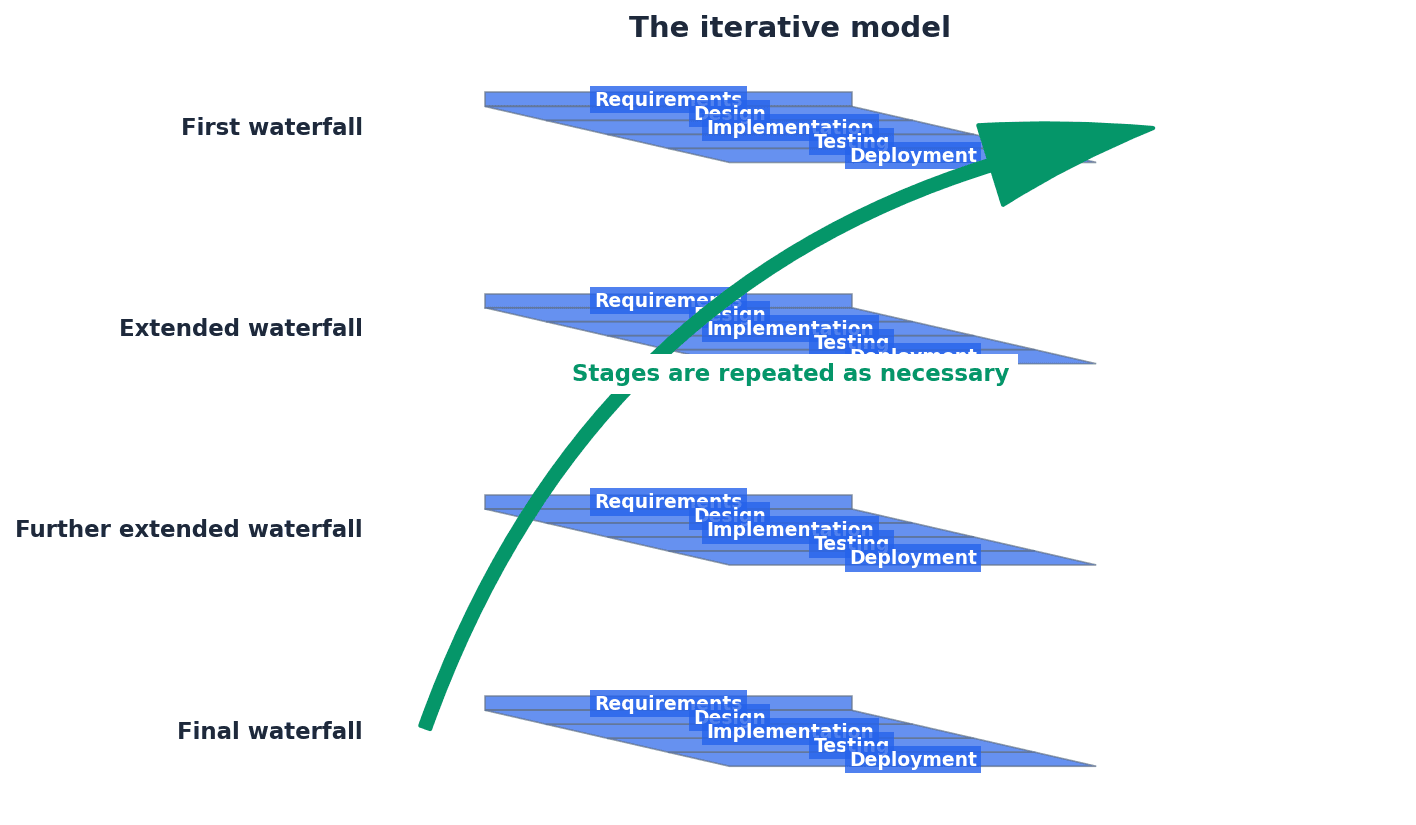
Students often think iterative means just doing things over and over without a plan, but actually it requires good overall planning to break the system into manageable pieces for each iteration.
Rapid application development (RAD) — A type of program development cycle in which different parts of the requirements are developed in parallel, using prototyping to provide early user involvement in testing.
RAD emphasizes rapid prototyping and iterative delivery, often with multiple teams working concurrently on different modules. It prioritizes speed and flexibility, with continuous customer feedback, similar to a team of chefs preparing a multi-course meal simultaneously.
Effective program design requires clear documentation to translate requirements into a detailed plan for implementation. Tools like structure charts and state-transition diagrams are crucial for visually representing the program's architecture and behavior, ensuring clarity and consistency before coding begins.
Structure chart — A modelling tool used to decompose a problem into a set of sub-tasks.
It visually represents the hierarchy of modules in a program and how they connect and interact, including the parameters passed between them. Each level refines the level above, showing selection and repetition, much like an organizational chart for a company.
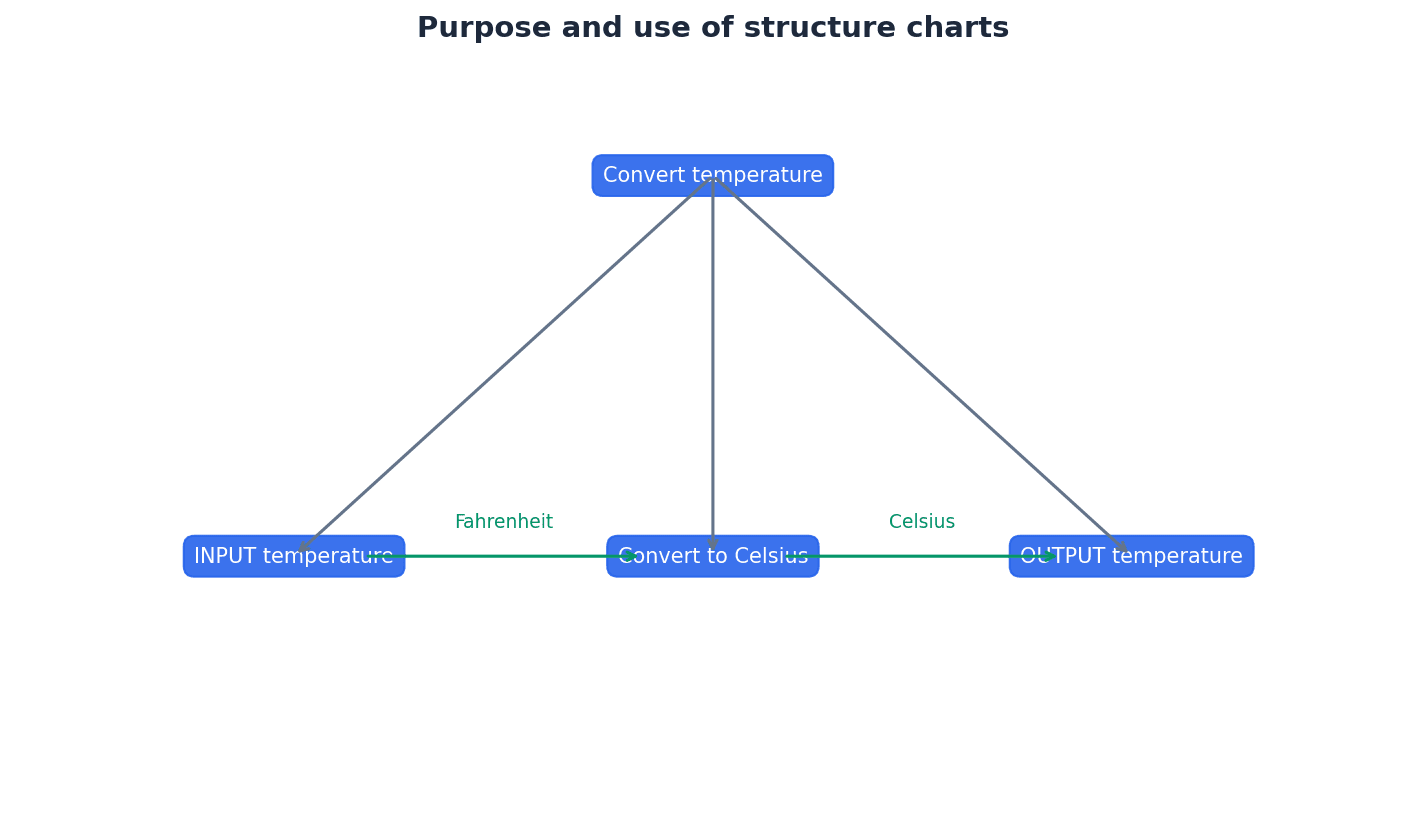
Students often think structure charts are flowcharts, but actually flowcharts show the sequence of operations within a single module, while structure charts show the hierarchical relationship and data flow between modules.
Finite state machine (FSM) — A mathematical model of a machine that can be in one state of a fixed set of possible states; one state is changed to another by an external input; this is known as a transition.
FSMs are used to model systems that behave differently based on their current state and external inputs. They have a finite number of states and transitions between them, like a traffic light changing states based on a timer.
State-transition diagram — A diagram showing the behaviour of a finite state machine (FSM).
It graphically represents states as nodes (circles) and transitions as arrows, labelled with events and conditions. It clearly illustrates how a system moves from one state to another based on inputs, similar to a map of a subway system.
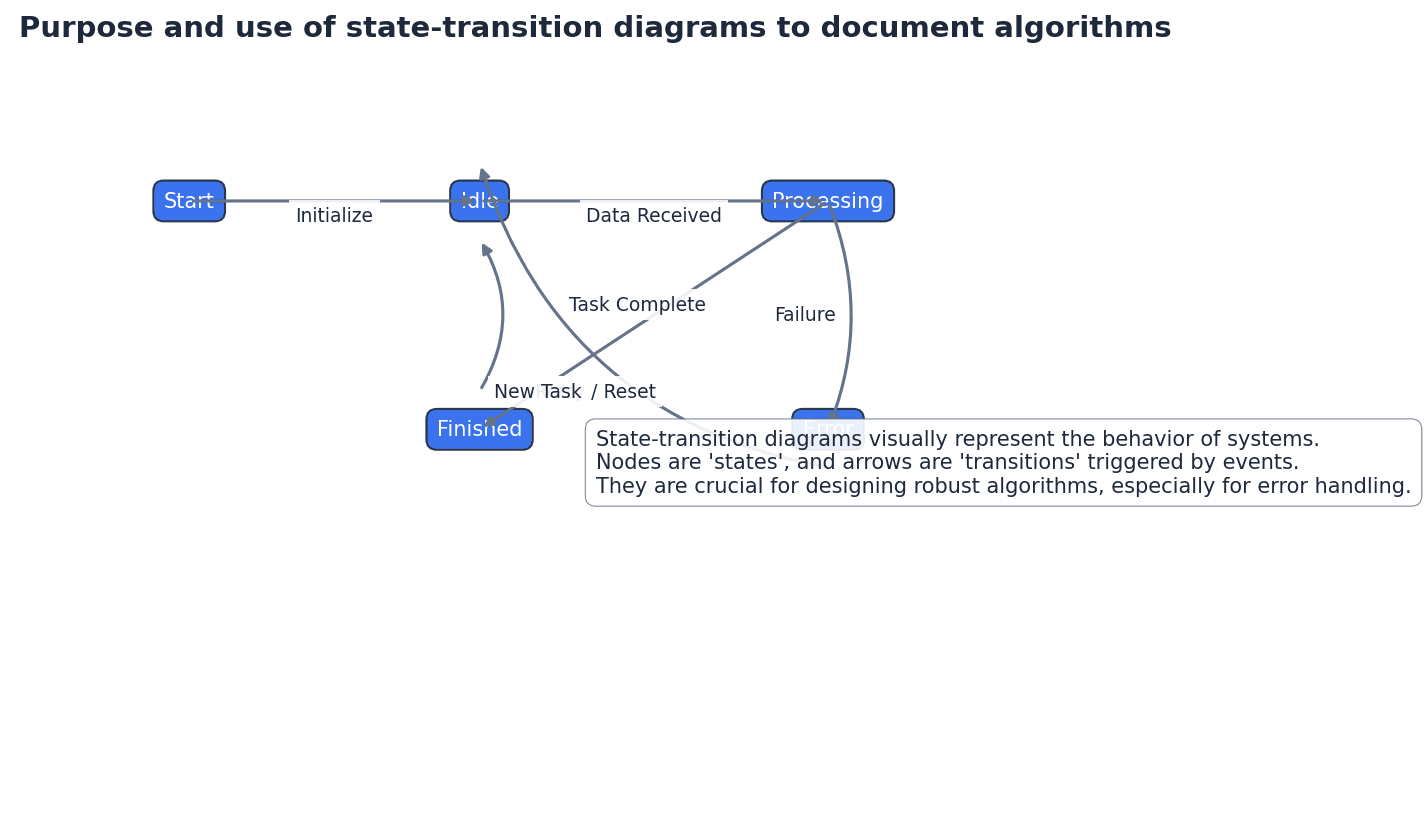
State-transition table — A table showing every state of a finite state machine (FSM), each possible input and the state after the input.
This tabular representation provides a clear and exhaustive summary of an FSM's behavior, listing the current state, the event that occurs, and the resulting next state, much like a truth table for logic gates.
Be able to draw and interpret state-transition diagrams, correctly representing states (circles), transitions (arrows), events (labels on arrows), conditions (square brackets), initial state (black dot arrow), and stopped state (double circle).
During program development, various types of errors can occur. It is crucial to understand how to avoid them, locate them when they arise, and correct them effectively. This involves careful design, systematic testing, and a clear understanding of error categories.
Run-time error — An error found in a program when it is executed; the program may halt unexpectedly.
These errors occur during program execution, often due to unforeseen circumstances like division by zero, attempting to access an invalid memory location, or an infinite loop. They can cause the program to crash, similar to a car engine seizing up while driving.
Students often confuse syntax errors (grammar) with logic errors (incorrect program behavior) or run-time errors (execution issues).
Provide examples of run-time errors like 'divide by zero' or 'infinite loop'. Explain that they are detected during execution and can cause unexpected program termination.
Program testing is a critical phase to ensure software quality, involving various methods and types of data. Following release, ongoing maintenance is essential to keep the program functional, efficient, and relevant over time, addressing new issues and adapting to changes.
Test strategy — An overview of the testing required to meet the requirements specified for a particular program; it shows how and when the program is to be tested.
Developed during the analysis stage, the test strategy outlines the overall approach to testing, including the types of testing to be performed, resources, schedule, and responsibilities, much like a general battle plan for a military campaign.
Test plan — A detailed list showing all the stages of testing and every test that will be performed for a particular program.
The test plan specifies individual test cases, including test data, expected outcomes, and actual outcomes. It is a practical document used to guide the testing process and record results, similar to a detailed itinerary for a trip.
Be able to create a simple test plan table with columns for test purpose, test data, expected outcome, and actual outcome, and populate it with appropriate data.
Dry run — A method of testing a program that involves working through a program or module from a program manually.
This manual execution of an algorithm, often using a trace table, helps developers understand the program's logic and identify errors before writing actual code. It's a form of desk-checking, like rehearsing a play without costumes or props.
Trace table — A table showing the process of dry-running a program with columns showing the values of each variable as it changes.
Trace tables are used to manually track the execution of an algorithm step-by-step, recording the values of variables and any output. This helps in identifying logic errors before coding, similar to a detailed logbook for an experiment.
Practice completing trace tables accurately, paying close attention to variable assignments, loop iterations, and conditional statements. Errors in trace tables are common.
Walkthrough — A method of testing a program. A formal version of a dry run using pre-defined test cases.
A walkthrough involves a developer presenting their code or design to other team members, who then review it for errors, inconsistencies, or potential improvements. It's a collaborative inspection process, like a formal peer review of a document.
To thoroughly test a program, various types of test data are used. These include normal data to confirm basic functionality, abnormal data to check error handling, and extreme and boundary data to verify behavior at the limits of acceptable input ranges.
Normal test data — Test data that should be accepted by a program.
This data represents typical, valid inputs that the program is expected to handle correctly. It's used to confirm that the program performs its intended functions under standard conditions, like using a standard-sized, correctly addressed envelope for a sorting machine.
Abnormal test data — Test data that should be rejected by a program.
This data represents invalid, unexpected, or unsuitable inputs that the program should not accept. It's used to test the program's error handling and input validation mechanisms, such as trying to feed a square peg into a round hole.
Extreme test data — Test data that is on the limit of that accepted by a program.
This data represents the maximum or minimum valid values that the program should accept. It's used to check if the program correctly handles boundary conditions at the very edge of its acceptable range, like testing a bridge's weight limit with the maximum allowed weight.
Boundary test data — Test data that is on the limit of that accepted by a program or data that is just outside the limit of that rejected by a program.
This type of data includes values at the exact edges of acceptable ranges (like extreme data) and values immediately adjacent to those edges, both inside and outside the valid range. It's critical for finding off-by-one errors, similar to testing a fence right at its strength limit and just beyond.
Students often mix up the different types of test data (normal, abnormal, extreme, boundary) or the different types of maintenance (corrective, perfective, adaptive).
During the development process, different testing methodologies are employed to ensure the quality of the program. These include white-box testing, which examines internal logic, and black-box testing, which focuses on inputs and outputs. Integration testing verifies how modules work together, sometimes using stub testing for incomplete modules.
White-box testing — A method of testing a program that tests the structure and logic of every path through a program module.
This testing approach requires knowledge of the internal workings of the code. Testers design test cases to exercise all branches, loops, and paths within the code to ensure internal logic is correct, much like an engineer inspecting the internal wiring of a device.
Black-box testing — A method of testing a program that tests a module’s inputs and outputs.
This testing approach treats the program or module as a 'black box,' without knowledge of its internal structure. Testers focus on providing inputs and verifying outputs against specifications, similar to testing a vending machine without knowing its internal mechanisms.
Integration testing — A method of testing a program that tests combinations of program modules that work together.
After individual modules are unit-tested, integration testing verifies that these modules interact correctly when combined. It identifies interface issues and data flow problems between modules, like testing if different car components work together seamlessly.
Stub testing — The use of dummy modules for testing purposes.
In integration testing, if a module that interacts with the current module is not yet developed, a 'stub' (a simplified dummy module) can be used to simulate its behavior, allowing testing to proceed, similar to using a stand-in actor for a scene.
Once a program is largely complete, further testing phases involve internal and external users. Alpha testing is conducted in-house, followed by beta testing with a small group of external users. Finally, acceptance testing ensures the program meets the customer's specific requirements before final deployment.
Alpha testing — The testing of a completed or nearly completed program in-house by the development team.
This is the first phase of formal testing, conducted by internal staff (developers, QA engineers) to identify as many bugs as possible before releasing the software to external users, much like a restaurant's head chef tasting new menu items.
Beta testing — The testing of a completed program by a small group of users before it is released.
Following alpha testing, beta testing involves real users in a real environment to uncover issues that might not have been found internally. Feedback from these users helps refine the product, similar to a restaurant inviting regular customers to try new menu items.
Acceptance testing — The testing of a completed program to prove to the customer that it works as required.
This final stage of testing is performed by the customer or client to ensure that the software meets their specified requirements and is ready for deployment. It's often a contractual obligation, like a client inspecting a newly built house.
Program maintenance is an ongoing process after deployment, crucial for the long-term viability of software. It encompasses three main categories: corrective, perfective, and adaptive maintenance, each addressing different aspects of the program's lifecycle.
Corrective maintenance — The correction of any errors that appear during use.
This type of maintenance focuses on fixing bugs and defects that are discovered after the program has been released and is in active use by end-users.
Perfective maintenance — The process of making improvements to the performance of a program.
Perfective maintenance involves enhancing the program's efficiency, usability, or maintainability, often by refactoring code, optimizing algorithms, or improving user interfaces.
Adaptive maintenance — The alteration of a program to perform new tasks.
This category of maintenance involves modifying the program to adapt to changes in its environment, such as new operating systems, hardware, or evolving business requirements, or to add new features.
Students often think maintenance only means fixing bugs, but actually it also includes improving performance (perfective) and adapting to new requirements (adaptive).
When asked to explain the PDLC, list and briefly describe all five stages (Analysis, Design, Coding, Testing, Maintenance).
For design documentation questions, be prepared to draw and interpret structure charts (including selection/repetition symbols) and state-transition diagrams.
When discussing testing, clearly differentiate between types of test data and types of testing (e.g., unit vs. system testing).
Definitions Bank
Program development lifecycle
The process of developing a program set out in five stages: analysis, design, coding, testing and maintenance.
Analysis
Part of the program development lifecycle; a process of investigation, leading to the specification of what a program is required to do.
Design
Part of the program development lifecycle; it uses the program specification from the analysis stage to show how the program should be developed.
Coding
Part of the program development lifecycle; the writing of the program or suite of programs.
Testing
Part of the program development lifecycle; the testing of the program to make sure that it works under all conditions.
+28 more definitions
View all →Common Mistakes
Thinking the program development lifecycle is strictly linear and ends after testing.
Remember that the lifecycle is a continuous cycle, with maintenance being an ongoing stage until the program is no longer used.
Confusing the purpose of analysis with design.
Analysis defines 'what' a program is required to do, while design shows 'how' the program should be developed.
Believing that coding is the most important stage.
Coding is just one stage; its success heavily relies on thorough analysis, design, and subsequent testing.
+3 more
View all →This chapter covers how data is represented in computer systems, from user-defined data types and file organisation methods to the intricacies of binary floating-point numbers. It explains how these representations impact storage, access, and the accuracy of numerical calculations.
User-defined data type — A data type based on an existing data type or other data types that have been defined by a programmer.
Programmers create user-defined data types to precisely match a program's requirements, building upon primitive types or previously defined custom types. This allows for more structured and meaningful data storage within a program, much like combining basic LEGO bricks to create a specific, more complex piece for a unique model.
Non-composite data type — A data type that does not reference any other data types.
These are fundamental data types that stand alone, either as primitive types provided by a language or as user-defined types like enumerated types or pointers. They are used for specific, singular purposes without combining other data structures, similar to a single ingredient in a recipe like 'sugar' or 'flour'.
Students often think all user-defined types are complex, but actually non-composite types are simple and do not combine other types.
Enumerated data type — A non-composite data type defined by a given list of all possible values that has an implied order.
This type allows a variable to hold one of a predefined set of named values, making code more readable and less prone to errors than using arbitrary numbers or strings. The values have an inherent order, allowing for operations like 'next' or 'previous', much like the days of the week (Monday, Tuesday, Wednesday...) where each day is a distinct value in a specific sequence.
When declaring an enumerated type in pseudocode, ensure the values are listed without quotation marks and the type name often starts with 'T' (e.g., TYPE Tmonth = (January, ...)).
Pointer data type — A non-composite data type that uses the memory address of where the data is stored.
Pointers store memory addresses rather than the data itself, allowing for indirect access to data. This is crucial for dynamic data structures and efficient memory management, as it enables multiple parts of a program to refer to the same data location. It's like a house number on a street; it doesn't contain the house itself, but it tells you exactly where to find it.
Students often think a pointer holds the data, but actually it holds the memory address where the data is located.
Remember to use the '^' symbol in pseudocode to declare a pointer type and to dereference a pointer to access the data it points to.
Set — A given list of unordered elements that can use set theory operations such as intersection and union.
A set is a collection of distinct items where the order of elements does not matter. It supports mathematical set operations, which are useful for tasks like checking membership, combining collections, or finding common elements. This is similar to a collection of unique stamps where the order doesn't change what stamps you have, and you can combine or find common stamps between collections.
Students often think sets are ordered like lists, but actually the elements in a set are unordered.
Beyond non-composite types, programmers can define composite data types such as sets and classes. These types combine multiple elements or other data types into a single, more complex structure. Sets, for instance, are collections of unique, unordered elements that support mathematical set operations like union and intersection, providing powerful tools for data manipulation.
Serial file organisation — A method of file organisation in which records of data are physically stored in a file, one after another, in the order they were added to the file.
New records are simply appended to the end of the file. This method is straightforward for temporary files or transaction logs where the chronological order of arrival is important, but it is inefficient for searching specific records. It's like a diary where new entries are just written at the end, in the order they happen, without sorting.
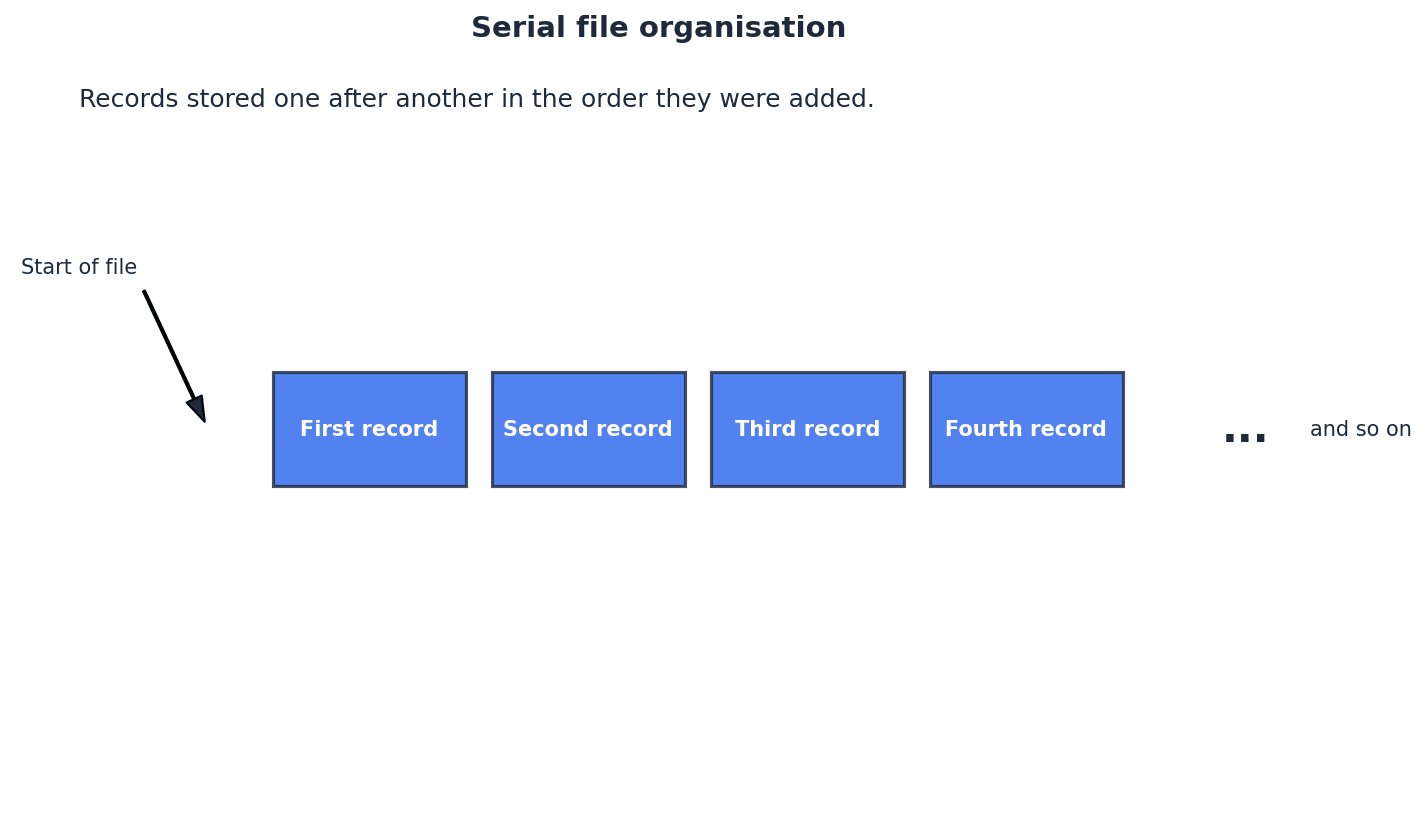
Sequential file organisation — A method of file organisation in which records of data are physically stored in a file, one after another, in a given order.
Records are sorted based on a key field, which allows for more efficient searching than serial files if the search also follows the sorted order. Adding new records requires inserting them into the correct sorted position, which can be complex. This is comparable to a phone book where entries are sorted alphabetically by name; finding a specific name is easier, but adding a new entry requires placing it in the correct alphabetical spot.
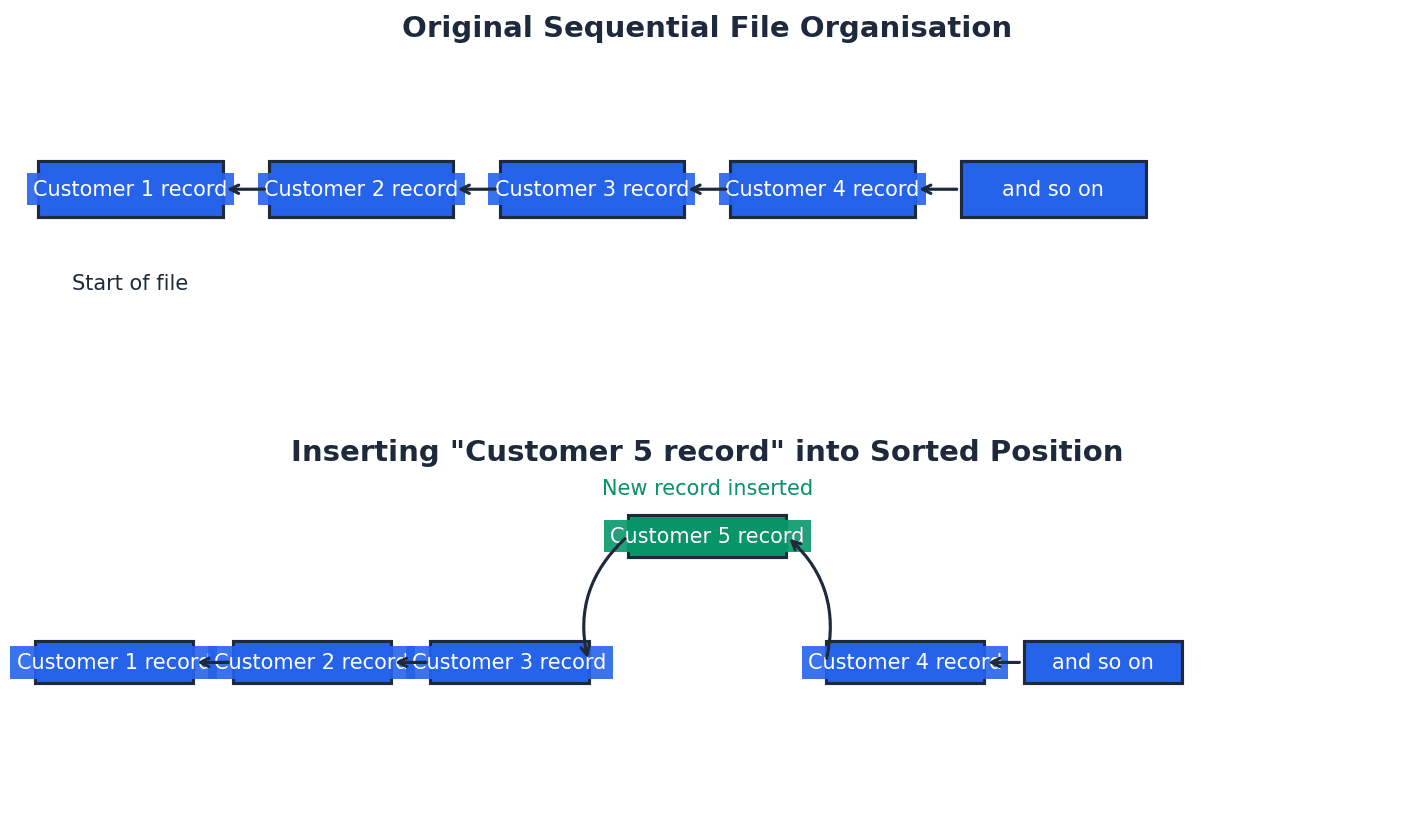
Students often confuse serial file organisation (order of arrival) with sequential file organisation (order by key field).
Random file organisation — A method of file organisation in which records of data are physically stored in a file in any available position; the location of any record in the file is found by using a hashing algorithm on the key field of a record.
This method allows for very fast direct access to individual records because their physical location is calculated directly from their key. Records can be added to any empty spot, but collisions (different keys mapping to the same address) must be handled. It's like a library where a formula instantly tells you the exact shelf and position for a book based on its unique code.
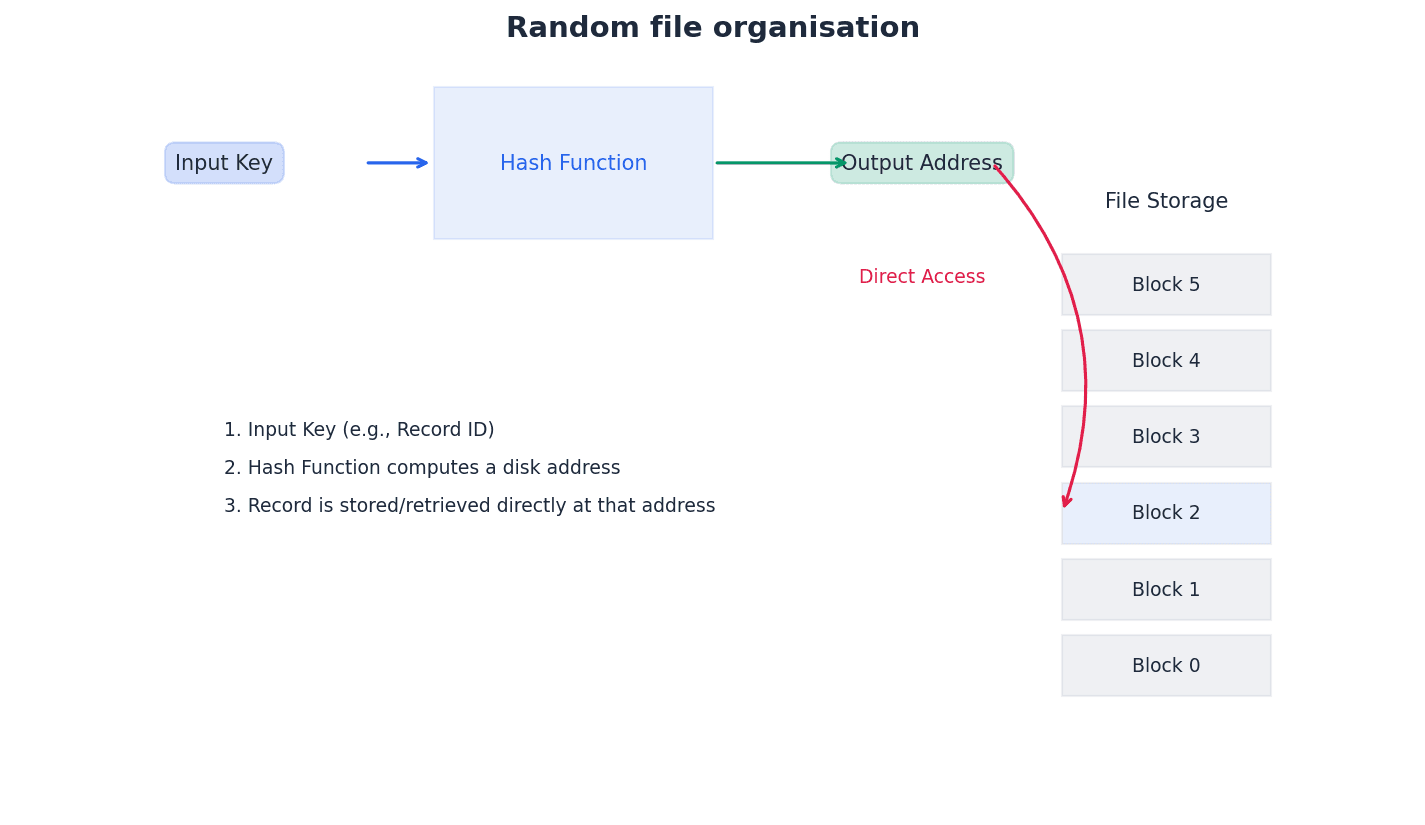
Students often think 'random' means unorganised, but actually it's highly organised for direct access, using a hashing algorithm to determine storage locations.
File access — The method used to physically find a record in the file.
File access methods dictate how records are located and retrieved from storage. The choice of access method depends on the file organisation and the typical usage pattern, such as processing all records or retrieving a single specific record. This is like different ways to find a specific song: either listening to every song on an album until you find it (sequential) or jumping directly to its track number (direct).
Clearly differentiate between file organisation (how data is stored) and file access (how data is retrieved) in your explanations.
Sequential access — A method of file access in which records are searched one after another from the physical start of the file until the required record is found.
This method is used for serial and sequential files. For serial files, every record might need checking. For sequential files, the search can stop once a key greater than the target is encountered, as records are sorted. It is efficient for processing a high percentage of records, similar to reading a book from the beginning, page by page, until you find the specific paragraph you're looking for.
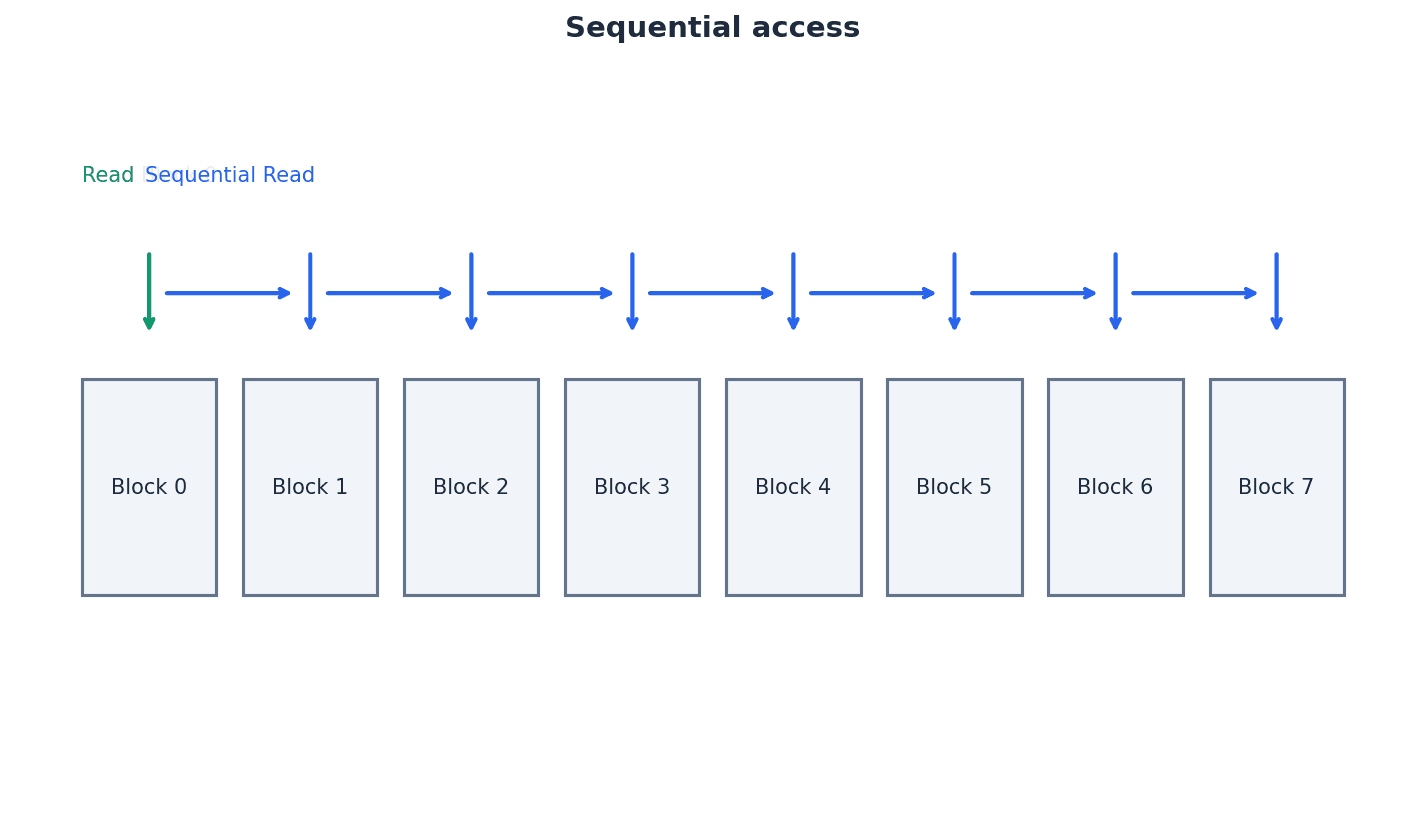
Direct access — A method of file access in which a record can be physically found in a file without physically reading other records.
Direct access allows immediate retrieval of a specific record, making it ideal for situations with a low 'hit rate' where only one or a few records need to be processed. It relies on an index for sequential files or a hashing algorithm for random files to determine the record's location. This is like using a table of contents to jump directly to a specific chapter in a book.
Hashing algorithm (file access) — A mathematical formula used to perform a calculation on the key field of the record; the result of the calculation gives the address where the record should be found.
Hashing algorithms provide a direct way to map a record's key to a physical storage address, enabling fast retrieval. However, different keys can sometimes produce the same address (a collision), which requires specific strategies like open or closed hashing to resolve. This is like a special calculator that takes a student ID number and immediately tells you their locker number.
Students often think hashing guarantees unique addresses, but actually collisions are common and require specific handling mechanisms.
Be prepared to explain how collisions are handled (open hash, closed hash) and why the key field must be checked after retrieval when applying hashing algorithms for file access.
The choice of file organisation (serial, sequential, or random) dictates how records are physically stored, while file access methods (sequential or direct) determine how records are retrieved. Serial organisation stores records in the order of addition, suitable for logs. Sequential organisation sorts records by a key, efficient for processing all records. Random organisation uses hashing algorithms to directly calculate a record's storage location, enabling very fast direct access to individual records, though collision handling is necessary.
Binary floating-point number — A binary number written in the form M × 2E (where M is the mantissa and E is the exponent).
This representation allows for a much wider range of numbers, including fractional values, compared to fixed-point representation. It separates the precision (mantissa) from the magnitude (exponent), similar to scientific notation (e.g., 6.022 × 10^23) but using base 2 instead of base 10.
Binary Floating-Point Representation
A binary point is assumed to exist at a fixed position within the mantissa (e.g., between the first and second bits).
Mantissa — The fractional part of a floating point number.
In binary floating-point representation (M × 2E), the mantissa (M) holds the significant digits of the number, determining its precision. It is typically represented as a fraction, with an assumed binary point. In scientific notation like 3.14 × 10^5, the '3.14' is the mantissa, representing the core value.
Exponent — The power of 2 that the mantissa (fractional part) is raised to in a floating-point number.
In binary floating-point representation (M × 2E), the exponent (E) determines the magnitude or scale of the number, effectively shifting the binary point. It is stored as a signed integer, often using two's complement. In scientific notation like 3.14 × 10^5, the '5' is the exponent, indicating how many places to shift the decimal point.
Students often forget the exponent is a power of 2 in binary floating-point, not 10.
To convert a binary floating-point number (M × 2E) to denary, first convert the mantissa (M) to its denary fractional equivalent, remembering the assumed binary point. Then, convert the exponent (E) to its denary value, handling two's complement for negative exponents. Finally, multiply the denary mantissa by 2 raised to the power of the denary exponent to obtain the final denary number. For example, a mantissa of 0.1011010 and an exponent of 4 would result in 0.703125 × 2^4 = 11.25.
Converting a denary number to binary floating-point involves several steps. First, convert the denary number (both whole and fractional parts) into its binary equivalent. Then, normalise this binary number into the format 0.1... for positive numbers or 1.0... for negative numbers, adjusting the exponent accordingly. Finally, represent the normalised mantissa and the adjusted exponent using the specified number of bits, applying two's complement for negative mantissas or exponents.
Normalisation (floating-point) — A method to improve the precision of binary floating-point numbers; positive numbers should be in the format 0.1 and negative numbers in the format 1.0.
Normalisation ensures that the most significant bit of the mantissa is always immediately to the right of the binary point, maximising the number of significant figures stored. This eliminates redundant leading zeros and provides a unique representation for each number, improving precision and simplifying comparisons. It's like always writing a number in scientific notation with one non-zero digit before the decimal point to ensure consistency and maximum precision.
Remember the specific formats for normalised positive (0.1...) and negative (1.0...) mantissas and how exponent adjustment is linked to bit shifts.
Students often think normalisation is just about shifting bits, but actually it's about ensuring a unique and maximally precise representation by removing redundant leading zeros.
Overflow — The result of carrying out a calculation which produces a value too large for the computer’s allocated word size.
Overflow occurs when the magnitude of a number exceeds the maximum value that can be represented by the available bits for the exponent and mantissa. This typically leads to an error or an incorrect result, as the computer cannot store the true value. It's like trying to pour a gallon of water into a pint glass; the container is too small to hold the entire quantity.
Underflow — The result of carrying out a calculation which produces a value too small for the computer’s allocated word size.
Underflow occurs when a number's magnitude is smaller than the smallest non-zero value that can be represented by the floating-point system. This often happens when dividing by a very large number, leading to the result being approximated as zero. This is similar to trying to measure a tiny speck of dust with a ruler marked only in inches; the measurement tool isn't precise enough to register such a small value.
Students often confuse overflow (value too large) with underflow (value too small to be represented as non-zero).
Binary floating-point representation, while offering a wide range, is susceptible to several issues. Rounding errors can occur because a finite number of bits cannot always precisely represent all real numbers, leading to approximations. Overflow happens when a number's magnitude is too large for the allocated bits, while underflow occurs when a number is too small to be represented as non-zero, often resulting in it being approximated as zero. These limitations highlight the trade-off between precision and range in floating-point systems.
Practice converting between denary and binary floating-point numbers, showing all steps for mantissa and exponent, including normalisation.
When asked to define user-defined data types, specify if they are non-composite (e.g., enumerated, pointer) or composite (e.g., sets, classes).
Discuss the implications of finite bit representation, such as rounding errors, overflow, and underflow, when analysing floating-point problems.
Definitions Bank
User-defined data type
A data type based on an existing data type or other data types that have been defined by a programmer.
Non-composite data type
A data type that does not reference any other data types.
Enumerated data type
A non-composite data type defined by a given list of all possible values that has an implied order.
Pointer data type
A non-composite data type that uses the memory address of where the data is stored.
Set
A given list of unordered elements that can use set theory operations such as intersection and union.
+13 more definitions
View all →Common Mistakes
Confusing serial file organisation with sequential file organisation.
Remember that serial files are ordered by arrival, while sequential files are ordered by a key field.
Believing that a pointer stores the data itself.
A pointer stores the memory address where the data is located, not the data itself.
Assuming that hashing algorithms always produce unique addresses.
Collisions are common with hashing algorithms and require specific handling mechanisms.
+3 more
View all →This chapter explores the essential role of protocols in network communication, detailing the TCP/IP four-layer stack and its application in internet data transfer. It covers specific application layer protocols like HTTP, FTP, and email protocols, alongside a thorough comparison of circuit and packet switching mechanisms.
Protocol — A set of rules governing communication across a network: the rules are agreed by both sender and recipient.
Protocols are essential for successful communication over networks, ensuring that both parties understand how to exchange data. Without agreed protocols, data transmission would be impossible, similar to how people need to speak the same language to understand each other.
Host — A computer or device that can communicate with other computers or devices on a network.
A host is any device connected to a network that can send or receive data, provide services, or run applications. This includes clients, servers, and other network-enabled devices.
Packet — A message/data is split up into smaller groups of bits for transmission over a network.
To efficiently transmit large amounts of data over a network, messages are broken down into smaller, manageable units called packets. Each packet contains a portion of the data along with control information, allowing them to be routed independently and reassembled at the destination.
Header (data packet) — Part of a data packet containing key data such as destination IP address, sequence number, and so on.
The header is a section at the beginning of a data packet that contains control information necessary for routing and processing the packet. This includes source and destination addresses, sequence numbers, hop counts, and error checking values.
Protocols are fundamental for orderly and error-free communication across networks, ensuring that both the sender and receiver adhere to a common set of rules. This prevents misinterpretation and errors in data transmission. The TCP/IP protocol stack implements these rules using a four-layer structure: Application, Transport, Internet/Network, and Network/Data-Link, each with specific functions to manage data as it travels across the internet.
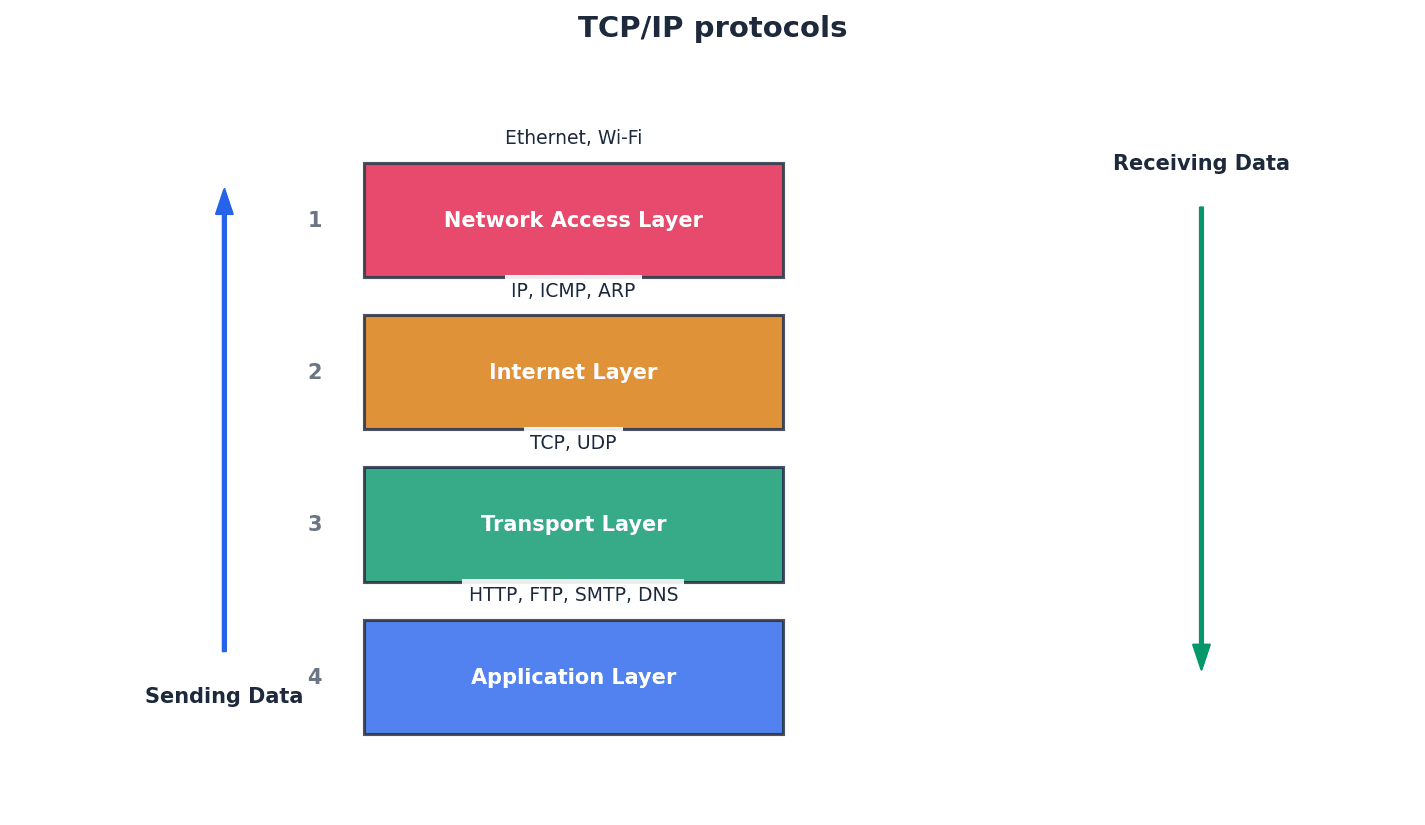
When asked to 'explain the need for protocols', focus on the agreement between sender and receiver and the prevention of misinterpretation or errors in data transmission.
Students often think protocols are just about speed, but actually they are primarily about ensuring orderly and error-free communication, which can sometimes involve trade-offs with speed.
The Application layer is the top layer of the TCP/IP stack, providing network services directly to user applications. This layer includes protocols like HTTP for web browsing, FTP for file transfers, and various protocols for email communication, each designed for a specific type of data exchange.
HTTP — Hypertext transfer protocol.
HTTP is a fundamental application layer protocol that underpins the World Wide Web, responsible for the correct transfer of files that make up web pages. It is a client/server protocol where web browsers send requests to web servers, which then respond with the requested content.
Be precise when describing HTTP's role: it's for transferring files that make up web pages, not just 'web communication' generally. Mention its client/server nature.
FTP — File transfer protocol.
FTP is a network protocol specifically designed for transferring files from one computer/device to another over the internet or other networks. It is an application protocol focused solely on file transfer, offering features like anonymous access and specific commands for file management.
Highlight FTP's specific purpose: file transfer. Mention its distinction from HTTP and SMTP in terms of its dedicated function.
SMTP — Simple mail transfer protocol.
SMTP is a text-based, connection-based protocol used for sending emails. It is considered a 'push protocol' because the client opens and maintains a connection to the server to upload new emails. For binary attachments, it works in conjunction with MIME.
Push protocol — Protocol used when sending emails, in which the client opens the connection to the server and keeps the connection active all the time, then uploads new emails to the server.
In a push protocol, the client actively initiates and maintains a connection to the server to send data. This ensures that new emails are uploaded as soon as they are composed, rather than waiting for the server to request them.
Binary file — A file that does not contain text only.
A binary file contains data that is machine-readable but not human-readable, often including media like images, videos, or executable programs, in contrast to plain text files. SMTP alone cannot handle binary files, requiring MIME for attachments.
MIME — Multi-purpose internet mail extension.
MIME is a protocol that extends SMTP's capabilities, allowing email attachments containing media files (such as images, video, music) as well as text to be sent. It adds a header to the transmission, which clients use to select the appropriate media player.
Students often think SMTP handles all aspects of email, but actually it's primarily for sending. Receiving emails uses different protocols like POP3/4 or IMAP.
POP — Post office protocol.
POP (Post Office Protocol) is a pull protocol used for receiving emails from an email server. When a client connects, it downloads new emails and typically deletes them from the server, meaning the server and client are not kept in synchronisation.
IMAP — Internet message access protocol.
IMAP is a pull protocol used for receiving emails from an email server, similar to POP. However, IMAP keeps the server and client in synchronisation, downloading only a copy of the email while the original remains on the server until manually deleted by the client.
Pull protocol — Protocol used when receiving emails, in which the client periodically connects to a server, checks for and downloads new emails from a server and then closes the connection.
In a pull protocol, the client periodically initiates a connection to the server to 'pull' or retrieve new data. This contrasts with push protocols where the server actively sends data to a continuously open client connection.
Distinguish SMTP's role (sending emails) from POP3/4 and IMAP (receiving emails). Also, remember to mention its text-based nature and the need for MIME for binary files.
Students often confuse IMAP with POP, but actually IMAP offers better synchronisation by keeping emails on the server, allowing access from multiple devices, whereas POP typically downloads and deletes.
The Transport layer is responsible for end-to-end communication between applications on different hosts. The Transmission Control Protocol (TCP) is a key protocol at this layer, ensuring reliable and ordered delivery of data segments. It establishes a connection using handshakes and retransmits lost or corrupted packets to guarantee data integrity.
Segment (transport layer) — This is a unit of data (packet) associated with the transport layer protocols.
At the transport layer, data is broken into segments, which are essentially packets with specific transport layer headers. These segments are then passed to the internet layer for further processing and routing.
TCP — Transmission control protocol.
TCP is a connection-oriented transport layer protocol responsible for the safe and reliable delivery of messages by creating packets, ensuring they arrive in sequence, without errors, and retransmitting lost or corrupted packets. It establishes an end-to-end connection using handshakes.
Host-to-host — A protocol used by TCP when communicating between two devices.
TCP is often referred to as a host-to-host transmission protocol because it establishes and manages a reliable, end-to-end connection directly between two communicating devices (hosts) on a network.
Focus on TCP's reliability: connection-oriented, uses handshakes, ensures in-sequence delivery, and retransmits lost packets. Mention PAR (Positive Acknowledgement with Re-transmission).
Students often think TCP is the only transport protocol, but actually UDP is another, though TCP is connection-oriented and guarantees delivery, unlike UDP.
Beyond client-server models, peer-to-peer networks offer an alternative for file sharing. BitTorrent is a prominent protocol in this domain, enabling efficient distribution of large files. Instead of relying on a single central server, BitTorrent allows many users, known as peers, to share file pieces directly with each other, significantly speeding up downloads.
BitTorrent — Protocol used in peer-to-peer networks when sharing files between peers.
BitTorrent is a peer-to-peer file sharing protocol that allows for very fast distribution of large files by enabling many users (peers) to share file pieces directly with each other, rather than relying on a single central server for the entire download.
Peer — A client who is part of a peer-to-peer network/file sharing community.
In a peer-to-peer network or BitTorrent swarm, a peer is any connected computer or device that participates in sharing files, acting as both a client (downloader) and a server (uploader) for different pieces of a file.
Metadata — A set of data that describes and gives information about other data.
Metadata provides descriptive information about a file, such as its size, creation date, author, or in the context of BitTorrent, details about the file being shared and how it's broken into pieces.
Pieces — Splitting up of a file when using peer-to-peer file sharing.
In BitTorrent, a large file is divided into smaller, equal-sized segments called pieces. These pieces are then distributed among peers in the swarm, allowing for parallel downloading and uploading from multiple sources.
Tracker — Central server that stores details of all other computers in the swarm.
In BitTorrent, a tracker is a central server that coordinates the swarm by storing and providing information about all connected peers, including their IP addresses, allowing peers to locate each other and exchange file pieces.
Swarm — Connected peers (clients) that share a torrent/tracker.
A swarm is a group of peers connected together in the BitTorrent protocol, all participating in the sharing and downloading of a specific file (torrent). The availability of the torrent content within the swarm is crucial for successful downloads.
Seed — A peer that has downloaded a file (or pieces of a file) and has then made it available to other peers in the swarm.
A seed is a peer in a BitTorrent swarm that has a complete copy of the file being shared and continues to upload pieces of that file to other peers. More seeds generally lead to faster download speeds for the entire swarm.
Leech — A peer with negative feedback from swarm members.
In BitTorrent, a leech is a peer that downloads significantly more data than it uploads, thus having a negative impact on the swarm's overall share ratio and availability. This behavior is generally discouraged within the community.
Lurker — User/client that downloads files but does not supply any new content to the community.
A lurker is a peer who primarily downloads files from a peer-to-peer community but does not contribute new content or actively participate in uploading, similar to a leech but specifically focused on content contribution rather than just upload ratio.
Leech Ratio
If ratio > 1, the peer has a positive impact on the swarm. If ratio < 1, the peer has a negative effect on the swarm.
Students often think BitTorrent trackers store the actual file, but actually it only stores metadata and peer information; the file content is exchanged directly between peers.
Students often confuse a 'leech' (poor upload/download ratio) with a 'lurker' (downloads but doesn't supply new content).
Network communication relies on different methods for transmitting data. Circuit switching establishes a dedicated, continuous path for the entire communication, guaranteeing consistent bandwidth and ordered delivery. In contrast, packet switching breaks messages into independent packets that can travel along different routes, offering flexibility and resilience but requiring reassembly at the destination.
Circuit switching — Method of transmission in which a dedicated circuit/channel lasts throughout the duration of the communication.
Circuit switching establishes a dedicated, continuous communication path between sender and receiver for the entire duration of the connection. This means the circuit is exclusively reserved, even during periods of inactivity, ensuring consistent bandwidth and ordered packet delivery.
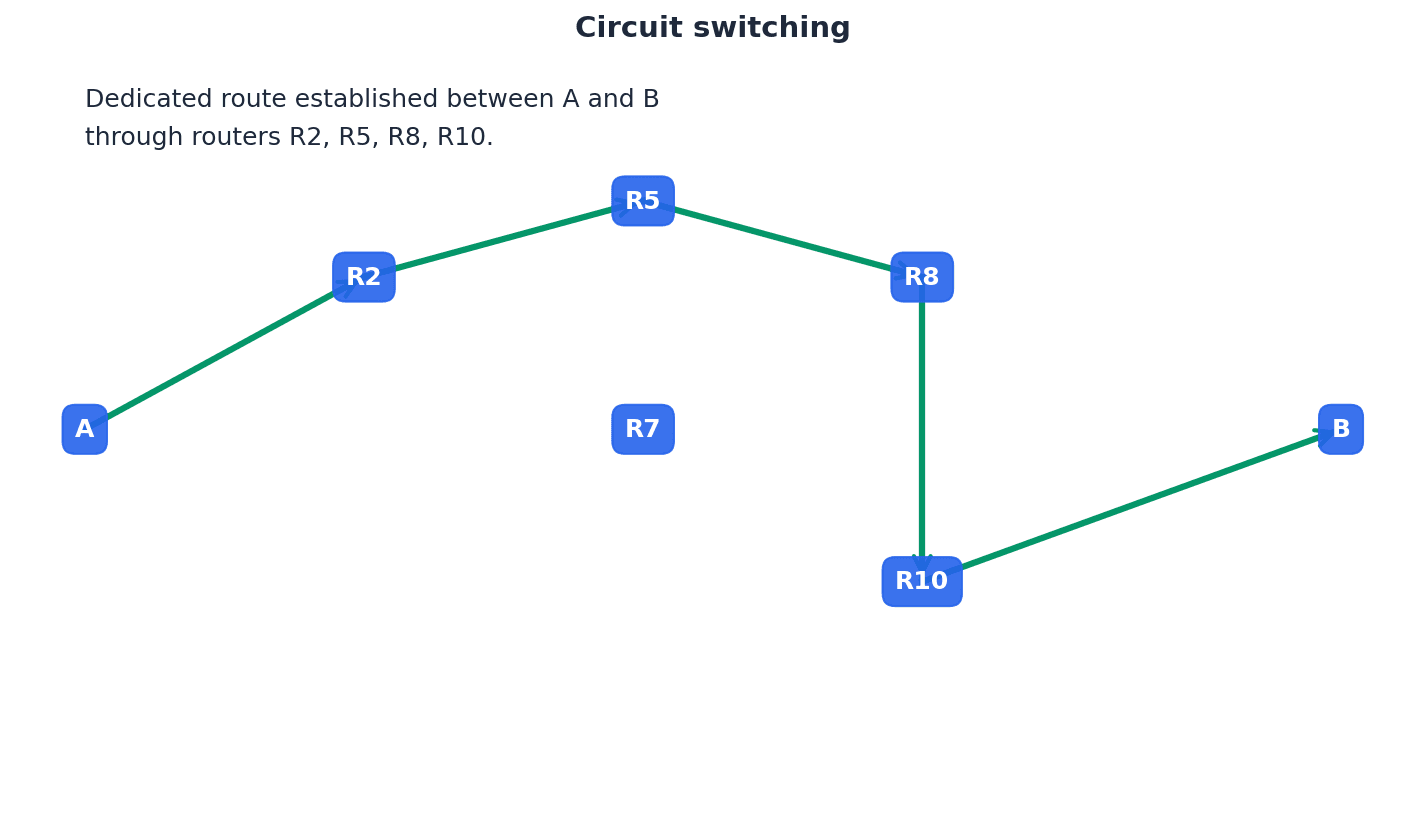
Packet switching — Method of transmission where a message is broken into packets which can be sent along paths independently from each other.
Packet switching breaks a message into individual packets, each routed independently across the network. These packets can take different paths and arrive out of order, requiring reassembly at the destination, but this method offers flexibility and resilience to network failures.
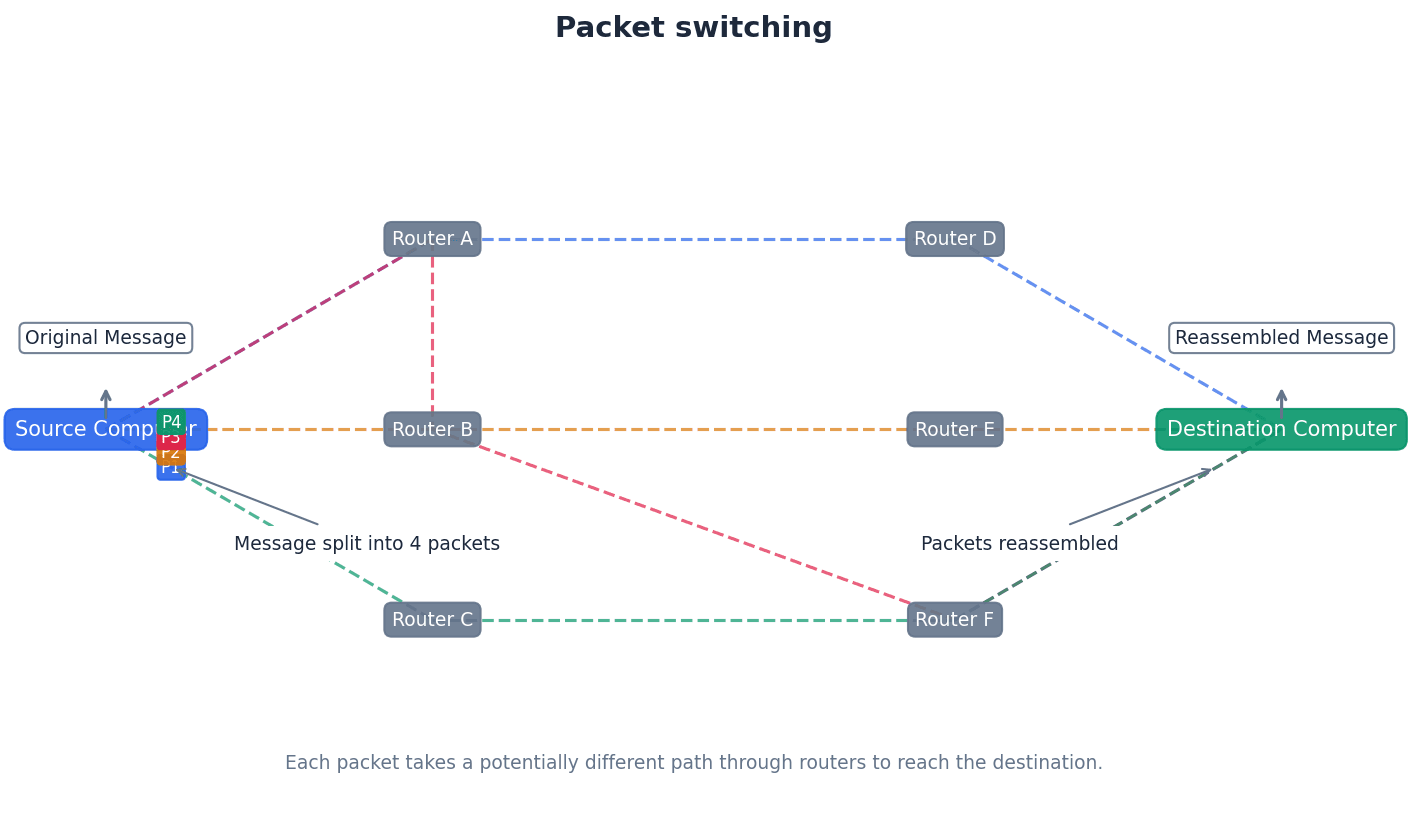
When explaining circuit switching, emphasize the 'dedicated circuit' and its implications: consistent bandwidth, ordered delivery, but also potential for wasted bandwidth and no alternative routing on failure.
Students often think circuit switching is always faster, but actually while it offers consistent speed once established, the initial setup time can be long, and bandwidth can be wasted if the circuit is idle.
In packet switching, routers play a critical role in directing packets across the network. Each router maintains a routing table, which contains information about network destinations and the next hop to reach them. When a packet arrives, the router consults its routing table to determine the most efficient path for forwarding the packet towards its destination.
Routing table — A data table that contains the information necessary to forward a package along the shortest or best route to allow it to reach its destination.
A routing table is maintained by a router and stores information about network destinations and the next hop (router) to reach them, along with metrics to determine the most efficient path. Routers consult this table to decide where to send incoming packets.
Hop number/hopping — Number in the packet header used to stop packets which never reach their destination from 'clogging up' routes.
A hop number is a value in a packet's header that decreases by one each time the packet passes through a router. If the hop number reaches zero before the packet reaches its destination, the packet is deleted by the next router, preventing lost packets from endlessly circulating and congesting the network.
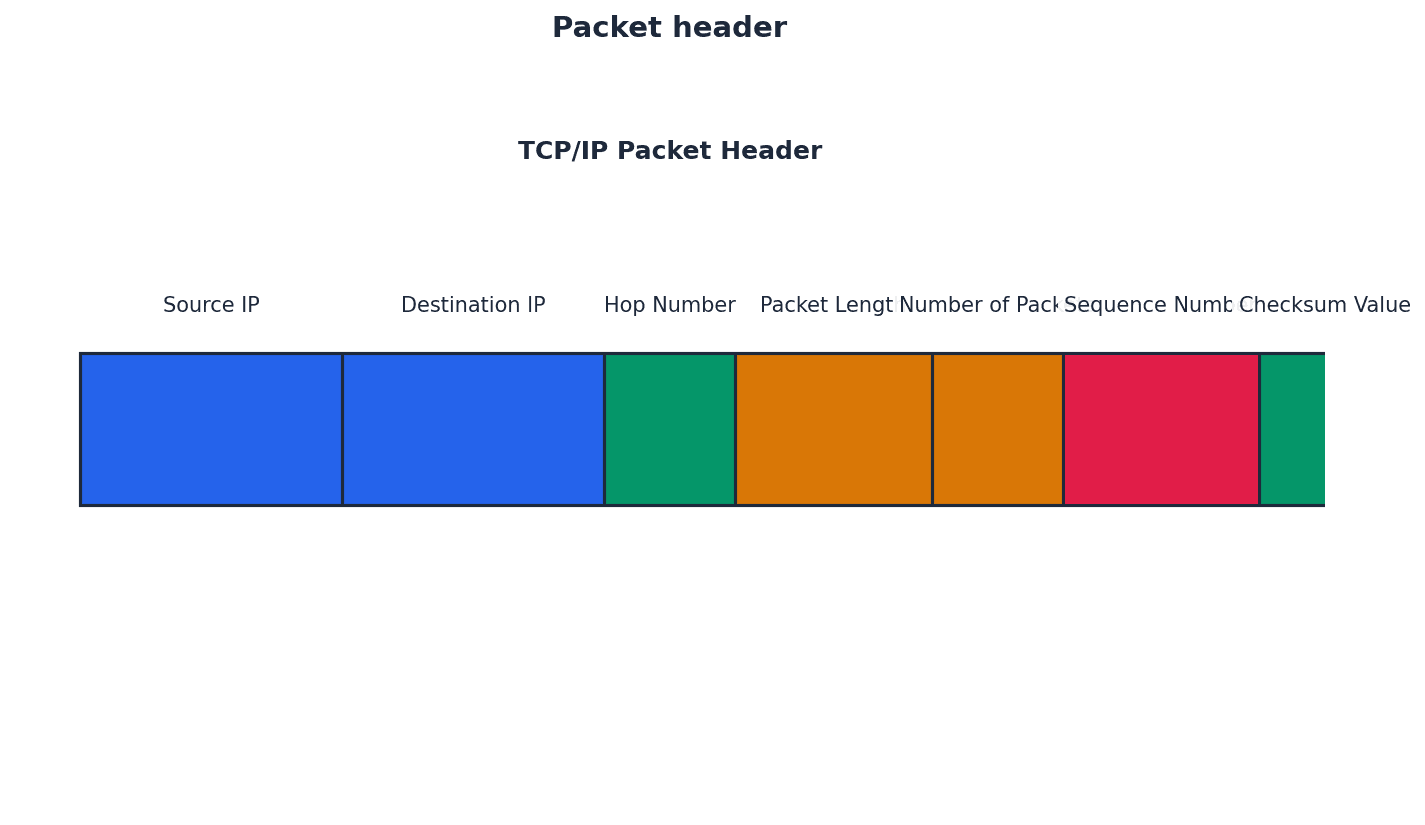
When asked about packet switching, include the role of routers, packet headers, and routing tables in directing messages across a network.
Students often think packets in packet switching always arrive in order, but actually they can take different routes and arrive out of sequence, requiring reassembly at the destination.
When comparing circuit and packet switching, ensure you discuss both benefits and drawbacks for each, using specific examples like real-time vs. bursty data.
For TCP/IP, clearly state the purpose and function of each of the four layers, detailing how data is encapsulated and de-encapsulated.
Definitions Bank
Protocol
A set of rules governing communication across a network: the rules are agreed by both sender and recipient.
HTTP
Hypertext transfer protocol.
Packet
A message/data is split up into smaller groups of bits for transmission over a network.
Segment (transport layer)
This is a unit of data (packet) associated with the transport layer protocols.
FTP
File transfer protocol.
+24 more definitions
View all →Common Mistakes
Confusing 'frames' at the data-link layer with 'frames' in paging memory management.
Remember that 'frames' in networking refer to data units at the data-link layer, distinct from memory management concepts.
Thinking SMTP handles all email functions.
SMTP is primarily for sending emails; POP3/4 and IMAP are used for receiving emails.
Believing BitTorrent trackers store the actual file content.
Trackers only store metadata and peer information; the file content is exchanged directly between peers.
+3 more
View all →This chapter delves into computer hardware, covering processor architectures like RISC and CISC, parallel processing paradigms, and fundamental digital logic circuits. It also explores Boolean algebra and Karnaugh maps for simplifying logic expressions.
CISC — CISC (complex instruction set computer) is a processor architecture where the emphasis is on hardware, using more internal instruction formats to carry out tasks with fewer lines of assembly code.
CISC processors are designed to execute complex, multi-cycle instructions directly, which are then converted into sub-instructions by the processor. This design aims for shorter coding but can lead to more work for the processor due to complex instruction decoding, much like a chef who knows how to prepare entire complex meals with a single command.
RISC — RISC (reduced instruction set computer) is a processor architecture where the emphasis is on software/instruction sets, using fewer, simpler instruction formats to achieve faster execution times.
RISC processors break down assembly code into simpler, single-cycle instructions, leading to a smaller, more optimised instruction set. This design facilitates pipelining and generally results in faster processor performance due to less complex instruction decoding, similar to a chef who only knows basic cooking steps but executes them extremely quickly in sequence.
Students often think CISC processors are inherently slower due to 'complex' instructions, but actually, their complexity aims to reduce the number of instructions needed for a task, potentially simplifying programming. Conversely, students often think 'reduced instruction set' in RISC means less powerful, but it signifies a more optimized and efficient set of instructions that can be executed faster, especially with pipelining.
When asked to compare CISC and RISC, focus on the number and complexity of instruction formats, execution time, pipelining ease, and design emphasis (hardware vs. software).
Pipelining — Pipelining allows several instructions to be processed simultaneously without having to wait for previous instructions to finish.
This technique splits instruction execution into multiple stages (e.g., fetch, decode, execute, writeback). While one instruction is in its execution stage, the next instruction can begin its fetch stage, improving overall throughput. This is analogous to an assembly line where different workers perform different stages of assembly concurrently on different products.
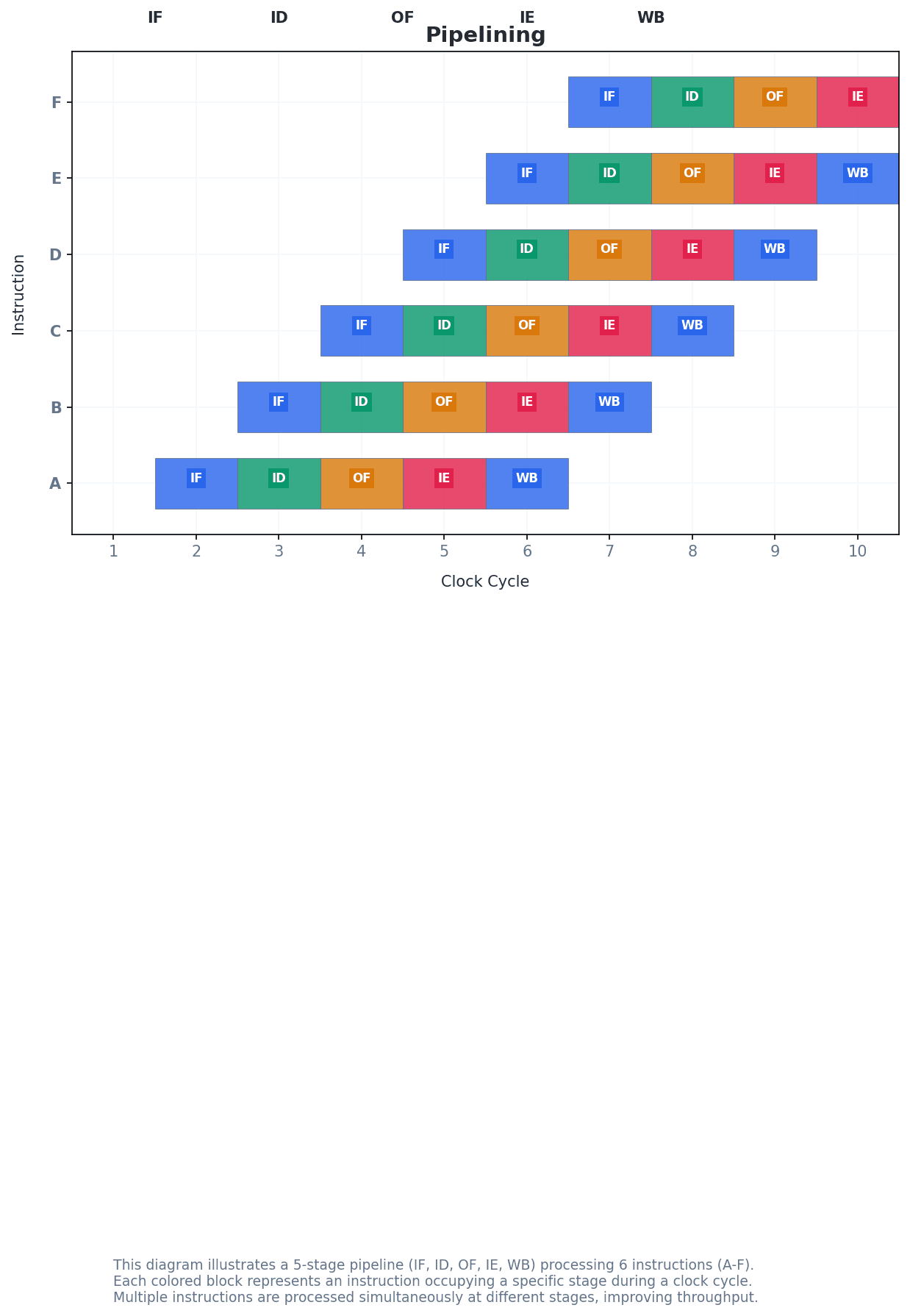
Students often think pipelining makes a single instruction execute faster, but actually, it increases the throughput of the processor by allowing more instructions to be in progress at any given time, not speeding up individual instruction completion.
Highlight the role of pipelining and registers in RISC performance when describing its advantages. Mention the fixed instruction length as a key characteristic.
Parallel processing — Parallel processing is an operation which allows a process to be split up and for each part to be executed by a different processor at the same time.
This approach uses multiple processors or cores to execute different parts of a program concurrently, significantly reducing the total execution time for suitable tasks, especially those involving large volumes of independent data. It's like having several people sort different sections of a huge pile of documents simultaneously.
Students often think all tasks can benefit equally from parallel processing, but actually, it is most effective for 'embarrassingly parallel' problems where data is independent and can be processed concurrently.
When discussing parallel processing, mention the Von Neumann bottleneck as a problem it aims to overcome and discuss the hardware and software considerations for its implementation.
SISD — SISD (single instruction single data) is a computer architecture which uses a single processor and one data source, processing tasks sequentially.
In SISD, a single control unit fetches a single instruction and operates on a single data stream. This architecture does not support parallel processing and is typical of early personal computers, much like a single person reading one recipe step at a time.
SIMD — SIMD (single instruction multiple data) is a computer architecture which uses many processors and different data inputs, with each processor executing the same instruction.
SIMD processors, often called array processors, are highly efficient for tasks that require the same operation to be performed on a large set of independent data items simultaneously, such as graphics processing or sound sampling. This is similar to a choir director giving the same instruction to all singers, but each produces their own sound.
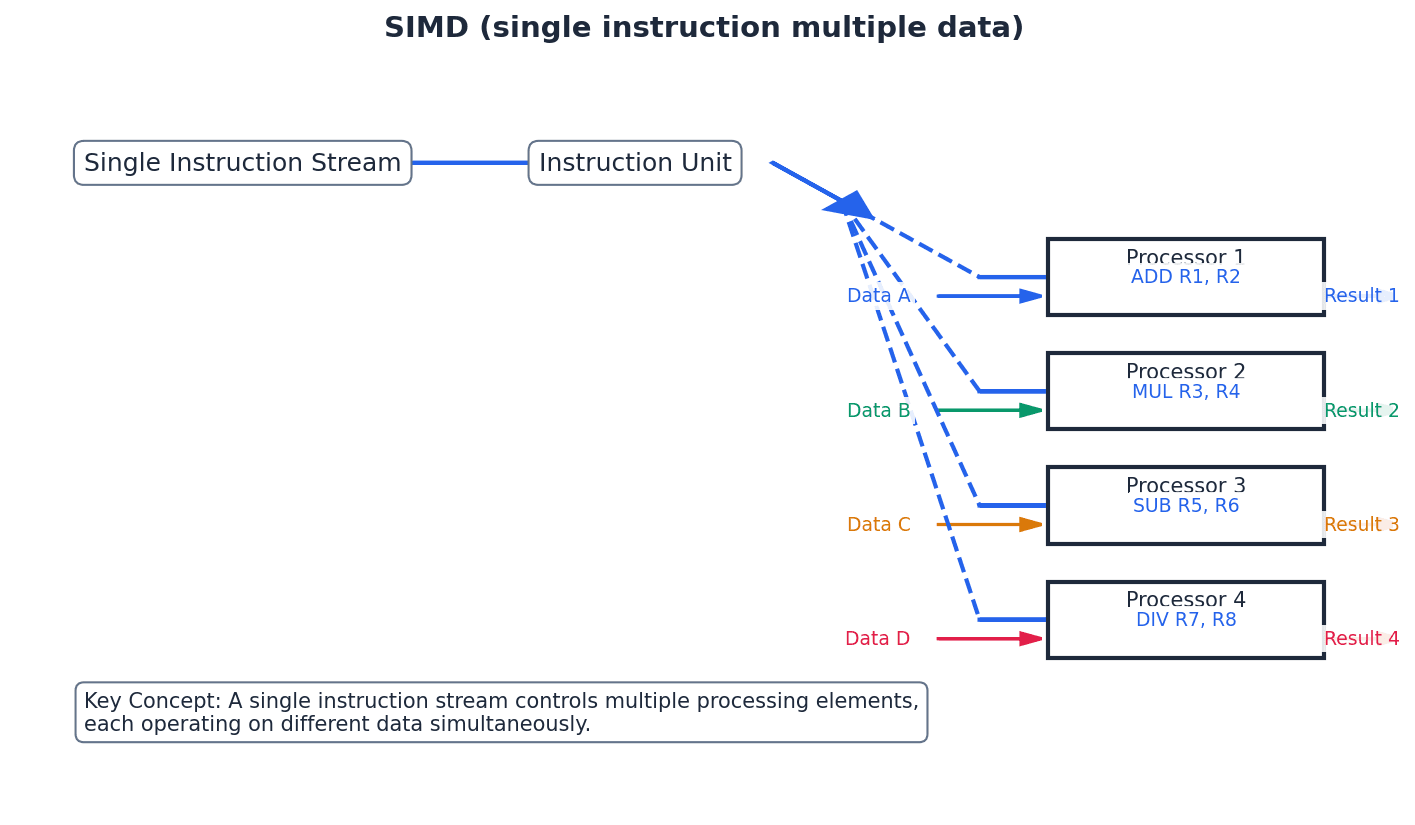
MISD — MISD (multiple instruction single data) is a computer architecture which uses many processors, each with different instructions, but operating on the same shared data source.
This architecture is less common than SIMD or MIMD. It involves multiple functional units performing different operations on the same data stream, often used for fault tolerance or specific signal processing tasks. An analogy is several specialists examining the same patient but performing different assessments.
MIMD — MIMD (multiple instruction multiple data) is a computer architecture which uses many processors, each of which can use a separate data source and take its instructions independently.
This is the most flexible parallel architecture, allowing multiple processors to execute different programs on different data sets concurrently. It is widely used in multicore systems, supercomputers, and distributed computing, much like a team of chefs, each working on a different dish and following their own unique recipe simultaneously.
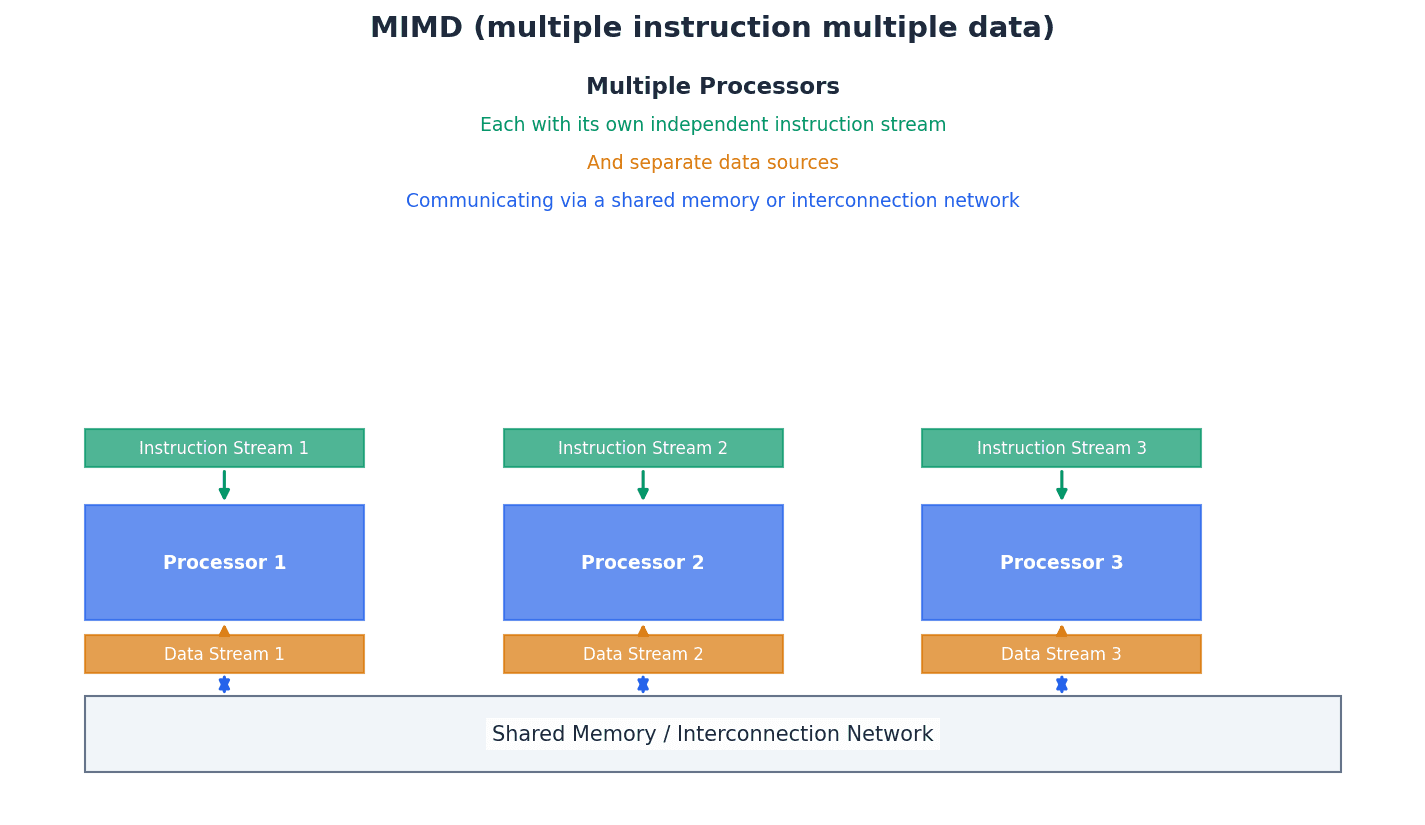
Students often confuse SIMD with MIMD; remember SIMD means 'single instruction' applied to multiple data, while MIMD means 'multiple instructions' on multiple data. Also, students often think MIMD is just 'more powerful SIMD', but MIMD allows for completely independent operations on different data, whereas SIMD applies the same operation to multiple data points.
For questions on parallel architectures, clearly define each type (SISD, SIMD, MISD, MIMD) and provide a relevant example or application where appropriate.
Cluster — A cluster is a number of computers (containing SIMD processors) networked together to form a larger pseudo-parallel system that can act like a supercomputer.
In a cluster, individual computers, each with its own processors, are connected via a network and work together on a common task. Each computer largely remains independent but contributes processing power to the collective goal, similar to a group of individual musicians playing together in an orchestra.
Super computer — A supercomputer is a powerful mainframe computer.
Supercomputers are designed to perform at the highest operational capacity, often involving thousands of processors working in parallel, to solve computationally intensive problems in science, engineering, and business. They are like the world's most powerful calculator.
Massively parallel computers — Massively parallel computers are the linking together of several computers effectively forming one machine with thousands of processors.
These systems are characterized by a very large number of tightly integrated processors that communicate via interconnected data pathways, working collaboratively on parts of a single, complex problem to achieve extremely high processing power. This is analogous to a single, giant brain made up of thousands of interconnected neurons.
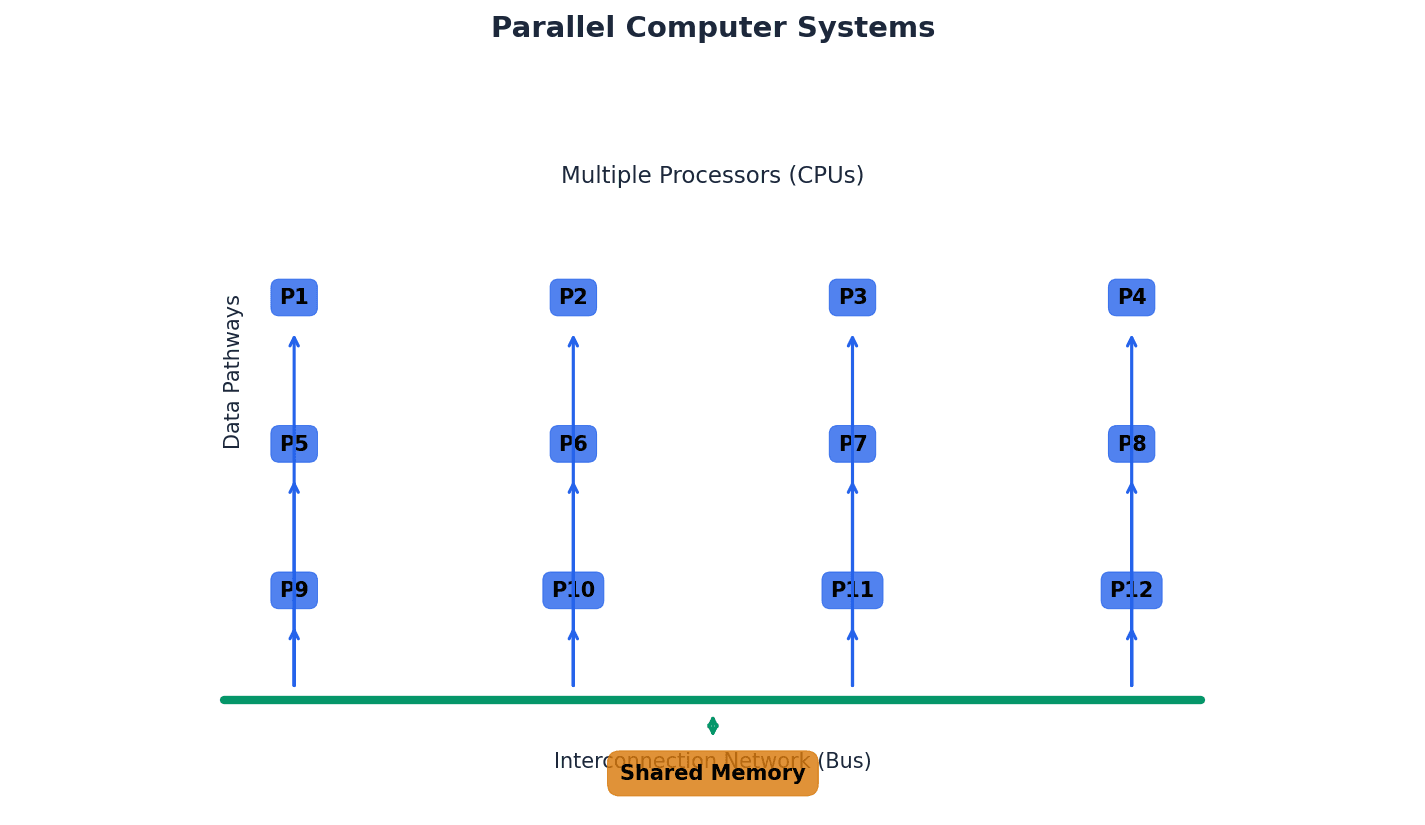
Students often confuse massively parallel computers with clusters; remember that massively parallel systems are more tightly integrated, forming 'one machine' with direct communication pathways between processors, unlike the more independent nodes in a cluster.
Boolean algebra provides a mathematical framework for analyzing and simplifying digital logic circuits. It uses binary variables and logical operations (AND, OR, NOT) to represent the behavior of circuits. Simplifying Boolean expressions is crucial for designing efficient and cost-effective hardware.
De Morgan’s Law 1
This law states that the NOT of (A AND B) is equivalent to (NOT A OR NOT B). It is used to transform Boolean expressions.
De Morgan’s Law 2
This law states that the NOT of (A OR B) is equivalent to (NOT A AND NOT B). It is also used for transforming Boolean expressions.
Sum of products (SoP) — Sum of products (SoP) is a Boolean expression containing AND and OR terms, where multiple AND terms are ORed together.
In SoP form, a Boolean function is expressed as a sum (OR) of product (AND) terms. Each product term corresponds to a row in the truth table where the output is 1. It's like describing a complex dish by saying 'it's either (ingredient A AND ingredient B) OR (ingredient C AND ingredient D)'.
When deriving a Boolean expression from a truth table, focus on the rows where the output is 1 and form an AND term for each, then OR these terms together for the SoP expression.
Half adder circuit — A half adder circuit carries out binary addition on two bits, giving a sum and a carry output.
It is the simplest logic circuit for binary addition, taking two single-bit inputs and producing a sum bit (S) and a carry bit (C). It cannot handle a carry-in from a previous stage, much like a simple calculator that can only add two single-digit numbers and tell you the sum and if there's a 'carry-over'.
Full adder circuit — A full adder circuit combines two half adders to allow the sum of several binary bits, including a carry-in from a previous stage.
It takes three inputs: two data bits (A, B) and a carry-in bit (Cin), producing a sum bit (S) and a carry-out bit (Cout). Full adders are the building blocks for multi-bit binary addition, similar to a more advanced calculator that also takes into account any 'carry-over' from the previous column.
Students often forget that a half adder cannot handle a carry-in, which is why a full adder is needed for multi-bit addition. Also, students often forget the third input (carry-in) for a full adder, which is crucial for multi-bit addition.
Understand how a full adder is constructed from two half adders and an OR gate, and be able to draw its logic circuit and truth table.
Combination circuit — A combination circuit is a circuit in which the output depends entirely on the current input values.
These circuits do not have memory elements; their outputs are solely determined by the present state of their inputs, without regard to past inputs. This is like a light switch where the light is either on or off based only on the current position of the switch.
Sequential circuit — A sequential circuit is a circuit in which the output depends on input values produced from previous output values, meaning it has memory.
These circuits incorporate memory elements (like flip-flops) that store past input or output states, influencing current and future outputs. Their behavior is dependent on the sequence of inputs over time, much like a combination lock whose state depends on the sequence of numbers dialed previously.
Students often confuse combination circuits with sequential circuits; remember that combination circuits have no memory, while sequential circuits do. Students often forget that the key characteristic of a sequential circuit is its ability to 'remember' past states, which is why flip-flops are essential components.
Flip-flop circuits — Flip-flop circuits are electronic circuits with two stable conditions using sequential circuits, capable of storing one bit of information.
These are fundamental memory elements in digital electronics, able to maintain a binary state (0 or 1) indefinitely until triggered by an input. They are used in registers, counters, and memory units, acting like a toggle switch that stays in its last position until explicitly changed.
Cross-coupling — Cross-coupling is an interconnection between two logic gates which make up a flip-flop, providing positive feedback.
In flip-flops, the output of one gate is fed back as an input to the other gate, and vice versa. This feedback mechanism is essential for the circuit to latch onto and maintain a stable state, similar to two friends constantly influencing each other's decisions.
Positive feedback — Positive feedback is the output from a process which influences the next input value to the process, reinforcing the current state.
In flip-flops, positive feedback means that an output state (e.g., Q=1) is fed back to reinforce that state, making the circuit 'latch' or 'remember' the value until an external input forces a change. This is like a microphone picking up its own sound from a speaker, amplifying it.
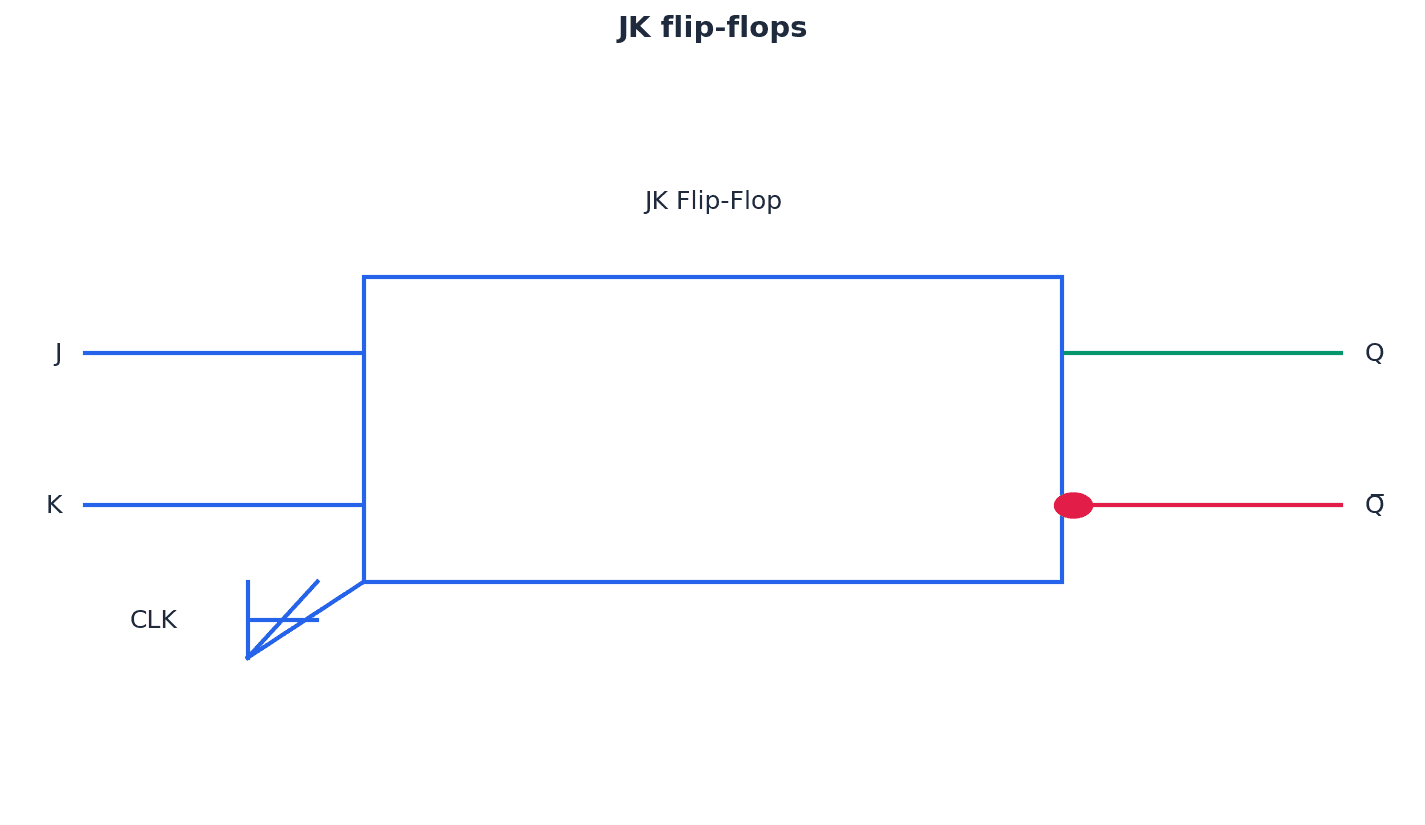
Students often overlook the 'invalid state' (S=1, R=1) in SR flip-flops and the purpose of JK flip-flops in addressing this and synchronisation.
Be able to describe the construction and operation of both SR and JK flip-flops, including their truth tables and common applications like shift registers and counters.
Gray codes — Gray codes are an ordering of binary numbers such that successive numbers differ by one bit value only, for example, 00 01 11 10.
This property is crucial for Karnaugh maps because it ensures that adjacent cells (horizontally or vertically) in the map differ by only one variable, allowing for correct grouping and simplification. It's like a sequence of light switches where only one switch is flipped at a time.
Karnaugh maps (K-maps) — Karnaugh maps (K-maps) are a method used to simplify logic statements and logic circuits, using Gray codes to visually group terms.
K-maps provide a graphical method to simplify Boolean expressions by arranging the truth table values in a grid. Adjacent cells (differing by only one bit) can be grouped to eliminate redundant variables, leading to a minimized SoP expression. They are like a visual puzzle where you find patterns to make a complex statement simpler.
Students sometimes incorrectly apply Gray code sequencing or grouping rules (e.g., groups must be powers of 2, can wrap around) when using Karnaugh maps, leading to incorrect simplification.
Practice applying all K-map rules, especially forming the largest possible groups of 1s (powers of 2) and identifying variables that remain constant within each group to derive the simplified expression.
When simplifying Boolean expressions, show all steps, including the application of De Morgan's Laws and other Boolean identities, to gain full marks.
Definitions Bank
CISC
CISC (complex instruction set computer) is a processor architecture where the emphasis is on hardware, using more internal instruction formats to carry out tasks with fewer lines of assembly code.
RISC
RISC (reduced instruction set computer) is a processor architecture where the emphasis is on software/instruction sets, using fewer, simpler instruction formats to achieve faster execution times.
Pipelining
Pipelining allows several instructions to be processed simultaneously without having to wait for previous instructions to finish.
Parallel processing
Parallel processing is an operation which allows a process to be split up and for each part to be executed by a different processor at the same time.
SISD
SISD (single instruction single data) is a computer architecture which uses a single processor and one data source, processing tasks sequentially.
+16 more definitions
View all →Common Mistakes
Thinking pipelining speeds up individual instruction execution.
Pipelining increases the overall throughput of instructions by allowing multiple instructions to be in different stages of execution concurrently.
Confusing SISD, SIMD, MISD, and MIMD architectures, especially SIMD with MIMD.
Remember SISD (single instruction, single data), SIMD (single instruction, multiple data), MISD (multiple instruction, single data), and MIMD (multiple instruction, multiple data). SIMD applies the same operation to multiple data, while MIMD allows completely independent operations on different data.
Forgetting that a half adder cannot handle a carry-in.
A half adder only adds two single bits. A full adder is required for multi-bit addition as it includes a carry-in from a previous stage.
+2 more
View all →This chapter delves into system software, primarily focusing on operating systems and their crucial role in optimizing computing resources. It covers essential aspects like processor and memory management, the concept of virtual machines, and the intricacies of translation software, including compilation stages and expression evaluation using Reverse Polish Notation.
Bootstrap — A small program that is used to load other programs to ‘start up’ a computer.
The bootstrap program is typically stored in ROM (BIOS) and is the first program executed when a computer is switched on. Its primary role is to load the initial parts of the operating system into main memory, initiating the computer's start-up sequence, much like a car's starter motor gets the main engine running.
Kernel — The core of an OS with control over process management, memory management, interrupt handling, device management and I/O operations.
The kernel is the central component of an operating system, acting as a bridge between hardware and software. It manages the most fundamental operations of the computer, ensuring that applications can interact with hardware resources efficiently and securely, similar to the central nervous system coordinating vital bodily functions.
Operating System (OS) — An OS maximises computing resource use by managing processes, memory, and I/O, and provides a user interface to hide hardware complexity.
The operating system is fundamental to a computer's operation, ensuring efficient use of hardware resources. It manages the CPU, memory, and input/output devices, while also providing a user-friendly interface that abstracts away the complexities of the underlying hardware.
An operating system maximises the use of computing resources by efficiently managing processes, memory, and I/O operations. It employs techniques like multitasking to give the illusion of simultaneous execution, and sophisticated memory management to ensure programs have the necessary space. Furthermore, the OS provides a user interface, abstracting the complexities of hardware from the user, making the computer accessible and efficient.
When asked to 'explain how an OS maximises resource use', detail specific functions like process scheduling, memory allocation, and I/O management.
Process — A program that has started to be executed.
A process is an instance of a computer program that is being executed. It includes the program code, its current activity, and its associated resources like memory, registers, and open files, much like a recipe being actively cooked with all its ingredients and utensils.
Students often think 'program' and 'process' are interchangeable terms. Remember that a program is a static set of instructions, while a process is a dynamic instance of that program in execution.
Multitasking — Function allowing a computer to process more than one task/process at a time.
Multitasking gives the illusion that multiple processes are executing simultaneously by rapidly switching the CPU's attention between them. This is achieved through scheduling algorithms that allocate time slices to each process, similar to a chef juggling multiple dishes to give the impression they are all progressing at once.
Students often think multitasking means processes run truly concurrently on a single CPU. Remember that it means the CPU rapidly switches between processes, giving the appearance of simultaneous execution.
Process states — Running, ready and blocked; the states of a process requiring execution.
These three states describe the lifecycle of a process: 'running' means the process is currently executing on the CPU; 'ready' means it's waiting for its turn to use the CPU; and 'blocked' means it's waiting for an event (like I/O completion) to occur, much like a student's status in a classroom (actively writing, waiting to start, or waiting for a missing pen).
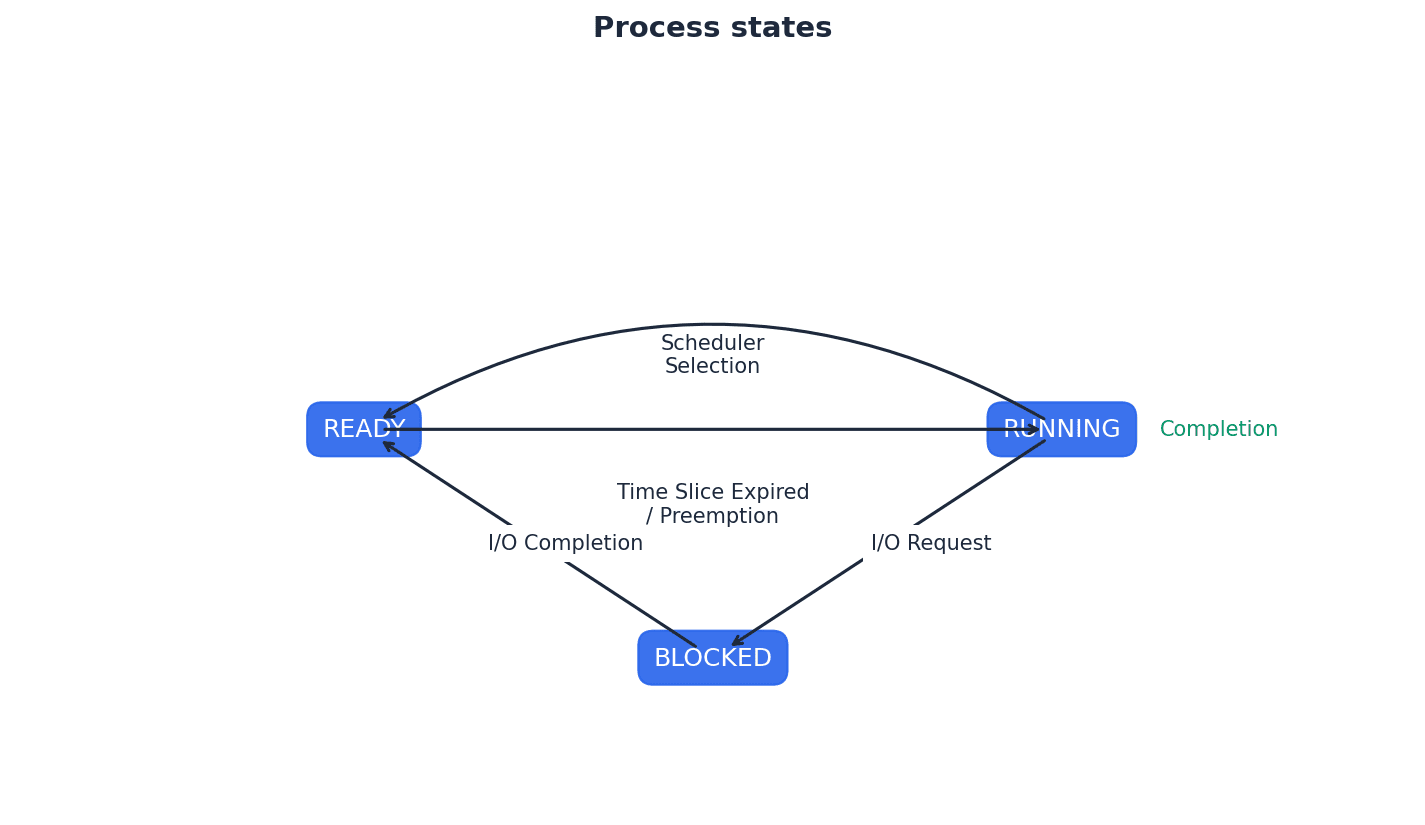
Students often confuse 'ready' and 'blocked' states. Remember that 'ready' means waiting for CPU, while 'blocked' means waiting for an I/O event or resource.
Be able to describe the conditions under which a process transitions between each of the three states (running, ready, blocked), as this is a common exam question.
Scheduling — Process manager which handles the removal of running programs from the CPU and the selection of new processes.
Scheduling is a key function of the operating system's process management, aiming to maximize CPU utilization and ensure fair allocation of resources among multiple processes. It involves algorithms to decide which process gets CPU time next, much like a traffic controller managing cars at an intersection.
Low level scheduling — Method by which a system assigns a processor to a task or process based on the priority level.
Low-level scheduling, also known as the CPU scheduler or dispatcher, is responsible for selecting which process from the ready queue will be allocated the CPU next. It operates frequently and makes decisions based on various criteria, including process priorities and scheduling algorithms, similar to a gate agent deciding which passenger boards next.
Preemptive — Type of scheduling in which a process switches from running state to steady state or from waiting state to steady state.
In preemptive scheduling, the operating system can interrupt a running process and allocate the CPU to another process, typically based on time slices or higher priority. This ensures fairness and responsiveness, preventing any single process from monopolizing the CPU, much like a teacher setting a timer for each student to speak.
Non-preemptive — Type of scheduling in which a process terminates or switches from a running state to a waiting state.
In non-preemptive scheduling, once a process is allocated the CPU, it retains control until it either completes its execution or voluntarily yields the CPU (e.g., by requesting an I/O operation). The operating system cannot forcibly interrupt it, similar to a library book that cannot be recalled early once checked out.
Students often confuse preemptive and non-preemptive scheduling. Remember that preemptive means a process can be forcibly interrupted, while non-preemptive means it runs until it voluntarily yields the CPU or completes.
Quantum — A fixed time slice allocated to a process.
In time-sharing operating systems, particularly with round robin scheduling, each process is given a small, fixed unit of CPU time called a quantum. Once this time expires, the process is preempted, and the CPU is allocated to the next process in the ready queue, like a traffic light staying green for a fixed amount of time.
Round robin (scheduling) — Scheduling algorithm that uses time slices assigned to each process in a job queue.
Round robin is a preemptive scheduling algorithm where each process is given a fixed time quantum to execute. If the process doesn't complete within its quantum, it's moved to the end of the ready queue, and the CPU is given to the next process, much like a game of musical chairs.
Burst time — The time when a process has control of the CPU.
Burst time refers to the amount of CPU time a process requires for its execution. It's a critical factor in scheduling algorithms, as shorter burst times are often prioritized to minimize average waiting times, similar to the time a student spends actively solving a problem without interruption.
Starve — To constantly deprive a process of the necessary resources to carry out a task/process.
Starvation occurs when a process is repeatedly denied access to a resource (like the CPU) it needs to complete its task, often due to a biased scheduling algorithm or continuous arrival of higher-priority processes. This can lead to the process never completing, like a low-priority ticket holder never getting on a popular ride.
Process control block (PCB) — Data structure which contains all the data needed for a process to run.
The PCB is a repository for all the information pertinent to a process, including its current state, program counter, CPU registers, memory management information, and I/O status. It is essential for context switching, allowing the OS to save and restore a process's state, much like a detailed resume for a worker.
Context switching — Procedure by which, when the next process takes control of the CPU, its previous state is reinstated or restored.
Context switching is the mechanism by which the operating system saves the state of the currently running process and loads the state of the next process to be executed. This allows the CPU to switch between multiple processes, giving the illusion of concurrent execution, similar to a stage manager swapping out an actor's costume and props.
Direct memory access (DMA) controller — Device that allows certain hardware to access RAM independently of the CPU.
The DMA controller offloads data transfer tasks from the CPU, allowing the CPU to perform other computations while I/O operations (which are typically slower) occur. This improves overall system efficiency by freeing up the CPU, much like a dedicated delivery service moving packages without the main manager's oversight.
Interrupt dispatch table (IDT) — Data structure used to implement an interrupt vector table.
The IDT is a table that maps interrupt numbers to the addresses of their corresponding interrupt service routines (ISRs). When an interrupt occurs, the CPU uses the IDT to find the correct routine to handle that specific interrupt event, like a phone directory for emergencies.
Interrupt priority levels (IPL) — Values given to interrupts based on values 0 to 31.
IPLs are used to prioritize interrupts, allowing the operating system to determine which interrupt should be handled first if multiple interrupts occur simultaneously or if a new interrupt arrives while another is being serviced. Higher IPLs indicate more critical interrupts, similar to an emergency response system prioritizing a fire alarm over a minor leak.
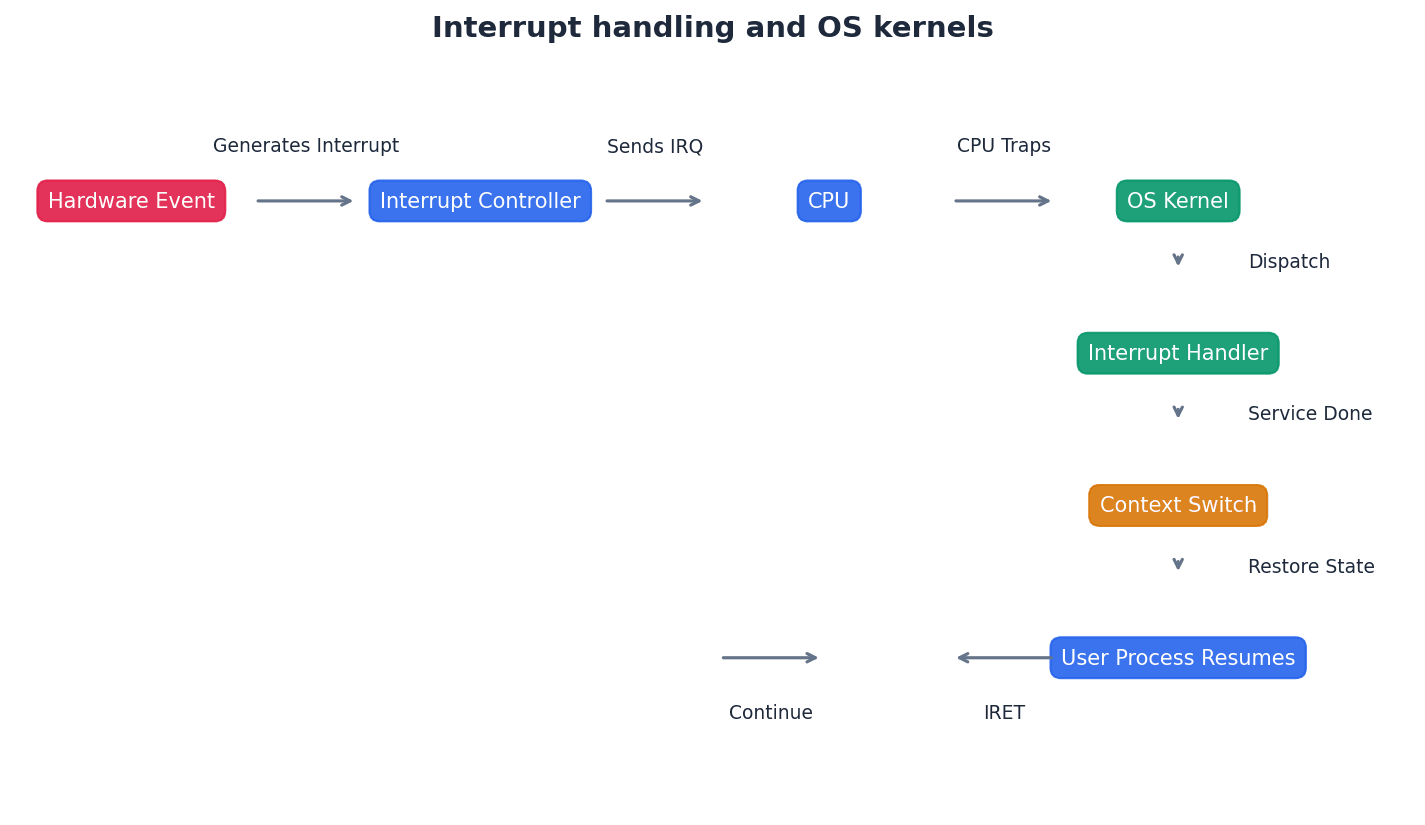
Optimisation (memory management) — Function of memory management deciding which processes should be in main memory and where they should be stored.
In memory management, optimization aims to efficiently allocate and deallocate memory space to processes, minimizing fragmentation and maximizing memory utilization. This involves strategies like paging and segmentation to ensure processes can run effectively, much like a librarian deciding where to place books for best use of space.
Physical memory — Main/primary RAM memory.
Physical memory refers to the actual RAM chips installed in the computer. It is the real, tangible memory hardware where the CPU directly accesses data and instructions, akin to the actual shelves in a library where books are stored.
Logical memory — The address space that an OS perceives to be main storage.
Logical memory is the memory address space that a program or process perceives it has, which may be larger than the actual physical memory available. The operating system maps these logical addresses to physical addresses, like a house number being translated into GPS coordinates.
Students often think logical memory is the same as physical memory. Remember that logical memory is the program's view, which is then mapped by the OS to the physical memory.
Paging — Form of memory management which divides up physical memory and logical memory into fixed-size memory blocks.
Paging divides both physical memory (frames) and logical memory (pages) into equal, fixed-size blocks. It allows non-contiguous allocation of physical memory to a process, overcoming external fragmentation and enabling virtual memory, much like a large book where each fixed-size chapter can be stored in any available slot.
Frames — Fixed-size physical memory blocks.
Frames are the fixed-size partitions into which physical memory (RAM) is divided in a paging system. Pages from logical memory are loaded into these frames, similar to identically sized compartments in a storage locker facility.
Pages — Fixed-size logical memory blocks.
Pages are the fixed-size partitions into which a process's logical address space is divided in a paging system. These pages are then mapped to physical memory frames, like a book divided into identically sized chapters.
Students often confuse paging (fixed-size blocks) with segmentation (variable-size blocks). Remember that paging uses fixed-size blocks, while segmentation uses variable-size blocks.
Page table — Table that maps logical addresses to physical addresses; it contains page number, flag status, frame address and time of entry.
Each process has its own page table, which is a data structure used by the operating system to translate logical page numbers into physical frame numbers. This mapping is essential for memory management in paging and virtual memory systems, much like a detailed index in a book.
Dirty — Term used to describe a page in memory that has been modified.
A 'dirty' page is one whose contents in physical memory have been changed since it was loaded from secondary storage. If a dirty page is selected for replacement, its modified contents must be written back to disk to prevent data loss, similar to an unsaved document on a computer.
Translation lookaside buffer (TLB) — This is a memory cache which can reduce the time taken to access a user memory location; it is part of the memory management unit.
The TLB is a small, fast cache that stores recent translations of virtual page numbers to physical frame numbers. By caching these translations, it speeds up memory access by avoiding a full page table lookup in main memory for frequently accessed pages, acting like a 'favorites' list for memory addresses.
Segments memory — Variable-size memory blocks into which logical memory is split up.
In segmentation, a program's logical address space is divided into variable-sized blocks called segments, which often correspond to logical units of a program (e.g., code, data, stack). Each segment has a name and size, similar to a book where each chapter, index, and appendix can be of different lengths.
Segment number — Index number of a segment.
The segment number is used as an index into the segment map table to locate the corresponding entry for a particular segment. This entry contains information like the segment's base address and size in physical memory, much like a specific section number in a large document.
Segment map table — Table containing the segment number, segment size and corresponding memory location in physical memory: it maps logical memory segments to physical memory.
The segment map table is used in segmentation to translate logical addresses (segment number + offset) into physical memory addresses. It stores the base address and length of each segment in physical memory, similar to a detailed directory for a multi-building campus.
Virtual memory — Type of paging that gives the illusion of unlimited memory being available.
Virtual memory is a memory management technique that uses secondary storage (like a hard disk) to extend the apparent size of physical RAM. It gives processes the illusion of having more memory than physically available, allowing larger programs or more programs to run concurrently.
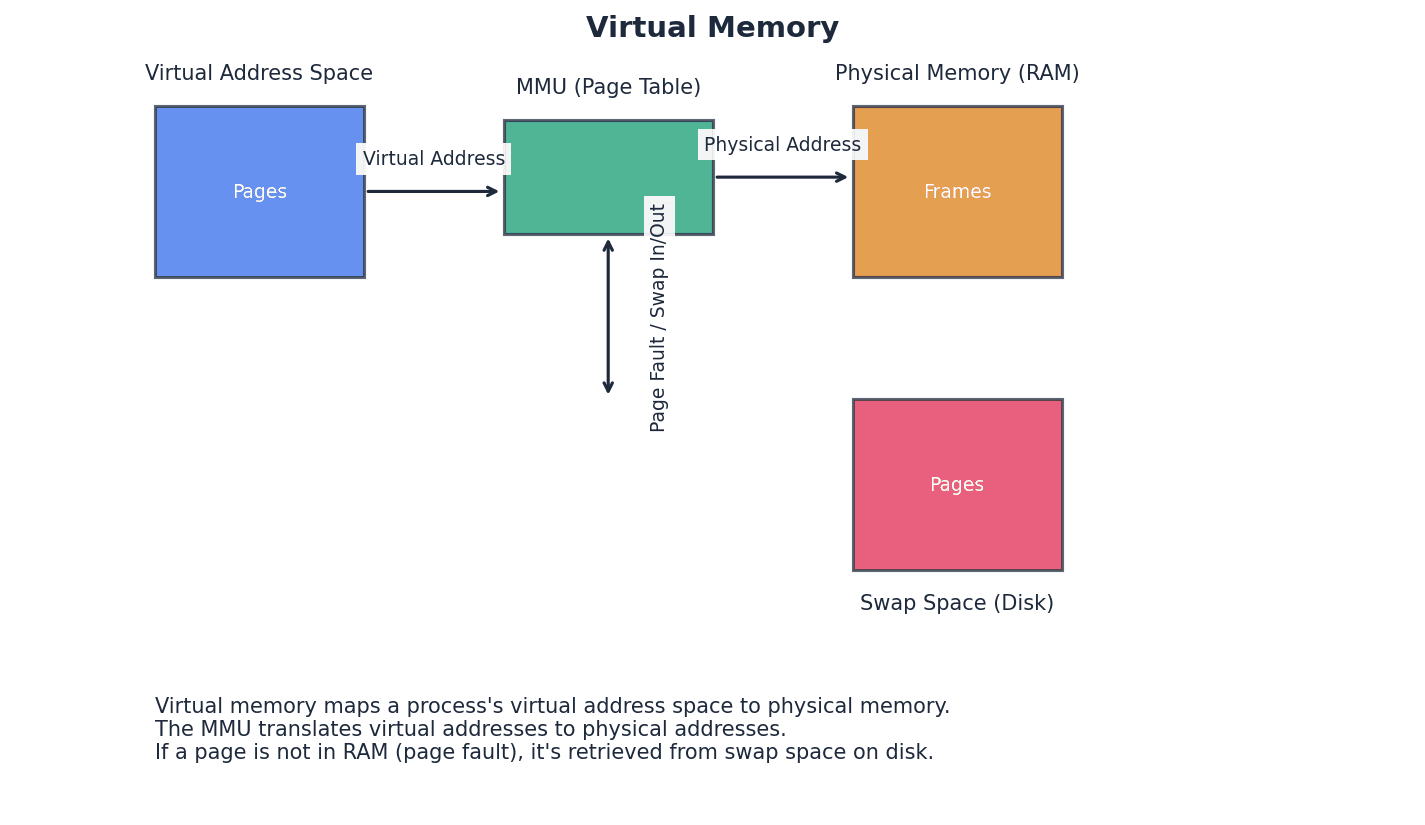
Students often confuse virtual memory with virtual machines. Remember that virtual memory is a memory management technique, while virtual machines are emulated hardware environments.
Swap space — Space on HDD used in virtual memory, which saves process data.
Swap space is a dedicated area on a hard disk drive (HDD) or solid-state drive (SSD) that the operating system uses as an extension of physical RAM. When physical memory is full, less frequently used pages are moved to swap space to free up RAM for active processes.
In demand paging — A form of data swapping where pages of data are not copied from HDD/SSD into RAM until they are actually required.
In demand paging, pages are only loaded into physical memory when they are explicitly referenced by a running process. This strategy reduces the amount of I/O needed at program startup and allows programs to run even if only a portion of them fits into memory.
Disk thrashing — Problem resulting from use of virtual memory. Excessive swapping in and out of virtual memory leads to a high rate of hard disk read/write head movements thus reducing processing speed.
Disk thrashing occurs when the operating system spends more time swapping pages between RAM and disk than it does executing actual program instructions. This happens when there isn't enough physical memory to hold all the active pages, leading to a significant performance degradation.
Thrash point — Point at which the execution of a process comes to a halt since the system is busier paging in/out of memory rather than actually executing them.
The thrash point is the critical threshold where the system becomes so overwhelmed by disk thrashing that the CPU utilization drops drastically, and processes effectively stop making progress. At this point, the system is spending almost all its time managing virtual memory rather than performing useful computation.
Page replacement — Occurs when a requested page is not in memory and a free page cannot be used to satisfy allocation.
Page replacement is the process of deciding which page in physical memory to remove when a new page needs to be loaded but all frames are currently occupied. The goal is to choose a page that is least likely to be needed soon to minimize future page faults.
Page fault — Occurs when a new page is referred but is not yet in memory.
A page fault is an interrupt that occurs when a program tries to access a memory page that is currently not loaded into physical memory. The operating system then handles this by loading the required page from secondary storage into a free frame in RAM.
Students often believe a page fault is an error condition. Remember that it is a normal interrupt that triggers the OS to load the required page into memory.
First in first out (FIFO) page replacement — Page replacement that keeps track of all pages in memory using a queue structure.
FIFO page replacement is an algorithm that replaces the page that has been in memory for the longest time. It's simple to implement but can suffer from Belady's anomaly, where increasing the number of available frames can sometimes lead to more page faults.
Belady’s anomaly — Phenomenon which means it is possible to have more page faults when increasing the number of page frames.
Belady's anomaly is a counter-intuitive phenomenon observed in some page replacement algorithms, particularly FIFO. It demonstrates that increasing the number of available memory frames can, in certain page reference sequences, lead to an increase in the number of page faults, rather than a decrease.
Students often assume more RAM always leads to fewer page faults. Remember that Belady's anomaly can occur with certain page replacement algorithms, where increasing frames can sometimes increase page faults.
Optimal page replacement — Page replacement algorithm that looks forward in time to see which frame to replace in the event of a page fault.
Optimal page replacement is an ideal algorithm that replaces the page that will not be used for the longest period of time in the future. While it yields the lowest possible page fault rate, it is impractical to implement in real operating systems because it requires foreknowledge of future page references.
Least recently used (LRU) page replacement — Page replacement algorithm in which the page which has not been used for the longest time is replaced.
LRU page replacement is an algorithm that replaces the page that has not been accessed for the longest duration. It attempts to approximate optimal page replacement by assuming that pages used recently are likely to be used again soon, and vice versa.
Virtual machine — An emulation of an existing computer system.
A virtual machine (VM) is a software-based emulation of a physical computer system, including its hardware components like CPU, memory, and I/O devices. It allows multiple operating systems to run concurrently on a single physical machine, each within its isolated environment.
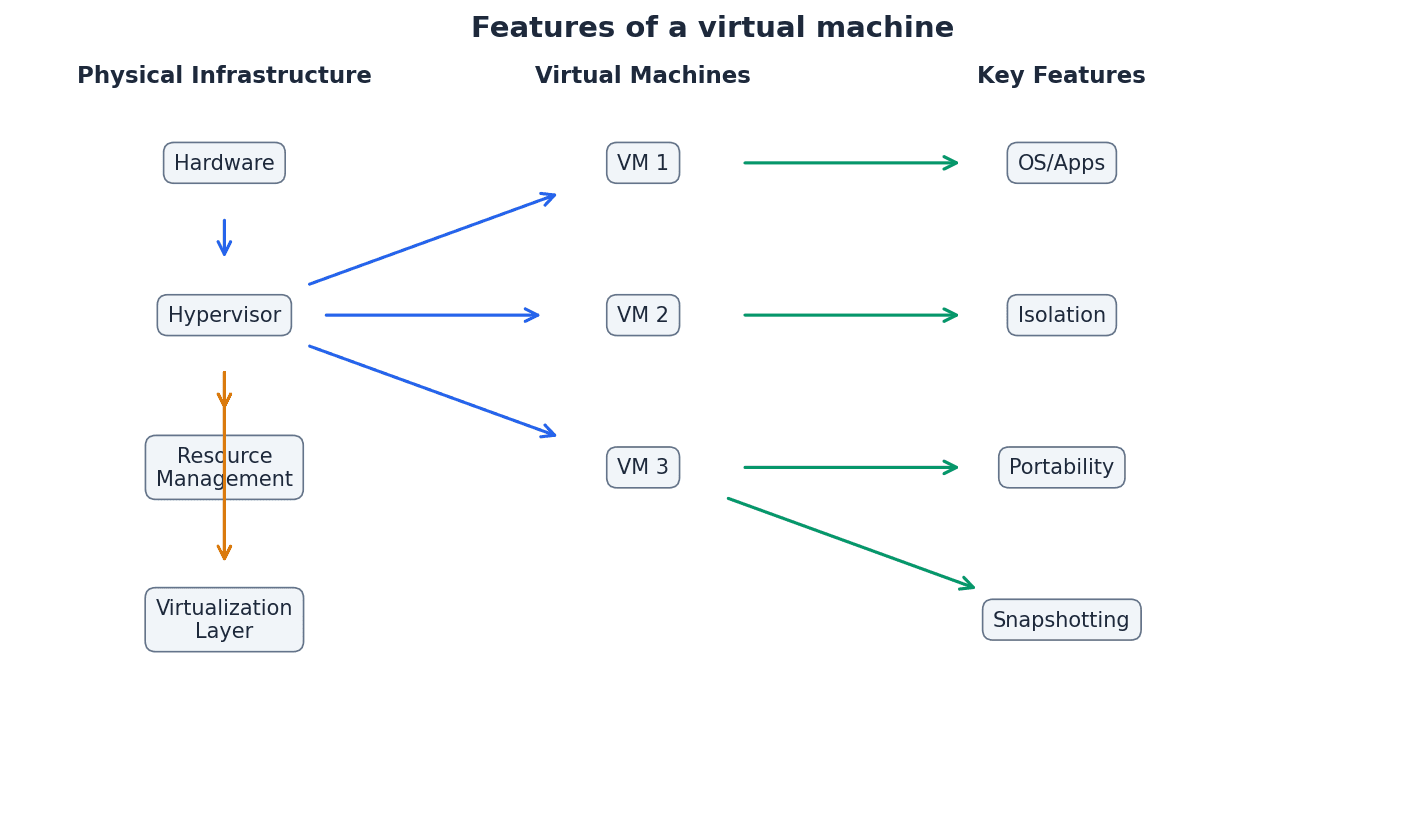
Emulation — The use of an app/device to imitate the behaviour of another program/device; for example, running an OS on a computer which is not normally compatible.
Emulation is the process by which one computer system or program imitates the behavior of another. In the context of virtual machines, it allows a guest operating system to run on hardware it wasn't originally designed for, by translating instructions and simulating hardware components.
Host OS — An OS that controls the physical hardware.
The Host OS is the primary operating system installed directly on the physical computer hardware. It is responsible for managing the physical resources and provides the environment in which virtual machines and their Guest OSes run.
Guest OS — An OS running on a virtual machine.
A Guest OS is an operating system that is installed and runs inside a virtual machine. It operates as if it were running on dedicated physical hardware, but its access to resources is managed and mediated by the hypervisor and the Host OS.
Hypervisor — Virtual machine software that creates and runs virtual machines.
A hypervisor, also known as a Virtual Machine Monitor (VMM), is the software layer that creates and manages virtual machines. It virtualizes the physical hardware, allowing multiple Guest OSes to share the underlying resources without interfering with each other.
Virtual machines offer significant benefits such as isolation, allowing multiple operating systems to run securely on a single host, and portability, as VMs can be easily moved between physical machines. They are excellent for testing new software or operating systems without affecting the host. However, VMs also have limitations, including performance overhead due due to the virtualization layer, and increased resource consumption as each VM requires its own allocation of CPU, memory, and storage.
When discussing virtual machines, ensure you cover both their benefits (e.g., security, testing) and limitations (e.g., performance overhead, resource consumption).
Translation software converts source code into machine-executable code. A compiler translates an entire program into machine code before execution, creating an executable file. In contrast, an interpreter translates and executes a program line-by-line, without producing a separate executable file. This means compilers generally result in faster execution once compiled, while interpreters offer greater flexibility during development and debugging.
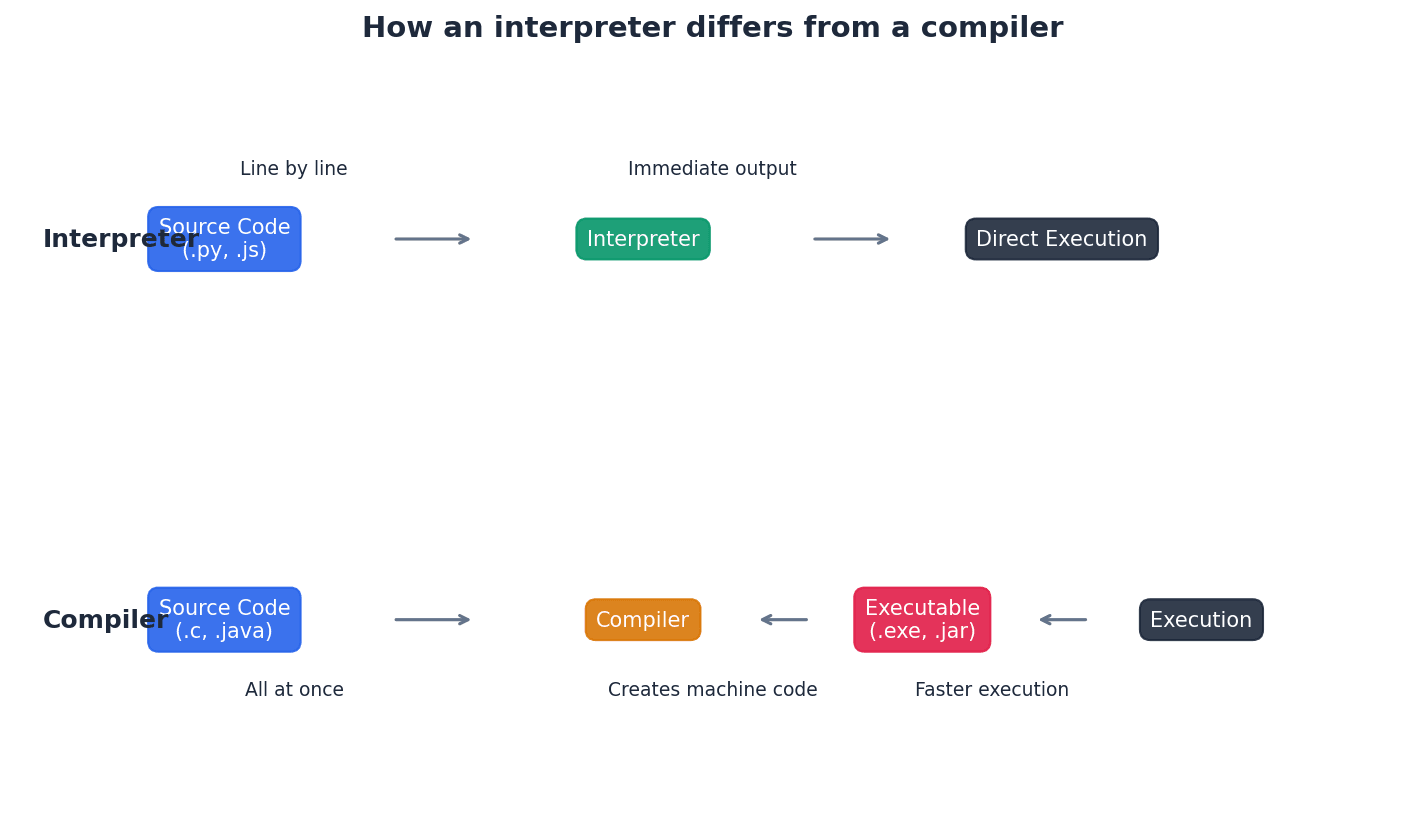
Lexical analysis — The first stage in the process of compilation: removes unnecessary characters and tokenises the program.
Lexical analysis is the initial phase of compilation where the source code is read character by character. It identifies and removes whitespace and comments, then groups characters into meaningful units called tokens (e.g., keywords, identifiers, operators).
Syntax analysis — The second stage in the process of compilation: output from the lexical analysis is checked for grammatical (syntax) errors.
Syntax analysis, also known as parsing, takes the stream of tokens from the lexical analyzer and checks if they conform to the grammatical rules (syntax) of the programming language. It typically builds a parse tree or abstract syntax tree to represent the program's structure.
Code generation — The third stage in the process of compilation: this stage produces an object program.
Code generation is the stage where the intermediate representation of the program (often from syntax analysis) is translated into machine code or assembly code. This output, known as the object program, is specific to the target architecture.
Optimisation (compilation) — The fourth stage in the process of compilation: the creation of an efficient object program.
Optimization in compilation is an optional but crucial stage that aims to improve the generated code's efficiency. This can involve reducing execution time, minimizing memory usage, or decreasing power consumption, without changing the program's external behavior.
Outline the stages of compilation in sequence and briefly describe the role of each stage (e.g., lexical analysis for tokens, syntax analysis for grammar).
Backus-Naur form (BNF) notation — A formal method of defining the grammatical rules of a programming language.
Backus-Naur Form (BNF) is a metasyntax used to express the grammar of context-free languages, particularly programming languages. It uses a set of derivation rules to define the syntactic structure of a language in a precise and unambiguous way.
Syntax diagram — A graphical method of defining and showing the grammatical rules of a programming language.
A syntax diagram is a graphical representation of the grammatical rules of a programming language. It uses interconnected boxes and arrows to visually depict how different language constructs can be formed, making it easier to understand complex syntax.
Reverse Polish notation (RPN) — A method of representing an arithmetical expression without the use of brackets or special punctuation.
Reverse Polish Notation (RPN), also known as postfix notation, is a mathematical notation where operators follow their operands. It eliminates the need for parentheses and operator precedence rules, allowing expressions to be evaluated efficiently using a stack-based approach.
Practice converting infix expressions to RPN and evaluating RPN expressions using a stack, showing intermediate steps for full marks.
For scheduling algorithms, be prepared to describe how each works and evaluate their pros and cons (e.g., fairness, throughput, starvation).
Clearly differentiate between paging and segmentation, focusing on block size, logical vs. physical views, and how they handle memory.
Definitions Bank
Bootstrap
A small program that is used to load other programs to ‘start up’ a computer.
Scheduling
Process manager which handles the removal of running programs from the CPU and the selection of new processes.
Direct memory access (DMA) controller
Device that allows certain hardware to access RAM independently of the CPU.
Kernel
The core of an OS with control over process management, memory management, interrupt handling, device management and I/O operations.
Multitasking
Function allowing a computer to process more than one task/process at a time.
+48 more definitions
View all →Common Mistakes
Confusing virtual memory with virtual machines.
Virtual memory is a memory management technique that uses secondary storage to extend RAM, while virtual machines are software emulations of entire computer systems.
Believing a page fault is an error condition.
A page fault is a normal interrupt that signals the OS to load a required page from disk into memory, not an error.
Assuming more RAM always leads to fewer page faults.
This is not always true; Belady's anomaly shows that with certain page replacement algorithms (like FIFO), increasing frames can sometimes lead to more page faults.
+3 more
View all →This chapter explores fundamental concepts of data security, focusing on encryption techniques like symmetric and asymmetric cryptography. It also covers advanced topics such as quantum cryptography and the roles of SSL/TLS in securing internet communications, alongside digital certificates and signatures for authentication and integrity.
Eavesdropper — A person who intercepts data being transmitted.
Eavesdroppers pose a security risk by gaining unauthorised access to data during transmission over public networks. Encryption aims to make intercepted data unreadable to them, much like someone listening in on a private phone conversation, but intercepting digital messages instead of sound.
Plaintext — The original text/document/message before it is put through an encryption algorithm.
Plaintext is the human-readable form of data that needs to be secured. It is the input to an encryption process, which transforms it into ciphertext. Imagine a letter written in plain English before it's translated into a secret code.
Ciphertext — The product when plaintext is put through an encryption algorithm.
Ciphertext is the unreadable, encrypted form of data that is transmitted over insecure channels. Its purpose is to protect confidentiality, as only the intended recipient with the correct key can decrypt it back to plaintext. This is like the secret code itself, which looks like gibberish to anyone who doesn't have the key to decipher it.
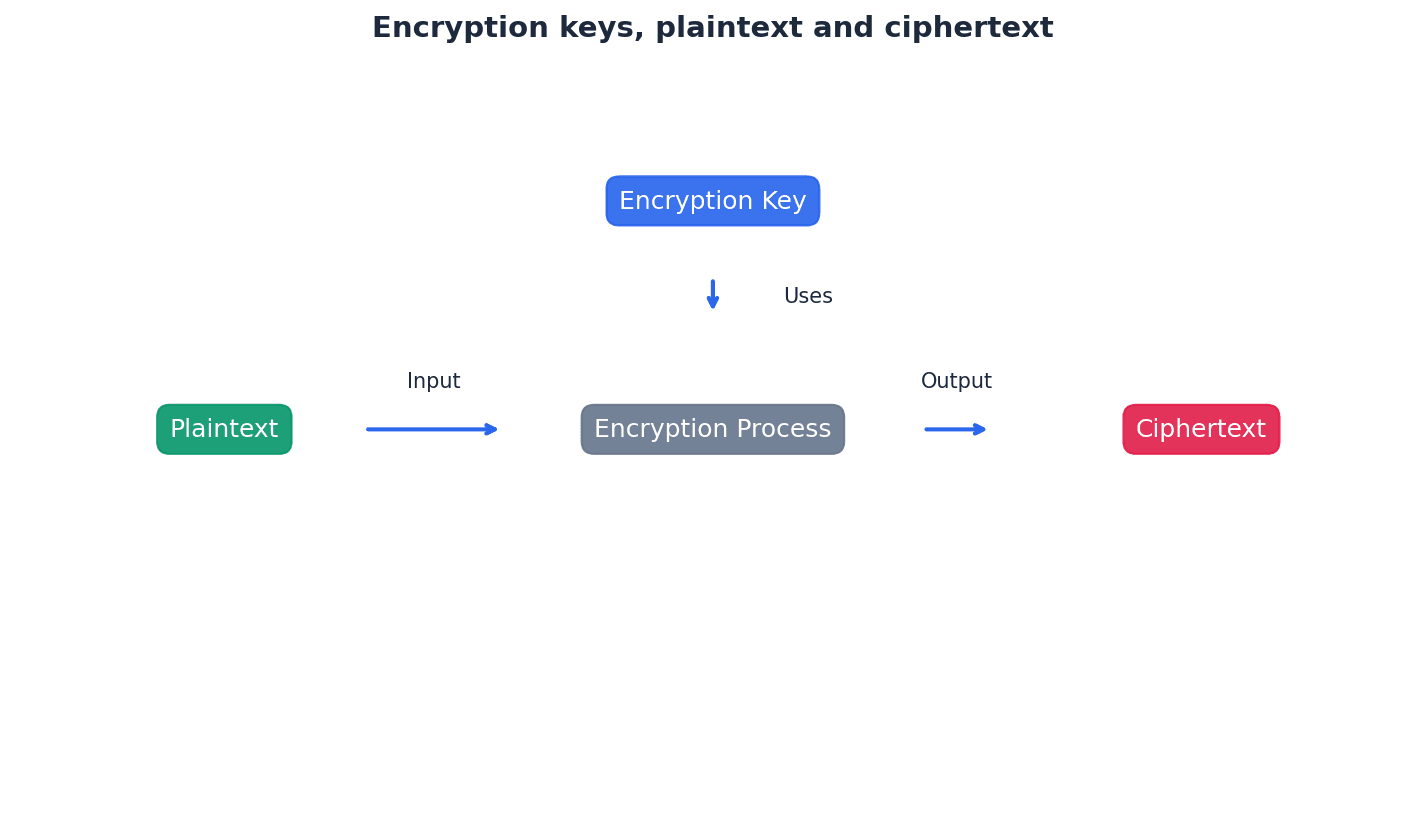
When asked about security risks, clearly distinguish between preventing interception and preventing comprehension of intercepted data.
Students often think an eavesdropper can be completely prevented from intercepting data, but actually encryption only prevents them from understanding it, not from intercepting it.
Students often think plaintext is always text, but actually it refers to any original, unencrypted data, which could include images, audio, or other file types.
Block cipher — The encryption of a number of contiguous bits in one go rather than one bit at a time.
Block ciphers process data in fixed-size blocks, typically 128 bits, which enhances security by making patterns harder to detect. This contrasts with stream ciphers that encrypt data bit by bit. Instead of encrypting each word individually, a block cipher encrypts entire sentences or paragraphs at once.
Stream cipher — The encryption of bits in sequence as they arrive at the encryption algorithm.
Stream ciphers encrypt data one bit or byte at a time, making them suitable for real-time communication where data arrives continuously. They are generally faster than block ciphers but can be more vulnerable if not implemented carefully. Imagine encrypting a conversation word by word as it's spoken, rather than waiting for the whole conversation to finish.
Block chaining — Form of encryption, in which the previous block of ciphertext is XORed with the block of plaintext and then encrypted thus preventing identical plaintext blocks producing identical ciphertext.
Block chaining adds an extra layer of security to block ciphers by ensuring that even if identical plaintext blocks appear, their corresponding ciphertext blocks will be different due to the influence of the preceding ciphertext block. This makes cryptanalysis more difficult. It's like adding a unique 'salt' from the previous encrypted message to each new message before encrypting it.
Symmetric encryption — Encryption in which the same secret key is used to encrypt and decrypt messages.
Symmetric encryption is fast and efficient, making it suitable for encrypting large amounts of data. However, its main challenge is the secure distribution of the shared secret key between sender and recipient. This is like having a single key that both locks and unlocks a diary, and both you and your friend need to have an identical copy of that key.
Key distribution problem — Security issue inherent in symmetric encryption arising from the fact that, when sending the secret key to a recipient, there is the risk that the key can be intercepted by an eavesdropper/hacker.
Since symmetric encryption requires both parties to possess the identical secret key, securely transmitting this key initially is a significant challenge. If the key is intercepted, the entire communication becomes vulnerable. It's like needing to give someone the key to a secret safe, but the only way to give them the key is to send it through the mail, where it could be stolen.
Students often overlook the 'key distribution problem' as the main drawback of symmetric encryption.
When discussing symmetric encryption, always highlight the 'key distribution problem' as its primary drawback.
A common challenge in symmetric encryption is securely sharing the secret key. Protocols exist where two parties can arrive at a common secret key without directly transmitting it, thus mitigating the risk of interception. This involves each party choosing a secret value, applying a mathematical algorithm, exchanging intermediate results, and then applying the algorithm again to derive the shared key.
Asymmetric encryption — Encryption that uses public keys (known to everyone) and private keys (secret keys).
Asymmetric encryption, also known as public-key cryptography, uses a pair of mathematically linked keys: a public key for encryption and a private key for decryption. This solves the key distribution problem of symmetric encryption. Imagine a mailbox with a slot everyone can use to drop letters (public key), but only the owner has the key to open the box and read the letters (private key).
Public key — Encryption/decryption key known to all users.
In asymmetric encryption, the public key is freely distributed and used by anyone who wants to send an encrypted message to the owner of the key pair. It can also be used to verify a digital signature created by the corresponding private key. This is like your public email address; anyone can send you an email, but only you can open and read it with your password.
Private key — Encryption/decryption key which is known only to a single user/computer.
The private key is kept secret by its owner and is used to decrypt messages that were encrypted with the corresponding public key. It is also used to create digital signatures, proving the sender's identity. This is like your email password; only you know it, and it allows you to access and read your emails.
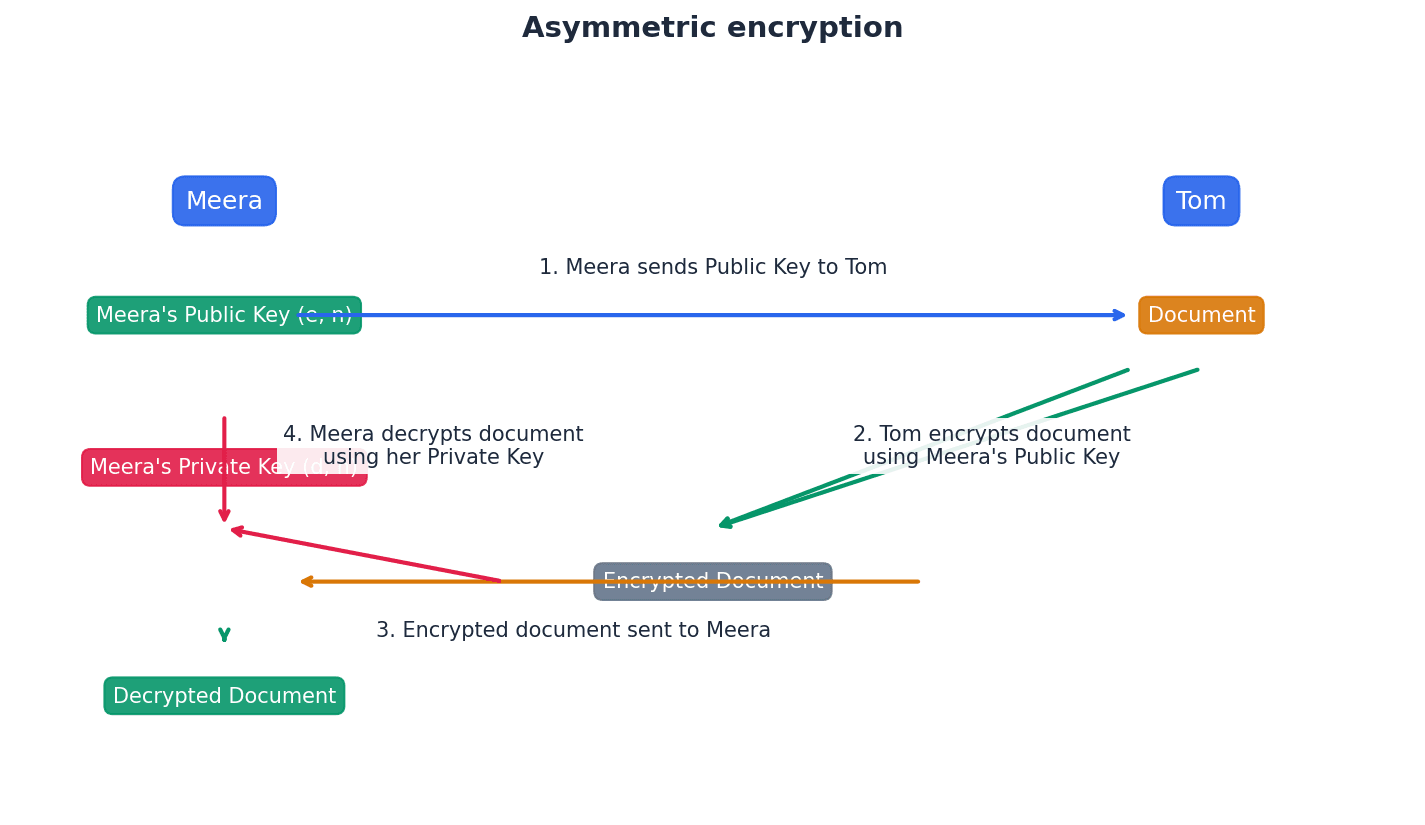
Students often confuse the roles of public and private keys in asymmetric encryption, especially when it comes to encryption for confidentiality versus digital signatures for authentication. Remember that the public key encrypts and the private key decrypts for confidentiality, and the roles are reversed for digital signatures (private key encrypts, public key decrypts).
Clearly state that the public key encrypts and the private key decrypts for confidentiality, and the roles are reversed for digital signatures (private key encrypts, public key decrypts).
Quantum cryptography — Cryptography based on the laws of quantum mechanics (the properties of photons).
Quantum cryptography leverages quantum properties, such as photon polarisation, to create highly secure encryption systems. It is particularly noted for its ability to detect eavesdropping attempts due to the fundamental laws of quantum physics. Imagine sending a message using light pulses, where any attempt to 'look' at the light pulse changes it, immediately revealing that someone is trying to intercept the message.
Quantum key distribution (QKD) — Protocol which uses quantum mechanics to securely send encryption keys over fibre optic networks.
QKD protocols, like BB84, enable two parties to produce a shared secret key that is known only to them. Any attempt by an eavesdropper to measure the quantum state of the photons will inevitably alter them, alerting the communicating parties to the interception. It's like sending a secret message written in invisible ink that becomes visible if anyone tries to read it, and then changes the message in the process, so you know it's been tampered with.
Qubit — The basic unit of a quantum of information (quantum bit).
Unlike classical bits which can only be 0 or 1, a qubit can exist in a superposition of both 0 and 1 simultaneously. This property is fundamental to quantum computing and quantum cryptography. Imagine a light switch that can be 'on', 'off', or 'both on and off' at the same time until you look at it, at which point it settles into either 'on' or 'off'.
Students may not fully grasp that quantum cryptography primarily secures the *key distribution* rather than directly encrypting the entire message content. Remember that QKD is specifically for securely exchanging the *key* that will then be used for conventional encryption.
Focus on the key aspect of quantum cryptography: its use of quantum mechanics to detect eavesdropping during key distribution, rather than directly encrypting data.
Secure Sockets Layer (SSL) — Security protocol used when sending data over the internet.
SSL provides encryption, authentication, and data integrity for communication over a network, primarily between a web server and a client. It is indicated by 'https' in the URL and a padlock icon. Think of it as a secure, armoured tunnel built between your browser and a website, ensuring that anything you send or receive inside is protected from outsiders.
Transport Layer Security (TLS) — A more up-to-date version of SSL.
TLS is the successor to SSL, offering improved security features, better performance, and more extensible authentication methods. It ensures the privacy and data integrity of communication over the internet. If SSL was a secure tunnel, TLS is an upgraded, more robust, and faster secure tunnel with better security features.
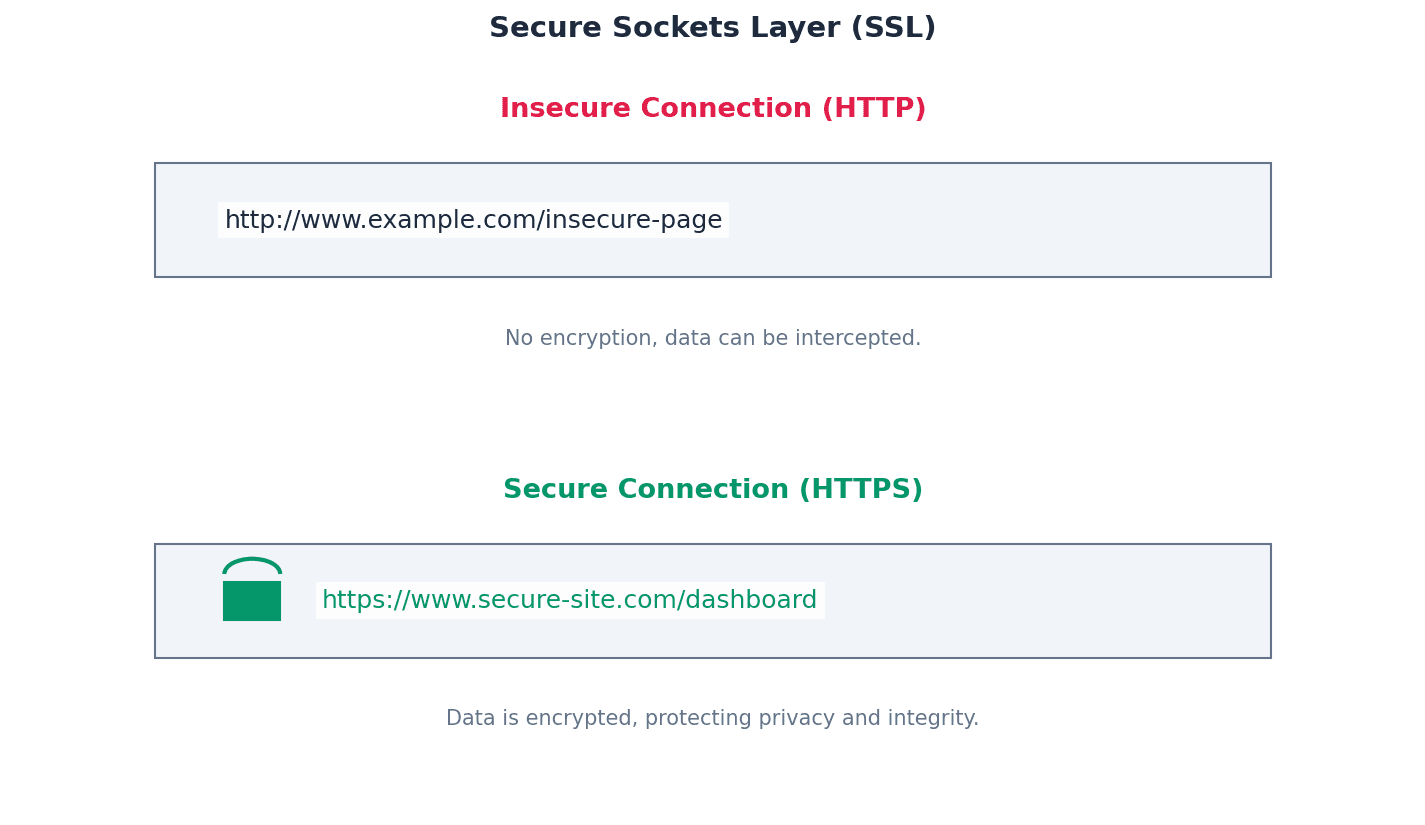
Students sometimes think SSL and TLS are distinct protocols, rather than TLS being the more modern and secure successor to SSL. Remember that TLS is an evolution of SSL, built upon its foundations.
Handshake — The process of initiating communication between two devices.
In the context of SSL/TLS, the handshake protocol establishes a secure session by allowing the client and server to authenticate each other, agree on encryption algorithms, and exchange keys before any encrypted data is transmitted. It's like two people meeting for the first time and agreeing on a secret language and a shared secret code before they start their confidential conversation.
Session caching — Function in TLS that allows a previous computer session to be ‘remembered’, therefore preventing the need to establish a new link each time a new session is attempted.
Session caching improves the performance of TLS by allowing clients and servers to resume previous secure sessions without undergoing the full, computationally intensive handshake process again. This reduces latency and server load. Instead of going through a full security check every time you re-enter a building, session caching is like having a temporary pass that lets you re-enter quickly for a certain period.
Certificate authority (CA) — Commercial organisation used to generate a digital certificate requested by website owners or individuals.
A CA is a trusted third party that issues and manages digital certificates. By verifying the identity of the certificate owner, the CA ensures that users can trust the authenticity of websites and individuals online. Think of a CA as a passport office that verifies your identity and issues you a passport, which then proves who you are to other countries.
Public key infrastructure (PKI) — A set of protocols, standards and services that allow users to authenticate each other using digital certificates issued by a CA.
PKI provides the framework for managing public keys and digital certificates, enabling secure electronic communication. It includes CAs, registration authorities, certificate directories, and certificate management systems. It's the entire system of rules, organisations, and technologies that makes digital passports (certificates) and secure communication possible on a large scale.
Digital certificate — An electronic document used to prove the identity of a website or individual. It contains a public key and information identifying the website owner or individual, issued by a CA.
Digital certificates bind a public key to an identity, providing assurance that the public key belongs to the claimed entity. They are issued by trusted Certificate Authorities and are essential for establishing trust in online communications. This is like a digital passport or ID card for a website or person, issued by a trusted authority, proving their identity and containing their public 'contact' information.
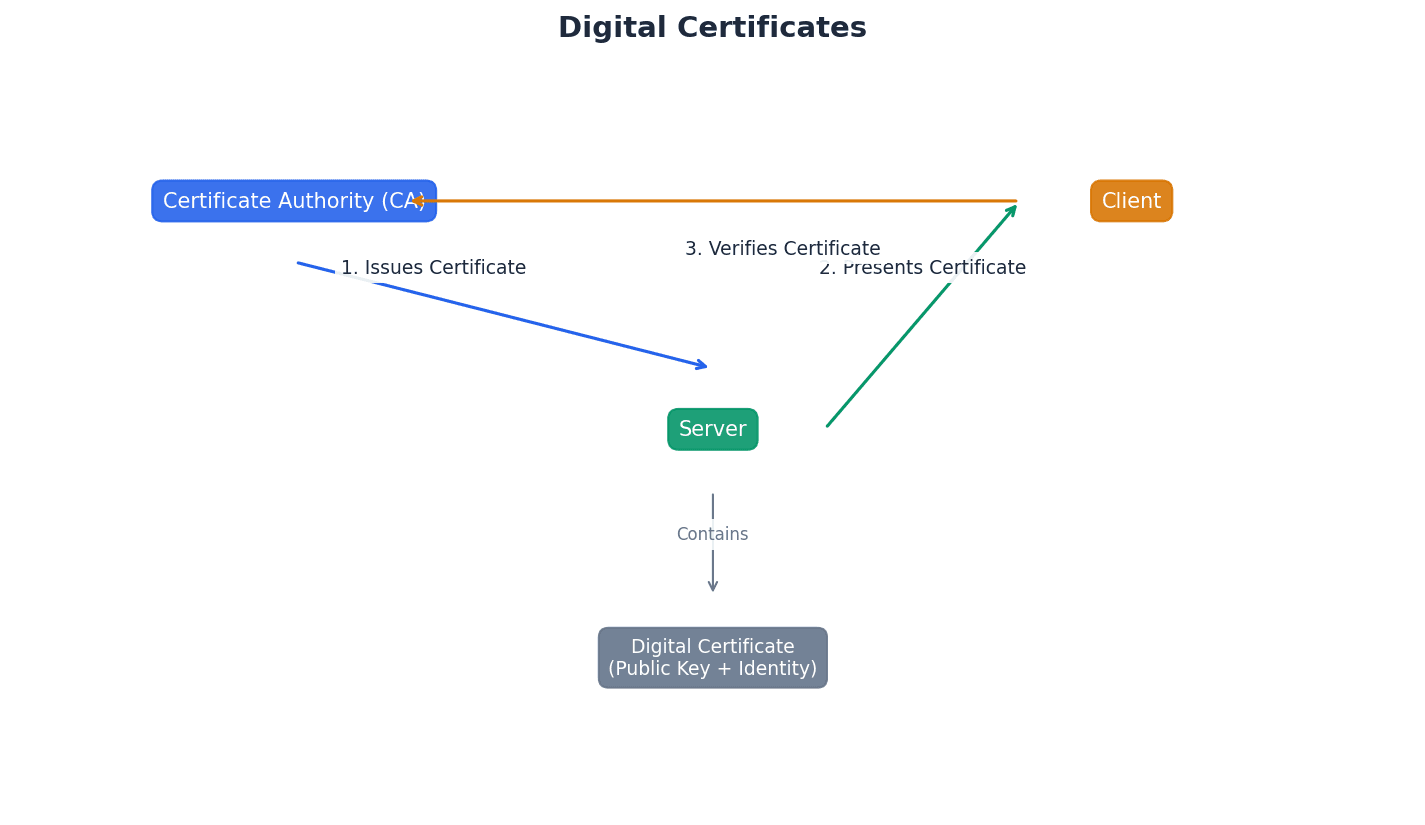
Hashing algorithm (cryptography) — A function which converts a data string into a numeric string which is used in cryptography.
Hashing algorithms are one-way mathematical functions that take an input (message) and produce a fixed-size output (digest). They are crucial for data integrity checks and digital signatures because they are computationally infeasible to reverse. Imagine a complex shredder that turns any document into a unique, fixed-length pile of confetti; you can't reconstruct the document from the confetti.
Digest — A fixed-size numeric representation of the contents of a message produced from a hashing algorithm. This can be encrypted to form a digital signature.
A digest, or hash value, is a unique 'fingerprint' of a message. Even a tiny change in the original message will result in a completely different digest, making it ideal for detecting tampering. It's like a unique barcode for a document; if even one character in the document changes, the barcode will be completely different.
Digital signature — Electronic way of validating the authenticity of digital documents (that is, making sure they have not been tampered with during transmission) and also proof that a document was sent by a known user.
A digital signature provides authentication, non-repudiation, and data integrity. It is created by encrypting a message digest with the sender's private key, and can be verified by anyone using the sender's public key. This is like a tamper-proof wax seal on a letter, combined with a unique handwritten signature that only you can make, proving both its origin and that it hasn't been opened.
Students might confuse hashing with encryption, failing to recognise that hashing is a one-way function for integrity, while encryption is a two-way process for confidentiality. Remember that hashing is a one-way process for integrity checking, not for reversible confidentiality.
For digital certificates and signatures, detail the role of the Certificate Authority (CA) and how keys are used for verification.
When asked to 'explain how encryption works', clearly define plaintext, ciphertext, and the role of keys.
Practice illustrating encryption processes with simple diagrams or step-by-step explanations for both symmetric and asymmetric methods.
Definitions Bank
Eavesdropper
A person who intercepts data being transmitted.
Plaintext
The original text/document/message before it is put through an encryption algorithm.
Ciphertext
The product when plaintext is put through an encryption algorithm.
Block cipher
The encryption of a number of contiguous bits in one go rather than one bit at a time.
Stream cipher
The encryption of bits in sequence as they arrive at the encryption algorithm.
+19 more definitions
View all →Common Mistakes
Confusing the roles of public and private keys in asymmetric encryption.
Remember: Public key encrypts for confidentiality, private key decrypts. For digital signatures, the private key signs (encrypts a hash), and the public key verifies (decrypts the hash).
Believing encryption prevents data interception.
Encryption only prevents an eavesdropper from *understanding* the intercepted data, not from intercepting it.
Confusing hashing with encryption.
Hashing is a one-way function for data integrity (producing a fixed-size digest), while encryption is a two-way process for confidentiality (reversible with a key).
+3 more
View all →This chapter explores Artificial Intelligence (AI), focusing on pathfinding algorithms like Dijkstra's and A*, and various machine learning paradigms. It details how AI systems learn from data, differentiate between learning types, and explains the role of neural networks and regression in model development.
Artificial neural networks — Networks of interconnected nodes based on the interconnections between neurons in the human brain.
Artificial neural networks are fundamental to deep learning, consisting of layers of interconnected nodes, or 'neurons', that process information. Each connection has a weight, and the network learns by adjusting these weights to map inputs to desired outputs, improving performance with more data, much like a team of people learning to solve a problem by adjusting how they communicate.
Machine learning — Systems that learn without being programmed to learn.
Machine learning is a subset of AI where algorithms are trained on data to identify patterns, make predictions, or take decisions based on past experiences. It allows systems to improve their performance over time without explicit programming for every scenario, similar to teaching a child to identify animals by showing them pictures and correcting mistakes.
Students often think machine learning implies consciousness, but it refers to the ability of algorithms to learn from data and improve performance on specific tasks, without consciousness.

Deep learning — Machines that think in a way similar to the human brain.
Deep learning is a subset of machine learning that uses artificial neural networks with multiple layers, known as deep structures, to process vast amounts of data. These networks can automatically learn complex features and representations from raw data, enabling sophisticated tasks like image and speech recognition, much like teaching someone to recognise animals by breaking down features like fur and tails.
Students often think deep learning is entirely different from machine learning, but it's a specific, advanced type of machine learning that uses multi-layered neural networks.
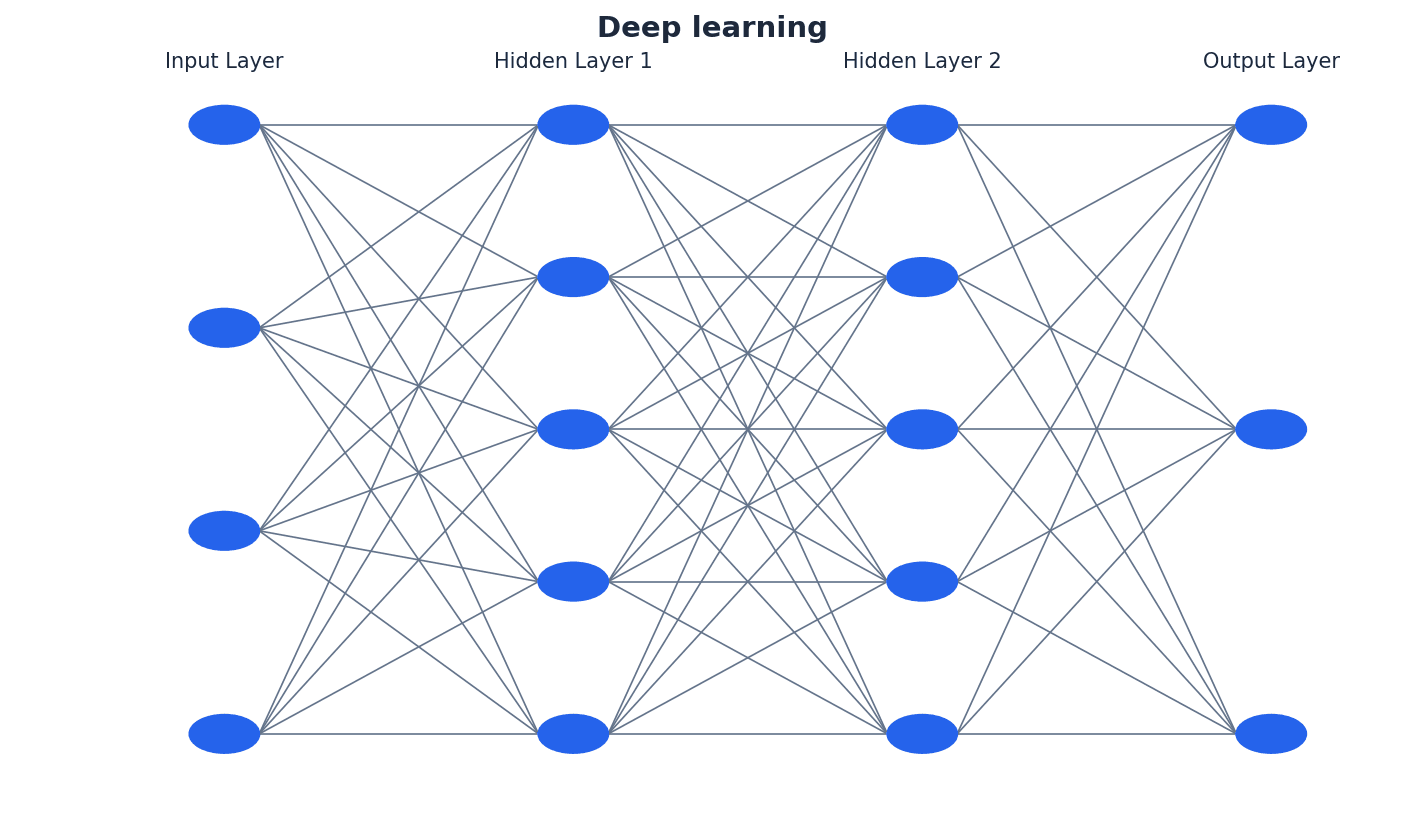
Artificial Intelligence (AI) is a broad field encompassing systems that can perform tasks requiring human intelligence. Machine learning is a key subset of AI, focusing on algorithms that learn from data without explicit programming. Deep learning, in turn, is a specialized subset of machine learning that leverages artificial neural networks with multiple layers to process complex data and identify intricate patterns, enabling advanced applications like photograph enhancement and turning monochrome photos into colour.
Node or vertex — Fundamental unit from which graphs are formed (nodes and vertices are the points where edges converge).
In the context of pathfinding algorithms, nodes represent locations or states, and the connections between them, called edges, represent possible transitions or routes. Each node can hold information like a final value or working value during algorithm execution, similar to cities on a map connected by roads.
Dijkstra’s algorithm — An algorithm that finds the shortest path between two nodes or vertices in a graph/network.
Dijkstra's algorithm systematically explores paths by iteratively selecting the unvisited node with the smallest known distance from the start node. It then updates the distances of its neighbors and marks the current node as visited, continuing until the destination is reached, much like finding the quickest route on a road map by systematically exploring intersections.
Students often think Dijkstra's algorithm considers direction or future path efficiency, but it only considers the accumulated distance from the start node to the current node.
When asked to 'show working' for Dijkstra's, clearly label the final and working values for each node at each step, and trace the path back using the rule of equal path length and final value difference.
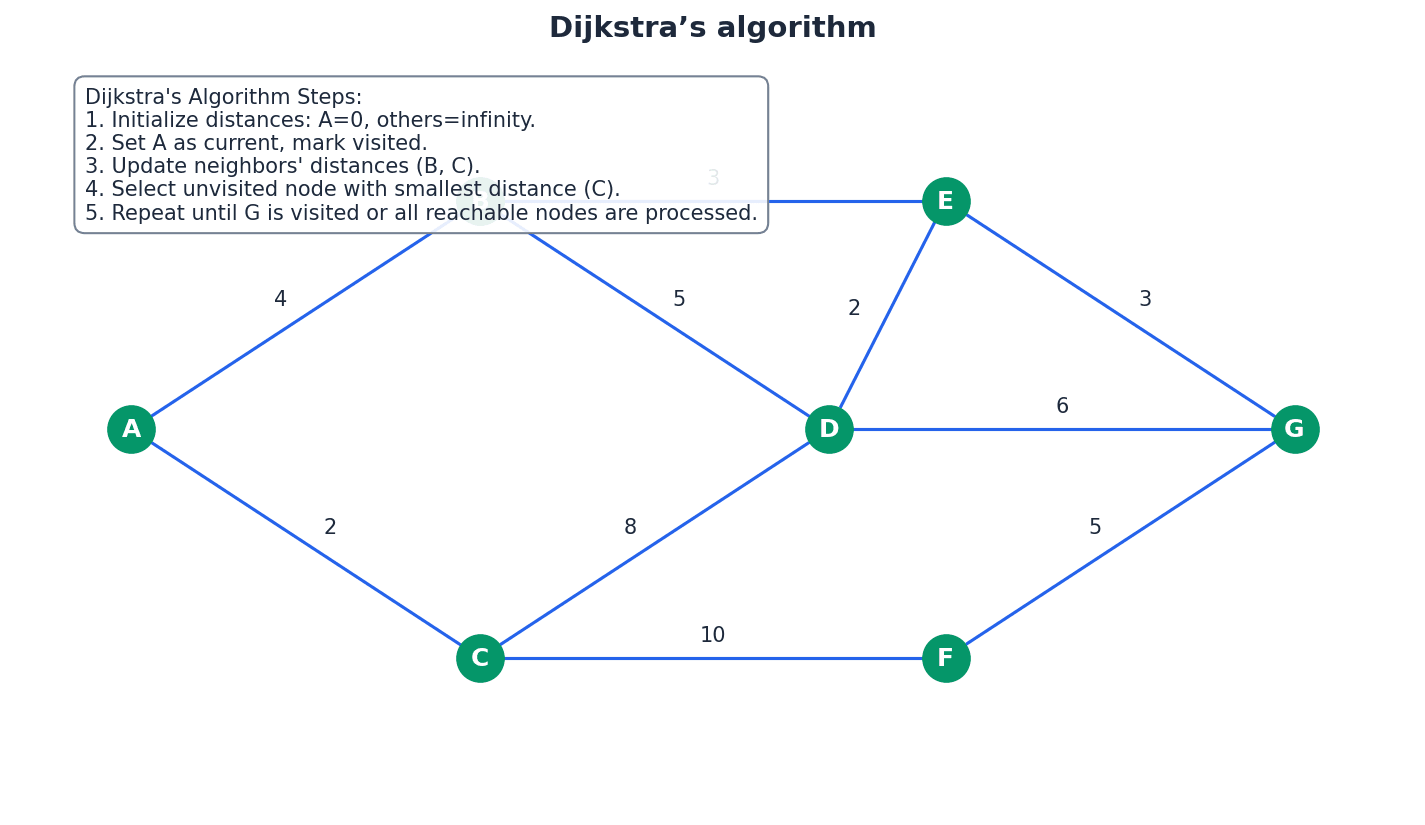
Heuristic — Method that employs a practical solution (rather than a theoretical one) to a problem; when applied to algorithms this includes running tests and obtaining results by trial and error.
In pathfinding algorithms like A*, a heuristic is an 'intelligent guess' or estimation of the distance from the current node to the target node. It helps guide the search more efficiently by prioritizing paths that appear to lead closer to the destination, similar to guessing the general direction to a new place based on a landmark.
Students often think a heuristic guarantees the optimal solution, but it provides a good, practical solution that is often optimal but not always guaranteed, especially if the heuristic is not 'admissible' or 'consistent'.
A* algorithm — An algorithm that finds the shortest route between nodes or vertices but uses an additional heuristic approach to achieve better performance than Dijkstra’s algorithm.
The A* algorithm combines Dijkstra's cost-to-reach (g-value) with an estimated cost-to-go (h-value, heuristic) to prioritize exploration towards the goal. This makes it more efficient for larger graphs by 'intelligently guessing' the best direction, much like asking for directions from a local who knows the general direction of your destination.
Students often think A* always finds the absolute shortest path faster than Dijkstra's, but its efficiency depends on the quality of the heuristic; a poor heuristic can make it perform worse than Dijkstra's.
A* algorithm f-value
This formula is used in the A* algorithm to prioritize which node to explore next. The g-value is the actual cost from the start node to node n, and the h-value is an 'intelligent guess' (heuristic) of the cost from node n to the goal node.
When applying A*, clearly show the calculation of g, h, and f values for each node, and explain how the heuristic guides the path selection. Be prepared to calculate Manhattan distances for h-values.
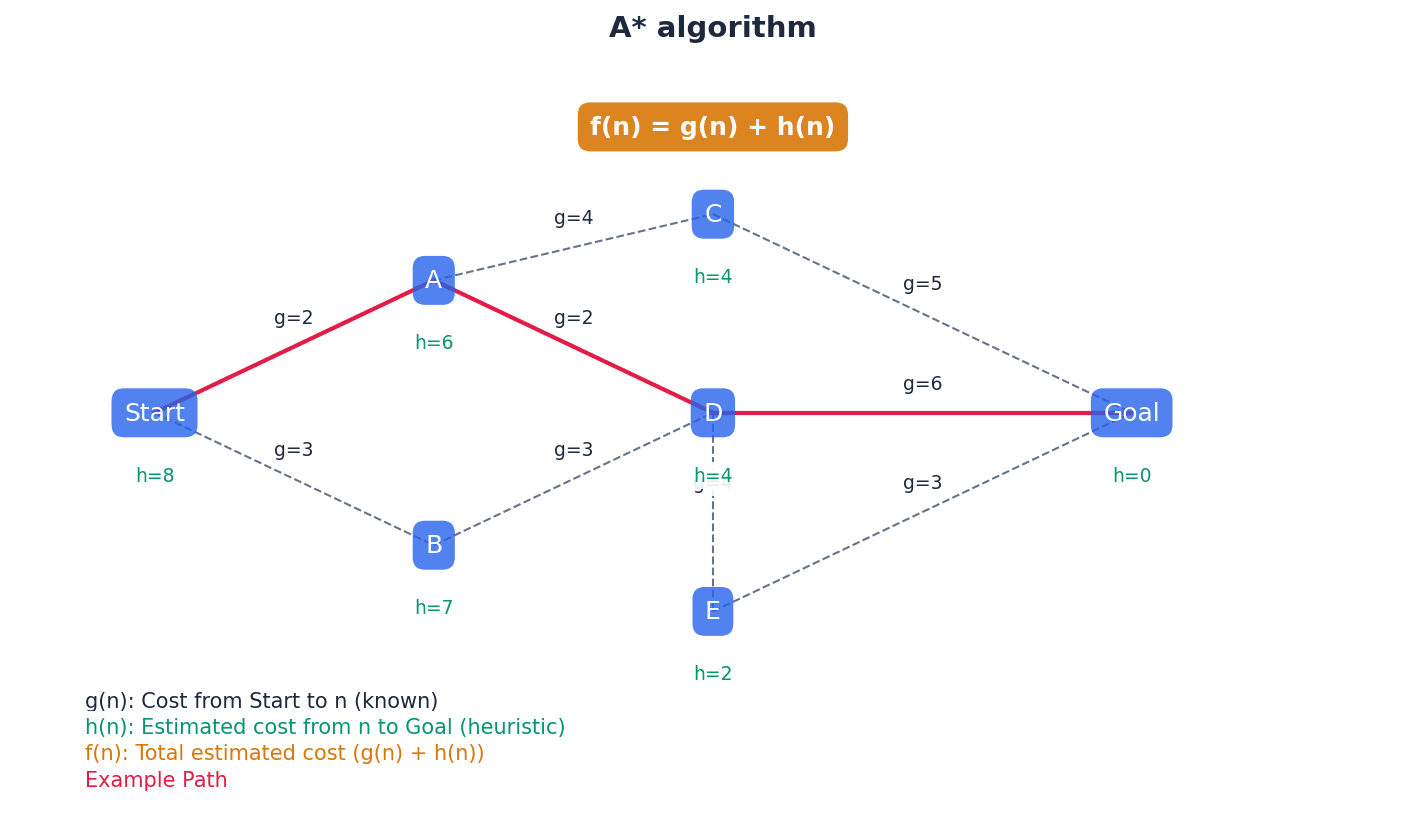
Both Dijkstra's and A* algorithms are used to find the shortest path in a graph. Dijkstra's algorithm systematically explores all possible paths based on accumulated cost from the start node. A* improves upon this by incorporating a heuristic, an estimated cost to the goal, which guides the search more efficiently towards the destination. While Dijkstra's guarantees the shortest path, A* often finds it faster, especially in large graphs, due to its 'intelligent' guidance.
Labelled data — Data where we know the target answer and the data object is fully recognised.
Labelled data is used in supervised learning to train models, providing both the input features and the corresponding correct output. The model learns the mapping between inputs and outputs from this pre-classified data, much like a collection of images explicitly tagged as 'cat' or 'not cat' to teach a computer.
Unlabelled data — Data where objects are undefined and need to be manually recognised.
Unlabelled data lacks predefined target outputs or classifications. It is often used in unsupervised learning, where algorithms try to find hidden patterns, structures, or groupings within the data without prior knowledge of what those patterns should be, similar to sorting a pile of photos without knowing their subjects beforehand.
Students often think all data used in AI is labelled, but unlabelled data is also crucial, especially in unsupervised and semi-supervised learning.
Supervised learning — System which is able to predict future outcomes based on past data.
Supervised learning requires both input and output values to be used in the training process, typically with labelled data. The model learns a function that maps inputs to outputs by identifying patterns in the training data, such as learning to predict house prices by studying past sales data.
When asked about supervised learning, mention 'labelled data', 'input and output values for training', and 'prediction of future outcomes' as key characteristics.
Unsupervised learning — System which is able to identify hidden patterns from input data – the system is not trained on the ‘right’ answer.
Unlike supervised learning, unsupervised learning works with unlabelled data, allowing algorithms to discover inherent structures, groupings, or anomalies within the data without any prior knowledge of correct outputs. It's often used for clustering or density estimation, like sorting a box of mixed LEGO bricks into piles of similar shapes without being told what they are.
Focus on 'hidden patterns', 'unlabelled data', and 'no right answer for training' when explaining unsupervised learning, and give examples like customer segmentation.
Reward and punishment — Improvements to a model based on whether feedback is positive or negative; actions are optimised to receive an increase in positive feedback.
This mechanism is central to reinforcement learning, where an agent performs an action and receives a numerical reward (positive feedback) or punishment (negative feedback) from the environment. The agent then adjusts its strategy to maximize the total reward over time, much like a video game character learning to navigate a maze by getting rewards for checkpoints and punishments for hitting walls.
Reinforcement learning — System which is given no training – learns on basis of ‘reward and punishment’.
In reinforcement learning, an agent learns to make decisions by performing actions in an environment and receiving feedback in the form of rewards or penalties. The goal is to learn a policy that maximizes the cumulative reward over time through trial and error, similar to teaching a dog tricks with treats and no treats.
Key terms for reinforcement learning are 'reward and punishment', 'trial and error', and 'optimisation of actions to increase positive feedback'.
Semi-supervised (active) learning — System that interactively queries source data to reach the desired result.
This approach uses a small amount of labelled data combined with a large amount of unlabelled data. The system actively selects the most informative unlabelled data points to be manually labelled, thereby reducing the cost of labelling while improving model performance, much like picking out confusing documents to ask an expert to label.
Emphasize the 'interactive querying' and the use of 'both labelled and unlabelled data, mainly unlabelled on cost grounds' when describing semi-supervised learning.
Machine learning employs various paradigms to enable systems to learn. Supervised learning uses labelled data to predict future outcomes, while unsupervised learning identifies hidden patterns in unlabelled data without prior knowledge of correct answers. Reinforcement learning involves an agent learning through trial and error based on a system of rewards and punishments. Semi-supervised learning combines a small amount of labelled data with a large amount of unlabelled data, interactively querying for labels on the most informative data points to improve efficiency and performance.
Back propagation — Method used in artificial neural networks to calculate error gradients so that actual node/neuron weightings can be adjusted to improve the performance of the model.
During the training of a neural network, back propagation calculates the difference between the network's output and the expected output, known as the error. This error is then propagated backward through the network, allowing the weights of each connection to be adjusted iteratively to minimize the error, much like a student adjusting their understanding after a teacher explains a mistake.
Students often think back propagation is a forward process, but it's specifically the 'backward' propagation of error signals to update weights.
Clearly state that back propagation is an 'iterative process' that 'adjusts weights' based on the 'difference between actual and expected outputs' to 'minimize errors'.
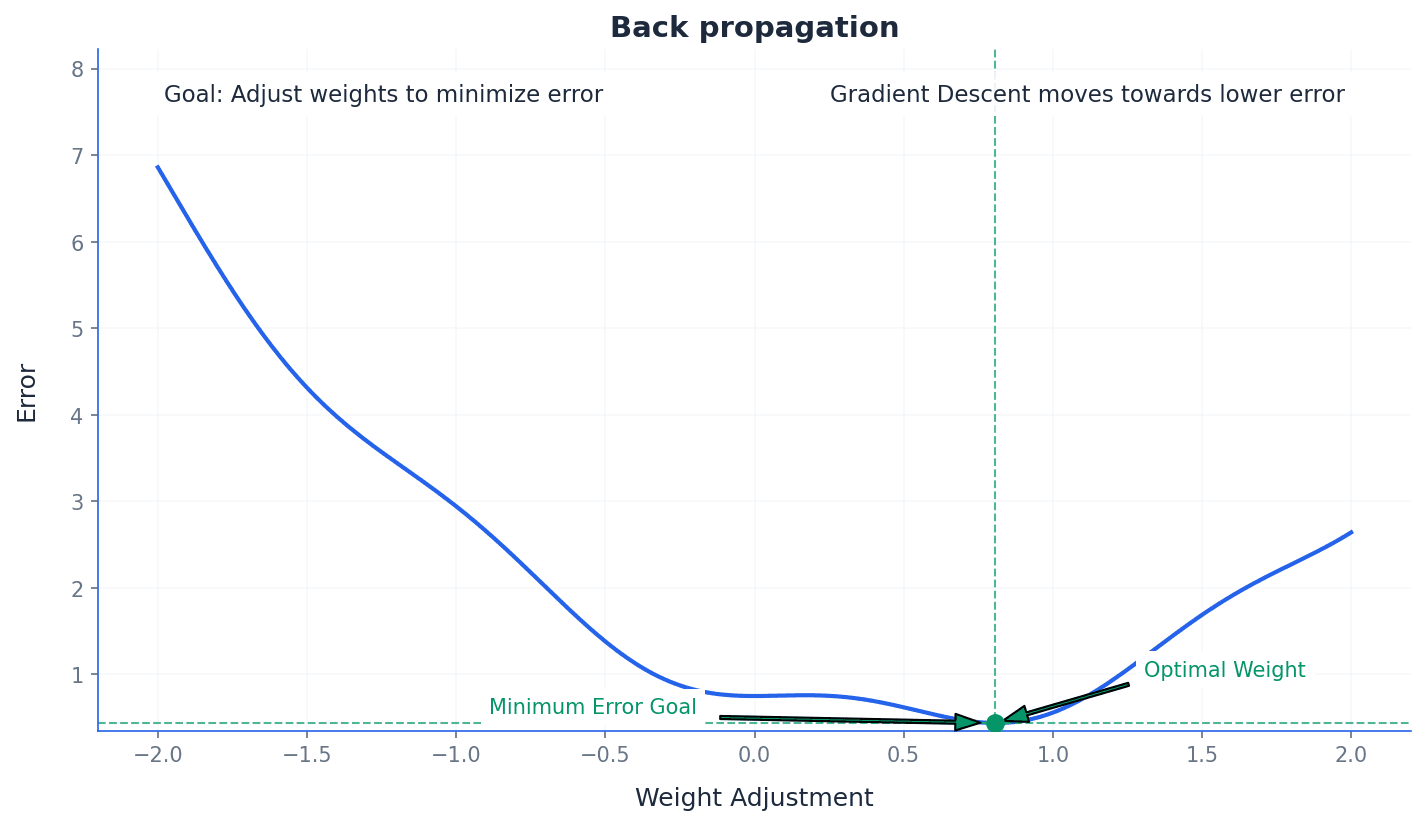
Regression — Statistical measure used to make predictions from data by finding learning relationships between the inputs and outputs.
In machine learning, regression models are used to predict a continuous output variable based on one or more input variables. It helps understand how the dependent variable changes with changes in independent variables, making it valuable for forecasting, such as predicting a child's height based on their parents' heights and current age.
Associate regression with 'predicting continuous outcomes' and 'finding relationships between input and output variables' in the context of machine learning and supervised learning.
Web crawler — Internet bot that systematically browses the world wide web to update its web page content.
Web crawlers, also known as spiders or bots, are used by search engines to discover new and updated web pages. They follow links from known pages to new ones, indexing their content to build and maintain search engine databases, much like a librarian constantly checking for new books and updating catalogs.
Chatbot — Computer program set up to simulate conversational interaction between humans and a website.
Chatbots use predefined scripts and machine learning to understand user queries, whether typed or voice, and provide relevant responses. They aim to replicate human conversation patterns to assist users with information or tasks, similar to talking to an automated customer service representative.
When asked to 'Use' Dijkstra's or A* algorithm, show all steps of the calculation, including node updates and path selection. For 'Explain' questions on machine learning types, clearly differentiate between supervised, unsupervised, reinforcement, and semi-supervised learning, providing examples for each. When describing artificial neural networks, mention their structure (interconnected nodes) and their inspiration from the human brain. For 'Describe' questions on back propagation, explain its purpose (adjusting weights) and mechanism (calculating error gradients) within ANNs. When comparing machine learning and deep learning, highlight that deep learning is a subset of machine learning using multi-layered neural networks for more complex pattern recognition. Ensure you can define key terms like 'heuristic', 'labelled data', 'unlabelled data', and 'regression' accurately as per the glossary.
Definitions Bank
Dijkstra’s algorithm
An algorithm that finds the shortest path between two nodes or vertices in a graph/network.
Node or vertex
Fundamental unit from which graphs are formed (nodes and vertices are the points where edges converge).
A* algorithm
An algorithm that finds the shortest route between nodes or vertices but uses an additional heuristic approach to achieve better performance than Dijkstra’s algorithm.
Heuristic
Method that employs a practical solution (rather than a theoretical one) to a problem; when applied to algorithms this includes running tests and obtaining results by trial and error.
Machine learning
Systems that learn without being programmed to learn.
+13 more definitions
View all →Common Mistakes
Students often think Dijkstra's algorithm considers direction or future path efficiency.
Dijkstra's algorithm only considers the accumulated distance from the start node to the current node, not future path efficiency or direction.
Students often think a heuristic guarantees the optimal solution.
A heuristic provides a good, practical solution that is often optimal but not always guaranteed, especially if the heuristic is not 'admissible' or 'consistent'.
Students often think machine learning means the machine becomes conscious.
Machine learning refers to the ability of algorithms to learn from data and improve performance on specific tasks, without consciousness.
+3 more
View all →This chapter explores fundamental computational thinking and problem-solving techniques, focusing on algorithms for searching and sorting, and the implementation of Abstract Data Types (ADTs). It also covers algorithm comparison using Big O notation and explains the concept of recursion, including its implementation and benefits.
Binary search — A method of searching an ordered list by testing the value of the middle item in the list and rejecting the half of the list that does not contain the required value.
This search method is significantly more efficient than a linear search for large, sorted lists because it halves the search space with each comparison. It requires the data to be pre-sorted to function correctly, much like looking for a word in a dictionary by repeatedly opening to the middle.
Students often think a binary search can be used on any list, but actually it requires the list to be sorted first.
When asked to describe a binary search, ensure you mention the 'ordered list' condition and the 'halving the search space' mechanism. Pseudocode should clearly show the adjustment of upper and lower bounds.
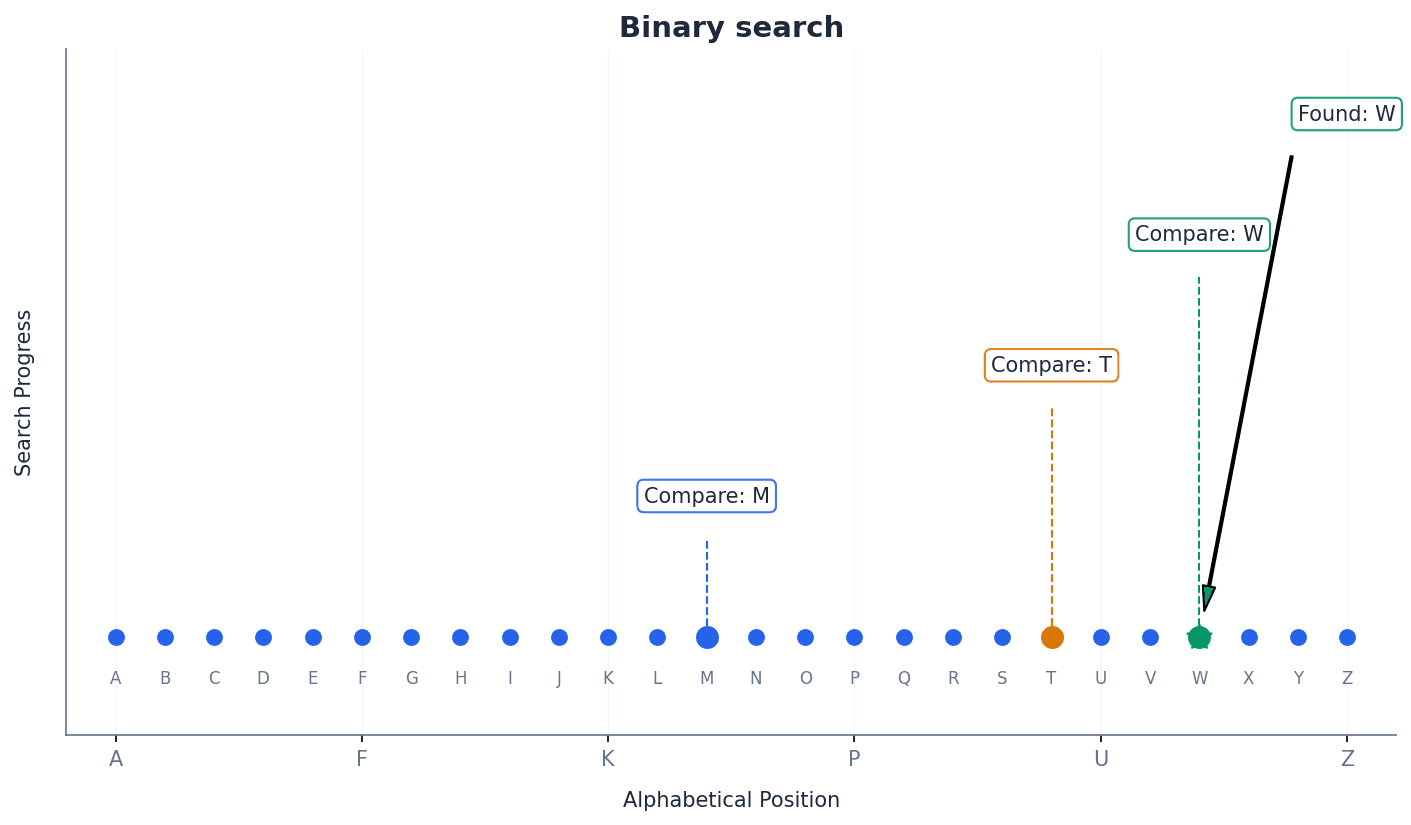
Insertion sort — A method of sorting data in an array into alphabetical or numerical order by placing each item in turn in the correct position in the sorted list.
This sort builds the final sorted array (or list) one item at a time. It iterates through the input elements and removes one element at a time, finds the place within the sorted list, and inserts it there, similar to sorting a hand of playing cards.
Students often think insertion sort is always slower than bubble sort, but actually it performs better on partially sorted lists and for smaller datasets.
When writing pseudocode for insertion sort, clearly show the inner loop that shifts elements to make space for the insertion. Pay attention to boundary conditions for the loops.
Linear search checks each item sequentially until the target is found or the list ends. In contrast, binary search is a more efficient method for ordered lists, repeatedly halving the search space. The performance of a binary search varies significantly with the number of data items, becoming much faster than linear search for large datasets due to its logarithmic time complexity.
Bubble sort repeatedly steps through the list, compares adjacent elements, and swaps them if they are in the wrong order, effectively 'bubbling' the largest elements to the end. Insertion sort, on the other hand, builds the final sorted array one item at a time by inserting each element into its correct position within the already sorted portion of the list.
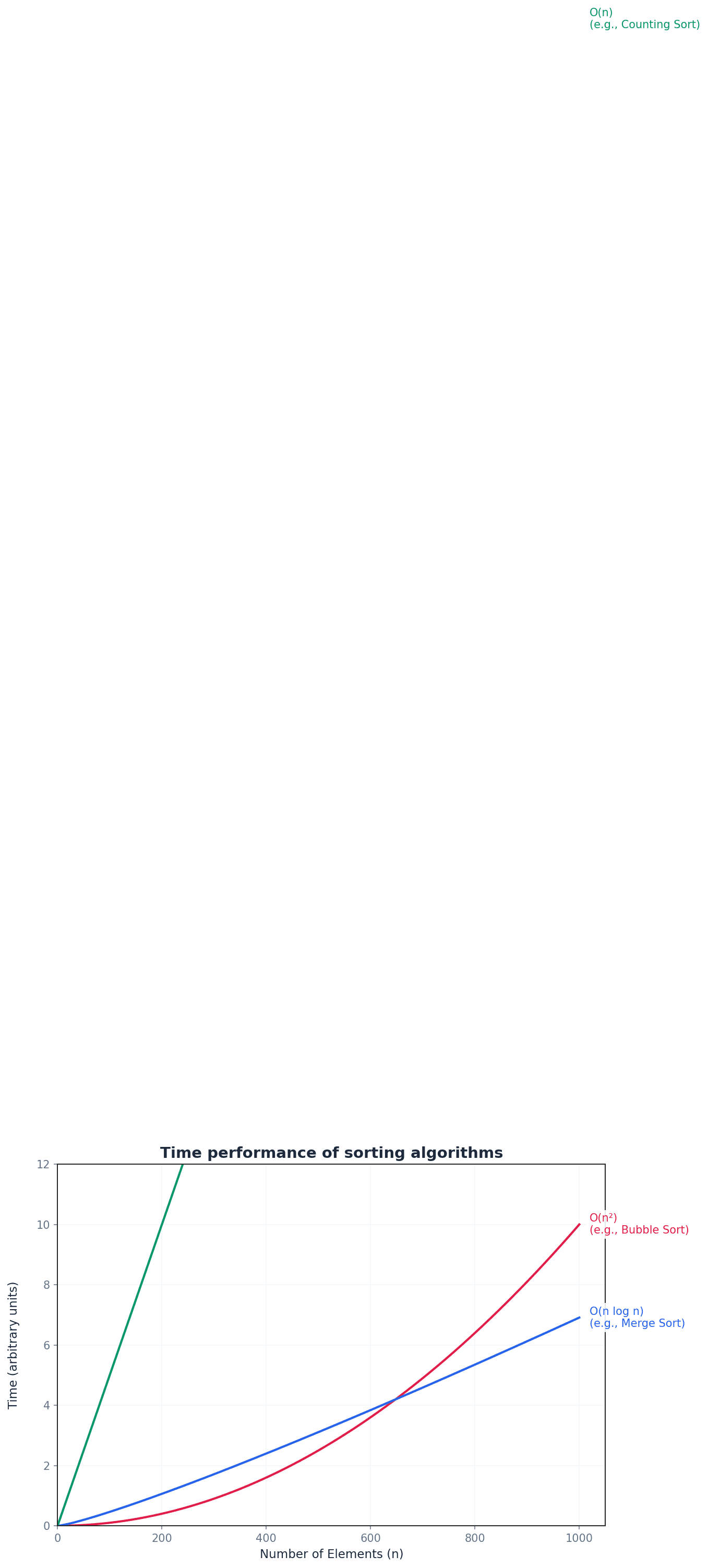
Big O notation — A mathematical notation used to describe the performance or complexity of an algorithm.
Big O notation describes the worst-case scenario of an algorithm's efficiency in terms of time taken or memory used as the input size (N) grows. It provides a high-level understanding of how an algorithm scales, much like estimating how long it will take to clean a house based on its size.
Students often think Big O notation gives the exact time an algorithm will take, but actually it describes the growth rate of time/space complexity relative to input size, not absolute performance.
Be able to compare algorithms using Big O notation (e.g., linear search O(N) vs. binary search O(Log N)) and explain what different notations (O(1), O(N), O(N^2), O(Log N), O(2^N)) mean in terms of performance scaling.
Algorithms can be compared based on their time and space complexity using Big O notation. This notation helps in understanding how an algorithm's performance scales with increasing input size (N). For instance, a linear search has a time complexity of O(N), while a binary search has O(Log N), indicating that binary search is significantly more efficient for large datasets.
Dictionary — An abstract data type that consists of pairs, a key and a value, in which the key is used to find the value.
Each key in a dictionary must be unique, but values can be duplicated. Dictionaries provide efficient lookup of values based on their associated keys, making them useful for mapping data, similar to how a physical dictionary uses a word (key) to find its definition (value).
Students often think dictionaries are ordered like lists, but actually keys in a dictionary are unordered, and the order of insertion is not guaranteed to be preserved.
When implementing or describing a dictionary, emphasize the unique key-value pairing and the use of the key for retrieval. Be aware of the differences between a dictionary and a set (values can be duplicated in a dictionary).
startPointer — A pointer that indicates the beginning of the linked list.
The startPointer is crucial for accessing the first element of a linked list. If the startPointer is null, it means the linked list is empty, acting like the 'front door' to a train of cars.
heapStartPointer — A pointer that indicates the beginning of the heap, which is a linked list of all the free spaces in the main linked list array.
The heapStartPointer manages available memory within the array used to implement the linked list. When a new item is added, a node is taken from the heap; when an item is deleted, its node is returned to the heap, much like a stack of empty boxes ready to be used.
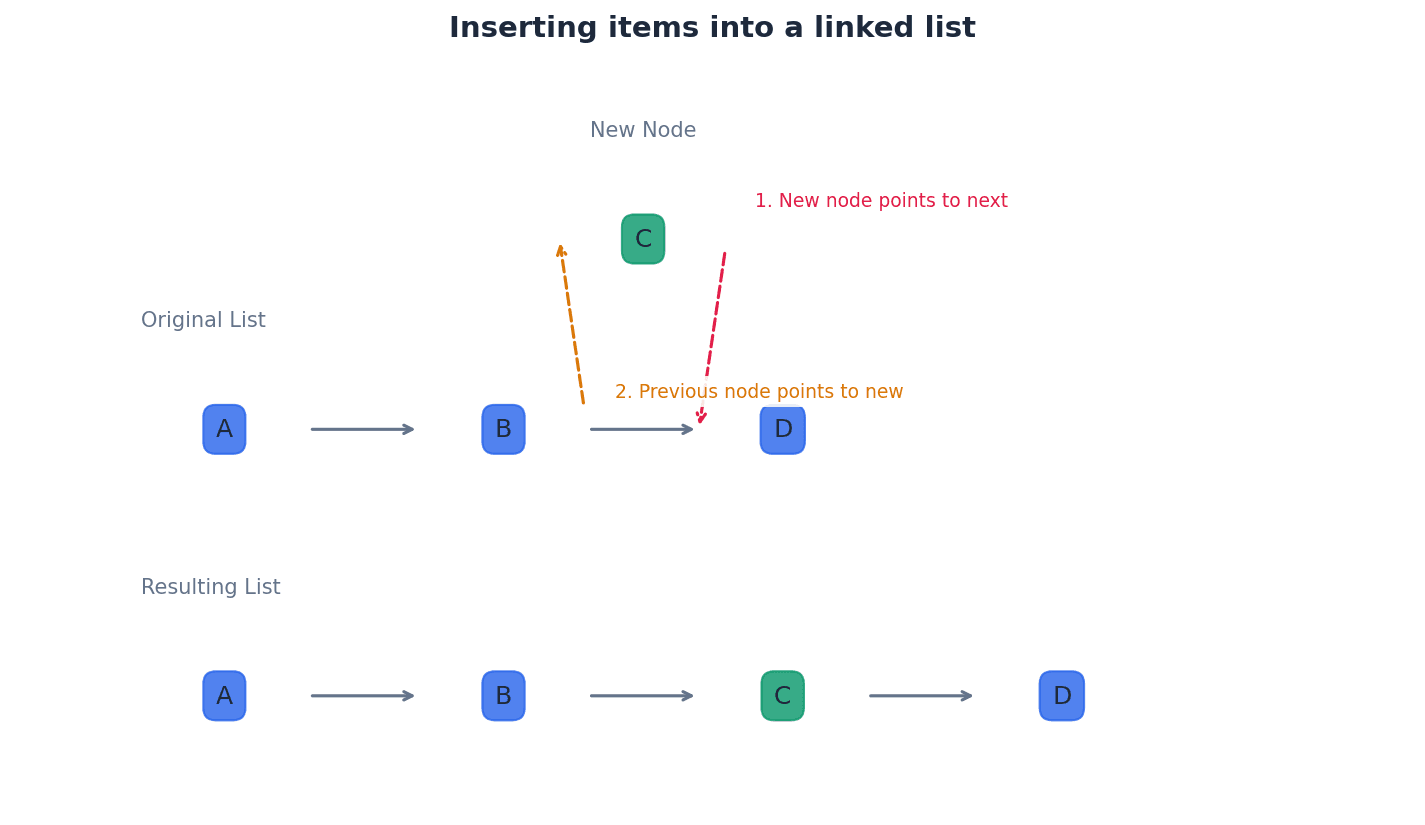
Abstract Data Types (ADTs) define logical behaviour independent of their implementation. Common ADTs include stacks (LIFO), queues (FIFO), and linked lists. Operations like finding, inserting, and deleting items from linked lists involve manipulating pointers such as the startPointer and heapStartPointer to manage the sequence and available memory.
Binary tree — A hierarchical data structure in which each parent node can have a maximum of two child nodes.
Binary trees are used for efficient searching and sorting, as well as representing hierarchical data like arithmetic expressions. Each node typically stores a value and pointers to its left and right children, similar to a family tree where each person has at most two children.
Students often think all trees are binary trees, but actually a general tree can have any number of child nodes per parent, whereas a binary tree is restricted to a maximum of two.
When drawing or describing a binary tree, ensure you correctly label the root, parent, child, and leaf nodes, and understand the rules for ordering in an ordered binary tree (left < parent, right >= parent).
Root node — The root pointer points to the first node in a binary tree.
The root node is the starting point for any operation on the binary tree, such as searching or insertion. It is the only node that has no parent, much like the root of a plant from which all other parts grow.
Students often think the root node is always the smallest value in an ordered binary tree, but actually it's just the first node inserted or the designated starting point, and its value depends on the insertion order.
Leaf node — A null pointer is a value stored in the left or right pointer in a binary tree to indicate that there are no nodes below this node on the left or right.
A leaf node is a node in a tree data structure that has no children. Its left and right pointers (or child references) are typically null, signifying the end of a branch, similar to a person in a family tree who has no children.
Students often think leaf nodes are always at the very bottom level of the tree, but actually a node can be a leaf even if it's not on the deepest level, as long as it has no children.
nextFreePointer — A pointer to the next free node in a binary tree's underlying array structure.
Similar to heapStartPointer in linked lists, nextFreePointer manages the available nodes in the array that stores the binary tree. When a new node is needed, it's taken from the position indicated by this pointer, like a 'next available slot' sign in a parking lot.
Students often confuse nextFreePointer with the rootPointer; the rootPointer points to the active tree, while nextFreePointer points to unused storage.
leftPointer — A pointer within a node of a binary tree that points to its left child node.
In an ordered binary tree, the leftPointer typically points to a child node whose value is less than the parent node's value. If there is no left child, this pointer is null, acting like a decision point where 'less than' means go left.
rightPointer — A pointer within a node of a binary tree that points to its right child node.
In an ordered binary tree, the rightPointer typically points to a child node whose value is greater than or equal to the parent node's value. If there is no right child, this pointer is null, acting like a decision point where 'greater than or equal to' means go right.
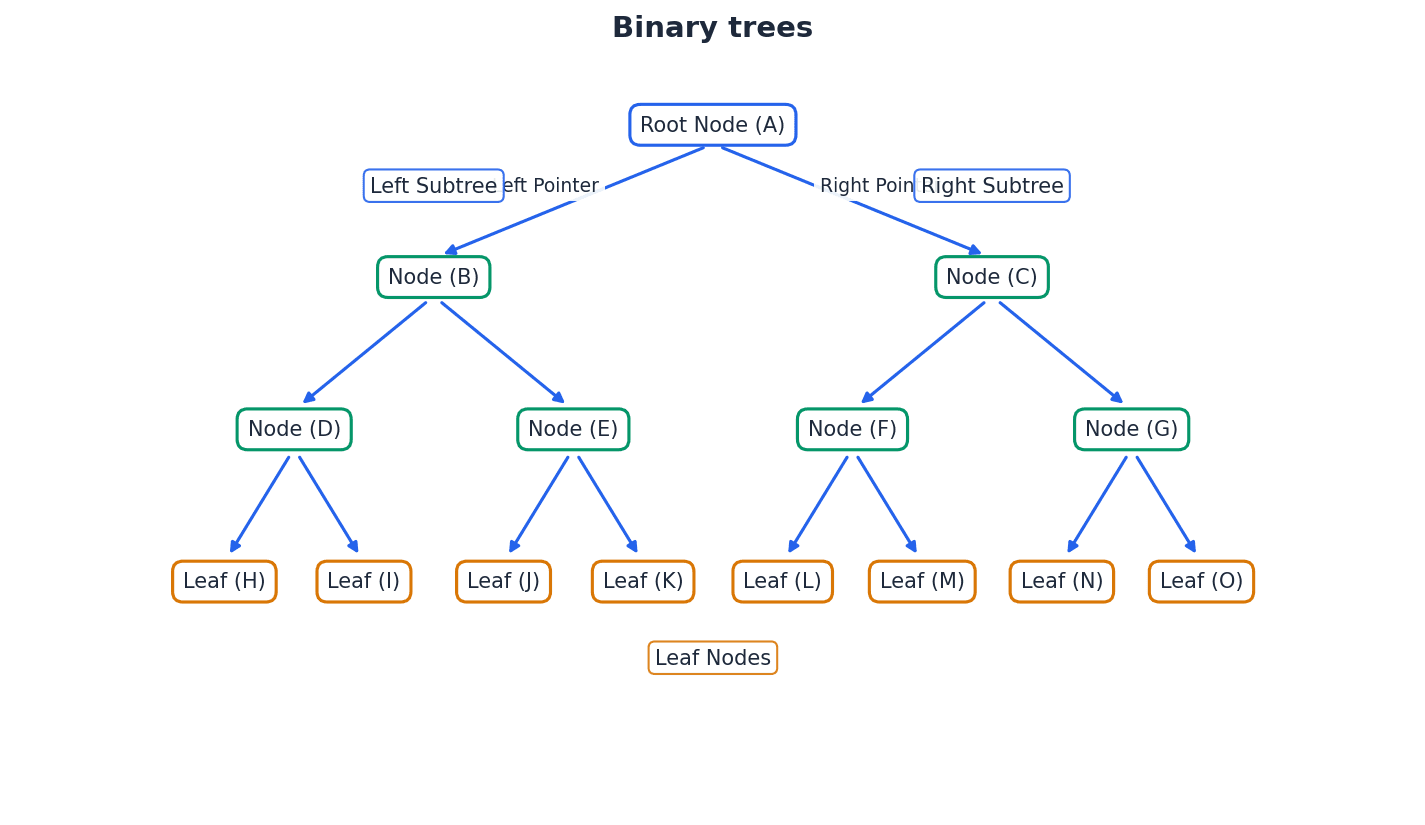
Graph — A non-linear data structure consisting of nodes and edges.
Graphs are used to model relationships between entities, where nodes represent the entities and edges represent the connections. They can be directed (one-way connections) or undirected (two-way connections) and can have weights associated with edges, much like a map of cities connected by roads.
Students often think graphs are always visual charts, but actually in computer science, a graph is a specific data structure used to represent relationships, which can then be visualized.
When asked about graphs, be prepared to define nodes and edges, distinguish between directed and undirected graphs, and provide real-world examples like social networks or transportation routes.
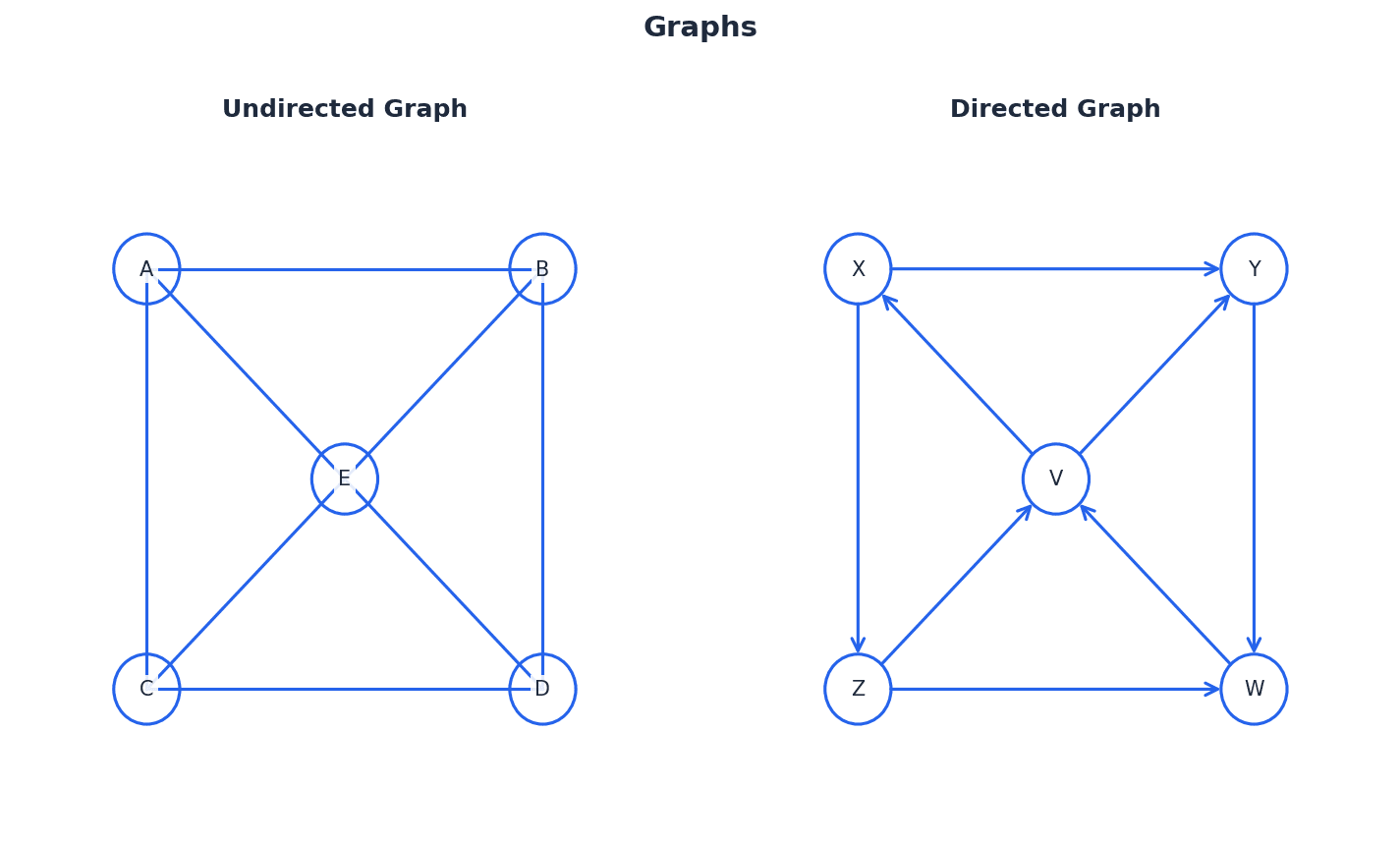
Recursion — A process using a function or procedure that is defined in terms of itself and calls itself.
Recursive solutions break down a problem into smaller, similar subproblems until a simple base case is reached. The solution to the base case is then used to build up the solution to the original problem, similar to opening Russian nesting dolls.
Students often think recursion is always more efficient than iteration, but actually while it can be more elegant, it often incurs overhead due to stack usage and can lead to stack overflow for deep recursion.
When writing recursive algorithms, clearly identify the base case (terminating condition) and the general case (recursive call). Be prepared to trace recursive calls using a trace table, showing winding and unwinding.
Base case — A terminating solution to a process that is not recursive.
In a recursive function, the base case is the condition that stops the recursion. Without a base case, a recursive function would call itself indefinitely, leading to an infinite loop or stack overflow, much like the smallest Russian nesting doll that cannot be opened further.
Students often think the base case is just another recursive step, but actually it's the non-recursive part that provides a direct answer, allowing the recursion to unwind.
Always ensure your recursive algorithms have a clearly defined base case that will eventually be reached, otherwise, the algorithm will not terminate correctly.
General case — A solution to a process that is recursively defined.
The general case in recursion defines how the problem is broken down into a smaller instance of the same problem. It includes the recursive call to the function itself, usually with modified parameters, like opening a Russian nesting doll to find a smaller one inside.
Winding — Process which occurs when a recursive function or procedure is called until the base case is found.
During winding, each recursive call pushes a new stack frame onto the call stack, storing local variables and the return address. This builds up a sequence of pending operations, similar to stacking plates one on top of another.
Unwinding — Process which occurs when a recursive function finds the base case and the function returns the values.
During unwinding, the base case provides the initial result, and then each pending recursive call (from the winding phase) pops its stack frame, uses the returned value, and completes its calculation, returning its own result to the previous call, like taking plates off a stack one by one.
When a recursive function is called, the compiler uses a call stack to manage the execution. Each recursive call creates a new stack frame during the 'winding' phase, storing local variables and the return address. Once the 'base case' is reached, the function begins to 'unwind', returning values from the stack frames in reverse order until the initial call is resolved.
Factorial (recursive definition)
This formula applies to non-negative integers, with 0! defined as 1 as its base case.
Compound Interest (recursive definition)
This formula calculates the total amount after a certain number of years with compound interest, assuming interest is compounded annually. The base case is the principal amount at year 0.
For ADTs, be prepared to 'implement' operations like finding, inserting, and deleting items, showing how pointers are manipulated.
Practice tracing algorithms (searches, sorts, ADT operations) with small datasets to understand their step-by-step execution and identify potential errors.
Definitions Bank
Binary search
A method of searching an ordered list by testing the value of the middle item in the list and rejecting the half of the list that does not contain the required value.
Insertion sort
A method of sorting data in an array into alphabetical or numerical order by placing each item in turn in the correct position in the sorted list.
Binary tree
A hierarchical data structure in which each parent node can have a maximum of two child nodes.
Graph
A non-linear data structure consisting of nodes and edges.
Dictionary
An abstract data type that consists of pairs, a key and a value, in which the key is used to find the value.
+13 more definitions
View all →Common Mistakes
Confusing the conditions for using a binary search.
Remember that a binary search *requires* the list to be sorted first; it cannot be used on unsorted data.
Assuming insertion sort is always less efficient than bubble sort.
Insertion sort can actually perform better than bubble sort on partially sorted lists and for smaller datasets.
Believing all tree data structures are binary trees.
A general tree can have any number of child nodes per parent, whereas a binary tree is specifically restricted to a maximum of two child nodes.
+3 more
View all →This chapter explores diverse programming paradigms, including low-level, imperative, object-oriented, and declarative approaches, detailing their characteristics and applications. It covers essential file-processing operations for serial, sequential, and random files, demonstrating how to manage records. Furthermore, the chapter introduces exceptions and the critical role of exception handling in creating robust programs that can gracefully manage unexpected events.
Programming paradigm — A programming paradigm is a set of programming concepts.
This defines the style and capabilities of a programming language. Think of it like a cooking style – you can bake (object-oriented), follow a recipe step-by-step (imperative), or just list ingredients and desired outcome (declarative). Some languages follow one paradigm, while others, like Python, support multiple paradigms, making them multi-paradigm.
Students often think a language is strictly one paradigm, but actually many modern languages are multi-paradigm, allowing programmers to choose the best approach for a given problem.
Low-level programming — Low-level programming uses programming instructions that use the computer’s basic instruction set.
This type of programming, including assembly language and machine code, is used when a program needs to interact directly with specific addresses and registers, such as in device drivers. It's like giving instructions to a robot using its most basic movements (move arm up, turn wheel left) rather than high-level commands (make coffee).
Be prepared to describe addressing modes and write simple assembly language programs, as these are often tested in relation to low-level programming.
Imperative programming — Imperative programming is a programming paradigm in which the steps required to execute a program are set out in the order they need to be carried out.
Also known as procedural programming, this paradigm is often used for small, simple programs and can be developed into structured programming using procedures and functions. Programs written this way can be smaller and execute faster. It's like a detailed recipe where you follow each step in exact order: 'First, chop the onions. Second, sauté them. Third, add tomatoes.'
Object-oriented programming (OOP) — Object-oriented programming (OOP) is a programming methodology that uses self-contained objects, which contain programming statements (methods) and data, and which communicate with each other.
OOP is often used for complex problems as it models real-world entities. It uses concepts like classes, objects, encapsulation, inheritance, and polymorphism to organize code. Imagine building with LEGOs: each LEGO brick is an object with its own properties (color, shape) and actions (can connect to other bricks), and you combine them to build something larger.
When comparing programming paradigms, ensure you discuss characteristics, typical use cases, and advantages/disadvantages of each, not just definitions.
Object-oriented programming (OOP) is built upon several fundamental concepts that enable modular, reusable, and maintainable code. These include classes, objects, encapsulation, inheritance, polymorphism, and containment. Understanding these concepts is crucial for designing and implementing effective OOP solutions, especially for complex problems that model real-world entities.
Class — A class is a template defining the methods and data of a certain type of object.
It acts as a blueprint for creating objects, specifying what data (attributes) an object will hold and what actions (methods) it can perform. Encapsulation is the process of combining data and methods into a single unit, the class. A class is like a cookie cutter; it defines the shape and characteristics of the cookies, but it's not a cookie itself.
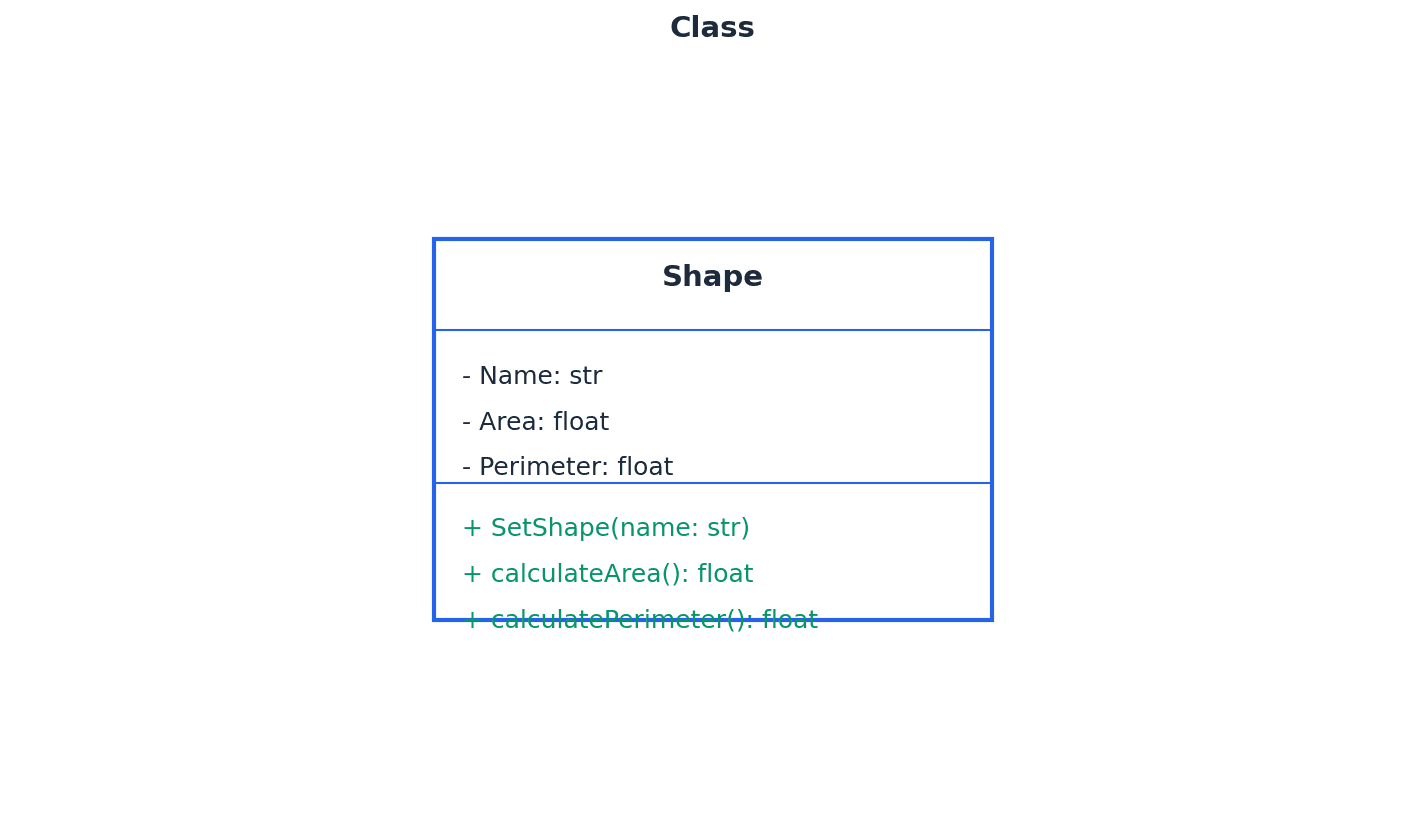
Students often think a class is an object, but actually a class is a blueprint, and an object is a concrete instance created from that blueprint.
Attributes (class) — Attributes are the data items in a class.
These define the characteristics or properties of objects created from the class. Declaring attributes as private is a key aspect of data hiding, restricting direct access to them. For a 'Car' class, attributes would be things like 'color', 'make', 'model', and 'speed'.
Method — A method is a programmed procedure that is defined as part of a class.
Methods define the behaviors or actions that objects of a class can perform. They are typically declared as public to allow interaction with the object's data, often through getters and setters. For a 'Car' class, methods would be actions like 'startEngine()', 'accelerate()', or 'brake()'.
Students often confuse attributes with methods, but actually attributes store data (nouns), while methods perform actions (verbs).
Encapsulation — Encapsulation is the process of putting data and methods together as a single unit, a class.
This bundles the data and the methods that operate on the data within a single unit, the class, and is a fundamental principle of OOP that supports data hiding and modularity. Think of a pill capsule: it contains the medicine (data) and protects it, and you interact with the capsule as a whole, not the individual ingredients.
Students often think encapsulation is just about making attributes private, but actually it's the broader concept of bundling data and methods, with data hiding being a consequence of good encapsulation.
Object — An object is an instance of a class that is self-contained and includes data and methods.
When a program runs, objects are created from classes, each having its own unique set of attribute values while sharing the methods defined by its class. An occurrence of an object during program execution is called an instance. If 'Car' is the class (blueprint), then 'myRedCar' and 'yourBlueTruck' are specific objects (instances) of that class, each with its own color and other details.
Property — Property refers to data and methods within an object that perform a named action.
In some contexts, 'property' can refer to an attribute, or a combination of a getter and setter method that provides controlled access to an attribute. It describes a characteristic or behavior of an object. For a 'Dog' object, 'name' and 'age' would be properties (attributes), and 'bark()' would be a property (method).
Instance — An instance is an occurrence of an object during the execution of a program.
When a class is used to create an object, that object is referred to as an instance of the class. Each instance has its own unique state (attribute values) but shares the behavior (methods) defined by its class. If 'Human' is a class, then 'Alice' and 'Bob' are instances of the Human class, each with their own name, age, etc.
Data hiding — Data hiding is a technique which protects the integrity of an object by restricting access to the data and methods within that object.
This is achieved primarily through encapsulation, by declaring attributes as private and providing public methods (getters and setters) for controlled access. It reduces programming complexity and increases data protection. It's like a safe: you can't directly touch the valuables inside (private data), but you can use a key (public method) to open the safe and access them in a controlled way.
When drawing class diagrams, ensure attributes are declared as private and methods as public to demonstrate understanding of data hiding and encapsulation.
Inheritance — Inheritance is the process in which the methods and data from one class, a superclass or base class, are copied to another class, a derived class.
This allows new classes (derived classes) to reuse, extend, or modify the behavior and data of existing classes (superclasses), promoting code reusability and establishing 'is-a' relationships. It can be single or multiple. Think of a child inheriting traits from a parent: the child (derived class) gets characteristics (methods and data) from the parent (superclass) but can also have its own unique traits.
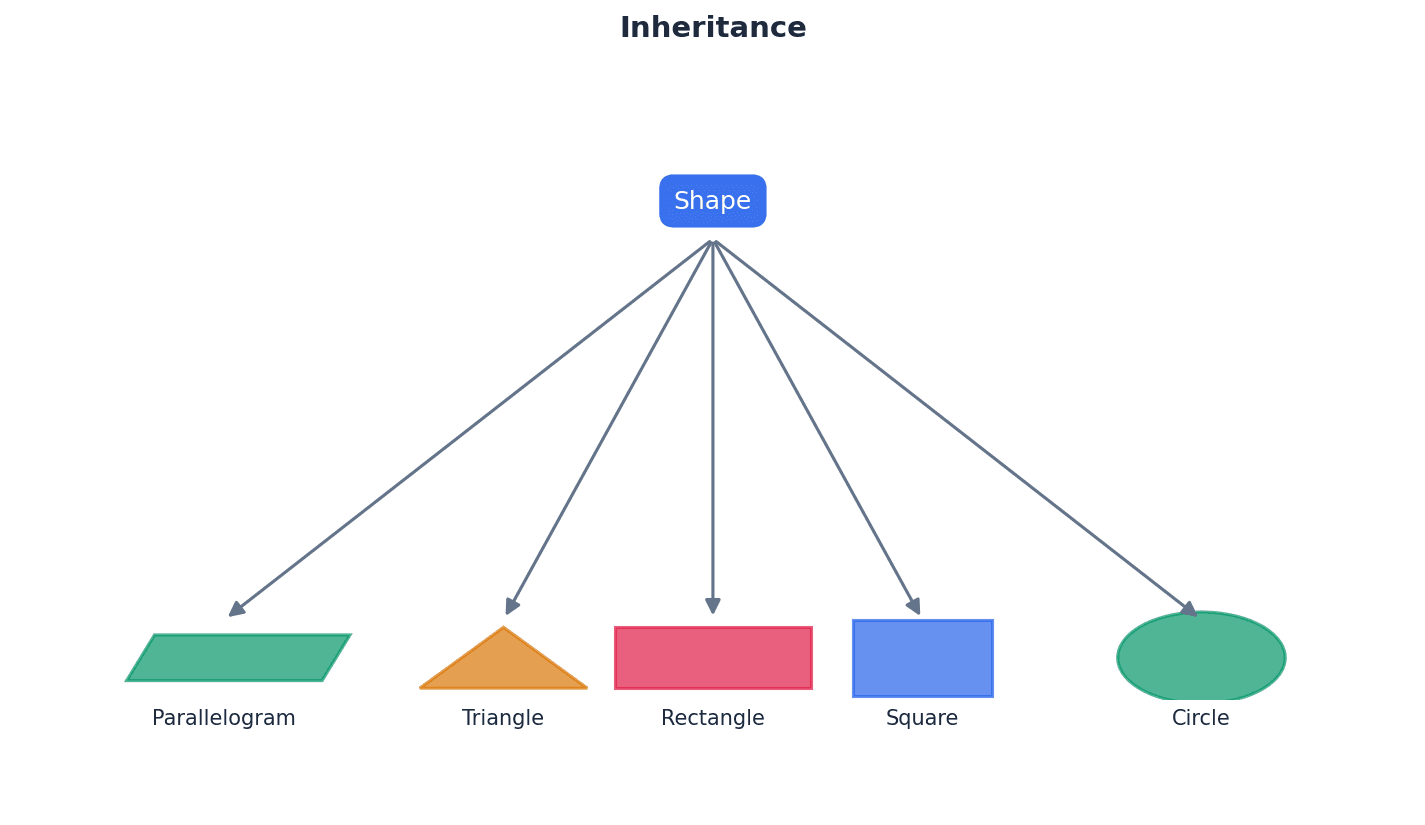
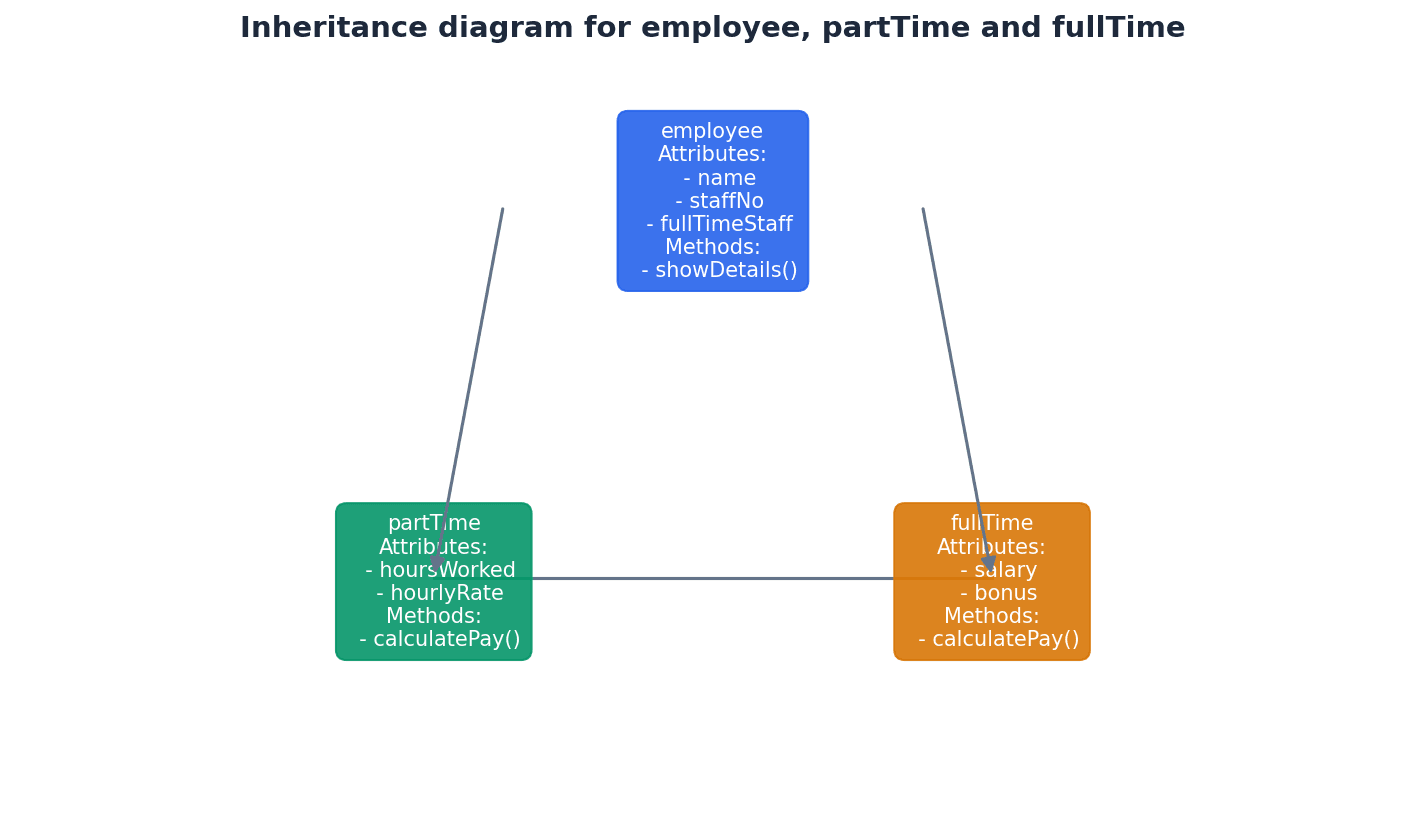
Students often confuse inheritance with containment, but actually inheritance is an 'is-a' relationship (a dog IS AN animal), while containment is a 'has-a' relationship (a car HAS AN engine).
Polymorphism — Polymorphism is a feature of object-oriented programming that allows methods to be redefined for derived classes.
This means that a method in a superclass can be implemented differently in its derived classes, allowing objects of different classes to be treated as objects of a common type, while still executing their specific implementations. Imagine a 'speak' method: a 'Dog' object might 'bark', a 'Cat' object might 'meow', and a 'Human' object might 'talk', all using the same 'speak' command but with different results.
Overloading — Overloading is a feature of object-oriented programming that allows a method to be defined more than once in a class, so it can be used in different situations.
This typically involves defining methods with the same name but different parameters (number, type, or order) within the same class. The compiler or interpreter determines which method to call based on the arguments provided. Think of a 'print' function that can print a single number, or a string, or a list of items; it's the same 'print' but handles different types of input.
Students often confuse polymorphism with overloading, but actually polymorphism involves redefining a method in derived classes, while overloading involves defining multiple methods with the same name but different parameters within the same class.
Containment (aggregation) — Containment (aggregation) is the process by which one class can contain other classes.
This establishes a 'has-a' relationship, where one class (the container) includes objects of other classes as its attributes. It's used when one object is composed of other objects. A 'Car' class 'has a' 'Engine' object, 'Wheel' objects, and 'Door' objects. The car contains these other components.
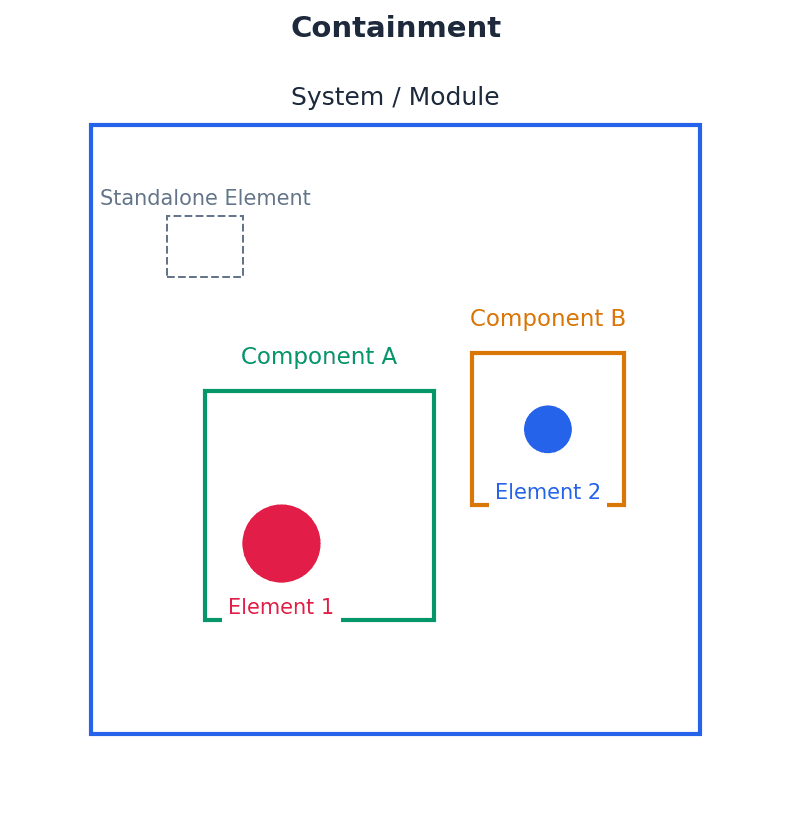
Getter — A getter is a method that gets the value of a property.
Getters provide controlled read access to an object's private attributes. They are part of the public interface of a class, allowing external code to retrieve attribute values without directly accessing the private data. If you have a private 'age' attribute for a person, a 'getAge()' method would be the getter, allowing others to know the age without directly touching the private variable.
Setter — A setter is a method used to control changes to a variable.
Setters provide controlled write access to an object's private attributes. They can include validation logic to ensure that attribute values are set correctly, making the program more robust. If you have a private 'speed' attribute for a car, a 'setSpeed(newSpeed)' method would be the setter, allowing you to change the speed but potentially with checks (e.g., not exceeding max speed).
Constructor — A constructor is a method used to initialise a new object.
It is automatically invoked when a new instance of a class is declared, allocating memory for the object and setting its initial state (attribute values). When you buy a new car, the factory 'constructs' it with initial settings like a full tank of gas and zero mileage.
Destructor — A destructor is a method that is automatically invoked when an object is destroyed.
Its primary purpose is to release the memory and other resources allocated to the object during its lifetime, making them available for reuse. Languages like Java and VB often use automatic garbage collection. When you dispose of an old car, a 'destructor' process would ensure it's properly dismantled and its parts recycled, freeing up space and resources.
Be ready to define and provide examples for all core OOP concepts: class, object, attribute, method, encapsulation, inheritance, polymorphism, and containment.
File processing involves fundamental operations to manage data persistence. Programs need to be able to store, add, and retrieve records from various file types, including serial, sequential, and random files. These operations are critical for applications that require data to be saved and accessed beyond the program's execution, ensuring information is not lost.
Read — Read is a file access mode in which data can be read from a file.
When a file is opened in read mode, its contents can be accessed and processed by the program, but no modifications or additions can be made to the file. It's like opening a book to read it; you can see the words, but you can't write in it or tear out pages.
Write — Write is a file access mode in which data can be written to a file; any existing data stored in the file will be overwritten.
Opening a file in write mode creates a new file if it doesn't exist, or truncates (empties) an existing file before writing new data. This means all previous content is lost. It's like starting a new document on a blank page; anything that was there before is gone.
Students often forget that 'write' mode overwrites existing files, leading to accidental data loss. Always be cautious when using this mode.
Append — Append is a file access mode in which data can be added to the end of a file.
When a file is opened in append mode, new data is written at the end of the file, preserving all existing content. If the file does not exist, it is created. It's like adding new entries to the end of a diary; previous entries remain untouched.
Open — Open is a file-processing operation that opens a file ready to be used in a program.
This operation establishes a connection between the program and the file, making it accessible for reading, writing, or appending, depending on the specified mode. It's like unlocking a door to a room; once open, you can enter and do things inside.
Close — Close is a file-processing operation that closes a file so it can no longer be used by a program.
This operation releases the system resources associated with the file, flushes any buffered data to disk, and ensures data integrity. It's crucial for preventing data corruption and resource leaks. It's like locking the door to a room after you're done; it secures the contents and frees up the room for others.
Always ensure files are explicitly closed after all operations are complete, especially in programs that handle critical data.
Programs must be robust enough to handle unexpected events gracefully, rather than crashing. This is achieved through exception handling, a mechanism that allows programs to respond to errors or unusual conditions during execution. By anticipating and managing these events, programs can maintain stability and provide a better user experience.
Exception — An exception is an unexpected event that disrupts the execution of a program.
These events, such as dividing by zero, trying to open a non-existent file, or losing a device connection, can cause a program to halt unexpectedly if not handled. They can be caused by programming errors, user errors, or hardware failure. It's like a sudden flat tire while driving; it's an unexpected event that stops your journey unless you have a spare and know how to change it.
Students often think exceptions are always programming bugs, but actually they can also be caused by external factors like user input errors or hardware issues.
Exception handling — Exception handling is the process of responding to an exception within the program so that the program does not halt unexpectedly.
This involves trapping errors using constructs like 'try-except' or 'try-catch', outputting informative error messages, and either gracefully shutting down the program or recovering from the error to continue execution. It makes programs more robust. It's like having roadside assistance for your car; when you get a flat tire (exception), you call for help (exception handler) instead of just abandoning the car (program halting).
When writing code, demonstrate the use of 'try-except' (Python) or 'try-catch' (Java/VB) blocks and explain how they prevent program crashes and improve robustness.
Declarative programming — Declarative programming uses statements of facts and rules together with a mechanism for setting goals in the form of a query.
Unlike imperative programming which focuses on 'how' to achieve a result, declarative programming focuses on 'what' the desired result is, by defining a knowledge base of facts and rules and then querying it. Prolog and SQL are examples. Instead of giving step-by-step directions to a restaurant (imperative), you just state 'I want to eat Italian food near the park' (declarative), and a system figures out how to find one.
Fact — A fact is a ‘thing’ that is known.
In declarative programming, facts are fundamental pieces of information stored in a knowledge base, representing basic truths or relationships. They are typically written in a specific syntax, like predicate logic in Prolog. A fact is like a single entry in an encyclopedia, stating a known truth, e.g., 'Paris is the capital of France'.
Rules — Rules are relationships between facts.
In declarative programming, rules define logical inferences or conditions that can be derived from existing facts. They allow the system to deduce new information or answer complex queries based on the knowledge base. A rule is like a logical statement: 'If it is raining AND I am outside, THEN I will get wet.' It connects different facts or conditions.
Practice formulating queries using facts and rules for declarative programming to show understanding of this paradigm.
When asked to compare paradigms, ensure you discuss characteristics, typical use cases, and advantages/disadvantages of each, not just definitions.
Definitions Bank
Programming paradigm
A programming paradigm is a set of programming concepts.
Low-level programming
Low-level programming uses programming instructions that use the computer’s basic instruction set.
Imperative programming
Imperative programming is a programming paradigm in which the steps required to execute a program are set out in the order they need to be carried out.
Object-oriented programming (OOP)
Object-oriented programming (OOP) is a programming methodology that uses self-contained objects, which contain programming statements (methods) and data, and which communicate with each other.
Class
A class is a template defining the methods and data of a certain type of object.
+25 more definitions
View all →Common Mistakes
Confusing a class with an object.
A class is a blueprint or template, while an object is a concrete instance created from that blueprint.
Confusing encapsulation with just making attributes private.
Encapsulation is the broader concept of bundling data and methods into a single unit (a class), with data hiding (making attributes private) being a key aspect of good encapsulation.
Confusing inheritance with containment.
Inheritance represents an 'is-a' relationship (e.g., a 'Dog' IS A 'Mammal'), while containment represents a 'has-a' relationship (e.g., a 'Car' HAS AN 'Engine').
+3 more
View all →Generated by Nexelia Academy · nexeliaacademy.com